
Your PC will make noises when operating. This can be in the form of coil while, disk arm movement, or fans. Depending on which component is creating the most noise, there are ways to help mitigate this annoyance. It's important to work out why your PC is making noise to begin with. This is usually due to insufficient cooling, which can be caused by dust buildup or inadequate fans. Other times, your GPU driver could be at fault with unoptimized fan curves. Here are some things to try out when attempting to hush your computer.
5 Clean the fans and vents
Dust is your worst enemy
The first step when dealing with too much PC noise is to give it a clean. It's vital to keep on top of cleaning out your PC, even if it has the best filtration system known to man. Dust will inevitably find its way inside your chassis. This is simply down to how fans work by sucking as much cool air through the front as possible, containing unwanted particles. Dust filters help but they're not 100% efficient and after a few months, you'll start to see a slight build-up of surface dust on components inside the PC. Simply use some compressed air and an anti-static brush to clean out fans, the blades, and any components with visible particles.
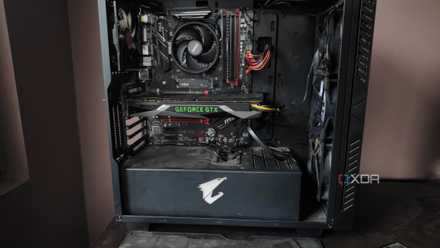
How to clean the dust out of your PC tower
Dust buildup is bad for your system, so you should regularly clean your PC tower to keep it free of dirt and grime
4 Update drivers and software
Older firmware can be the cause
Everything inside your PC uses firmware and software, all of which will require updating when new versions are released. These new versions can sometimes include better fan curves for graphics cards, as well as better overall efficiency so the cooling solution doesn't have to work as hard. The same goes for your OS, which can impact how system resources are used. The less your PC has to work to keep itself cool, the quieter your environment will be. Check your system resource manager to see if any background processes are hogging resources.

Is your graphics card acting up? Here’s how to reset the driver and resolve display issues
Say goodbye to all your graphics troubles with a quick reset
3 Improve airflow
More cool air, the better
If your PC isn't drawing in enough cool air, it'll struggle to handle the heat generated by the CPU, GPU, and other components. One way to improve your airflow is to add more fans. If you've hit the limit of your case, see if you can buy more expensive fans that spin faster, or even switch to a case with better airflow. Everything matters inside your PC when it comes to airflow. Cable management, fans, space, and choice of CPU cooler can all affect airflow.

3 ways to improve your PC's airflow without buying more fans
Not a fan of more fans? Here's how to make the most of the ones you have.
2 Replace old mechanical HDDs
Make the switch to silent SSDs
If you're experiencing noise when loading software and games, there's a good chance it's your storage. Mechanical hard disk drives (HDDs) use motors to spin platters and arms to move across the surface to read and write data. Over time, these parts will wear down and produce more noise. The older the drive, the higher the likelihood you'll experience noise emanating from the drive itself. Sometimes they can even drown out the steady blow from your case fans. Once you've decided a replacement is required, make the move to SSDs. They're silent, faster, and should last longer.

Best SSDs in 2025
From 2.5-inch SATA drives to more advanced M.2 NVMe drives, these are the best solid-state drives you can buy right now.
1 Upgrade your case fans
Treat yourself to new blades
PC cases will typically come with only a few of the available fan slots populated. Some may not have any preinstalled fans at all. To improve airflow and ensure as much cool air is being pushed through the case as possible, it's recommended to install as many fans as the case will allow . Though you should check the documentation for your specific case, a PC case typically draws cool air through the bottom and front, exhausting hot air through the top and rear. It's also better for dust prevention to have positive pressure inside the chassis whereby more air is being pulled into the case than exhausted.
Keep it clean
So long as you stay on top of your cleaning routine, your PC will run without issue. The dustier and harder you push the system, the louder its cooling solutions will be to keep temperatures in check. I recommend avoiding reducing fan speeds unless temperatures are already low enough that you're not approaching thermal throttling. Grab a can of air and an anti-static brush, and spend five minutes inside your system. You'll be pleasantly surprised by the results. If that fails, go for the drivers and check fan curves to see how fast the fans are spinning at specific temperature thresholds.