
Whether you are a long-time power user or just starting to experiment with agentic workflows, getting the most out of Claude requires moving beyond simple Q&A. As a tech writer who lives and breathes productivity software, I have spent countless hours pushing Anthropics’ flagship model to its limits.
Let me share the unique ways I have integrated Claude into my professional toolkit, transforming it from a simple interface into a high-level collaborator.

Getting relevant information from Google Drive files
Get relevant file info in no time
Integrating Google Drive directly into my Claude workflow has been the single biggest change to my productivity this year. As someone who constantly jumps between technical reviews, business strategy, and client documents, the ability to pull context from a Google Doc or a massive Slide deck without ever leaving the chat interface is a game-changer.
Like Gemini, Claude offers a Google Drive connector that lets me integrate my account with the AI and grant it access to all my files.
When I need real-time data from my Drive, like searching through months of meeting notes or specific technical specs, I use this integration.
For example, recently,a client asked me to add more information to each bracelet product in a Google Doc. Instead of opening Google Docs and copy-pasting each product description to Claude, I used the prompt below to get the job done (without leaving the chat interface).
Get me my necklaces information from 'Suraj Copy - Swami Jewels Final Content' file in Google Drive and add another sentence to each description for my website.
Claude got the file, extracted just the necklaces section, and enhanced each description with more details.
I often save meeting transcripts from Google Meet directly to Drive. Using the integration, ‘What were the three action items Tapan bhai mentioned regarding the Swami Jewels website update?’ It finds the transcript, identifies the speaker, and lists the tasks.
Arranging my local files using Claude Cowork
Automating my Mac Finder
Here is how I use Claude to keep my digital workspace clean without lifting a finger.
Instead of opening Finder and playing ‘search and drag,’ I simply point Claude at my Downloads folder. Because it can execute shell commands and read file contents, it can differentiate between a technical manual, a jewelry invoice, and an interior design brochure just by looking at the data.
Now, I give Claude access to my Downloads folder on Mac and ask it to arrange all PDFs in a single folder called Interior.
Claude doesn’t just blindly move files; it analyses the metadata and text. In my case, it came back with:
I also found a PDF titled ‘Android 17 beta notes’ and a ‘Swami Jewels invoice.’ Those don’t fit the interior theme. Should I move these to a new folder?
This isn’t limited to just moving PDFs. I use this same logic for log analysis, code cleanup, and photo organization.
Automating my Obsidian vault with Claude Code
Generate Markdown files
By connecting Claude directly to my local directory structure, I have turned it into a high-speed librarian for my Obsidian vault. I no longer have to copy-paste back and forth; I simply describe the thought, and it appears in my vault, fully formatted and synced.
For instance, I can ask Claude to create a 10-day itinerary for Vietnam and save it to the ‘My Galaxy’ folder in Obsidian in iCloud.
Within seconds, Claude generates a beautifully formatted Markdown file with H2 headers, bullet points, and even Dataview-compatible metadata (tags like #travel or #vietnam).
Because it saved directly to the iCloud-linked directory, the note pops up on my phone via Obsidian before I have even closed my laptop.
Now, I find myself documenting much more frequently. It’s no longer a chore to maintain a vault.
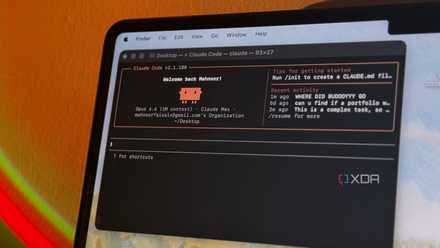
I gave Claude Code control of my desktop for a week, and it automated things I didn't think were possible
I was seriously stunned.
Getting suggestions to improve my Canva creations
Create trendy Reels
Since Canva launched its AI connector for Claude, I no longer have to keep a dozen browser tabs open to tweak a video or a social post.
First, I enabled the Canva Connector in Claude’s settings. This securely links my Canva account, so Claude can see my designs and make changes accordingly.
Now, I simply ask Claude to review a specific project in Canva and give me suggestions to improve it. Claude analyzes the design structure (layers, text overlays, and clip length) and provides detailed feedback.
I can even ask Claude to apply these suggestions directly in Canva. I also ask Claude to give me captions to improve the media engagement on Instagram.
From now on, whenever I’m not satisfied with the design in Canva, I head to Claude and ask it for relevant suggestions.
Beyond the chatbox
Mastering Claude is less about finding a perfect prompt and more about integrating it into your workflow as a specialized tool, not just a search replacement. My work setup has evolved from simple prompting to autonomous execution.
By integrating Claude Code for large-scale codebase refactoring and Claude Design for rapid prototyping, I’m now assigning complex, multi-step technical debt and UI tasks to AI.
I hope these methods give you a solid starting point for experimenting and finding your own unique rhythm with the model.
- OS
- Windows, macOS
- Individual pricing
- Free plan available; $17/month Pro plan
Claude is an AI assistant and LLM developed by Anthropic.
- Group pricing
- $100/month per person for the Max plan