
I love the excitement of a new operating system, but I'm not upgrading my old laptop to Windows 11. It's not that I have anything against it; in fact, I think it's a pretty decent step up from Windows 10. The real issue is that software's hunger for resources is growing much faster than my old hardware is giving up the ghost, and I'm sure I am not alone. At scale, this leaves a ton of perfectly good computers in a difficult limbo where they are too old for the latest mainstream operating systems, but still functional enough to save from the landfill.
With Microsoft officially pulling the plug on Windows 10 support, in sticking with it I could eventually be asking for trouble the same way any virtual machine running Windows XP today is hackable in a matter of minutes. My trusty HP Pavilion notebook is closing in on its tenth birthday shipped with Windows 10, and is a prime example of perfectly usable hardware I'm unwilling to part with.
Unfortunately, its once-respectable 4th-gen Intel i5 processor and an NVIDIA GTX 970M graphics card are unwilling to run Windows 11 smoothly. That's despite bumping the RAM from 8GB to 12GB of DDR3 and swapping the slow hard drive for a zippy SATA SSD as the boot drive. On paper, it should handle the upgrade, but I'm not quite ready to dive into the deep end with Linux, and I'm definitely not buying a new laptop just yet. So, here's what's saving the day instead.

6 operating systems to consider when Windows 10 goes EOL later this year
Microsoft might be removing Windows 10 support but that doesn't mean your devices are no longer useful.
The inevitable aging of a faithful companion
But not throwing the towel in yet
There's a certain charm to using a piece of tech for a decade. You get to know its quirks, its strengths, and its inevitable signs of aging. My HP Pavilion has been a reliable workhorse, but its performance on Windows 11 is a constant reminder of its age. The operating system itself isn't the sole villain here. It’s the collective weight of modern applications and web standards that brings this once-capable machine to its knees. Simple tasks like opening multiple browser tabs or running a video call while a document is open can lead to a system-wide slowdown that just kills productivity or renders the notebook frozen for minutes on end.
While the core components are still functional, they lack enough horsepower to cater to modern applications and operating systems optimized for x86 and ARM. The 4th-gen i5, while a champ in its day, just can't keep up with the constant background processes and demanding features of current-day OS that isn't acclaimed for efficiency and optimization. The SSD is a mere crutch that helps with boot times and loading apps for the illusion of responsiveness, but it can't fix the fundamental processing bottleneck. The result is a user experience that feels like wading through digital molasses.
I spent a fair bit of time trying to debloat the Windows 11 installation. I also disabled visual effects, trimmed down startup programs, and meticulously culled background services. These tweaks offered marginal improvements, but my four-year-old desktop with a Ryzen 5 3600 still felt slick and smooth in comparison. This constant uphill battle hamstrung the convenience I loved about the laptop, so I sought more drastic measures to narrow the performance delta between my computers before throwing a wad of hard-earned money at the problem (to get a new laptop).
Moreover, this situation isn't unique to my Pavilion, which has held up well to years of daily use. Sure, the CPU and GPU were repasted, and I've spent money to keep it alive, but the expense still undercuts the price of a new device. On the software side, I don't want to choose between enduring a frustratingly slow experience, risking the security vulnerabilities of an unsupported OS, or embarking on the intimidating journey of uncharted standalone Linux installations.
The problem with OSes for dying tech
Little to no native app support
My first instinct was to find the simplest, most lightweight OS possible, to replace Windows 10. That search led me to Chrome OS Flex. Born from Google's efforts, it’s designed to be a feather-light operating system that can breathe new life into old hardware. The installation process is straightforward, and the promise of a fast, secure, and simple computing experience was incredibly appealing. It felt like a get-out-of-jail-free card for my aging laptop.
However, after digging a little deeper, the limitations of Chrome OS Flex became apparent. Its lightweight nature comes at a cost: a heavy reliance on the web. Almost every application is a Progressive Web App (PWA), and most specialized software that works offline likely isn't supported. It wouldn't be a problem for me since most of my work is accomplished on a web browser. But for my needs, which occasionally involve light photo editing or using specific productivity tools that don't have good web counterparts, it just wasn't going to cut it. I also shiver at the idea of coughing up a subscription fee for such basic tasks online.
While this web-first approach offloads the processing to online instances and delivers a satisfactorily smooth experience locally, the lack of support for Android or even standard Chrome OS apps from the Google Play Store was the biggest deal-breaker for me. Stripped of Google's expansive library of apps, Chrome OS Flex feels more like a souped-up web browser than a full-fledged operating system. My illusion of converting a Windows laptop to a budget Chromebook was crumbling quickly.

ChromeOS Flex can give your Windows 10 laptop a new life — here's how to set it up
You don't need to throw away an old laptop. By installing ChromeOS Flex on it, you can turn it into a Chromebook, instead.
The conundrum with Linux distros
Way too convoluted and jarring for now
Linux Mint
On the flipside, Linux beckoned, but I don't want to go down that route, at least not yet. My primary reason is the potential for a whole new level of complication. While Linux has become significantly more user-friendly over the years, it still often requires a willingness to tinker with the command line, and distro-hopping until I find the one that works just right for my needs. I use my computers as tools to get things done, and the thought of spending hours troubleshooting or configuring software is far from an ideal utilization of my time. Moreover, I presume unshackling myself from the muscle memory of using Windows 11's UI will be harder than unlearning old habits when I learned to touch type a couple of years ago. My main PC still runs Windows 11, and for obvious reasons, I'm not willing to change that. This sets the stage for constant context-switching between my main PC and my laptop with different interfaces—one reinforcing habits I'm trying to break and one pushing me to try new ones.
Then there's the app situation. While the Linux software library is vast, there are a few key applications in my workflow that are Windows-native and don't have perfect Linux equivalents. Sure, I could use compatibility layers like Wine, but that just adds another point of failure to the mix. I rely on these apps daily, and I need them to work flawlessly without any workarounds. This is a practical roadblock that I can't easily ignore. Ultimately, while I admire the philosophy and flexibility of Linux, it feels like a hobbyist's OS, not a plug-and-play solution for someone looking for a seamless transition from Windows. The learning curve, potential app incompatibilities, and unfamiliar UI create a barrier to entry that, for now, I'm just not willing to cross. I need something that feels familiar and works out of the box.
I switched from Windows to Linux and made these 4 rookie mistakes - don't be like me
Don't make the same missteps I did
Finding solace in the full Chrome OS experience
Through Linux, of course
Unfortunately, there's a dearth of plug-and-play open-source operating systems fostering a robust app ecosystem that isn't in some way based on Linux. So, I bit the bullet and made peace with the fact that I might need to use Linux as a gateway, even to get a generic installation of Chrome OS going on my aging HP Pavilion. With the directly bootable Chrome OS Flex out of contention, I found that installing Google's notebook OS hinges on a clever open-source project called the "Brunch Framework," which tricks the official Chrome OS recovery image into believing its running on a generic Chromebook instead of a former Windows machine.
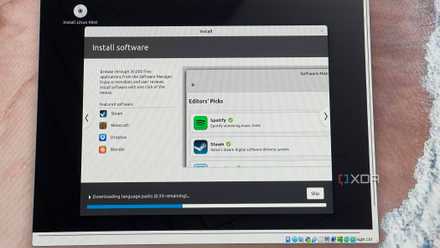
The installation required multiple components, such as the Brunch Framework, a Chrome OS Recovery image on a USB stick, an installation script, and trusty old Rufus. You'll need to create a bootable Linux Mint USB drive using Rufus, set up your notebook for the update by leaving the script and image in an accessible directory, and then booting into Linux Mint to make the switch. I'll admit using the command line and booting into Linux Mint was nerve-wracking, but I remained clearly focused on the objective. I connected to my Wi-Fi, opened the file manager, and found the installation script that automated the rest of the installation.
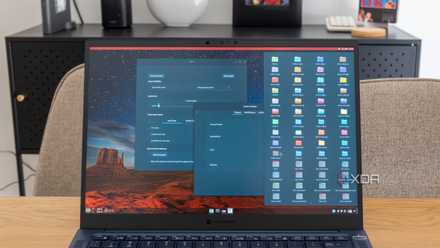
I shut down the laptop, unplugged the USB drive, and then rebooted the PC into Chrome OS. I used a secondary Google account since the company may flag my main account because Chrome OS isn't meant to run on anything besides Chromebooks. The UI looked comfortingly familiar and the Play Store support available right off the bat would be a gamechanger for offline and cloud-delivered apps as well. I may have to forego updates and everything associated with my main Google account, but that's a conversation for another day.
I tried Linux Mint as a lifelong Windows user, and the customization blew me away
Linux Mint is on a whole different level
Chrome OS could revive old notebooks
The entire process was less of an ordeal and more of a rewarding adventure than I anticipated. My dated little notebook breezed through apps and made short work of tasks that seemed daunting on Windows 11. The route to get here might seem hacky, but the final solution is anything but a workaround. In the end, finding a new home for an aging laptop is a balancing act. A sluggish Windows 11 installation grinds productivity to a halt, turning a once-useful tool into a source of frustration. On the other end of the spectrum, diving into the world of Linux, while powerful, can be an intimidating leap for those accustomed to the plug-and-play nature of Windows. It introduces a learning curve and potential app compatibility issues that can be more trouble than they're worth for a secondary machine.
This is where the full Chrome OS experience emerges as the perfect compromise. It elegantly bridges the gap between the bloated demands of modern Windows and the complexities of Linux. It delivers the lightweight, snappy performance needed to make old hardware feel new again, all wrapped in an intuitive interface that feels like a natural evolution for any longtime Windows user.