
Besides helping you bring your tinkering fantasies to life, home labs are one of the best ways to build an imposing self-hosted application suite that includes everything from must-have quality-of-life services to obscure yet pragmatic utilities. But if you’re as fond of experimenting with your home server as I am, you’re bound to render your workstation offline multiple times over the course of your DIY journey.
Heck, human errors aren’t the only way your home lab can go down. Whether it’s malfunctioning hardware, power outages, or broken images, there are plenty of factors that can cause your precious service stack to halt its operations. As someone whose productivity depends on self-hosted applications, setting up a monitoring station has helped me out considerably. While there are plenty of options in the home lab monitoring ecosystem, Uptime Kuma remains my favorite utility for the job – and here’s everything you need to know about the app to integrate it into your self-hosting workstation.

I monitor my home network by self-hosting ntopng - here’s how
From analyzing your traffic to snooping on malicious devices connected to your network, ntopng can do it all!
What’s Uptime Kuma, anyway?
And why should you bother using it?
At its core, Uptime Kuma is a monitoring server that can keep an eye on your home server, self-hosted services, and virtual guests to ensure they remain operational at all times. Besides the obvious uptime tracking, Uptime Kuma can also grab the response time and certificate expiry statistics for your favorite services – and can even generate neat ping charts with the captured metrics.
However, its utility goes up a notch once you factor in the solid alert provisions built into the app. Rather than simply displaying the uptime of your application stack, Uptime Kuma can leverage bot tokens, API keys, and webhooks to send alerts on Telegram, GoAlert, Discord, and a host of other platforms to notify you in case your services go offline.
Deploying an Uptime Kuma container
A Docker container is hands-down the simplest way to get your Uptime Kuma instance up and running. While you could technically deploy Uptime Kuma on your home server, I recommend using a mini-PC, Raspberry Pi, or a NAS to host the app.
If you run Uptime Kuma on your primary self-hosting machine, any experiments that break the workstation will also bring down the monitoring server. Since the Uptime Kuma container itself goes offline, you won’t receive any notifications about the critical state of your home lab either. Heck, you can even whip up an Uptime Kuma container on your Windows 11 machine if you’re rocking WSL2 and Docker Desktop or Podman Desktop.
With that out of the way, here are the steps you need to follow to deploy the Uptime Kuma server:
- (Optional) If you’re on a GUI operating system, launch the terminal app included with it.
-
Run the following command in the terminal before waiting for Docker Engine to pull the Uptime Kuma image and deploy a container.
sudo docker run -d --restart=always -p 3001:3001 -v uptime-kuma:/app/data --name uptime-kuma louislam/uptime-kuma:1
- If you’re planning to configure Uptime Kuma on the host machine, you can type http://localhost:3001 into your favorite web browser.
- Alternatively, you can replace the localhost string with the IP address of the host machine if you want to access the Uptime Kuma container from another device on your home network.
Adding services to the Uptime Kuma instance
With the Uptime Kuma server operational, it’s time to add the services you want to monitor to its web UI.
- Choose a Language for the web UI before typing the Name and Password for the Uptime Kuma user.
- Press the Add New Monitor button when you arrive at the Dashboard.
- Pick the Friendly Name (identifier) for your self-hosted service, enter its URL, and tap the Save button.
Configuring real-time alerts in Uptime Kuma
Once you’ve added your entire self-hosted toolkit to your Uptime Kuma instance, you can set up custom alerts to stay on top of your home server’s state. I’ve used a Discord server in this guide, but the overall procedure is similar for the 90+ notification apps supported by Uptime Kuma.
- Open your Discord server and press the Cog icon near the Text Channel where you wish to receive the Uptime Kuma alerts.
- Switch to the Integrations tab and hit the Create Webhook option.
- Once Discord has created a new webhook, tap the drop-down arrow next to it and click on Copy Webhook URL.
- Head back to the Uptime Kuma Dashboard and select the Edit button under your preferred service.
- Click on Setup Notification under the Notifications header.
- Choose the Notification Type, give it a Friendly Name, paste the Webhook URL, and hit Save.
- (Optional) Tap the Test button to confirm whether Uptime Kuma can send the notifications to your Discord server.
- You can modify the Retries and Resend Notification if Down X times consecutively options to change the frequency of the notifications.
Build a powerful monitoring hub with Uptime Kuma
If you’ve performed all the steps correctly, Uptime Kuma should be able to keep an eye on your home lab and dispatch alerts the moment something goes wrong. Personally, I self-host Uptime Kuma on my Raspberry Pi, as the application barely consumes any resources even with tons of services and alerts in place.
In case Uptime Kuma feels overkill for your setup, you could always go for the ol’ reliable annoyed spouse/family members method to get notified when your firewall, cloud, and other services go offline because of your home lab experiments.
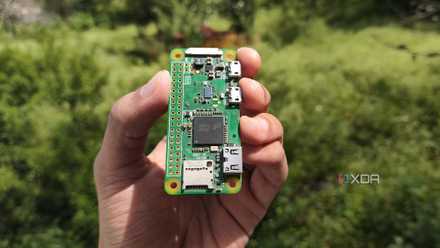
I built an always‑on VPN gateway with a Raspberry Pi Zero to access my home lab from anywhere
It's perfect when I want to work on my home lab projects from external networks