
Besides writing articles like these, I occasionally make videos about cool gadgets. I have a Sony a6400 APS-C camera that I use to make videos and I absolutely love how compact yet powerful it is. However, there are times when I use my smartphone to record, since it's more convenient, and I have some of the best smartphone cameras in my arsenal. It's also useful for when I haven't charged my camera's battery and need to record something quickly. While working with a phone is rather straightforward, the only disadvantage is the limited visibility on the small screen.
My Sony camera connects wirelessly to my iPad or PC, after which I can view the live feed from the camera on much larger displays. This not only helps with framing, but also allows me to check if my subject is in focus. Unfortunately, there's no native app that lets me do this when recording with my phone. So, I took things into my own hands. I found a workaround to use my Windows laptop as a live viewfinder or monitor for my smartphone camera. If you, too, like me, record videos using your phone, this trick is an absolute game-changer!

How to use the Pro camera mode on your iPhone
Recent iPhone models have upped their photography game noticeably. Here's how to use the Pro camera mode on your Apple iPhone.
Method 1: Connecting an Android phone to Windows
Wired and wireless options
Some recent Android phones — especially from Chinese OEMs — have some of the best cameras on a smartphone. 1-inch sensors, high-res periscope cameras for zoom, and a plethora of dedicated scene modes make them ideal for photography and videography. If you own an Android device, there are two ways of using your PC as a viewfinder. You can opt for the one you find more convenient.
Wireless connection
Surprisingly, very few people are aware of the fact that Windows 11 has a built-in projection feature that allows you to connect another device to your PC to share its screen. Thanks to this, you can even use your laptop as a second monitor for your PC. We'll be taking advantage of this feature to wirelessly stream our Android phone's viewfinder on our computer's screen.
Both the smartphone and PC need to be connected to the same Wi-Fi network for this method to work.
-
Head to the Settings app on your PC. Navigate to the System section using the left pane and click on Optional features.
If you don't see the Optional features section, look for it in the Apps section within Settings. That's where it's located on some older versions of Windows 11 and Windows 10.
- Click on the View features button right at the top.
- Use the search bar to look for the Wireless display module. Select the checkbox next to the result and click on Next.
-
Then, click on Add and wait for Windows to download the feature onto your PC.
It may take a while for the feature to be added, so don't panic if the progress bar is stuck. Mine took a good 7–8 minutes to complete the process.
- Once the feature has been added, open the Start menu and look for Projection. Select Projection settings from the results.
- Here, set the feature to be Available everywhere. Under Ask to project to this PC, choose First time only. Decide whether you want to enter a PIN before mirroring the screen and select the option accordingly. I've set it to Never.
- After changing the preferences, select the Launch the Wireless Display app to project to this PC button at the top.
- It's now time to shift focus to your smartphone. Go to the Settings app on your phone and navigate to Connected devices. Then, choose Connection preferences.
-
Head to the Cast section and tap on your Windows PC's name from the list of devices. Your phone's screen will now be projected onto your PC.
Like me, if you have a phone that uses a custom app or interface to cast your phone's screen, choose the Smart Connect option or whatever proprietary name appears in the Case section within the Settings app. You'll then be able to see your PC in the list of devices.
- Once your smartphone is connected to the PC, launch the camera app on your phone. You will now be able to see the camera viewfinder live on your PC's large monitor.
If you have a Samsung smartphone, you can also use Microsoft's Phone Link app on your Windows PC to cast your screen and get a live feed of your camera on a large monitor.
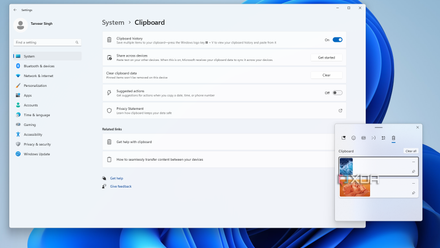
How to enable clipboard syncing in Windows 11
Clipboard syncing in Windows lets you easily move images and text across your Windows and Android devices. Here's how to enable it.
Wired connection
Although wirelessly connecting your phone to your PC to use as a monitor for your camera's viewfinder is convenient, you will notice a slight lag or delay between what your camera is seeing and what is being displayed on the PC. While this isn't an issue for most people, some users may want to eliminate any sort of latency. That's where mirroring the viewfinder via a wired connection comes in handy. Here's how to do it.
- Enable USB Debugging on your smartphone via Developer options.
- Connect your phone to your PC with the help of a USB cable. Then, tap on the USB connection notifications and change the setting to File transfer/Android Auto.
-
Download the latest release of scrcpy from Github. Extract the zip file and double-click on the scrcpy-console.bat file.
Do not launch the scrcpy.exe file as it will not work. Only run the bat file as instructed.
-
If prompted, select Allow on both your phone and PC. This lets scrcpy use ADB to connect to your phone.
Keep your phone's screen unlocked to ensure the PC can connect to it.
-
You should now see your phone's screen on the monitor. Launch the camera app to get to the viewfinder.
Use a long USB cable to connect your phone to your PC so that you can mount your phone on a tripod farther away and still use it to record content while using your PC as a viewfinder.
Upon using the viewfinder on your PC via the wired method, you will realize how fast and snappy it is with no lag or latency. Moreover, scrcpy supports high refresh rate monitors and phones.
You can also use scrcpy if you have an Android phone and a Mac.
Method 2: Connecting an iPhone to Windows
A third-party solution
The fact that Windows and iOS don't go well together, unfortunately, means there's no native way to use your PC as a viewfinder with an iPhone. However, a third-party app enables this feature by pretending to be an AirPlay receiver. Here's how you can use it.
- Download and install the iMyFone app from the official website. Once installed, click on Start Now.
-
Select whether you want to connect your iPhone via the wired or wireless method. I've opted for a wireless connection.
If you choose the wireless method, ensure your iPhone and PC are on the same Wi-Fi network.
- Open the Control Center on your iPhone. Tap on the Screen Mirroring toggle and select your PC from the list of devices.
- If you pick the wired method, all you have to do is connect your iPhone to the PC using a USB cable and select your iPhone from the list of devices within the app.
The stream will start on your PC. Open the camera app to view the viewfinder.
Note that the view on your screen will have the app's watermark on the free version. It didn't affect my experience, since I was clearly able to frame my shot without the watermark coming in the way. However, you can pay for the premium version to remove the watermark if you wish to.
If you have an iPhone and a Mac, you can use the new screen mirroring feature on iOS 18 and macOS Sequoia to wirelessly use your Mac's screen as a viewfinder for your iPhone camera.

I turned my old smartphone into a webcam for my PC — here's how it went
The camera in most smartphones is much better than the tiny sensors in webcams, so put them to use for your video calls.
Frame your shot with precision
When creating content, it's crucial to frame your shot with perfection to ensure it looks pleasing to the eye. While it can get challenging on a small display, using your laptop's screen or your desktop's monitor can provide a large real estate to ensure you get the shot you want.