
We usually spend the whole day moving our cursors across our display while budgeting in Excel, using Word templates, or navigating our web browsers. That's why it makes sense to optimize our cursors so they are easily visible on every background and big enough to track across ultrawide monitors or multi-display setups with massive surface areas.
Luckily, it's easy to tweak your cursor with simple settings to make it bigger, brighter, and faster. While changing your settings, you might also want to add some tweaking software to use your mouse's features to their full potential. If you'd like to work faster and more efficiently, you can try these six ways to customize your cursor.

6 features to look for when buying a new mouse
Get the right tool for your use case
6 Change the cursor size
Size does matter
The easiest way to make your cursor more visible is by adjusting its size to make it bigger. Everyone has different tastes, so you must change it to what works best for you. Generally, cursors that are too small can be harder to track, while cursors that are too big can be distracting and lose some precision when clicking on smaller icons. I usually set my cursor to three because it's the Goldilocks size for me.
Changing the mouse cursor size in Windows 11 is easy. Go to Settings > Accessibility > Mouse > Mouse > Mouse pointer and touch. Then, navigate to Size and adjust it between one and fifteen to find your perfect size.

How to change mouse DPI in Windows 11
Mouse DPI dictates how fast your cursor moves on the screen. Find out how to adjust the DPI in a few simple steps.
5 Change the cursor color
Make it stand out on any background
The default black or white cursors on Windows and Apple laptops do the job but don't stand out on documents, spreadsheets, and websites with the same color scheme. Changing your cursor color to a brighter alternative will ensure it stands out from the background, and you'll never miss it on your display.
In Windows, you can change your cursor color by navigating to Settings > Accessibility > Mouse > Mouse > Mouse pointer and touch. The interface will display a list of recommended colors like red, blue, purple, and yellow to choose from. If you don't like any of the recommended colors, you can click on Choose another color, which lets you input any RGB color code or select a shade from the picker tool.
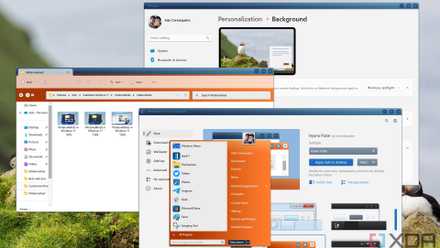
You can make Windows 11 feel like home — here's how to customize it
Windows 11 is a great operating system, but not everyone has to like how it looks out of the box. Here's how you can change
4 Change the mouse speed
Less movement, more speed
Increasing your mouse's speed will make the cursor move faster across the screen and reduce your wrist movement. Higher cursor speeds mean you can navigate apps and sites faster with less strain on your wrists. Higher speeds are advantageous if you have larger monitors or multi-display setups because you can instantly reach any point on the screen with minimum effort.
Increasing mouse speed is as easy as navigating to Settings > Bluetooth & devices > Mouse. You'll see a slider with settings between one and twenty, and you can adjust it to whichever speed suits you best. You can also increase your DPI to improve responsiveness in games and work if you have a mouse with software like Logitech G Hub or Razer Synapse.
While you're changing your mouse speed, you might as well just adjust the scrolling settings to move up and down pages faster using the scroll wheel. The Lines to scroll at a time setting is on the same page as the speed setting and has a slider you can move between one and one hundred. Sticking to lower numbers is usually advisable because going too high will result in the cursor skipping areas as it scrolls pages.

3 Add custom cursors
Try something different to make your cursor stand out.
You can add custom cursors if you're tired of the default options and want to express yourself with something unique. Apps like Custom Cursor and Best Cursors are free, user-friendly, and let you choose from many themes like video games, animals, comics, and more to spice up your navigating experience.
Both apps are free from the Microsoft Store and can be downloaded as a browser extension. Once installed, you can choose between the recommended cursors or use the search bar to find alternatives you'd like to use. You can also change the cursor size to suit your preference or restore your default setting whenever you like.
Custom Cursor

How to customize your mouse cursor on Windows 11
Here's how you can add some personality to your PC with a custom mouse cursor
2 Use PowerToys mouse utilities
Useful tools to improve usability
PowerToys is a must-have utility app with various tools to improve Windows functionality. The mouse tools include Mouse Highlighter, which displays a colored circle around your cursor briefly every time you click to highlight its position. Find my Mouse is a similar tool that displays a circle around your cursor to show its position and will move with your cursor until you click again. You can change the circle's size and color in both tools to make it more or less visible depending on your preference.
Enable Mouse Jump is useful for instantly getting the cursor to areas of ultrawide monitors or multi-display setups without moving it across the screen. Once you activate the shortcut key, the utility will open smaller windows of your displays, and clicking on an area will automatically move your cursor to that location onscreen. As its name suggests, Enable Mouse Pointer Crosshair displays a crosshair around your cursor and tracks its movements across the screen, so you'll always be aware of its position.
- OS
- Windows 10/11
Microsoft PowerToys is a collection of free, open-source tools that can improve Windows productivity.

5 reasons why your choice of gaming mouse matters
Gaming mice are inherently personal, and here's why they matter.
1 Add custom macros
Use your mouse's full potential
Another way to improve your mouse's navigation capabilities is by assigning custom macros to access certain computer functions. I use the X-Mouse Button Control app to map functions to mouse buttons four and five, pressing the scroll wheel and tilting it left and right.
X-Mouse Button Control has a simple interface that provides dropdown lists with numerous mapping options for each button. I can program each button to control media functions, copy and paste, open Windows Explorer, and other functions. The app also lets me create multiple layers and save them to different profiles for each app I use.
X-Mouse Button Control
Should you customize your cursor for easier navigation?
Customizing your cursor can make a massive difference to your productivity and efficiency, making it more exciting and fun. Most customization is simple and easy with built-in OS tools, and you can upgrade your navigation experience in just a few minutes. The advanced customization apps listed here are free and can unleash your mouse's full potential with improved functionality and other useful tools.

I've mapped keyboard shortcuts to my mouse, and here's why you might want to do it too
Keyboard shortcuts on mouse for the win