
Experiencing lag or dropped frames while gaming can truly ruin the whole experience, but that doesn't mean you need to run out and buy a completely new setup. There are a ton of things that you can do to help boost performance in your games and extend the life of your slowly aging gaming PC.
Not all the options given below will give you massive FPS jumps, but using all of them together can give your PC enough of a boost to improve your overall experience to stave off the cost of building a completely new gaming PC.
10 Turn on Hardware-accelerated GPU scheduling
Great for PCs with a slower CPU
Hardware-accelerated GPU scheduling (HAGS) works by offloading CPU processes like frame buffering from your CPU to your GPU. This is a very niche setting that may or may not help boost performance on your PC. When most people build a gaming PC, they like to match the performance of their CPU and GPU so that the system doesn't bottleneck.
In this scenario, hardware-accelerated GPU scheduling is not a useful feature to improve performance. If your GPU is weaker than your CPU, it might even negatively impact your performance. But if you have a strong GPU and a weak CPU combo, then this feature can actually help improve your performance on an older gaming PC with select titles.
9 Change your power plan settings
Slight increase in average FPS, but big improvement to .1% low FPS
The power plan of your PC is a group of different system settings that control and fine-tune how your computer uses power across your different hardware. You have the choice between four different power plans, from Power Saver to Ultimate Performance, but by default, your PC will be set to Balanced. On a high-end PC setup, this setting doesn’t seem to improve performance at all.
But on an older gaming PC, and especially for a gaming laptop, changing your PC’s power plan from Balanced to High performance mode can give you a boost while gaming, especially for your .1% low FPS average. There is no need to use the Ultimate performance mode option, as it provides very little to no difference in performance from the high-performance mode.

4 things you should change in your PC's power plan
Windows gives you the ability to modify power plans, and there are a few changes you should make when you first set up your WIndows install.
8 Always plug in while you play
For gaming laptops specifically
This step can be ignored for users with a gaming desktop, but if you are using a gaming laptop, then you absolutely have to have your laptop plugged into a power source. Otherwise, you will experience massive performance drops.
This is because when your laptop is not plugged in, your PC will do everything in its power to conserve energy so that your laptop will last longer. If you are using your laptop for general work, then it will be fine, but if you are gaming, make sure it has all the power it needs to stretch its legs.
7 Keep all your hardware and software up-to-date
An obvious but important tip
While this may be an obvious tip, it's still extremely important to make sure that all your components, hardware and software are all always up to date. This means you should always update your Windows version, check for updates to drivers on your PC, update your motherboard's firmware, keep your game launchers updated, and update your graphics drivers.
You never know when there is a critical update waiting that fixes issues with a particular game, software, or service. So make sure to check your PC for updates regularly, and install them as soon as they pop up.
6 Clean your PC
Would you perform well if you couldn't breathe?
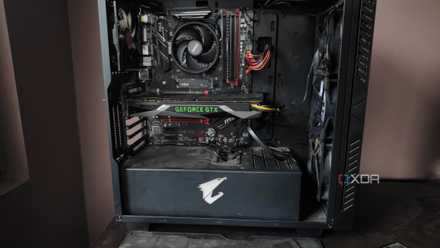
If you haven't opened up your PC in a while, you might just be surprised at how much of a boost in performance cleaning out your PC could give you. While you may scoff and say how this will help improve my gaming performance. Well, what happens when you don't clean your gaming PC regularly is that the PC will build up with dust and other particulates.
This, in turn, will block your PC's ventilation, decrease the airflow inside your case, and stick to your hardware. When this happens, your PC will start to overheat, and your hardware will have higher thermal temperatures, which, in turn, will lower your overall performance on the PC, especially while gaming. Clean out your PC often to ensure it is always running at its peak performance.
How to clean the dust out of your PC tower
Dust buildup is bad for your system, so you should regularly clean your PC tower to keep it free of dirt and grime
5 Disable unnecessary processes and clean up space
More resources = better performance
Games require a certain amount of free space on your storage drive to run smoothly. Every game requires a different amount, but it is generally around 15-20% of its full size. On top of this, your PC also requires a certain amount of free space to run your operating system and other vital system processes. So make sure that your PC isn't sitting at 95% capacity, as it can cause some performance issues and crashes.
Disabling resource-intensive processes can be another great way to improve your performance in-game. While playing a game, your PC is still running background processes for other applications that can impede your performance. By disabling these processes, you can free up system resources for your current game. Setting your game to high priority under the resource tab in the Task Manager is another way to ensure your game gets the resources it needs to run.
4 Apply new thermal paste to your CPU and GPU
High temps can kill performance
One thing that gamers often forget to do is re-apply thermal paste to both their CPU and GPU. Thermal paste is not magic, and over time, it will slowly lose its ability to transfer heat to the heatsink effectively. This will cause overheating issues, which in turn will lower your PC's overall performance while gaming. This is easier to do with your CPU, which is directly accessible on your motherboard.
However, if you have been gaming on your PC for a few years, it is equally important to replace the thermal paste on your GPU, too. Although it is slightly harder to replace the thermal paste on your GPU, and you will void your warranty by opening it up, it can really help boost your graphics cards' performance and improve your experience while gaming.
3 Do a clean installation of Windows
Format your drives and reinstall your drivers
After using your PC for a while, you will find that you start to collect clutter on your PC, whether it be random folders strewn about your PC, applications you have forgotten you even installed, remnants of apps and games you uninstalled years ago, or just general bloatware that you have never used but also never took the time to remove.
Doing a fresh installation of Windows (or whatever OS you use) will not magically improve your PC's gaming potential, but it will set your PC back to square one and give you a clean slate without all the clutter, which in turn can give you better results when gaming on an older PC.

5 signs you might need to reinstall Windows
Sometimes, the best troubleshooting step for Windows is a fresh installation.
2 Consider an upgrade
Take it one step at a time
Upgrading your CPU, GPU, or motherboard may not always be an option, either financially or possibly even physically, depending on your setup. You will often need to upgrade your CPU and GPU at the same time so that they don't cause bottlenecks, or you may need a new motherboard to support a new CPU socket. One thing you can usually always upgrade is your RAM or storage drives.
If your system only has 8GB of RAM available, that's just not going to cut it in this day and age for most modern games and even for some older games. The best thing you can do is upgrade to 16GB of RAM immediately. If you are still using a mechanical hard drive, then that is the next thing you need to upgrade as soon as possible. Swapping to an SSD is probably one of the most significant quality-of-life upgrades you can do for an older gaming PC and can significantly improve loading speeds and performance in general.
1 Overclock your hardware
It’s essentially a free performance boost
If your older gaming PC is starting to struggle with your current hardware, then you should consider overclocking your GPU or CPU to get a free boost in performance. While this may seem daunting if you haven't done it before, it is a tried and tested method to improve the performance of your hardware.
Overclocking your CPU and GPU can be finicky, with a lot of stress-testing and restarts to ensure the system is stable. There will be trade-offs like increased power consumption and higher system temperatures. It's a good pay-off for the performance gains that you can get out of it.

How to overclock your GPU: A beginner's guide
Overclocking has been going out of style recently, but it's still a good way to get some extra performance out of your GPU. Here's how you do it.
You don't always need the latest hardware
If you are looking to play the newest games as they are released at the highest quality possible, then you will, unfortunately, need to upgrade your PC somewhat regularly. But if you are okay with not playing every game at maximum settings, then you can prolong the life of your PC by years before needing to upgrade your PC fully.
Using the tips mentioned above, you should be able to optimize your system for gaming and give yourself a performance boost, which should keep you gaming for a while longer.