
Networking can be a notoriously confusing topic, but it's extremely useful once you've got you understand it. Having knowledge of networking can be very practical too, whether you're trying to set up a NAS and assign it a static IP, or trying to understand what the settings on your router mean. It's also essentially timeless — most of the modern internet is still relying on the same core technologies it was 30 years ago, and things are unlikely to change any time soon.
What is an IP address?
An IP address lets network traffic find your device
IP addresses are unique addresses, a way of knowing which device is which, and how to contact them over a network. They're the primary way internet traffic finds it way around not only your home network, but the wider internet. They come in two types, IPv4 (version 4) or IPv6 (version 6). All IP addresses are unique to the network they're on.
IPv4 addresses are made up of four chunks, which can contain a number from 0-255. The smallest IPv4 address available is 0.0.0.0. The largest available IPv4 address is 255.255.255.255. This IP is made up of four bytes. Each of these four bytes is eight binary digits, with the lowest possible value of 0 (in binary: 0000000) or 255 (11111111). This is why IP addresses are limited to 255 in each field.
When a byte is full, i.e. 11111111, its bits are reset to zero and the byte on its left is iterated by one to find the next available IP address. So, the next IP address from 192.168.0.255 is 192.168.1.0.
For example, the binary representation of the IP address 192.168.0.0 is below.
What's IPv6?
IPv6 is the long-hailed successor to IPv4 which uses a far longer address to allow for more devices to be addressed, as well as a slightly different form of notation. But almost 40 years after the introduction of IPv6, the world has struggled to move on from IPv4. For consumer devices at the moment, you can probably ignore IPv6.
|
Address Type |
Number of bits |
Example |
|
IPv4 |
32 Bits (4 bytes) |
192.168.0.1 |
|
IPv6 |
128 Bits (16 bytes) |
2002:4559:1FE2::4559:1FE2 |
Public or Private IP addresses
You've probably seen IPv4 addresses before, but might not have noticed some differences. When your device connects to a network like a home or public Wi-Fi network, it receives a private IP address. This private IP is usually from one of the reserved IP ranges designated explicitly for this purpose. This is your address on the private network in your home, to allow all the devices on your home network to talk to each other. These IP addresses cannot be reached directly from the internet, traffic must go through your router first.
The most common reserved IP ranges are 10.0.0.0/8 (10.0.0.0–10.255.255.255) or 192.168.0.0/24 (192.0.0.0–192.0.0.255).
NAT
The other type of IPv4 is a public IPv4. This is reachable from the wider internet and is globally unique. This address is managed by your router and allows your devices to talk to any other device on the public internet. All the devices on your network share a single public IPv4 using a technology called NAT (Network Address Translation). NAT normally runs on your home router, and is why you don't need to worry about that public IP. Your ISP handles that part for you.
Note: There isn't strictly a difference between a public and private IPv4 (your home network could run on non-reserved address space, but some parts of the internet will break.) You also aren't guaranteed to have your own public IP address — some ISPs use their own NAT to combine customers under a single IP — but this is a rabbit hole we suggest you don't worry about.
We'll be talking about private IP's here, which is what most consumer devices use as they're behind NAT networks in your home or office, sharing on public IPv4. You can find your public IPv4 by using a site like WhatsMyIp.org.
NAT was kinda of an accident
The internet was never originally conceived to use NAT. Originally, all devices on the internet received their own public IP. NAT was used to solve the problem of IPv4 exhaustion, caused by the explosion of internet-connected devices. IPv4 exhaustion means that there are not enough IP addresses in the IPv4 standard to give each device its own IP, so we use a system of sharing multiple devices behind one public IP.
Excluding reserved IP addresses, there are about 3.7 billion IPv4 addresses available. IPv6 changes this by allowing for 2^128 IP addresses, or 340,282,366,920,938,463,463,374,607,431,768,211,456 unique addresses.
Static and Dynamic IP addresses
Sometimes called Automatic or Manual IP addresses
When connected to a network, whether by Wi-Fi or LAN, your device has two options. It can assign itself an IP address, or ask the network's router to assign one for you. If your device assigns its own IP address, it has a static IP. Your device will always use this configured IP address even between disconnects to the network. This IP address is also different to your external IP address, and is used for routing internally within the network.

How to set a static internal IP in Ubuntu
Setting a static internal IP in Ubuntu is easy. We suggest doing it through the settings app and the graphical user interface, to avoid the terminal.
DHCP
With a dynamic address, your device queries the network using DHCP, or Dynamic Host Configuration Protocol. The details of how DHCP works aren't useful, but this allows a device to effectively ask an unknown network for a configuration. Any running DHCP servers on a network will return details about the configuration that a device should use, including which IP the router has, where DNS servers are, which IP address your device should use, and the size of the network. DHCP is normally enabled by default on most home networks, and is why your device doesn't need any configuration once you're connected to the network.
Whether your router gives you an IP using DHCP or you set your own, it'll need to be in the configured range for your network. This is where a subnet mask comes in.
Rewewing your DHCP Lease
DHCP gives your device details to connect, but these don't last forever. They're given as part of a lease, and after a period of time your device must re-request settings. This can be forced with the Renew DHCP lease button on most devices. Often, your new DHCP lease will give you the same IP address, but pressing this could cause it to change. Your IP address might also change when your DHCP lease expires. This local IP address changing does not affect your external IP address, which is given to you by your ISP.
What is a subnet mask?
A subnet mask tells your router how large a network is.👁 Screenshot showing subnet mask in MacOS network settings.
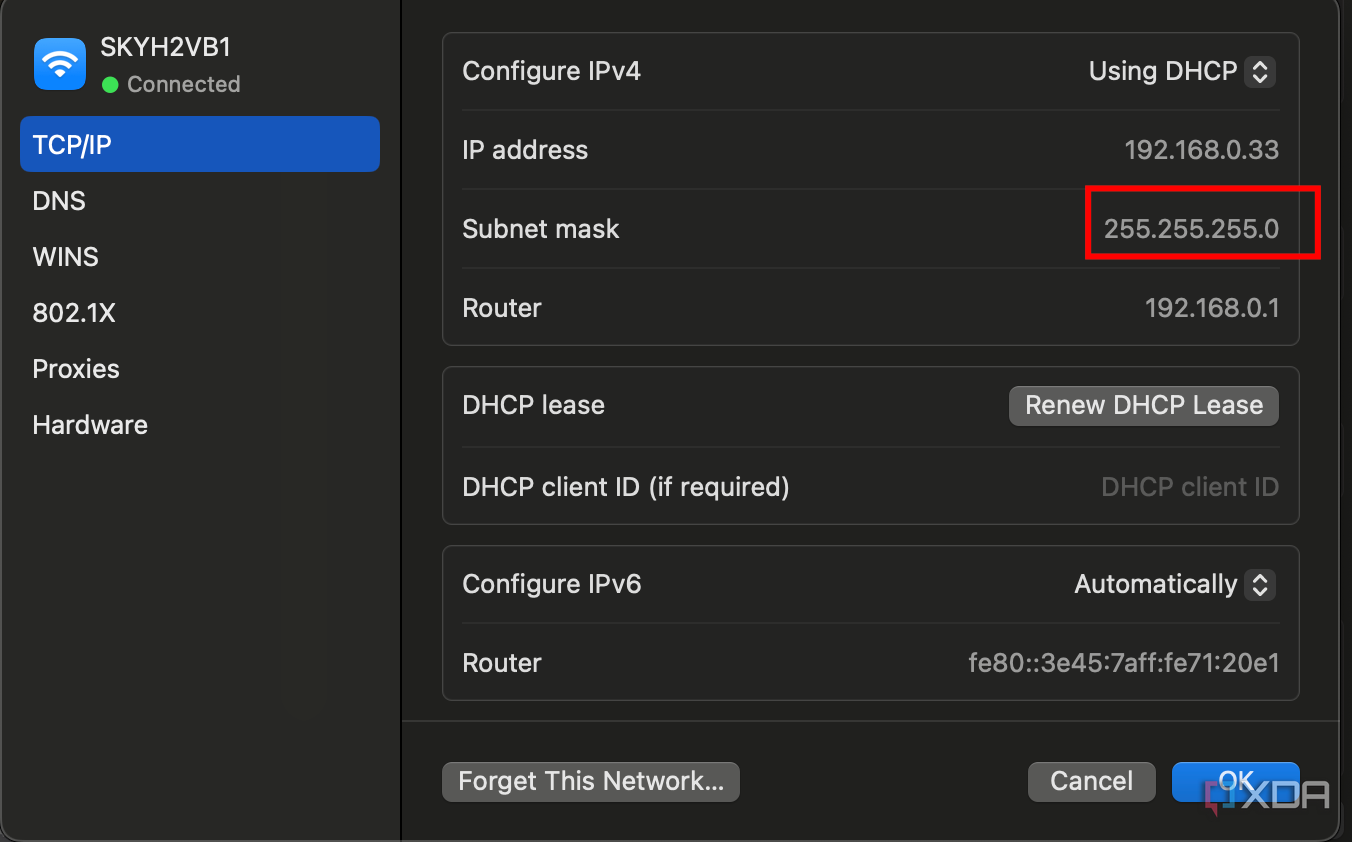
A subnet mask describes which part of an IP address defines the network and which part defines the host. When combined with an IP address, it is used to subdivide a network into smaller chunks. For most home and consumer applications, we only need one network, so a single subnet mask is used to define a single smaller network for your devices to use. For example, many consumer networks have an IP address of 192.168.0.0 and a subnet mask of 255.255.255.0 This means that the part of the IP address which defines the network is 192.168.0 and the part which defines the host is .0.
While it is possible for a device to connect to multiple subnets at once, it isn't generally something done on consumer devices. Subnet masks can be default or custom, but for almost all consumer applications they'll be default. Default subnet masks are made up of a series of binary 1's, followed by a series of binary 0's, to combine with (or mask) the binary bits of the IP address. Custom subnets allow 1's and 0's to be used interchangeably.
The subnet mask really defines the size of the network - it allows routers to understand whether an IP address exists on the network it's connected to, or if it needs to forward that traffic to another network (i.e. the internet.)
CIDRs
You might see default subnet masks represented as CIDRs, a number between 0 and 32 which determines how many of the bits are 1. An IP and subnet mask of 192.168.0.0 and 255.255.255.0 can be written as 192.168.0.0/24, because 24 of the binary bits in the subnet mask are 1, for example.
11111111 11111111 11111111 00000000
192.168.0.0/0 would mean that none of the bits are 1's, and /32 would mean they all are.
What is a gateway?
Often helpfully labeled 'Router'
A gateway is a term for a device on the network that allows data to move from one network to another. Generally, your gateway is a function built into your home router (most home routers combine several features, like NAT and DHCP) which allows your traffic to flow from a private NAT network to the wider internet.
There can be multiple gateways on networks, and they can get complicated, but generally, in home or consumer networks, your gateway is the first IP in your IP space. So, if your network is 192.168.0.0 with a subnet mask of 255.255.255.0 (or 192.168.0.0/24), your gateway will be at 192.168.0.0. Your gateway may also be labelled as a default gateway, this is the same thing.

Best Wi-Fi 7 routers in 2025
Ready for faster Wi-Fi? Get the right Wi-Fi 7 speeds without going overboard.
What are DNS Servers?
DNS servers resolve names on the internet👁 Screenshot of MacOs DNS server configuration.
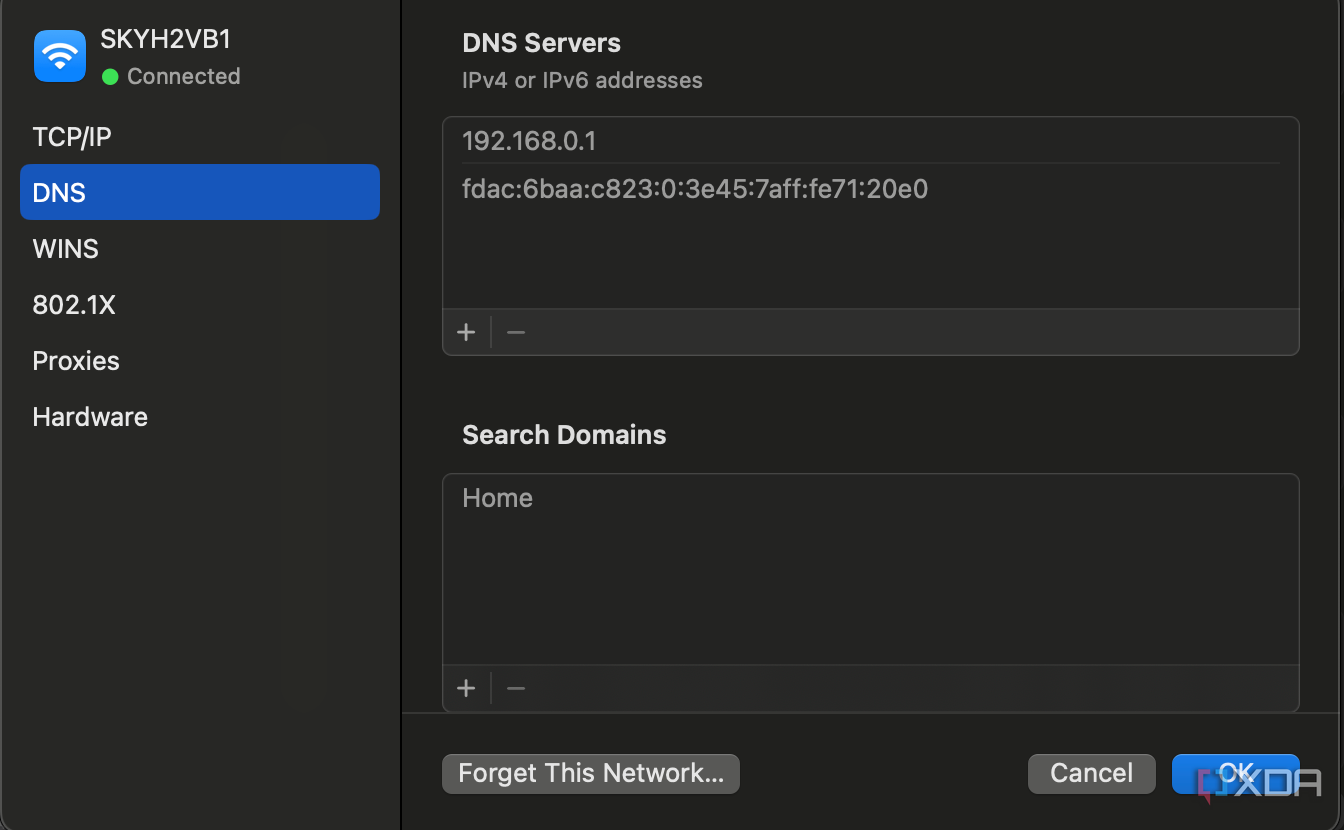
You may have heard of DNS before. It's the system on the internet that translates domain names, like xda-developers.com, to public IP addresses. DNS is a bit messy in the background, but all that's important to know is that DNS runs as a server. Your device sends a request for information to this server, like "Where is xda-developers.com", and the server works with other DNS servers on the wider internet to fetch the answer and return it to you. Your device then knows which IP address to contact for xda-developers.com. DNS is one of the easier internet technologies to play with.
Using the dig command on most Unix machines, you can query for a domain name. You can try it with the command below:
dig xda-developers.com
You'll see the IP address of XDA returned.
But how does your device know where these DNS servers are? Well, on most private networks they're set as part of DHCP; the router provides the IP address of a DNS server on the network. In most home networks, this functionality is built into your router.
You can set your own though, and there are some benefits to doing this (faster overall internet performance is a big one, especially if you have an old router.) Some famous DNS servers are 1.1.1.1, which is maintained by Cloudflare, or 8.8.8.8, which is run by Google.
Networks can be fun and educational to play with
Networks are intimidating to get started with, but are a fairly stagnant and slow-moving technology, knowledge of which will last you for years. If you're interested in getting started with networks, picking up decent router is a great place to start. Set up your own network and start exploring some of the settings, configuring your own DHCP, NAT and static IPs.