
If you're doing anything with networking, iPerf3 is a useful addition to your metaphorical toolkit. A regenerated and rewritten version of the classic iPerf, iPerf3 is one of the essential network benchmarking and diagnostic tools you should be aware of. It is useful for testing the speed and throughput of a network link between two devices or locations. We'll take a look at what makes it so powerful, where you might want to use it, and the history of this vital tool.
iPerf3 tests network performance
One of the fundamental tools for diagnosing network issues
IPerf3 is fundamentally a tool for monitoring network performance. Updated regularly even a decade after its first release, iPerf3 is a rewrite of the classic iPerf, which was originally built by the National Laboratory for Applied Network Research. It's open source software, and officially only supports Ubuntu Linux, FreeBSD, and macOS. However, there are ports for other operating systems, including several other Linux distributions, OpenBSD, NetBSD, and even Android.
Going back to 2009, the original goal of the iPerf3 project was to rewrite the original iPerf codebase with a focus on making it simpler and more easily maintainable, with a library version that encapsulates the same functionality which can be used in other programs.
iPerf3 is great for finding bottlenecks of potential issues in your network configuration which might affect the performance of other applications. This might include file transfers, media streaming, or backups.
iPerf3 runs as client and server
iPerf3 runs as both a client and a server on two machines, at either end of a data link. This could be a virtual private network (VPN), wide area network (WAN), or just inside your home network. One machine takes on the role of server, and the other is the target (or client). iPerf3 is then capable of measuring network performance across a variety of different communication types, including User Datagram Protocol (UDP), Transmission Control Protocol (TCP), and even Stream Control Transmission Protocol (SCTP).

Microsoft does not want you to use iPerf3 to measure network performance on Windows
Microsoft has asked customers to ditch iPerf3 on Windows, recommending other tools instead.
Installing iPerf3
IPerf3 is in some package managers, but not all
Installing iPerf3 depends on your platform, and it isn't supported for all platforms. For macOS and Ubuntu it's relatively simple, but on other platforms you might need to obtain the source code from Git and build it yourself, if distribution isn't available somewhere.
iPerf3 for macOS
IPerf3 is available through the package manager Brew on macOS. Once you've got Brew installed, install iPerf3 with the following:
brew install iperf3
You can then validate that it's installed and in your path with:
iperf3 -v
iPerf3 for Ubuntu
Installing on Ubuntu is similar, iPerf3 is available through apt's default repositories. Install with:
sudo apt-get install iperf3
Again, you can then validate your install with:
iperf3 -v
iPerf3 on other systems
While a limited range of systems are officially supported, there are plenty of builds and pre-compiled binaries for other systems. You should be careful downloading these from unknown sources, as the contents of the binary can't easily be verified. I was able to find some binaries for Windows though, which seemed to run fine. There's a good collection of pre-compiled binaries here.
One thing to be aware of is that Microsoft has been actively discouraging the use of iPerf3 on Windows, as it can be inaccurate.
Running network tests with iPerf3
Be careful on networks that you don't control👁 Screenshot of a test using IPerf3.
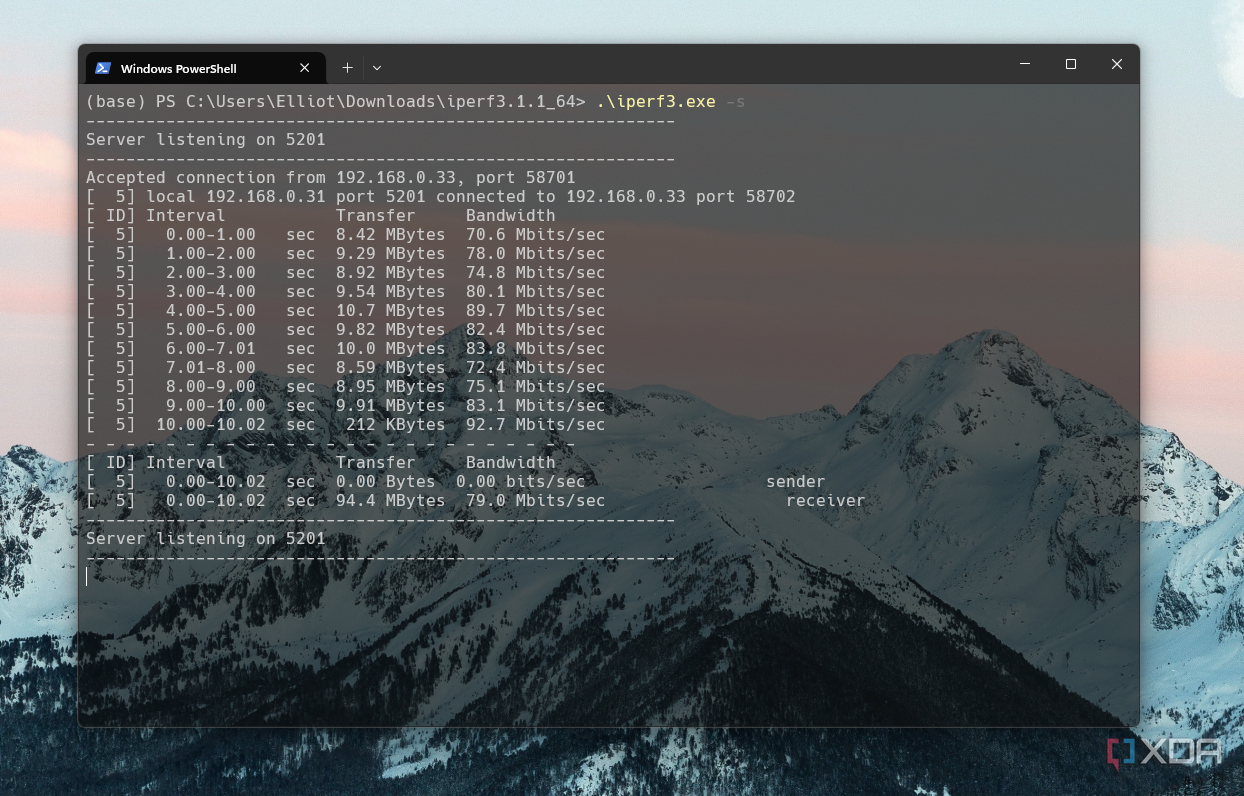
Before getting trigger-happy with iPerf3, it's important to be aware of some of the potential dangers. iPerf3, like similar software for your CPU or GPU, is a benchmarking tool. This means that it will consume all available resources on the network pipe it is given. If you run this tool on a corporate or public network, it could easily either trigger internal security systems, or hinder traffic to other important areas of the network. We strongly recommend you only run iPerf3 on a network you control, with only non-critical services running.
Starting up the iPerf3 server
First, start up the iPerf3 server on the host machine with the following command. I'm running my server on a Windows machine. Ensure that you take note of your machine's internal IP address before you start.
iperf -s
You'll see a message about the port the server is running on. You can customize this by adding the -p <port> flag to the command above. For our purposes, we'll be using the default port.
On another machine, run the following command to establish a connection to your iPerf3 server.
iperf -c <ip address>
You'll see similar output on your server and client machine. This will run for ten seconds, taking a benchmark over each second. The transfer speed between your clients is displayed in Mbits/sec. You can change this with the --format flag, for example, if you need to:
iperf3 -c <ip-addr> -bidir --format Gbits
iPerf3 also supports IPv6, provided your internal network does. Use your IPv6 address in place of your IPv4 address, and watch the magic happen.
Configuration of iPerf3
IPerf3 is packed full of config flags to change up your tests
IPerf3 has plenty of useful configuration options so that you can tweak it to your particular needs. We'll run through a few of the more useful ones here. Most of these options are client-specific, but some can be useful on the server-side as well.
|
Flag |
Usage |
Description |
|
--format |
iperf3 --format Gbits |
Change the output format to Kbits/s, Gbits/s, Tbits/s or Pbits/s. |
|
-4/-6 |
iperf -4 |
Limit iPerf to either IPv4 or IPv6. |
|
--time |
iperf --time 30 |
Change the number of seconds a benchmark runs for. |
|
--parallel |
iperf3 --parallel 10 |
Change the number of parallel streams to run. Each stream will adopt its own thread, and may result in higher throughput. |
|
-u/--udp |
iperf --udp |
Force iPerf to use UDP rather than TCP. |
|
--sctp |
iperf --sctp |
Force iPerf to use SCTP rather than TCP. |
|
--reverse |
iperf --reverse |
Reverse the direction of the test, forcing the server to send data to the client. |
There are plenty of authentication options with iPerf3
If you're running a public iPerf3 server, you'll want to add some authentication. There are plenty of options for this, and we'd recommend you take a look at iPerf3's main page to check them all out. Some options include public key authentication with an RSA keypair, and support for username/password combos with SSL.
Using public iPerf3 servers
The project behind iPerf3 also runs some public servers, which can be used to test differences between areas or devices on your network and measure their specific connectivity to the internet, a bit like a more advanced speedtest. You'll only be able to make one connection at a time, however. You can check out the list on the project's website.
IPerf3 is great to have in your back pocket
Whether you're struggling with VLANs, a NAS, powerline adapters, or BGP, iPerf3 is an essential tool to have in your pocket. It is lightweight, with no daemon (--daemon is available, however), and is great for quickly checking the status of a connection between two devices. If you're a sysadmin, homelabber or just general tinkerer, we'd recommend you familiarize yourself with this handy tool.