
Frames win games is a popular catchphrase, but sometimes you need more than that to claim victory, especially in a competitive gaming space. The in-game latency is an equally important factor to consider, as your reaction time is only as good as how fast your PC reacts to your inputs in a particular game encounter. There are different ways to reduce latency, but Nvidia will tell you that its Reflex technology will do a better job than whatever the competition is cooking. But what exactly is Nvidia Reflex, and just how much of an improvement does it offer to make you a better gamer? Let's find out.
What is latency?
Understanding the types of latency is crucial
The term latency can be classified into two types — network latency and system latency. Network latency, a.k.a. ping, represents how an online game responds to your actions. You'll see delayed actions on the screen if there's too much delay in the time it takes for your actions to get registered on the server. Meanwhile, system latency represents the time delay that happens between when you click a button on your gaming mouse or keyboard and its corresponding action in the game.
Simply put, system latency is a collection of time it takes:
- For your mouse or keyboard input to reach the PC.
- For your PC to process the action and render its result in the game.
- For the render to reach your panel, so it's displayed to you.
As you can tell, your input devices and the monitor alone don't determine the overall system latency, and your internal hardware is a huge contributing factor to it as well. That typically happens because of the growing render queue that collects frames prepared by the CPU over time that are waiting to be rendered by the GPU. The longer this queue is, the more time your GPU will take to render those frames out, thereby increasing the system latency and the delay you experience in games.
This delay, which is measured in milliseconds (ms), is often so minimal that you don't even notice it. That being said, even a split-second delay in your in-game action being registered can significantly affect your gameplay. In a game like, say, Counter-Strike 2 or Valorant, this split-second delay can influence things like how effectively you track a target, where they appear on your screen versus their actual position relative to yours, and more. This can even lead to delayed shots, which is, well, your worst nightmare as a competitive gamer.
The system latency is what Nvidia Reflex helps you reduce — if not fully eliminate — with software optimizations at a driver level, thereby reducing latency and helping you gain a competitive edge on supported titles.
How does Nvidia Reflex work?
Claims to help you hit your shots quicker in games
Nvidia Reflex is a proprietary technology that minimizes system latency by dynamically eliminating the render queue that collects the frames prepared by the CPU. It does so by keeping the CPU perfectly in sync with the GPU, meaning the frames that are prepared by the CPU are rendered almost immediately by the GPU. This also reduces the back-pressure on the CPU side, allowing games to sample mouse and keyboard input to reduce latency further.
Since Reflex is Nvidia's proprietary technology, it goes without saying that you'll need an Nvidia graphics card to use it. Unlike the newer versions of DLSS, Nvidia's Reflex technology will work with any model, including the GTX 900 and above.
What is DLSS? Here's what you need to know about this Nvidia feature
If there's one reason to get a modern Nvidia card, it's DLSS. Here's everything you need to know about one of the most hyped features in PC gaming.
How to enable Reflex in games?
As simple as flicking a switch
Using Nvidia Reflex is as simple as heading to the in-game graphics or video settings and flicking the Nvidia Reflex switch on or off. You won't find this particular setting in all the games, though, as the developers need to incorporate the Nvidia Reflex SDK into their games for you to take advantage of. That's right, you can enable Reflex and take advantage of it only if you have a Reflex-supported game.
Thankfully, a lot of game developers have been actively incorporating Reflex in their games, so you should be able to use it in pretty much all major titles. Some popular games that I use Nvidia Reflex include Cyberpunk 2077, Apex Legends, Valorant, Call of Duty: Warzone, Fornite, and more. There's a complete list of games that you can check out at Nvidia's website that supports Reflex.
The settings menu of each game is designed a little differently, so you may have to navigate the menu to find the switch to enable Reflex. I've attached some screenshots below that show you how to enable Nvidia Reflex in Apex Legends.
- Launch Apex Legends (or any Nvidia Reflex-supported title).
- Press the escape key to reveal the menu items.
- Select Settings, and then click on the Video tab.
- Scroll down till you find Nvidia Reflex under the Advanced menu, and enable it.
You'll notice that some games — like Apex Legends — also offer a Reflex + Boost setting, which increases your GPU's clock speed. This setting is only useful in games that are CPU intensive, as it helps your GPU to be prepared for all the frames to be rendered.
Nvidia Reflex Latency Analyzer
A native solution to measure end-to-end latency
In addition to the Reflex SDK, which is available for developers to incorporate into their games, Nvidia also has a latency analyzer that will allow you to measure end-to-end system latency on a user-facing interface. This component of Reflex is essentially a system latency measurement tool that works on select monitors when used with one of the Reflex-compatible mice. This means the Nvidia Reflex latency analyzer needs a compatible monitor and mouse working together on a system with an Nvidia graphics card.
That makes it sound like the Reflex Analyzer requires a lot of specialized hardware, but using it is still easier than setting up high-speed cameras and other equipment to get latency data. Again, the list of gaming monitors with built-in latency analyzers and compatible mice can be found on Nvidia's website, but I'll leave links to buy a couple of them below.
-
ASUS ROG Swift Pro PG248QP
The ASUS ROG Swift Pro PG248QP offers a 540Hz refresh rate, a gray-to-gray response time of 0.2s, and ULMB2. For competitive gamers, this is the holy grail of gaming monitors.
-
Acer Predator X34
-
Logitech G Pro X Superlight
$127 $160 Save $33

Best gaming monitors in 2025
From high refresh rate panels to 4K displays, these are the best gaming monitors you can buy
A combination of all the required hardware will allow your system to detect the mouse input and measure the time it takes for it to reach the system, along with the time taken to process and show the resulting pixels on your screen.
Once you have all the essentials to use the Reflex Analyzer, you can set it up and use the tech as follows:
- Connect one end of your DisplayPort cable to the monitor and the other end to your GeForce GPU.
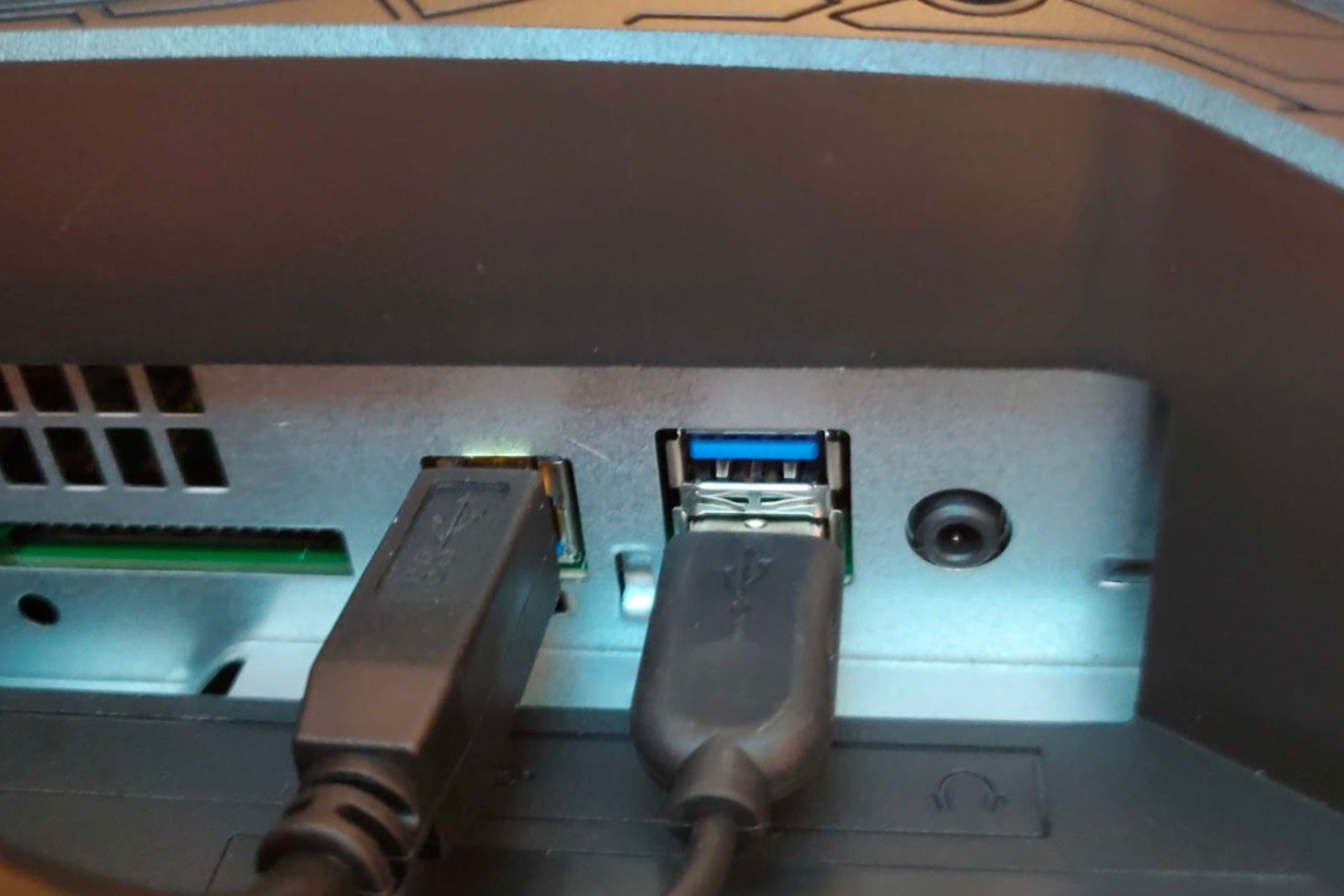
- Use the provided USB cable to connect your monitor and the PC. Note that the Type-A connector of this included cable connects to the PC, while the Type-B connector plugs into the computer.
- Connect the Reflex-compatible gaming mouse to the Reflex Analyzer port on the monitor. You may have to refer to your monitor's documentation to locate this particular port.
- Launch a Reflex-compatible game and enable Reflex's low latency option from its settings.
- Pres Alt + Z while in-game to bring the Nvidia GeForce Experience overlay.
- Select the settings button, and then click on the HUD layout option.
- Choose Performance and then select the position of the overlay you want, followed by the Advanced option to see system latency stats and other metrics like FPS.

How to see FPS in your games
It's useful to monitor frame rates to see how well a game is running on your hardware
Closing thoughts
Keep in mind that Nvidia Reflex isn't going to magically eliminate all the system latency from your games. That's because your system hardware and game engine alone don't determine the overall system latency, and your input devices and monitor contribute to it to some degree as well. That being said, using a suite of GPU, mouse, and monitor that are compatible with Reflex will help you greatly lower the system latency.