
Most productivity apps ask you to choose your poison: Notion for docs, Asana for tasks, and Zapier for automation. You're paying $15 here, $25 there, and suddenly your "productivity" budget hits $100+ monthly.
Meanwhile, ClickUp's free tier is one of the most overlooked productivity suites and quietly includes all of that — tasks, docs, goals, calendars, real-time collaboration, and automation — without charging you a cent. It's the Swiss Army knife of project management, except someone forgot to tell people it exists, and the ones who find it often drown in its 50+ features before discovering its power.
I once moved a client off a Notion-Asana hybrid setup they'd been clinging to for years. The breaking point? They were hitting Notion's block limits, and Asana's free plan wouldn't let them use timeline views. ClickUp's free plan offered both, plus features they didn't even know they needed. ClickUp's biggest strength is also its biggest weakness. The sheer density of features creates analysis paralysis. My job became less about showing them what ClickUp could do and more about showing them what to ignore.
Where ClickUp's free plan actually competes
It replaces tools you're already paying for
Let's break down what you actually get on ClickUp's free forever plan, because the marketing page undersells it. You're not just getting "unlimited tasks." You're getting a full-featured workspace with:
- Unlimited tasks
- Unlimited members with real-time collaboration
- 60MB storage
- 2FA
- Kanban boards
- Calendar views, list views, Gantt views (called Timeline view)
- Native time tracking and goals with progress tracking
- Customizable task statuses
If you’re managing a lot of docs, you can create ones with nested pages and real-time editing — basically Notion's editor, minus the databases.
Compare that to Asana's free plan, which caps you at 10 teammates and locks timeline views behind a $10.99/user/month paywall. Or Notion, which limits you to one collaborative workspace and starts charging at $10/seat once you add a second person. Trello's free tier gives you 10 boards and then asks for your credit card.
ClickUp doesn't paywall the basics. The free plan is shockingly generous because ClickUp's monetization model assumes you'll eventually need advanced reporting, custom fields at scale, or priority support — but most small teams won't hit those ceilings for months, if ever.
I've watched teams operate for six months on ClickUp's free project management plan without friction. The limit isn't the features. It’s about resisting the urge to turn every workflow into a science project.
The paradox of choice problem
Too many features create decision fatigue
Here’s where ClickUp used to shoot itself in the foot: onboarding. For a long time, first-time users were dropped into a cockpit full of switches — asked to choose between endless task views, configure automations they didn’t understand yet, and pick from templates ranging from “Simple To-Do” to “Agile Sprint with Scrum Boards.” For someone leaving Todoist or Trello, it felt like going from a bicycle to a fighter jet. You could fly it, sure, but only after figuring out which buttons not to press.
Thankfully, ClickUp’s onboarding has come a long way. It now walks you through setup by asking which features you actually want to use, offers optional tutorials, and breaks down the interface into smaller, more digestible steps. It’s still a “learn-as-you-go” platform at heart, but at least you’re not thrown into the deep end without a map.
ClickUp still isn’t bloated, but it refuses to hide complexity by default. Every feature is surfaced, and the interface assumes you know what “dependencies,” “subtasks,” and “custom statuses” mean. Notion suffers from this too, but its minimalist aesthetic tricks you into thinking it’s simple. ClickUp’s UI, by contrast, is dense, utilitarian, and overwhelming. The first time I opened my client’s workspace, I counted 47 buttons in the left sidebar. Forty-seven.
The platform's design philosophy still leans “give power users everything,” which can alienate beginners. The irony? Once you strip ClickUp down to 20% of its features, it’s cleaner and faster than Notion or Asana. But getting there still takes discipline.
A minimal ClickUp setup that actually works
Start with three views and resist adding more
Here's the pared-down ClickUp workspace I usually build, and it's what I recommend to anyone starting fresh. You don't need 50 features from the get-go. You need three:
- Tasks (List View): This is your inbox. Every project lives here as a list, and every task gets a due date, assignee, and status (To Do, In Progress, Done). That's it. No custom fields. No priority flags. No tags. Not yet. The goal is to get tasks out of your head and into a system you'll actually check. ClickUp's list view works like Asana's but loads faster and doesn't hit a paywall when you add a sixth team member.
- Content Calendar (Calendar View): This is where ClickUp starts flexing. Instead of paying for CoSchedule or Loomly, you can drag tasks with due dates onto ClickUp's calendar view and see your entire month at a glance. My client used this to plan blog posts, social media deadlines, and campaign launches. You can color-code by project, filter by assignee, and drag-and-drop to reschedule. It's not as polished as Motion or Akiflow, but it's free and integrated with your task list, so there's no syncing lag.
- Project Timelines (Gantt or Timeline View): For tracking progress over time, ClickUp’s Gantt and Timeline views do the job beautifully. They let you visualize dependencies, milestones, and overlapping deadlines at a single glance — perfect for teams juggling multiple campaigns or phases. I recommend Gantt if you prefer a traditional project management feel, or Timeline if you want something simpler and more linear. Both let you see how tasks connect to broader goals without needing a separate OKR or goal-tracking tool.
That's the setup. Three views, zero dollars, and it replaced Asana, Notion, and CoSchedule. The key is resisting ClickUp's constant upselling of features you don't need yet. Turn off notifications for subtask comments. Ignore the "Try Automations!" prompts. Disable inbox views if you're not using them. ClickUp lets you hide almost everything, but you have to manually opt out, which is exhausting.
Where the free plan actually limits you
Storage caps and automation quotas bite faster than you'd think
ClickUp’s free plan isn’t infinite. You get 60MB of storage, which sounds fine until you start attaching design files, PDFs, or screenshots to tasks. My client hit the limit in two months because they were uploading mockups directly into ClickUp instead of linking to Figma or Google Drive. The workaround is obvious—use ClickUp for task management and store files externally—but it’s a friction point for some.
You also get limited automations (five active automations with 100 actions per month). For context, an “action” is triggered every time an automation runs. If you set up a rule like “When status changes to Done, notify the team,” that’s one action per completed task. A hundred actions sound generous until you’re closing 20 tasks a week, and suddenly you’ve burned through your quota.
Then there’s ClickUp AI. It’s impressive (especially the AI note taker and writing assistant), but on the free plan, you’re capped at 500 usage credits. That’s enough for light use, but if you’re in back-to-back meetings or rely on AI for summaries and task notes, you’ll run out quickly. You’ll either need to upgrade or go back to manual note-taking once your credits expire.
Finally, the integration cap. ClickUp’s free plan supports the basics (Google Calendar, Slack, Zoom), but native two-way syncing with tools like HubSpot, Salesforce, or GitHub requires a paid plan. If your workflow depends on heavy CRM or dev tool integration, you’ll hit this wall fast.
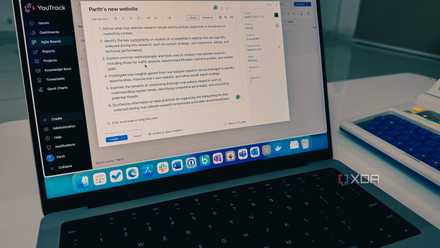
I use this self-hosted project management tool to keep on top of all my daily tasks
My go-to tool for daily productivity
Who does this actually work for
Small teams and solopreneurs who need to move fast
ClickUp's free plan is perfect for freelancers, small agencies (under 10 people), and scrappy startups who need a single source of truth without paying SaaS rent. If you're currently juggling Notion for docs, Trello for tasks, and Google Sheets for tracking, ClickUp consolidates all of that. You'll spend a weekend configuring it, but then you're done. No more context-switching between apps. No more, "Which tool did I write that note in?"
It's also great for people who are almost ready to pay for Asana or Monday.com but want to test-drive a full-featured PM tool first. ClickUp's free plan lets you explore advanced workflows — dependencies, sprints, workload views — without committing $10+/user. If you outgrow it, upgrading is seamless.
But it's not for everyone. If you value aesthetic minimalism (Notion, Things 3), ClickUp will feel cluttered. If you need hand-holding onboarding (Asana, Trello), ClickUp will frustrate you. And if you're managing a 50-person team with complex reporting needs, you'll hit the free plan's ceilings fast. ClickUp is for people who want power and are willing to wrestle with complexity to get it.
The real cost is set up time and not the subscription fees
ClickUp's free plan gives you $100/month worth of features, but extracting that value requires intentional setup. You can't just sign up and start clicking. You need to decide which 20% of ClickUp you'll use, hide the rest, and resist the urge to over-engineer your workflow.
If you can do that, ClickUp is the best free productivity tool on the market. If you can't, you'll spend three weeks tweaking custom fields and never actually finish a task. The features are free, but your time isn't.