Richard is the PC Hardware Lead at XDA and has been covering the technology industry for almost two decades. He's been building PCs since young, and when not creating content, you can often find him inside a chassis somewhere.
I'm one to use custom-built network-attached storage (NAS) over prebuilt turnkey enclosures from brands, but there are times when using one makes sense. If you're new to the wonderful world of NAS or just want something you can plug in and start using, Synology NAS is among the best in the business. There are some excellent alternatives on the market, including from the likes of TerraMaster and Asustor, but Synology offers the complete package with top-notch hardware, software, and cloud support.
After trying countless NAS models from almost every brand, I continuously return to Synology when I need a turnkey solution or happen to be recommending one for a friend or family member. Here's why Synology is often regarded as one of the best solutions for NAS and how quickly you can get started.
If you're unfamiliar with Synology and NAS in general, the company essentially makes compact servers. These storage devices support a limited number of drives, which can offer substantial storage space for backups and data from all hardware in the household. What makes these NAS servers particularly noteworthy is their ability to run services and apps, mostly as Docker containers. With a NAS, you can create a media streaming service, home surveillance system, and even host some websites without purchasing additional devices.
What sets Synology NAS apart from the competition is the entire ecosystem. Like Apple and similar brands, Synology has perfected its NAS offerings with refined hardware, extensive software support, and is building out a versatile cloud-based platform. This is something that even the most well-established competitors struggle with, as launching a cloud platform alongside maintaining an OS and hardware can prove challenging to perfect when launching NAS is difficult enough already.
What sets Synology NAS apart from the competition is the entire ecosystem.
A Synology NAS offers a range of protocols to handle file transfers, including FTP, SMB/CIFS, WebDAV, AFP, and NFS. You can connect to it from any supported device and operating system, including macOS, Linux, and Windows. Official apps for Android and iOS are also available, making collaborating with others easy and storing backups seamless. They're also easy to set up and use, requiring a couple of minutes to go from zero to hero.
Why Synology is the most popular NAS
Premium hardware and specs
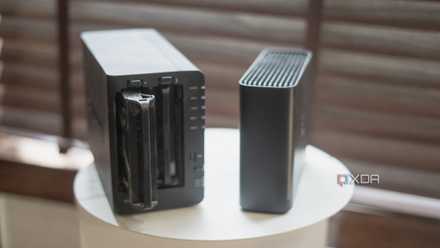
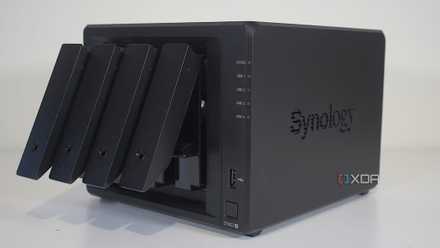
Most Synology NAS models have either an AMD or Intel x86 processor, ample RAM for running multiple apps and services, and speedy networking that can fully saturate available channels for file transfers. They're all designed with a sleek, all-black stealthy look, and all available upgrade slots are easily accessible.
Intuitive web admin GUI
The Synology DiskStation Manager (DSM) powers every enclosure sold by the company. It's currently on version 7 and is one of the most refined operating systems for turnkey NAS. The installation process is straightforward, an app store is available for downloading new software, and official apps make it easy to manage the NAS without using a PC.
Beginner-friendly for newcomers
The entire Synology ecosystem is user-friendly, making the brand a good choice for a first NAS. You can set up user accounts, configure storage pools, install Docker containers, host services, and more without breaking a sweat and referencing user manuals. The DSM UI is ideal for those who have never used a NAS before. Installing the OS and configuring the enclosure takes a few moments, depending on how in-depth you wish to go.
Impressive cloud support
Snyology C2 is the company's cloud platform. It's not included with a Synology NAS, nor is it required, but it acts as a means to add additional functionality to your enclosure using the power of the cloud. The current line-up of products on C2 includes a password manager, backups, transfers, identities, and cold storage.
Solid reliability and versatility
There's a good chance you won't encounter any issues with a Synology NAS once up and running. These compact servers are also incredibly versatile, offering plenty of first and third-party apps through the official storefront, and Docker containers are always an alternative to access even more software. You can easily transform your simple NAS into a powerful home lab server.
Bustling helpful community
Fear not if you get stuck along the way, as Synology has one of the more bustling NAS Communities. This results in plenty of tutorials, guides, and knowledge base resources being available for troubleshooting. There's also a frequently updated Reddit community and fan-hosted forums. Purchasing a Synology NAS lands you with official support using the company's channels, should you require it.
You'll need to choose a Synology NAS before you can get started with one. Depending on what you plan to use the NAS for, you can spend as little as $300 or as much as $1,000 (if not more). For most households and starter NAS solutions, I'd recommend the Synology DiskStation DS224+. It's a brilliant mix of value and performance, offering an impressive feature set for a two-bay enclosure. You won't have any trouble running advanced services on this NAS.
Once you have a Synology NAS at the ready, it's time to get everything installed!
Remove the drive trays from the Synology NAS.
Install your purchased NAS drives.
Reinsert the drive trays into the NAS.
Connect the NAS to its external power supply and use the included Ethernet cable for your network.
Power on the NAS.
Load the assigned IP address in your favorite browser or use Synology Assistant.
Credit: Synology
You'll now be greeted by the Synology DSM installation wizard, which will guide you through the steps of creating user accounts and installing the latest release of the OS. Once complete, you'll be teleported to the Synology DSM web GUI for your new Synology NAS. We've published plenty of Synology-focused guides right here at XDA, so be sure to check some of them out for helpful pointers on what to do next.