
Applying fresh thermal paste to an aging graphics card is a fantastic way to lower its operating temperature, but that might not necessarily fix overheating and thermal throttling issues. The thermal paste is responsible for transferring heat from the GPU die to the heatsink, but several other factors could also significantly impact your graphics card's temperature.
A few years ago, I repasted the GPU (GTX 1070) on my Alienware 17 R3 laptop, and while it did drop its temperature by a few degrees, I still faced thermal throttling issues while gaming. That's because I overlooked other underlying issues that affected my laptop's cooling. So, before you tackle a similar problem, take a look at the reasons why thermal paste alone won't stop your GPU from overheating.

How to apply thermal paste to a GPU
Discover the essential steps to properly apply thermal paste to your GPU for optimal performance and temperature control
4 Airflow constraints
Thermal paste can't fix poor airflow
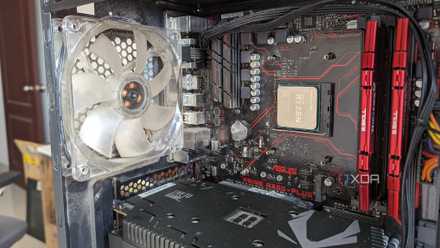
Repasting the graphics card may lower its temperature a little bit, but it will continue to run hot as long as it's seated in a hot box. If your PC case isn't pushing enough fresh air through, all your components will inevitably run at higher temperatures. That's why you need adequate intake and exhaust fans installed in your case. I highly recommend configuring your fans to create positive air pressure inside the case, i.e., the combined airflow of the intake fans is greater than the exhaust. This ensures your graphics card isn't recycling hot air, raising the ambient temperature inside your case.
Likewise, if you see dust accumulation on your case fans or GPU fans, take the time to clean them with a can of compressed air. While you disassemble your graphics card to reapply thermal paste, it's worth cleaning the debris on the heatsink with a soft brush, as that can affect the cooling, too. The less dust you have in your case or inside your laptop's chassis, the better the airflow will be, helping you keep your GPU's temperature in check.
3 Cheap thermal paste
The quality of your thermal paste matters
Many people overlook the thermal paste they use for the CPU and GPU. I've seen some of my friends use thermal paste that's included in the box or pre-applied with CPU coolers, and while they're decent, the improvement would be greater with a high-quality thermal paste. Cheap thermal pastes typically have a thermal conductivity of 4-5 W/mK, whereas premium ones, like the Thermal Grizzly Kryonaut, claim more than double this number. The higher the thermal conductivity of a compound, the more efficient it will be at transferring heat from the die to the heatsink.
Therefore, using cheap thermal paste may not resolve overheating issues. That's why I highly recommend spending $15-20 on a premium thermal compound. Even then, there's no guarantee you'll see much better temperatures unless the existing thermal paste has dried up. Some modern high-end GPUs, like the NVIDIA RTX 5090 Founders Edition and the Asus Matrix RTX 4090, come with liquid metal pre-applied at the factory. A high-end thermal paste is no match for liquid metal. Still, I wouldn't recommend reapplying the latter yourself as it's electrically conductive, and you may damage your GPU's internals if it ever leaks out.
2 Faulty fans
Repasting doesn't mitigate overheating due to broken fans
Modern graphics cards, especially aftermarket ones, have three fans for maximum airflow and cooling performance. You probably know how moving parts, like fan bearings, wear out over time. Even if one of the fans isn't spinning at ideal speeds, you will notice an increase in GPU temperature. Applying fresh thermal paste may drop your GPU temperatures by a couple of degrees, but that won't be enough if your GPU is overheating because your fans have worn out and lost their effectiveness.
If your graphics card is still under warranty, you can send it to your manufacturer for a replacement. Otherwise, you'll have to source the exact parts from third-party retailers, which can get tricky. It's also worth replacing malfunctioning case fans to improve the overall airflow inside your PC's chassis. This should be easy since case fans are universal and pretty cheap; just make sure you choose the correct size.
1 Worn-out thermal pads
Your GPU's thermal pads are just as important as the thermal paste
You apply thermal paste to the GPU die, but what about other components, like the VRMs and memory chips (VRAM) on your graphics card? If you've ever disassembled a graphics card, you may have noticed thermal pads at various locations on the heatsink. They sit right on top of the VRMs and memory chips because they also generate heat, just like the GPU die. When you monitor your GPU temperature using MSI Afterburner or HWiNFO, you'll also see the temperature of these components.
If these components are running hot and throttling your GPU's performance, no amount of thermal paste will alleviate your overheating issue. You'll need to apply fresh thermal pads, preferably ones with higher thermal conductivity, to reduce your VRM and memory junction temperatures. More importantly, you need to ensure their thickness is exactly the same as the ones that came with your GPU and cut them correctly. Otherwise, the pads may affect your heatsink's mounting pressure and make matters worse.
Repasting your GPU can only go so far
Overheating issues aren't always as simple as dried-out thermal paste. Sure, repasting will help if your graphics card is two or more years old, but that alone won't resolve overheating issues if any of the other factors we discussed above are at play. So, tackle the root cause of the problem and determine a permanent solution before disassembling your GPU. Reconfiguring your case fans for better airflow and applying new thermal pads while repasting can also go a long way in lowering your GPU's temperature.
How to lower your GPU's temperature
Keeping your GPU's temperature in check can extend its lifespan and enhance your overall gaming experience simultaneously.