
The rise in work-from-home arrangements has increased the number of people with multiple computers at home, introducing new inefficiencies. When a computer is used in an enterprise setting, someone else pays the power bill, so it tends to be on all the time. If you turn your computer off at night to save power when you're at home, you have to spend time in the morning turning things on again before you can work.
It's a classic first-world problem, to be sure, but it's still annoying. But if you've got your computer connected to Ethernet, you can take advantage of a feature called Wake-on-LAN and make your computer turn on at a scheduled time, before you get to your home office. It's a time-saver and a money-saver and gives you a few more minutes in the morning to brew a pot of coffee. Plus, it can be used for almost any scenario where you only need your computer on for a specific duration, and these are some of our favorites to get you thinking about ways it can enhance your life.

How to use Wake-on-LAN on Windows
Wake-on-LAN is an important rest mode built into Windows that lets you wake the computer while you are away
4 Power up NAS and PC before office hours
Spend the first part of your workday enjoying your coffee, not turning on equipment
The most common use for Wake-on-LAN (WOL) is to turn on a computing system before the time you'd want to use it. This is perfect for home workers, because you don't have to worry about power consumption or fan noise overnight. You can set your computer and NAS device to listen for WOL magic packets and set your router to wake the other computing devices before you get out of bed.
If you have a Windows computer that will be left on overnight, you could use Task Scheduler to send the Wake-on-LAN packets, and your other computers will all turn on when you want them running. It's not much different from an enterprise environment where the terminals are often turned off overnight but then turned on before office hours start, except you'll be doing it at home instead.

3 tools to monitor and manage your NAS remotely
There are many ways to manage and monitor your NAS when not next to it.
3 To turn your gaming PC on before you get to your desk
Don't waste a minute of your spare time by getting everything loaded ahead of time
While making sure your computer is running before the workday starts is pretty neat, nothing should stand in the way of your sacrosanct gaming time. That means any impediment to starting your leisure time is a bad thing, and that includes if you forget to turn your gaming PC on. But with WOL, you don't have to worry, as you can send the magic packet from anywhere in your house (or from outside your house with a little bit of port forwarding setup), and then your gaming PC will be booted and purring along by the time you walk across the house.
You could even use WOL to set the gaming PC to turn on in the middle of the night to download game updates, then turn off again after it's finished downloading all of the latest patches. That way, all your games are up to date when you want to play them, and you don't have to waste time before you can play.
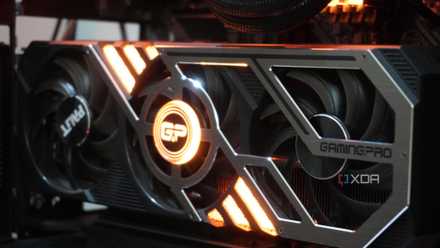
5 reasons I have mentally given up on upgrading my gaming PC
Upgrading my gaming PC isn't my focus anymore, and I have a lot of reasons for it
2 To power up a DAW and preload plugins
Music production software and hardware take forever to boot and load
Anyone who's dabbled in music production knows that turning on their computer to start writing music is only the first tiny part of getting set up. Hardware needs to boot up and warm up, DAWs need time to load plugins into memory, and everything often needs to be done in a specific sequence or it all goes gloriously wrong.
Using Wake-on-LAN to start the PC, with scripted on-load events to load the DAW and stuff the memory with plugins and VSTs, is a huge time-saver, as you can start it going from anywhere and let the process automatically handle the annoyingly boring parts. Then you can saunter into your studio in your own time because that's the artistic prerogative.

Best MacBooks for music production in 2024
Need a laptop for music production? Take a look at our favorite MacBooks.
1 Powering on at specific times to use cheaper electricity
Take advantage of off-peak rates to do your downloading and updates
If you live in a place where peak electricity use is expensive, but off-peak times are very, very cheap indeed, it makes sense to run all your updates and power-intensive computing tasks when the price is right. But that's often the times you're also asleep, which is where Wake-on-LAN comes in. You can set another device to send the magic packet to turn on your main PC, and have tasks scheduled on your PC that start on boot to handle all the grunt work.
You can even use Wake-on-LAN to have your computer turn itself off when those tasks are finished so it does not use any more energy than necessary. Setting up Windows Task Scheduler and possibly some scripting might take a little bit of time, but once you're done, your electricity bill will thank you.

9 ways to decrease power consumption on your Windows server
Cut power costs on your Windows server with these tips. Learn how to optimize energy usage without sacrificing performance or reliability.
Wake-on-LAN isn't just for sysadmins who need remote access to computers
What was designed as an enterprise feature to save on power costs can be used at home in all kinds of situations where you need your computer to be turned on at specific times without you being present. Think of Wake-on-LAN as the first link in a chain of events, and you'll probably find that there are several things you could use it for as well. And you don't have to leave your PC on afterward, as WOL can be used to turn your PC off as well.