
Whether you're running DDR4 or DDR5 RAM on your PC, the importance of XMP/EXPO remains high. Put simply, AMD EXPO and Intel XMP are standards for memory profiles that communicate to your motherboard which settings it needs to use for your particular memory kit. The frequency, latency, voltage, and other information about your RAM are contained in these profiles that you need to enable in the BIOS/UEFI.
It might seem surprising, but your memory kit's advertised speed isn't enabled by default. To get the performance you paid for, you need to manually enable the respective XMP/EXPO settings in the BIOS/UEFI. Considering it's a one-click solution to extracting the most out of your RAM, and is way simpler than manual RAM optimization and overclocking, it's a no-brainer for PC users.

RAM frequency vs. latency: What matters more?
What decides how fast your RAM is? Frequency or latency?
4 You don't get the advertised RAM speed by default
It is what it is
Your memory kit might have 3,600MT/s or 6,000MT/s printed on the packaging, but when you boot your PC for the first time, you'll see it running only at 2,133MT/s or 4,800MT/s, respectively. This is because manufacturers use the default JEDEC speeds to give your PC the best chance of a successful boot. Depending on your CPU and motherboard, a particular memory kit might not work on any setting exceeding the JEDEC defaults.
When you've assembled a new PC, you should always make a trip to the BIOS/UEFI and enable the XMP (Intel CPUs) or EXPO (AMD CPUs) setting corresponding to the advertised speed on your RAM. If you have an especially high-speed kit, or you're trying to run four DIMMs instead of two, you might need to use a slower memory profile for a stable system. In any case, enabling XMP/EXPO allows you to get the maximum performance your memory kit is capable of, and you ensure you're getting the best system responsiveness.

Don't make the same mistake I did, make sure your RAM is set to the right speed
I made a pretty big mistake, but I found out it's surprisingly common.
3 Get the most value for your money
Make use of all the performance you paid for
Although your PC will work normally even on the default frequency and latency settings of your RAM, there's no reason not to enjoy the full performance you paid for. You might have paid a small premium for a 6,400MT/s or 8,000MT/s kit compared to a 5,600MT/s model, so using the default JEDEC means you're willingly foregoing the benefits of faster RAM.
By enabling XMP/EXPO on your motherboard (if supported), you're getting the most value out of your investment that you possibly can. Most users don't want or know how to manually overclock their RAM to squeeze out every last bit of performance, hence XMP/EXPO is the best solution for them. You might not always notice the performance benefits of using the best XMP/EXPO settings, but rest assured that your PC is reaping the benefits in the background.
G.Skill Trident Z5 RGB DDR5-7200 CL34
- Brand
- G.Skill
- Size
- 32 GB
- Technology
- DDR5
- Speed
- 7200
- RGB
- Yes
- Latency
- CL34
The G.Skill Trident Z5 RGB memory comes in various speeds, ranging from 5,200MT/s to 8,400MT/s. This 7,200MT/s kit supports Intel XMP, and offers excellent performance if your motherboard will support it.
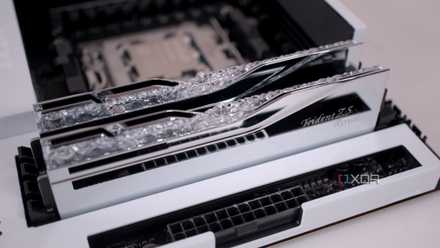
If you haven't enabled XMP in your BIOS, you're leaving performance on the table
Your motherboard doesn't enable XMP or EXPO by default, so make sure you enable it for peak performance
2 You will see better 1% lows in gaming
A smoother gaming experience
Perhaps the most tangible difference you'll see after enabling XMP/EXPO on your PC is the higher 1% low FPS in games. Because your RAM is now transmitting more data to the CPU every second, the average as well as minimum FPS numbers will increase by a small margin. You might not see a significantly better experience in terms of the maximum FPS, but the higher 1% lows will minimize the micro stutters, leading to a more consistent framerate.
In many cases, you will see a 5–15% improvement in performance after enabling the XMP/EXPO settings, which is nothing to be scoffed at, considering it's free performance. Using XMP/EXPO is essentially overclocking your RAM with settings that the manufacturer has deemed stable on specific combinations of hardware. That's why you see a perceptible performance improvement after switching from the default speeds to the XMP/EXPO speeds.

4 reasons your RAM speed matters
With new hardware, RAM speeds are less necessary, but there are still a few cases where it matters.
1 It's simpler than manual overclocking
One-click FPS boost
Now that you know that XMP/EXPO and overclocking are essentially the same things, you might wonder why you shouldn't just manually overclock your RAM instead. The answer, at least for most people, is that manual overclocking is time-consuming, doesn't always guarantee a stable system, and often doesn't provide any meaningful performance gains over using XMP/EXPO in the first place.
Enabling XMP/EXPO is as simple as entering the BIOS/UEFI, and toggling the RAM settings from the default to the profile you want to run. This one-click boost is free and simple to use, and a no-brainer for PC users. AMD users can even use Ryzen Master to enable EXPO settings without the need to reboot and make tweaks in the BIOS/UEFI. All you need to do is enter the basic parameters for your memory kit, such as the frequency, CAS latency, voltage, and more, and Ryzen Master will do the rest.

How to easily overclock RAM without BIOS
If you have an AMD Ryzen CPU, overclocking your RAM can be quite simple with Ryzen Master
Enable XMP/EXPO already
How many more articles do you need to read before you enable XMP/EXPO on your PC? It's a simple, free, and significant boost to your PC's overall performance and responsiveness, and is much easier than manual memory overclocking. You need to do it just once in the BIOS/UEFI, and reap the rewards forever. The only time you might have to use a slower memory profile is when the fastest one isn't supported on your CPU and motherboard combo.