
You know what they say: if you want to hide something, do it in plain sight. That’s exactly what Microsoft did with the AI Action tools in Windows 11 File Explorer. For who knows how long, I right-clicked images and somehow just ignored the AI actions menu right there. Whenever I wanted to do only some basic editing, like blurring or removing a background, I would first open the full editor and wait for it to load, only to realize I had spent more time opening the editor than doing the actual edit. Then one day, I actually took my time reading each option when I right-clicked and found the tools I would try first before opening the photo editing app.
I didn’t want to open a photo editor just to fix one small thing
The right-click AI actions were already waiting in File Explorer
When I need to do some basic editing, opening a full-fledged editing app like Photoshop seems like too much. I only want to fix something small, but that’s when things get frustrating because I have to wait for it to load, and even then it can lag if I have other apps open. That’s why the right-click AI actions in Windows 11 were surprisingly useful. They are already in File Explorer, and I only needed a couple of clicks to access them, which was a huge time-saver.
I do a lot of photo editing, and one of the things I like to do is remove the background and add something fun. One of the features I used the most was Remove background with Paint. I used the feature with a picture of a Yorkie of mine who is no longer with us, and it did a better job than I expected at removing the background. From there, I still had access to tools like:
- Brushes
- Colors
- Shapes
- Copilot
I wasn’t expecting to see all those tools, so I could continue editing.
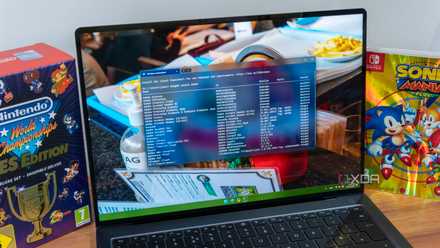
My laptop already had too many resources tied up without another editor open
Erase objects with Photos helped me clean up the image without making it harder than it needed to be
When I tried Erase objects with Photos, it opened the image in Photos and took me straight to Generative Erase. That made the tool easier to find, and in the right panel, I could see Auto apply was on. I could change the brush size to paint over the object more carefully for the best possible results. I marked the area I wanted to remove, and Photos showed me a message letting me know the objects, which in this case were the Jenga pieces, had been erased.
I didn’t get the results I wanted on the first try and had to try a few times to get better results, but not perfect ones. That may have had more to do with the pictures I tested the feature on. They may have had a busier or harder-to-edit background than the tool could handle. Still, I wouldn’t call it useless, since it’s a good way to try before opening Photoshop or another heavier editor. If it works, I save time; if it doesn’t, I know I need to move on to something more complete.
The photo didn’t need a full makeover; it just needed less background noise
Blur background with Photos found the background and gave me a few extra choices
I didn’t want to change too much in this picture. I wanted my Grogu figure to stand out, not my laptop or the monitor. I also didn’t want anything erased, so I went with Blur background with Photos, which gave me a cleaner-looking result without wasting too much time or effort on editing.
After right-clicking and choosing the option, Photos found the background and selected it for me. That meant I didn’t have to trace around Grogu myself. I also had other options, like Remove and Replace, in case I wanted to do more with the image. I was curious to see how well these features worked. The Remove option kept Grogu visible and cleared the background instead, while Replace let me swap the background for different colors, like blue or red. I also had the option to adjust the blur intensity with the slider, so I could control the blur without overdoing it.
The AI tools still don’t have the power that a real photo editor does
The Jenga edit showed where quick cleanups start to fall apart
These tools are a decent first option, but when I need the best possible results, that’s where they fall short, at least for me. For example, when I tried to remove the Jenga pieces, I had to try a few times before it worked, but it was still not acceptable. After this, I knew that, as useful as these features were, they were more of an option to try when I was in a hurry than ones I would always go to, despite having a better-equipped photo editor available.
The blur feature got it right this time, but what if next time I needed to do more and it didn’t have the options I needed? That’s when I would have no choice but to open an app like Photoshop or another full editor.
I’m not saying the AI tools are useless for quick edits
They’re still a great option for a first-try edit
I’m not saying that I’m done with these AI tools. I’m just aware of their limitations and when I can and can’t use them. The AI tools, when I right-click in File Explorer, won't replace Photoshop or GIMP for me, but if I need to do something I know they can do, I’m going to give them a try first. If I need to remove a background and the Remove feature gets it right, that's one less app I have to open.
The same goes for Blur background with Photos. If it were to blur too much, I could use the Background brush tool to remove the extra blur. The AI tools are useful to me because they give me a quick way to test edits before handing the tasks off to other photo-editing apps.
A right-click edit is worth trying before opening a full editor
Windows 11’s right-click AI photo tools are not exciting because they can do everything. They’re exciting because they’re sitting in File Explorer when I only need to do a quick edit. I know they may or may not work, but only when they fail will I open a full editor. I’m not going to underestimate them just because they’re integrated into Windows 11, because if I do, I could miss out on a feature that can get the edit done in half the time.
Windows 11 Pro
Windows 11 Pro is Microsoft's business-focused version of Windows 11, adding power-user tools like BitLocker, Hyper-V, and Remote Desktop hosting that you won't find in the Home edition.