
It's easy to criticize Microsoft for adding a lot of things to Windows 11 that we don't really want or need. Whether it's a Copilot app, a new Outlook app that's not very good, or a news feed filled with terrible articles, there's plenty to complain about. But Microsoft does add great features to Windows every now and then, and sometimes, I feel like they can be severely overlooked because everyone is fine using their PC the away they always have.
One such feature, in my opinion, is the input panel in Windows 10 and 11. This is a feature that includes a few functions, some of which you may not be aware of, and I've found it incredibly useful in recent years. So I wanted to shine a spotlight on this nugget of a feature and hopefully make your workflow better, too.
It saves your clipboard history
This is a real life saver
The idea of a clipboard history makes so much sense that it's surprising it took so long to appear. When you copy an item or text in Windows 11, it's stored in a temporary zone called the clipboard, and it stays there until you copy something else, which overwrites it. That's how it worked for decades before Windows 10 came around. But why does it have to be that way?
The clipboard history is incredibly useful in that it keeps track of every piece of text or image you copy on your PC. You can bring up your clipboard history at any time by press Windows + V on your keyboard, and then you can go through all the things you've copied during the current session. The clipboard history lets you pin items so they stay stored even after turning off your PC, and you have the option to paste copied items as plain text, too.
It's hard to convey just how useful this is, but you can probably picture it in your head. Have you ever stressed out because you wanted to copy multiple different things but you worried that you can only keep one at a time? It takes so much more time to jump between windows copying and pasting items one at a time when you could just copy all the items first and then paste them all.
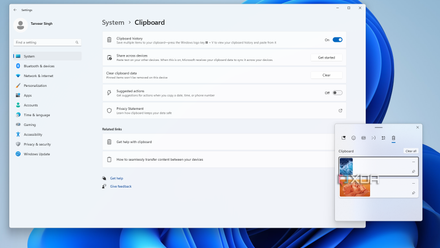
How to enable clipboard syncing in Windows 11
Clipboard syncing in Windows lets you easily move images and text across your Windows and Android devices. Here's how to enable it.
When I write my weekly report at XDA, I have to copy the URL and the title of articles, and in the past, I'd have to copy the text from one window, paste it in a different window, then go back to the original window to copy the link, and then paste it again in the second window. This kind of capability really helps.
What's more, your clipboard history can even sync across devices, including Android phones if you use the SwiftKey keyboard app. I don't use this as much, but it's still pretty cool.
Insert uncommon symbols
There are a lot of things you can't find on a keyboard
Another huge part of the input panel for me is the ability to insert symbols which you can't otherwise find on your keyboard easily. This is an option you might not know about, especially because there's no direct shortcut to it, but when you open the clipboard or the input panel (Windows + . (period)), you can switch to the Symbols tab to see all kinds of things you can't enter with just the keyboard.
For example, as a rule, we generally use the em dash (—) instead of a regular hyphen (-) at XDA, but there's no em dash on the keyboard. The input panel makes this easy to find. Similarly, living in Portugal, I sometimes need to use the Euro symbol, but since my keyboard has a US layout, this isn't easily accessible, either. The input panel helps me there, too. Not to mention my own name, where the ã character is also not easily available on US keyboards.

How to use special characters in Windows 11
Have you ever seen a character or symbol online and you're not sure how to use it? Here's how to use special characters in Windows 11.
In the past, you could use the Character Map to find these characters, but it was so much clunkier and time-consuming. The input panel makes my life so much easier because of this.
Of course, there's emoji
But also kaomoji, and even GIFs
Emoji have become a huge part of communication over the past couple of decades, and it's always been unfortunate that computers didn't have an easy way to use the standardized Unicode emoji that platforms like Android and iOS implement. Even though Microsoft introduced color emoji for the first time in Windows 8.1, there still wasn't an easy way to insert them yourself, you could only view them.
This is why the emoji panel was a pretty big thing in Windows 10, though I feel like it's a feature many might still not know of. You can easily add any emoji to a message on Windows by just opening the input panel, and you can even search for emoji with words to make it easier to find what you're looking for.

How to use emojis on Windows
You can put emojis into any message or text box in Windows, as long as you know the correct commands.
But what's even cooler, in my opinion, is the ability to add kaomoji, which actually came later. Kaomoji portray facial expressions with text characters rather than a picture, but most of the time, they use symbols you can't find on a keyboard, or they require very complex combinations. Having these strings of characters readily available makes it so much easier to use these expressions.
Finally, there are GIFs, too, powered by Tenor. You can search all kinds of GIFs available on the internet and share them easily. Essentially, the input panel enables all forms of modern expression on the internet. We live in an era where people love to express themselves with things other than words, so to have all this available is very good.
I think it could still be better
A few things could use improvement
While I love the input panel on Windows 11, writing this did make me realize a couple of things were still improved in this implementation. For a while now, things have felt a bit stagnant, even though there's definitely room for improvement and expansion.
For one thing, the search capability needs to extend beyond emoji and GIFs. While these make the most sense, I think it would be nice to be able to search for symbols using words, too. Instead of having to scroll for the ã character, why can't I search for "a with a tilde"? I think that would save even more time for users. That could be especially helpful for kaomoji, though I imagine writing descriptions for each of the potentially thousands of options available would be kind of crazy.
But I think the clipboard itself could also use some improvement. Currently, it can only save text and images up to a certain size, and the overall clipboard are is relatively small, so even text snippets will start being cut to make room for new items. I think being able to change the size of the clipboard would be a good start.
I also would like to see the clipboard history save more kinds of items, specifically files. Now, I don't think the files themselves should be saved in the clipboard, but surely there's a way you can implement it so that it saves a copy action for a file using its path. This way, you can easily paste copied files just as you do text. Also, the buttons for pasting as plaintext and deleting items shouldn't be hidden behind an extra menu, in my opinion. I'd like to be able to paste as plain text more quickly than the current system allows.
Give the input panel a try
If you've never heard of the input panel in Windows 11, I don't blame you. It's hard to know everything that's included in Windows, and this is a relatively recent addition in the grand scheme of Windows versions. But it's frnakly one of the most useful additions to Windows in recent years, and I highly recommend everyone give it a shot. Press Windows + . (period) on your keyboard to get started, and I'm sure you'll soon be using it a whole lot more.