
We all want our PCs to be as fast as possible, and the internet is a valuable resource with plenty of tips on how to get the best performance out of Windows 11. But not everything you read on the internet is accurate, and many things that were once thought to be great pieces of advice don't really have the impact you might think.
So, before you start messing with your PC settings, take note of these common recommendations that aren't actually that useful.
6 Hiding your desktop icons
It's probably been a while since you've heard this one
If you used a PC back in the early to mid-2000s, you probably heard something about how having a lot of icons on your desktop can make your PC take longer to boot and slow it down. I know I did, and to be frank, I've kind of taken that advice to heart to this day.
In reality, though, hiding your desktop icons isn't going to do a lot for your PC's performance, especially with a modern computer. Computers today are far too fast to really be slowed down by something as trivial as loading your desktop icons, so deleting or hiding your desktop icons isn't going to do anything.
There are good reasons to hide them, whether it's just aesthetics or to prevent static elements from being on screen too long (very important for OLED panels), but performance isn't one of them. Myself, I just like my desktop to look clean, so I hide them anyway.

4 things you should know before buying an OLED monitor
Everything you need to know before splurging on an OLED monitor
5 Turning off visual effects
Only if you're truly desperate
Another recommendation you might see every now and then is turning off visual effects in Windows 11. These visual effects are little animations and transparency effects that add a little visual flair to the OS, but don't contribute much on a practical level, so turning them off may seem tempting.
But similar to the desktop icons these visual effects use an incredibly minor amount of resources to produce, so any modern computer is going to be unfazed by them. Turning them on or off isn't going to make a difference unless you're still using a computer from 25 years ago. Only extremely low-end PCs may see any benefit from this, but at that point, you really should get a new computer.
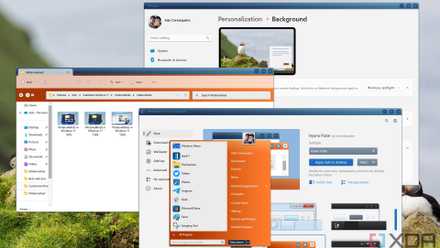
You can make Windows 11 feel like home — here's how to customize it
Windows 11 is a great operating system, but not everyone has to like how it looks out of the box. Here's how you can change
4 Cleaning up temporary files
It's not that big of a deal
Over time, Windows 11 will generate a lot of temporary cache files that can take up a good amount of storage on your PC. Some files are related to updates, others may be cached items that speed up loading, and so on. While they can take up valuable space, the point of most of these temporary files is to improve speed and reliability. Deleting these files shouldn't really improve performance on your PC unless your SSD is nearing 100% usage.
Freeing up storage is good, since it can make space for more files that may be more important to you. But don't go running Disk Cleanup on a daily or weekly basis thinking you're getting the best performance out of your PC this way. You can run it every few months just to free up some storage, and move on with your life.

How to free up space on your PC after upgrading to Windows 11
Just updated your PC and need more space on your drive? Here's how you can free up space after upgrading to Windows 11 (or another version).
3 Defragmenting you drive
It doesn't even work on SSDs
Another thing that was recommended all the time back in the day was defragmenting your drive, and to be fair, this used to make some difference. Back when PCs mostly had spinning hard drives (known as HDDs), file fragmentation could be a problem, since it would take a bit longer to find files inside a drive if the files weren't stored contiguously.
However, this problem became much smaller as hard drives got faster, and now that we have SSDs, there's actually no benefit at all, to the point where defragmenting isn't even an option in Windows 11 if you have an SSD. Instead, Windows 11 will optimize SSDs by performing trim commands that can slightly speed up data writes by fully clearing empty parts of the drive.
The thing is, Windows 11 also optimizes your drives on a weekly basis by default, so why even bother? Your computer will handle it just fine.

Remember defragmenting your PC? Here's why you don't need to do it anymore
Defragmenting is a thing of the past
2 Turning off core parking
You can trust Windows
This one in particular is a bit more technical than the other things we've mentioned on this list, and it's something PC enthusiasts may have heard at some point. Core parking is the idea that the operating system will turn off some of the cores in your PC when they're not necessary, and this is designed to help consume less power unless that power is needed.
However, some believe that core parking can cause significant slowdowns due to these cores having to take extra time to ramp up or turn off as needed depending on the situation. But really, waking up a core in a processor happens faster than the blink of an eye, so realistically, the performance impact of core parking is basically non-existent for the vast majority of people.
If you're experiencing small stutters in a game, maybe turning off core parking can help, but this should never be your first or second solution for performance problems. And really, you can already change the core parking behavior by using the power plans in Windows. Just set it to best performance to ensure your cores are always ready to go, no need to get too technical with it.

4 things you should change in your PC's power plan
Windows gives you the ability to modify power plans, and there are a few changes you should make when you first set up your WIndows install.
1 "Cleaning" your registry
I've heard this far too many times
This has to be one of the silliest misconceptions out there when it comes to performance. Far too many PC optimization apps will claim they can speed up your PC by "cleaning up" the Windows registry. The registry contains a lot of small configurations that determine how certain features are set up, or if certain capabilities are even available to you. Many registry keys can be unused or empty, so these registry cleaners claim they can optimize your performance by deleting those keys.
But let's be clear here: Invalid or unused registry entries have basically no performance impact on your machine whatsoever. More importantly, deleting registry entries that these third-party tools consider invalid is far more likely to cause problems than to fix them. Certain apps or even Windows features may just not work properly, especially if you've tinkered with the registry before. Seriously, do yourself a favor and avoid these tools altogether. No good can come from it.

11 Registry Editor tweaks every Windows 11 user needs to know
Despite the risks associated with using it, the Registry Editor has many options that you can modify to improve your Windows 11 experience
Don't waste your time with pointless tricks
It's never a fun feeling when you see your PC struggling to keep up with your workload, and getting help from others is a great way to find what might be causing your issues. But these tips you sometimes see online are not it. Don't waste your time installing programs that "clean" your registry or going into the BIOS to disable core parking. There are other things that might influence your PC's performance, or you may need to actually upgrade your hardware if you have a very old PC.