
Although it’s possible to use Windows and Linux interchangeably for multiple tasks, the two operating systems vary on multiple levels, including the kernel, drivers, file formats, and security provisions. The differences extend all the way to how permissions are managed and assigned in both operating systems. In this article, we’ll discuss four crucial ways Windows and Linux handle user permissions.
4 Windows has more permission types
And each option provides different levels of access control
The NTFS file system in Windows grants more flexible permissions to users. For instance, assigning the basic Read privilege lets you check the folder/file contents, while the Write permission allows you to modify the contents of said document. Meanwhile, the List Folder Contents provides the same level of access as Read, except you can execute files and view the sub-folders. However, this permission is only inherited by folders. So, you’ll need to enable Read & Modify to grant a user the same level of control over a file.
Then there’s Modify, which combines the access levels of every option stated so far while granting the extra ability to delete the file/folder. However, the highest level of access in Windows goes to the Full Control option, as it lets you modify the permissions and take ownership of a file or folder, in addition to granting the same level of access as Modify.
3 Linux only offers three permissions
Though they're just as effective at preventing unauthorized access
Unlike Windows’ flexible options, Linux lets you set three distinct permissions to your files and folders. As you may have guessed from their names, the Read permission lets you view or open a file, while its Write counterpart allows you to modify its contents. Finally, there is the Execute permission, which is needed to run a script or an application on your Linux distro.
2 Windows users need the icacls command to modify permissions
Or you can do so from the Properties menu
When you want to check the permissions on Windows, you can run the Terminal app and execute the icacls command followed by the name of the file/folder. Alternatively, you can use the /grant parameter to modify the access control settings of a file or a folder for a specific user.
But for those who want a simple method to edit permissions, you can do so by right-clicking on a file/folder, selecting Properties, and navigating to the Security tab. Here, you’ll find the option to enable or disable certain privileges for your user groups.
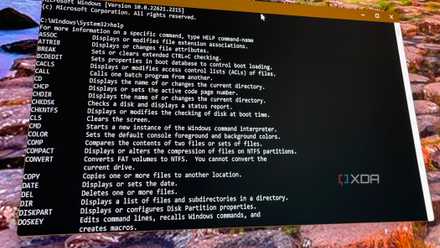
New to the Windows command line? These 10 useful commands are a great way to get started
You can use your keyboard alone for all kinds of things
1 Linux has the chown command instead
You may have used this a couple of times
If you’re a long-time user of Linux, you may already recognize chown. Typically run with sudo (for admin access), the chown command lets you change the permissions of any file, folder, or script, including those residing in the typically inaccessible folders deep in your Linux machine. The +x argument is one of the most common arguments used with chown, as running them together lets you add the executable permission to a script.
Managing your permissions on Windows and Linux
Those were four major differences between Windows and Linux permissions, though there are a couple of other discrepancies in the way they handle user privileges. By default, Windows doesn’t mandate you to create a password for UAC or the admin user. In stark contrast, most Linux distros require you to set a root password when you install them on your machine. Not to mention, Windows is pretty lax in allowing users to run apps with admin privileges, while Linux requires you to input the root password when you want to execute terminal scripts, install packages, and perform other admin actions.

5 reasons Arch Linux and Valve teaming up just makes sense
Valve and Arch Linux are teaming up, and that's great for Linux gamers and Steam Deck owners.