
Windows 11 is packed with all kinds of programs and tools out of the box, for better or worse. While there is a good chunk of things in Windows you probably wish weren't there, there are also some genuinely useful tools that are indispensable if you're a more advanced user.
Whether it's something as simple as the Task Manager or as involved as the Registry Editor, here are some Windows tools you should probably know about.
9 Task Manager
There's more to it than you may think
The Task Manager may not seem like a very advanced tool, and even if you're not a power user, you've probably touched this at some point. But this tool is full of options that are important for all kinds of users. First, you can, of course, force unresponsive apps to shut down, but there's a bit more to it.
Task Manager lets you manage which apps start with your system, monitor CPU, RAM, and disk usage, and much more. You can even create memory dump files for apps that are causing problems if you're a developer, making this a very important tool. There are plenty of ways in which this tool can help you out, so be sure to learn the ins and outs of it.

How to turn off startup tasks in Windows 11
Is your computer taking too long to boot and feeling slow? You can turn off startup tasks in Windows 11 to help your PC run a bit faster.
8 Device Manager
For all your driver-related issues
Having a PC component or a peripheral that doesn't work properly is extremely frustrating, but the route to dealing with many of these issues is through Device Manager. While simply updating is drivers is usually best done through the manufacturer's website, Device Manager can help with a lot more.
For one thing, Device Manager can help identify troublesome hardware. Sometimes you might not even know what to look for to get the driver you need, but Device Manager lets you see hardware IDs so you can look them up and identify the part causing the problem. It can also roll back drivers if the latest version is problematic, and it lets you manually install drivers using .inf files, too, It's not something you'll need all the time, but it's hugely important for troubleshooting.

How to update drivers in Windows 11
If you find that a peripheral attached to your PC isn't working right, or a part of your PC isn't working, you'll have to update the drivers.
7 Resource Monitor
Manage your system's resources
We touched on performance monitoring above with Task Manager, but if you want to go deeper and learn more about how your PC's resources are being used and, the Resource Monitor is for you. This is a much older-looking part of Windows 11, but it also has a lot more information available.
For one thing, it lets you easily see the graphs for CPU, disk, and more all at the same time. What's more, you can view them side by side with the detailed process information, which shows you the specific usage details for each process under each category. You can see detailed information about how much of the CPU a specific process is using based on threads, but you can also see how much a specific app is writing or reading from the disk at any given moment, and the same goes for network and memory usage. There's a lot you can dive into here to really understand what might be eating into your PC's resources.
6 System configuration
At the very least for booting into Safe Mode
System Configuration isn't the most useful tool all the time, but it does have a purpose as a power user. There are a few tabs in the System Configuration tool, but the most important one is where you can set your computer to boot into Safe Mode.
Safe Mode is a very important tool for diagnosing potential issues, especially with things like drivers that can stop your PC from functioning as intended. You may not have known how to forcibly boot into this mode, but it will come in handy if you're using something like DDU to uninstall graphics drivers, for example.

How to boot Windows 11 into Safe Mode
Is your Windows 11 PC unstable? Here's how to boot into Safe Mode in Windows 11 so you can troubleshoot any issues you might have.
5 Task Scheduler
What else can we say here?
The name of Task Scheduler is pretty self-explanatory, but it does warrant a bit more information. This is a tool that lets you schedule programs to run on your computer based on different kinds of triggers.
You can launch multiple programs at the same time, and also set all kinds of different triggers, such as time-based, when you log in to your account, when a specific event happens, and so on. If you use time-based scheduling, you can also make tasks repeat on a given basis, and decide what happens if the task fails to run, and much more. It's a very interesting tool, though one that maybe not everyone will find a use for.

How to create automated tasks with Task Scheduler in Windows 11
If there are certain tasks you'd like your PC to perform automatically, the Windows 11 Task Scheduler lets you do just that
4 Windows Terminal
The home of power users
If there's one thing power users like, it's using the keyboard to do things most other people do with the mouse, and thankfully, the Windows Terminal is here for exactly that. While you can't do everything on a PC using the Terminal, a lot of important tools can be used this way, and many times, only this way.
For example, if you're trying to check your disk for errors, tools like SFC and DISM are only usable through Windows Terminal (or the command prompt). But you can do all kinds of things here — install apps using winget, create or remove user accounts, test your ping to a specific computer on the internet, and so much more. Heck, these days, you can even install Linux on Windows and use it through the Windows Terminal.
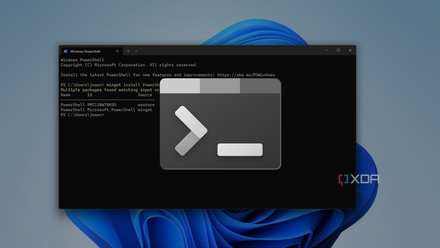
How to use Windows Terminal
Windows Terminal is Microsoft's latest command-line interface for Windows, and it's very versatile. Here's how to get started.
3 Registry Editor
Dive deep into your PC's settings
The Registry Editor is a well-known tool at this point, and for good reason. While most common users probably wouldn't dare to touch it, there's a whole lot you can do with Registry Editor to change the way Windows behaves in certain situations.
Many times, the Registry Editor can have features that you wouldn't be able to reach through normal means. For example, if you don't like the new File Explorer context menus in Windows 11, the Registry Editor is the way to disable them and use the classic menus instead. You can also add your own entries to the context menu, and even do things like disabling network or power throttling. It's a very capable and sometimes dangerous tool if you don't know what you're doing. But if you're careful, you can get a lot out of it.

11 Registry Editor tweaks every Windows 11 user needs to know
Despite the risks associated with using it, the Registry Editor has many options that you can modify to improve your Windows 11 experience
2 Event Viewer
For hunting down BSODs
The Event Viewer is a tool that's been in Windows for decades, and it's a very important one at that. Windows logs all kinds of events on your computer, such as apps crashing and security-related events.
Most importantly, though, Event Viewer also houses the logs for the infamous blue screens of death, or BSOD. These are system events where Windows can no longer function safely and is forced to shut down, so the Event Viewer can help you pin down what might have caused your PC to be in that situation. Again, it's a tool we hope you don't need that often, but when you do, it's great to have.

How to fix a Windows 11 BSOD: A complete guide
Is your Windows 11 PC crashing with Blue Screens of Death (BSOD)? Here are some reasons why and how you can fix your problems.
1 Disk Management
Create and delete partitions
Disk Management is another invaluable tool for multiple reasons. This allows you to manage all the drives connected to your PC, but in a way that's more realistic than what's shown normally on Windows. You can see all of the physical drives on your PC, as well as the partitions on them, including system partitions.
You can choose to split a disk into multiple partitions to help you organize your files, or delete a partition and merge it with the main one, if you have a laptop where the disk is split for some reason. You can also simply format volumes from here, change their drive letter, and so on. You can even attach a virtual hard drive this way.
This is an invaluable tool if you want to set up your PC for dual-booting, for example, but it has other uses, too.

How to delete a drive partition on Windows 11
If you want your Windows 11 PC to have all of its storage in one drive, you may need to delete extra partitions created by the manufacturer.
Master all the Windows tools
As you can see, there's a lot to dive into when it comes to Windows 11, and all of these tools can help you do things you wouldn't be able to do otherwise. If you really want to know everything there is to know about Windows, these are important tools to get acquainted with, so be sure to give them a look.