
It’s essential to have the right tool to optimize your Windows 11 PC. One previous CLI, now a traditional app that does the job, is Winhance. You can choose apps and features from a single interface, external software, compression, customization utilities, and more. It is a straightforward utility that will enable you to install your new Windows installation quickly. There is no more setting things up individually with Winhance. You simply check what you need, uncheck what you don’t, and install the selected items.
In addition to installing software and other utilities you need on your Windows installation, you can debloat your install by removing annoying features like OneDrive, Copilot, which creeps into apps, and Microsoft Edge. Ideally, you use the Winhance utility when you have a fresh installation of Windows 11; however, you can use it any time you want to debloat your system and add or remove essential apps and utilities.

How to install Windows 11 on a new PC
Assembled a new computer and wondering how to install Windows 11? Here's a guide to help you install Windows on any computer without an OS.
What is Winhance
A utility for enhancing your Windows experience by debloating, optimizing, and customizing your PC
Winhance was originally a PowerShell script (still available on GitHub) with a graphical user interface that allowed you to customize and optimize Windows 11. Since broad support of Windows 10 ends in October 2025, it will work only with the long-term servicing channel versions (LTSC).
This is designed for Windows 11. However, due to a lack of functionality, the developer turned it into a proper C# app. Whatever the case, you can now download the Winhance app on your PC. However, it is essential to mention that it only works on 64-bit versions of Windows.
With Winhance's background noted, it’s a good time to explore its capabilities, features, and functionality. Winhance is a free and fully open-source app. A new legend at the top of the screen lets you know if apps can be reinstalled once removed. Windhance will save a script and a scheduled task if something is removed. So even if something gets installed via Windows Update that you previously selected to remove, it will remove it again during startup.
One of the most significant benefits in my book is the ability to uninstall needless Windows apps. For instance, I used the tool to uninstall Bing search, Copilot, 3D Viewer, Maps, and other Windows features I do not use. It also removes things like the Hyper-V hypervisor and provides many alternative browsers, such as Brave, DuckDuckGo, Arc, and Vivaldi. Again, it allows you to add what you want and remove the rest.

8 tips to optimize Windows 11 for productivity and creativity
Want to work faster? These tips will help
Using Winhance
Tweak Windows 11 to take back control of Windows from Microsoft
The Software & Apps section will be front and center, starting with the main screen. This allows you to uninstall Windows apps and capabilities you want to remove. For instance, I can remove Microsoft apps like Edge and Copilot, which I love to remove. Check the legend at the top of the screen to see if you can read it from the Winhance utility. Then check or uncheck the features you want to include with your Windows install. It is as simple as that.
I wish it included more customization tools; it’s a bit light on those. However, it provides customization features like StartAllBack, OpenShell, and Nilesoft Shell. Other free, open-source customization options are missing, like Windhawk, Lively Wallpaper, and Rainmeter, which are great tools. The options in Windhawk are endless, so you will still need to download them separately.
It also includes storage and security apps like Proton VPN and Proton Drive. That entices me since I am part of the Proton Unlimited ecosystem. It allows you to try free (but limited) Proton apps if you don’t have a subscription. Winhance has compression utilities like 7-Zip and WinRAR. There are multimedia apps like VLC, Audacity, foobar2000, and Spotify. I only need VLC since it can play virtually any media file you throw at it. Choosing apps and utilities reminds me of a limited tool like Ninite or UniGetUI. But I digress.
Windhawk
Customize and optimize Windows settings
Fine-tune the Windows 11 experience for your workflow
Putting aside the glaring absence of Windhawk and other apps, removing unneeded Windows apps from your Windows install is the main feature. Once I selected what I wanted for apps and selected to get rid of the Microsoft bloat I didn’t want, I ran the Winhance tool to install apps by clicking Install Selected Items.
After your apps are installed, removing Windows features is a separate action. Make sure to check the legend at the top to verify if a Windows feature can be reinstalled. When you are ready, click the Remove Selected Items button. Wait a few minutes, and your chosen Windows items will be successfully removed from your installation. I selected Copilot, which removed the core version on Windows, but it was still in the apps it'd crept into, like the Outlook app and Notepad. So, you will still need to turn off Copilot in those apps.
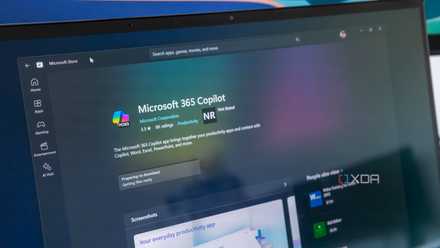
5 reasons I completely remove Copilot on Windows 11 from all apps it’s crept into
Microsoft want to force Copilot AI into your apps on Windows, but I remove it for a better experience.l
Winhance is an open-source utility for customizing the Windows experience on your PC
Winhance is a valuable open-source utility to keep in your toolbox when you install Windows 11. It helps remove the Windows bloat you don’t want and installs other helpful apps for different tasks. Keep in mind that the amount of time it takes to remove Windows features will depend on the number of items you choose. But in my experience, removing a handful of features was successful, and the app is responsive.