
Home Assistant allows me to manage all kinds of connected devices in my smart home. I wanted to use a low-power tablet-like screen on my desk to control a few connected devices in Home Assistant. I discovered the Kindle SmartHome Dashboard project on GitHub through the Home Assistant community conversations. So, I dusted off an old Amazon Kindle Paperwhite (11th Gen) and turned it into a Home Assistant dashboard. It is large enough to comfortably manage a few smart devices.
For example, I wanted to turn the lights on and off, in addition to controlling the smart TV, Apple TV, and PlayStation 5. The idea is to have an e-ink display-based dashboard for controlling a few devices using Home Assistant. That’s exactly what the Kindle SmartHome Dashboard project on GitHub helps me achieve. That made sense to me instead of taking screenshots of the Home Assistant dashboard and displaying them dynamically as a screensaver.
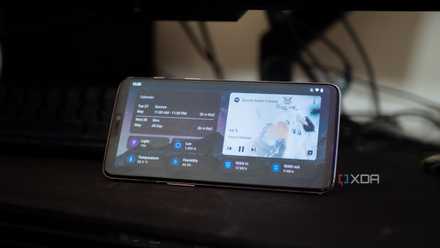
I turned an old phone into a Home Assistant dashboard for my desk
It's actually really useful, and super easy to do, too.
What you’ll need to turn an old Kindle into a dashboard
Banking on e-ink display
Using an e-paper display to load Home Assistant’s interface directly is tricky to pull off. While the Kindle e-reader was the closest e-ink option I had, it wasn’t without limitations. The Kindle’s browser uses old WebKit tech, and the device has barely enough RAM and GPU to handle the default Lovelace dashboard. To make it work, I needed to re-render the Home Assistant UI to be e-ink-friendly and use it.
The Kindle SmartHome Dashboard project supports only the Kindle Paperwhite 2 (6th Gen). It cleverly uses a WebSocket proxy and a KUAL (Kindle Unified Application Launcher) extension to make Kindle e-ink devices load Home Assistant’s UI. That’s how it works around the Kindle browser’s limitations.
For hardware, a jailbroken Kindle device running KUAL (Kindle Unified Application Launcher) and MRPI (MobileRead Package Installer) is necessary. Also, it’s ideal to run the web proxy on your Home Assistant instance. You can check Kindlemodding to jailbreak your Kindle. Do it at your own discretion since jailbreaking voids the device's warranty. Once you do that, the possibilities of using things open a new world, like my colleague who runs Tailscale on his Kindle Paperwhite for securely dropping files.
Another method involved running a Docker container that periodically captured screenshots of the Home Assistant dashboard and delivered them to Kindle. Despite several attempts, I couldn’t get it to work because it relied on Kindle-specific dependencies and code that wasn’t available for my Paperwhite model.
Setting up the Home Assistant dashboard for Kindle
Tedious than it sounds
I underestimated the effort required to adapt the project code for my Kindle Paperwhite (11th Gen). The easiest part was getting the Websocket Proxy to run on one of the VMs alongside Home Assistant in Proxmox. Generating a live access token in Home Assistant (user profile > security tab) and an access token for the extension (openssl rand -hex 32) took a couple of minutes.
Working with extension files meant for Kindle devices requires patience. After you copy the smarthomedisplay folder to your Kindle, add values to config.js in the mesquite folder. In that file, add the WebSocket IP and the extension's access token. Also, you need to add the latitude and longitude values of your location. I chose to display Google Calendar, but you can add any other that’s mapped to your Home Assistant.
The most extensive part was changing values in index.html, index.js, and index.css to match the resolution of the Kindle Paperwhite (11th Gen). Since I am not a developer and barely write any code, it took me a couple of days (with help from developer friends) to recreate the index.js file. It took me more than a day to troubleshoot my code, and it will likely take you less if you’re familiar with JavaScript.
Launching the extension requires opening the KUAL book tile and then selecting Launch SmartHome Display extension from the list. If your Kindle model is very old, it might take several seconds for the dashboard to show up.
You can check out the files with changed values for Kindle Paperwhite on my GitHub page. Take the code as-is without being suitable for other Kindles.
Tweaking for a specific Kindle model takes time
Mind the resolution
Changing the code to make it compatible with the Kindle model might take a while. It took me a while to adjust the resolutions in index.css and set the specific resolution to match the Kindle device's resolution. For my Kindle Paperwhite, I set 1648 as the content width in index.html. Replacing entities and matching their icons to ensure accurate appearance is important.
I downloaded custom SVG files and resized them to 100x100 resolution so that they fit properly with other elements. The trickiest part was getting the Bright Sky API to work. Because I use Pirate Weather in Home Assistant, I switched to that for fetching weather data directly instead of relying on API calls.
The most challenging part is configuring how often the extension fetches data over WebSocket. While the clock updates every minute, the extension reconnects to the websocket proxy every five minutes, fetches weather data every 2 hours, and refreshes instantly if anything on the Home Assistant dashboard changes. However, if you put the Kindle to sleep, then you’ll have to relaunch the SmartHome dashboard manually. That also means the widgets for devices on the Kindle's display aren't interactive.
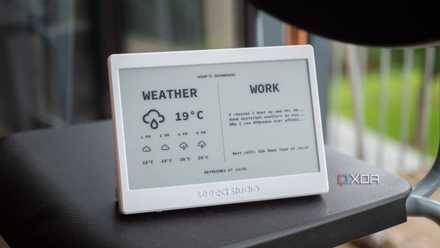
An e-ink project not for the faint of heart
Your old Kindle can be a worthy companion depending on how far you're willing to optimize it. Adjusting the duration between how often the extension reconnects to the web proxy and when it fetches weather data requires some effort. And that change directly impacts the Kindle’s battery life.
Even if you keep the Kindle plugged into a wall outlet, the battery still drains quickly. I second the developer’s suggestion to bypass battery usage and power it directly. However, that requires careful hardware modding and additional equipment. Clearly, not as straightforward as pushing the code and using it on Kindle. However, you can always repurpose older tablets to work as a Home Assistant dashboard.
Home Assistant
- OS
- Windows, macOS, Linux
- iOS compatible
- Yes
- Android compatible
- Yes