
Let's say you've paid for a Gen5 SSD that promises 14,000 megabytes per second, but during a large Steam download or a 4K video export, your PC starts to feel a bit mushy. Unlike a CPU, which might cause a blue screen or a loud fan spike when it overheats, an SSD typically suffers in silence. It slows down to a fraction of its rated speed to save itself from melting, but it still might "work" during this. You'll notice that your PC starts to slow down and just feels a little bit sluggish.
In reality, a lot of users are probably leaving up to 50% of their storage performance on the table because of poor placement, stagnant air, or the sticker myth. Here's how to keep an eye out for your SSD thermal throttling.
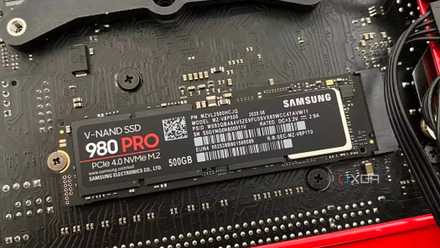
Here's why your old SSD feels slower than it used to be
Your SSD performance can drop with time, but you can do something about it
The issue and how to spot it
It's so easy to ignore the problem
The controller and the flash within your SSD are constantly fighting and creating a thermal divide. The controller (which is the brain) hates heat and throttles early and often at around 75°C, while the NAND flash (which is the storage) actually prefers to be warm for optimal write efficiency. This means that you might experience thermal throttling before your SSD even gets close to its max temperature, as this is a sign the controller is protecting itself.
Different generations of SSDs typically have different throttling thresholds. Gen 4 drives begin to throttle around 70°C, while some Gen 5 drives can even hit temperatures surpassing 85°C. Gen 5 can hit these high temps so much quicker due to massive power draws, with some of them drawing more than 10 watts of power within a couple of seconds. With 18-stage throttling, modern firmware doesn't just cut your speed; it gradually steps it down, making the performance loss hard to spot without a benchmark running. So, your SSD could be thermal throttling, and you wouldn't even know it.
There are a couple of different ways that you can spot the slowdown before it even happens, and you don't always need third-party tools in order to do this. Windows 11 has finally added NVMe health monitoring directly into the UI. Go to your Settings > System > Storage > Advanced Storage Settings > Discs and Volumes. Then click Properties on your NVMe drive and look for the Drive Health section. This will show you the temperature at which your drive is currently idling. If your SSD isn't undergoing a heavy load and idling at around 55 to 60°C, you probably have an problem. It's on the verge of throttling before you even start a task and this is likely down to poor airflow and a lack of passive cooling within your case. Different drives begin throttling at different temperatures so be sure to double check the specifics in your manufacturer manual.
You can also use CrystalDiskInfo if you want an at-a-glance status, using vendor-provided thresholds. Downloading this will provide you with a main dashboard where you see a temperature icon. If the temperature icon is blue or green, you're in the safe zone (typically sub 50°C). Yellow is a caution when your drive is reaching higher levels (typically around 60°C). Red means your drive is already throttling or at risk of permanent damage once it surpasses extremely high temperatures.
Another way that you can double-check if your SSD is thermal throttling is via a symptom check. Benchmarks are one thing, but real-world use is where you'll feel it most. Try moving a massive file like a 100 GB game folder from one NVMe to another. If the transfer starts at a blistering 5 GB/s but then suddenly flatlines or dips to 500 MB/s or lower after 30-60 seconds, this is likely a thermal ceiling. It can be easy to mistake this for a glitch or an issue with Windows, but in reality, this is likely because your SSD is getting too hot to complete the transfer at the highest speed.
The solution
There are many ways to solve the problem
There are a range of solutions to your SSD overheating. Depending on your drive generation and your workload, your fix could be a $5 piece of aluminum, right down to a $50 active cooling system. Make sure you consider which solution is right for you.
A passive heat sink is a $10 addition to a setup that can make a world of difference for most Gen 3 and Gen 4 drives. A simple aluminum fin stack could result in a 15-20° drop in peak temperatures. Look for low-profile heat sinks like the Arctic M2 Pro or Be Quiet! MC1 if you're installing them in a PS5 or under a large CPU air cooler. Before going out and purchasing, make sure you check your motherboard box, as most mid-to-high-end boards from the last couple of years include a built-in M.2 armor plate. If yours is sitting in the box, install it, and it's free performance.
Another solution could be thermal pads. Sometimes SSD components are different heights, and the standard stiff thermal pad might touch the controller but leave a 0.5mm air gap over the flash. Using a high-quality squishy thermal pad like Gelid Extreme or Fujipoly can allow them to conform to the uneven surface of the drive, ensuring 100% contact. If your motherboard has a large armor plate that covers multiple slots, ensure you have peeled the plastic film off the pre-applied pads. You'd be surprised at how many pro builds failed because of a forgotten piece of blue plastic.
Lastly, is opting for better passive or active cooling. With the arrival of Gen5 SSDs, which can hit upwards of 12,000 megabytes per second, passive cooling can sometimes reach its limit. Gen5 controllers can pull up to 15 watts of power. In a small M.2 slot, that's enough to trigger a thermal shutdown in under 60 seconds of sustained writing without enhanced cooling. The solution here is active heat sinks like the Corsair MP700 Pro or Sabrent Rocket heat sink. Use a tiny 20mm or 30mm fan to force air through the fins, and you've got yourself a fair amount of active cooling. However, be warned that these tiny fans can be very high-pitched. If you value a silent build, look for an active-passive hybrid with a large surface area, or ensure your case has a dedicated fan blowing directly across the M.2 region.
Be on the watch for thermal throttling
Don't risk damaging your PC
Your SSD is a high-performance engine. You wouldn't run a sports car without a radiator, and in turn, you shouldn't be running a Gen5 NVMe without a heatsink. By allowing your SSD to thermal throttle, not only are you affecting your PC's performance, but you're also at risk of permanently damaging your drive over time by wearing it down faster. A cool SSD isn't just faster; it lasts longer. Heat is the primary enemy of NAND longevity.