
The solid-state drive (SSD) has transformed the way we store data, paving the way to the modern smartphone, super-fast PC storage, and the thinnest laptops money can buy. They also allowed us to improve the performance of older or slower hardware, namely, mechanical hard drives. Intel Optane, AMD StoreMI, and some other technologies made their way to the datacenter, but you can take advantage of them at home with a server, NAS, or even your Windows PC. The thing is, only the first two scenarios are worthy of NVMe caching as your desktop PC likely already has fast enough storage and memory to handle everything you throw at it.
Here are a few reasons why NVMe caching on your Windows Pc is likely more trouble than it's worth.
5 You likely won't benefit from caching
Do you even edit video, bro?
If you only use your desktop PC to play games, browse some websites, watch some videos, and occasionally transfer files here and there, you won't notice much of a benefit from NVMe SSD caching. Then there's the fact you're probably already using an NVMe SSD for storing your OS and/or data. This causes an issue since NVMe caching won't magically improve the speed of an NVMe storage pool since they're going to run at about the same speeds, so it makes more sense for the system to continue using the primary NVMe drive. A modern OS is smart enough to use the faster NVMe drive for virtual memory files and any other caching that needs to occur outside of RAM.
Your RAM is always going to be faster, which is why we always recommend upgrading your system memory to faster and higher-capacity modules to get the most out of your PC. NVMe caching would not have much of an impact on general performance, especially since your PC isn't typically used to store and access data, but rather carry out various tasks that can better take advantage of more powerful hardware.
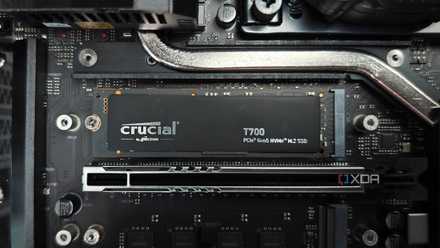
I set up an NVMe cache in my PC, and I learned that most people don't need one
Cache me outside, how bout dat?
4 Your Windows PC's NVMe SSD is already fast enough
Storage is much faster these days
That leads us to the fact that your NVMe SSD is likely already fast enough inside your PC. If it's a PCIe 4.0 or PCIe 5.0 SSD, you're pushing speeds of 7,000 MB/s or more, that's 7 GB/s. You could transfer 2,000 .mp3 files at 3 MB a piece in a second. That's how fast these modern SSDs are. So much so that we often recommend against spending more on a PCIe 5.0 drive unless you can fully utilize the additional bandwidth (and your PC fully supports it). Do you need to improve something already running far beyond what you likely require? Probably not, which makes SSD caching moot on a PC.
If you have an old PC with mechanical drives, NVMe caching could make sense, but then I'd suggest simply upgrading your drive(s) to faster SSDs anyway.

7 SSD marketing terms that don’t mean what you think they do
It's worth digging deeper when bombarded with SSD marketing
3 Other parts would provide more gains
GPU, RAM, and CPU
Instead of thinking about NVMe SSD caching, why not consider upgrading your GPU, CPU, or RAM? This can prove challenging with a laptop since most have these parts soldered to the main motherboard, but desktop PCs usually have standardized parts that can be swapped out. NVMe caching won't make much difference to a gaming PC with a primary solid-state drive, but a faster graphics card with more VRAM most certainly would. The same goes for your CPU if you use the system for virtualization or work with heavier software.
Remember that NVMe SSD caching essentially acts like a type of RAM for frequently accessed files. Adding more RAM to your PC will improve overall performance since the OS can make better use of more capacity, as well as faster transfer speeds should you increase the speed (DDR5-6000 to DDR5-7200) and your motherboard supports it.

I never upgrade my PC if it can still do these 5 things
Hit the brakes on that upgrade if your PC can still do this
2 Install cache on your NAS or home server
Have more of an impact
Running network-attached storage (NAS) or home servers is a great way to keep your data safe, save some money on cloud subscription services, and create your own apps. It's easy to go from zero to hero with your own password manager, recipe manager, media streaming platform, cloud storage solution, Microsoft 365 alternative, and more. You're likely using a few slower SATA SSDs or HDDs, which top out at around 500 MB/s. That's still ample for loading most data, but this can cause issues when working with seriously large files or lots of data. NVMe SSD caching can help with this by acting as slower RAM, where frequently accessed files can be stored for quicker access.
You'll see much more of a positive impact by using NVMe caching with a NAS or home server, especially when using mechanical drives, and particularly those with slower motors. Depending on what your current workload is with the NAS or home server, you could expect to see more throughput and quicker load times with various applications. A modern desktop or laptop PC generally has an NVMe SSD for primary storage, so it can already utilize its performance to unlock better load times on software and quicker rates for file transfers. A server or NAS isn't so lucky since NVMe storage is incredibly expensive and doesn't provide many of the benefits NAS drives can, namely, capacity.

7 reasons SSD caching is the smartest upgrade for my home server
A small NVMe can make a big difference
1 It's expensive (for what you get)
Money better spent elsewhere
I've already alluded to the cost of modern NVMe storage, especially for storing data, but it rings true for caching too. You'll need to fork out a considerable sum of money for an NVMe drive. While a budget-friendly SSD could cut it, it won't provide much of a benefit since it's likely slow and has weaker endurance. Intel Optane drives are incredibly expensive in comparison. It's funds that could be better spent elsewhere on your system, as aforementioned, with potential GPU, CPU, and RAM upgrades.

How you can turn an old SSD into a high-performance cache for your NAS
Upgrade your RAM with some speedy SSD caching.
Get more from your caching elsewhere
Building out a home lab is a great project for learning new things, saving some money in the long run, and creating some truly wacky and wonderful installations. Whether you're combining a few prebuilt NAS enclosures or plan to go all out with second-hand enterprise hardware, SSD caching can prove useful when attempting to get more from slower hardware, be it RAM or drives. It can have more of an impact with older hardware, especially those without support for more recent RAM generations or slots for speedier storage SSDs. Just make sure you have an available NVMe M.2 slot and your CPU has ample PCI lanes to handle the bandwidth.
For desktop PCs, try to see if upgrading the CPU, RAM, or GPU will make a difference to your daily workloads.