|
VOOZH | about |
|
VOOZH | about |
A set of tools called the Android SDK (Software Development Kit) enables programmers to construct Android applications. Android SDK includes a debugger, libraries, a handset emulator, documentation, sample code, and other tools.
👁 How To Change An Android SDK PathThe Android SDK is normally installed to a default location on your machine when you install it. However, there may be instances when you want to switch the Android SDK’s installation location, such as when you want to use a newer version of the SDK or install it on a different location. In this article, we will discuss how to change the Android SDK path on your system.
Jump ahead:
Before you begin, there are a few things that you need to do:
An integrated development environment (IDE) for creating Android applications is called Android Studio. Currently, Chipmunk is the name of the latest Android Studio version. It was created exclusively for Android development and is based on the IntelliJ IDEA software from JetBrains.
A number of features and tools are provided by Android Studio Chipmunk to aid developers in producing Android applications more quickly. A visual layout editor, a code editor, a debugger, a profiler, and other tools are a few of these features. A number of programming languages, including Java, Kotlin, and C++, are also supported.
In addition to its main functionality, Android Studio Chipmunk offers support for several plugins and integrations, including support for Git version control, testing and debugging tools, and more. By facilitating their interaction with other programs and services, these capabilities and integrations enable developers to produce Android applications that are more stable and scalable.
There are a few reasons why someone might want to change the Android SDK path on their system. Some common reasons include:
In this section, you will learn how to install an SDK in Android from scratch. You will also learn how to choose the right SDK for your app. To change the Android SDK path, follow these steps:
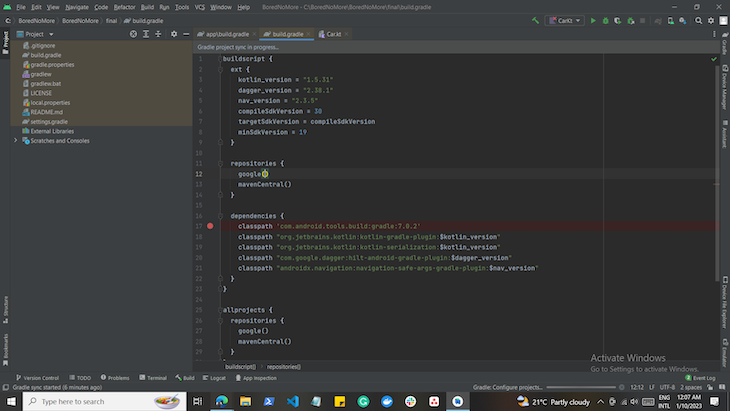
Start by clicking on the SDK manager icon, which is on the left side of the search icon:
👁 Clicking The SDK Manager Icon
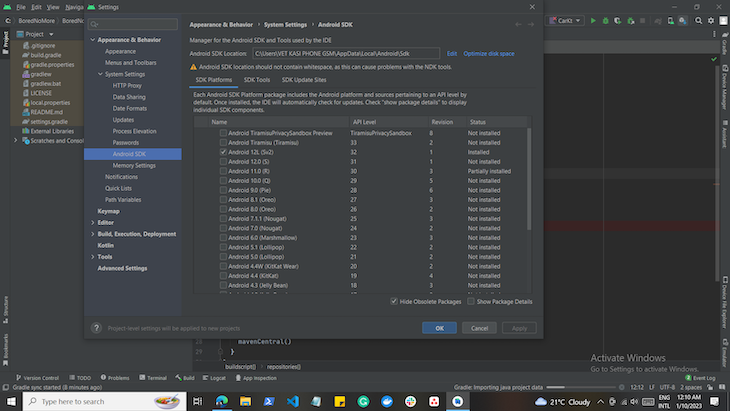
In the Android SDK manager window, you will see the current SDK location. To change it, press the Edit text:
👁 Changing The Current SDK Location
Next, navigate to the SDK location that is shown at the bottom of the window and then press the folder icon for the option to change it:
👁 Clicking The Icon Folder To Change The SDK Location
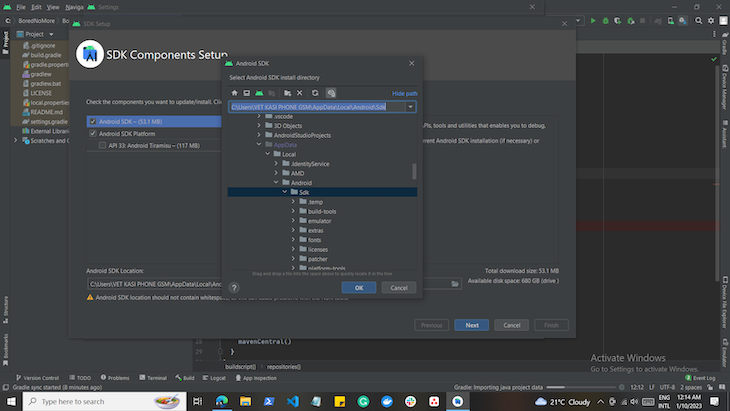
Next, select the SDK location you would like to switch to and then press OK. The previous window will be shown again, and then press Next:
👁 Select The Desired New SDK Location
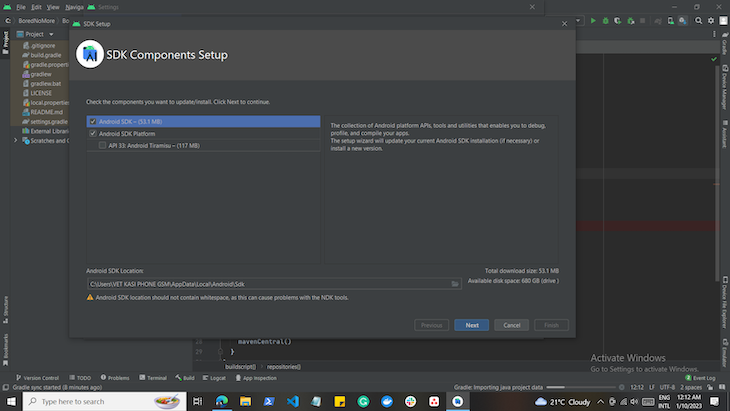
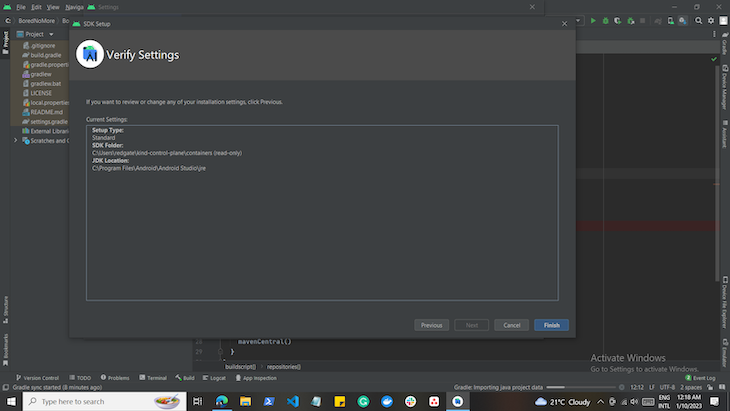
After pressing the next button, Android Studio will ask you to verify the changes you have just made. Press Finish if you have changed to the right SDK location:
👁 Verifying SDK Location Changes
If you have changed the SDK location successfully, you will see the new location being displayed as the SDK location:
👁 Our New SDK Location Is Displayed
It is difficult to say which SDK locations are “bad” because it depends on the context and the specific use case. However, there are some general guidelines to consider when choosing an SDK location.
Avoid storing SDKs:
Ultimately, the best location for an SDK will depend on the specific requirements of your project and organization. It’s always a good idea to consult with your development team or IT department to determine the best location for your SDK.
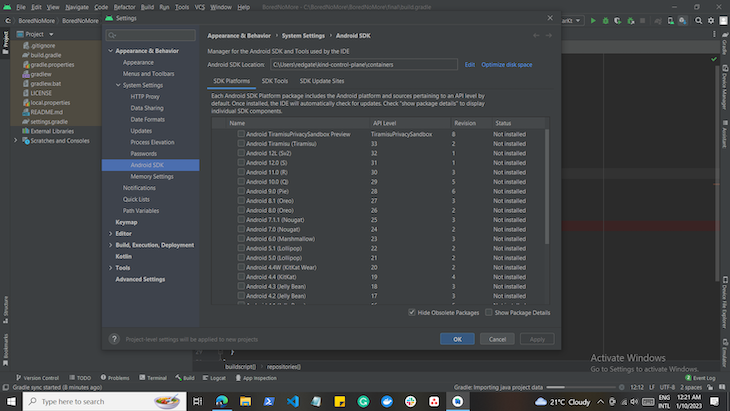
To install an SDK platform, open the SDK manager the way you had done it in the previous sections. In the SDK manager window, you will see the SDK Platforms tab. This tab will contain all available SDKs you can install. The SDKs are secure.
Downloading the latest SDK means your app will be limited to a few users that use the latest versions of Android. Yes, the latest SDKs contain all the latest features; if your application heavily depends on the latest Android features, then it’s best you install the latest SDK version.
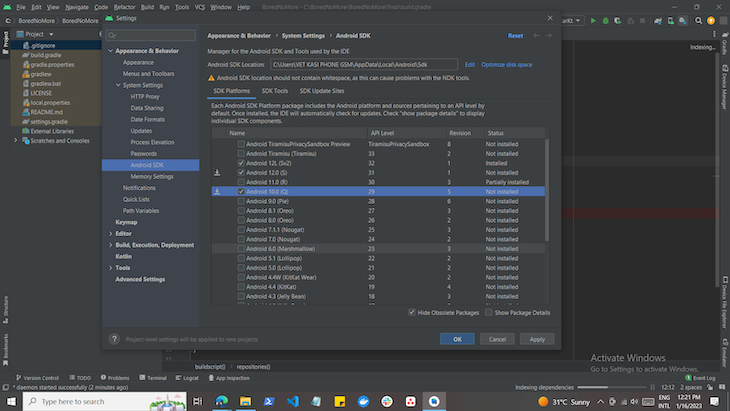
Now, check all the boxes for the specific SDK platforms you want to be installed and click the Apply button at the bottom right of your window:
👁 Selecting Which SDK Platforms To Install
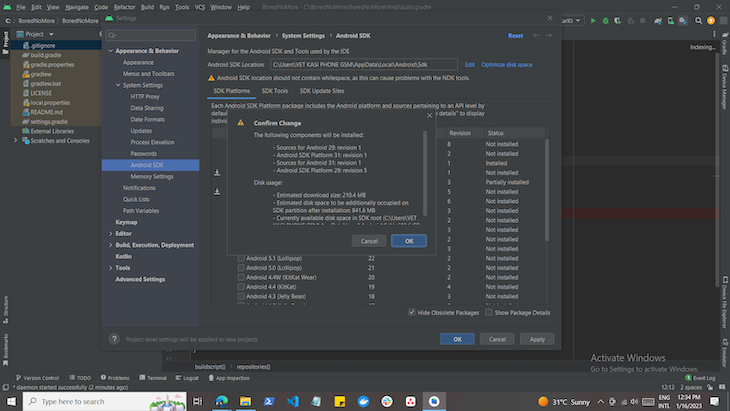
Next, Android Studio will ask you if you want to install the selected items. Press OK if you wish to install the selected SDKs:
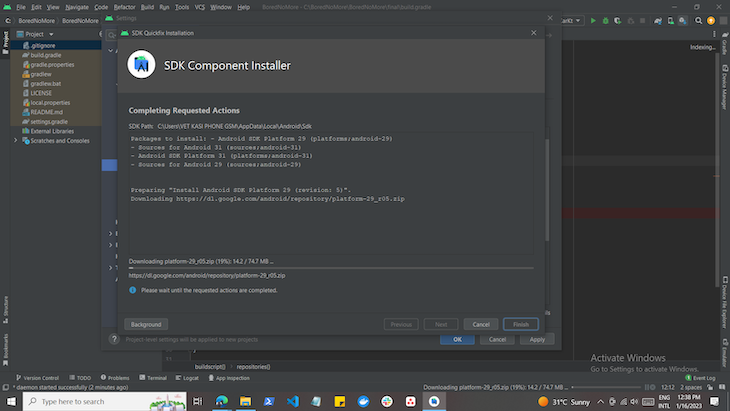
Android Studio will download the SDKs, but you have to make sure that your network connection is stable or else the download will be canceled if there are any network interruptions:
In this article, we discussed how to change the Android SDK path on your system. Changing the Android SDK path is a simple process that can be done through the Android SDK Manager. By changing the Android SDK path, you can install the Android SDK to a different location on your system, or use a different version of the Android SDK.
LogRocket is an Android monitoring solution that helps you reproduce issues instantly, prioritize bugs, and understand performance in your Android apps.
LogRocket's Galileo AI watches sessions for you, instantly identifying and explaining user struggles with automated monitoring of your entire product experience.
LogRocket also helps you increase conversion rates and product usage by showing you exactly how users are interacting with your app. LogRocket's product analytics features surface the reasons why users don't complete a particular flow or don't adopt a new feature.
👁 ImageStart proactively monitoring your Android apps — try LogRocket for free.
Install LogRocket via npm or script tag. LogRocket.init() must be called client-side, not
server-side
$ npm i --save logrocket

// Code:

import LogRocket from 'logrocket';
LogRocket.init('app/id');
// Add to your HTML:

<script src="https://cdn.lr-ingest.com/LogRocket.min.js"></script>
<script>window.LogRocket && window.LogRocket.init('app/id');</script>
We built the same app in TanStack Start RSC and Next.js RSC. TanStack shipped 40% less JS and built 4x faster — but Next.js is still the safer production bet.
From RSC vulnerabilities and the Vercel breach to TypeScript 7.0 Beta and AI agents — the nine frontend storylines that defined H1 2026, ranked.
AI tools generate working React code fast, but miss race conditions, empty states, debouncing, and accessibility. Here’s how to catch bugs before production.
Learn how to use Gemini CLI subagents to delegate frontend, backend, testing, and docs tasks to specialized agents with guardrails and clear ownership.
Would you be interested in joining LogRocket's developer community?
Join LogRocket’s Content Advisory Board. You’ll help inform the type of content we create and get access to exclusive meetups, social accreditation, and swag.
Sign up now