|
VOOZH | about |
|
VOOZH | about |
The Replay is a weekly newsletter for dev and engineering leaders.
Delivered once a week, it's your curated guide to the most important conversations around frontend dev, emerging AI tools, and the state of modern software.
One of the key entities in the software-as-a-service (SaaS) model is the tenant — that is, any customer that signs up to use the given service.
👁 Building a Multi-tenant Amplify App with a React FrontendThe term tenant is taken from the concept of renting physical property. Tenants pay rent to occupy a space, but they do not own the property. Similarly, with SaaS products, customers pay to get access to the service, but they don’t own the software that offers the service.
There are various tenancy models available, namely:
Using the principles I covered in two previous posts (linked below), we will focus on the multi-tenant model and use AWS to set up up a multi-tenant SaaS application with a single multi-tenant database. We’ll use the following AWS resources:
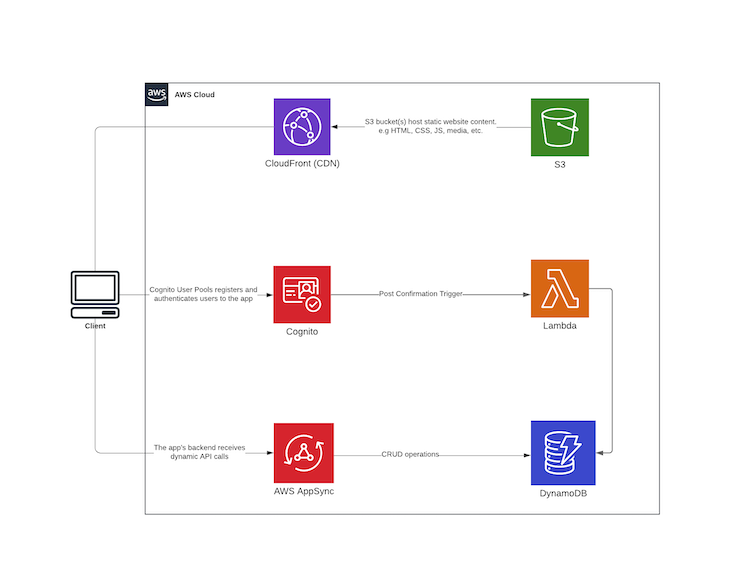
Looking at a code repository while trying to figure out how an app works is a tedious task regardless of your experience level. And since humans relate much more easily with visual content, I drafted the following architecture diagram to show how our to-do application will work:
In theory, the React client contains login functionality that is executed using the Amplify library. Once a user has been successfully registered, the Cognito post confirmation trigger executes a Lambda function that receives a payload containing the information about the newly signed-up user.
The Lambda code saves the newly created user to DynamoDB, thus allowing us to store all newly created user profiles under DynamoDB while using Cognito for authorization. The DynamoDB item will have the following structure:
Item: {
 createdAt: {
 S: "timestamp here",
 },
 updatedAt: {
 S: "timestamp here",
 },
 typeName: { S: "USER" },
 id: { S: "unique id" },
 cognitoId: { S: "cognito id gotten from the post confirmation trigger payload" },
 email: { S: "user email"},
 phoneNumber: { S: "user phone number" },
}
When the new user logs in, they’ll have access to the AppSync GraphQL API on the React frontend, which allows for CRUD operations on to-do items. The created items are saved to DynamoDB using mapping templates created in AppSync. These enable mapping of the payload from the method request to the corresponding integration request, and from an integration response to the corresponding method response.
The schema of a multi-tenant database must have one or more tenant identifier columns so that the data from any given tenant can be selectively retrieved. To that end, we can use the single table design that DynamoDB offers in order to achieve our goal of setting up a multi-tenant database with a composite primary key as the unique identifier.
DynamoDB has two different kinds of primary keys, namely partition key and composite primary key (partition key and sort key). We will define a composite primary key with id as the partition key and typeName as the sort key.
DynamoDB isn’t exactly the go-to solution for handling relational data, but as described Alex DeBrie’s article on modeling one-to-many relationships in DynamoDB:
DynamoDB is sometimes considered just a simple key-value store, but nothing could be further from the truth. DynamoDB can handle complex access patterns, from highly relational data models to time series data or even geospatial data.
In our case, there is a one-to-many relationship where one User can own many ToDo items.
Now that we’ve covered the theory part of the article, we can proceed to the code.
As mentioned in the introduction, we will use what we learned from my previous two articles to come up with a real-world example for our application. To avoid duplication, I included only new functionality that we’ll add in this article and omitted some parts that have already been covered in the previous articles.
Add a new folder for our project in your preferred destination, and create a new serverless project called backend. Then, bootstrap a React app using Create React App within the same directory and call it client. This results in the following directory structure:
$ tree . -L 2 -a
.
├── backend
└── client
Navigate to the serverless folder and install these dependencies:
$ yarn add serverless-appsync-plugin serverless-stack-output serverless-pseudo-parameters serverless-webpack
While still inside the backend folder, create a schema.yml file and add the following schema:
type ToDo {
 id: ID
 description: String!
 completed: Boolean
 createdAt: AWSDateTime
 updatedAt: AWSDateTime
 user: User
}

type User {
 id: ID
 cognitoId: ID!
 firstName: String
 lastName: String
 email: AWSEmail
 phoneNumber: AWSPhone
 createdAt: AWSDateTime
 updatedAt: AWSDateTime
}

input ToDoUpdateInput {
 id: ID!
 description: String
 completed: Boolean
}

type Mutation {
 createTodo(input: ToDoCreateInput): ToDo
 updateTodo(input: ToDoUpdateInput): ToDo
 deleteTodo(id: ID!): ToDo
}

type Query {
 listToDos: [ToDo!]
 listUserTodos(id: ID): [ToDo!]
 getToDo(id: ID): ToDo
 profile: User!
}

schema {
 query: Query
 mutation: Mutation
}
Create a new file inside a folder called resources:
$ mkdir resources && touch resources/dynamo-table.yml
Open the file and add the following CloudFormation Template, which defines our DynamoDB configuration:
Resources:
 PrimaryDynamoDBTable:
 Type: AWS::DynamoDB::Table
 Properties:
 AttributeDefinitions:
 - AttributeName: typeName
 AttributeType: S
 - AttributeName: id
 AttributeType: S
 KeySchema: # Hash Range key
 - AttributeName: typeName
 KeyType: HASH
 - AttributeName: id
 KeyType: RANGE
 BillingMode: PAY_PER_REQUEST
 TableName: ${self:custom.resources.PRIMARY_TABLE}
 TimeToLiveSpecification:
 AttributeName: TimeToLive,
 Enabled: True
 GlobalSecondaryIndexes:
 - IndexName: GSI1
 KeySchema:
 - AttributeName: typeName
 KeyType: HASH
 Projection:
 ProjectionType: ALL
Create a new configuration file for the Cognito user pool inside the resources folder:
$ mkdir resources && touch resources/cognito-userpool.yml
Open the file and add the following CloudFormation Template, which defines the user pool config:
Resources:
 CognitoUserPoolToDoUserPool:
 Type: AWS::Cognito::UserPool
 Properties:
 AdminCreateUserConfig:
 AllowAdminCreateUserOnly: FALSE
 AutoVerifiedAttributes:
 - email
 Policies:
 PasswordPolicy:
 MinimumLength: 7
 RequireLowercase: True
 RequireNumbers: True
 RequireSymbols: True
 RequireUppercase: True
 Schema:
 - Name: email
 AttributeDataType: String
 Mutable: false
 Required: true
 - Name: phone_number
 Mutable: true
 Required: true
 UserPoolName: ${self:service}-${self:provider.stage}-user-pool
 CognitoUserPoolClient:
 Type: "AWS::Cognito::UserPoolClient"
 Properties:
 ClientName: ${self:service}-${self:provider.stage}-user-pool-client
 GenerateSecret: false
 UserPoolId:
 Ref: CognitoUserPoolToDoUserPool
Outputs:
 UserPoolId:
 Value:
 Ref: CognitoUserPoolToDoUserPool
 UserPoolClientId:
 Value:
 Ref: CognitoUserPoolClient
Below, I’ll break down the new functionality that comes with adding authorization to the previously built to-do app. You can check out the rest of the mapping templates here since they are pretty self-explanatory.
create_todo.vtlLooking back at our schema, the to-do item has a field called user, which will contain the Cognito ID of the user that owns the item. We get the id from the identity object, which is the user’s Cognito profile.
Create the mapping template file:
$ mkdir mapping-templates/create_todo && touch mapping-templates/create_todo/request.vtl
Add the following code:
$util.qr($ctx.args.input.put("createdAt", $util.time.nowISO8601()))
$util.qr($ctx.args.input.put("updatedAt", $util.time.nowISO8601()))
{
 "version" : "2017-02-28",
 "operation" : "PutItem",
 "key" : {
 "id": $util.dynamodb.toDynamoDBJson($util.autoId()),
 "typeName": $util.dynamodb.toDynamoDBJson("TODO"),
 "user" : { "S" : "${context.identity.sub}" }
 },
 "attributeValues" : $util.dynamodb.toMapValuesJson($ctx.args.input)
}
get_user_todos.vtlCreate the mapping template file:
$ mkdir mapping-templates/get_user_todos && touch mapping-templates/get_user_todos/request.vtl
Add the following code:
{
 "version" : "2017-02-28",
 "operation" : "GetItem",
 "key" : {
 "id" : { "S" : "${context.source.user}" },
 "typeName": $util.dynamodb.toDynamoDBJson("USER")
 },
}
list_user_todos.vtlOnce again, create the mapping template file:
$ mkdir mapping-templates/list_user_todos && touch mapping-templates/list_user_todos/request.vtl
And add the following code:
{
 "version" : "2017-02-28",
 "operation" : "Query",
 "query" : {
 "expression": "#typeName = :typeName",
 "expressionNames": {
 "#typeName": "typeName"
 },
 "expressionValues" : {
 ":typeName" : $util.dynamodb.toDynamoDBJson("TODO")
 }
 },
 "filter": {
 "expression": "#user = :user",
 "expressionNames": {
 "#user": "user"
 },
 "expressionValues": {
 ":user" : { "S" : "${context.identity.sub}" }
 }
 },
}
Because we have a one-to-many relationship between a User and ToDo items, in order to get all to-do items that have been created by a specific user, we get all the items in the database using the Query method and then filter through the items and return to-do items that contain the same user attribute as the user’s Cognito ID.
Next, we will set up the Lambda function responsible for saving a newly signed-up user to DynamoDB. The function is executed when the Cognito post confirmation trigger is called once the user has confirmed their email.
Create the file:
$ touch handler.ts
Add the following code:
import * as moment from "moment";
import { v4 as uuidv4 } from "uuid";
import { DynamoDB } from "aws-sdk";

const ddb = new DynamoDB({ apiVersion: "2012-10-08" });

export const cognitoPostConfirmation = async (event, context, callback) => {
 try {
 const userParams = {
 TableName: process.env.PRIMARY_TABLE, // gotten from serverless deployment
 Item: {
 createdAt: {
 S: moment().format("YYYY-MM-DDThh:mm:ssZ"),
 },
 updatedAt: {
 S: moment().format("YYYY-MM-DDThh:mm:ssZ"),
 },
 typeName: { S: "USER" },
 id: { S: uuidv4() },
 cognitoId: { S: event.request.userAttributes.sub },
 email: { S: event.request.userAttributes.email },
 phoneNumber: { S: event.request.userAttributes.phone_number },
 },
 };
 // @ts-ignore
 await ddb.putItem(userParams).promise();
 return callback(null, event);
 } catch (error) {
 return callback(error);
 }
};
Since we create a .ts file for our Lambda function, we need to add TypeScript support to the serverless project by creating a tsconfig.json file and a webpack.config.js file:
$ touch tsconfig.json webpack.config.js
//tsconfig.json

{
 "compilerOptions": {
 "allowSyntheticDefaultImports": true,
 "module": "commonjs",
 "removeComments": false,
 "preserveConstEnums": true,
 "sourceMap": true,
 "skipLibCheck": true,
 "resolveJsonModule": true,
 "lib": ["esnext"]
 }
}
//webpack.config.js

const slsw = require("serverless-webpack");
const nodeExternals = require("webpack-node-externals");
module.exports = {
 entry: slsw.lib.entries,
 target: "node",
 // Generate sourcemaps for proper error messages
 devtool: "source-map",
 // Since "aws-sdk" is not compatible with webpack,
 // we exclude all node dependencies
 externals: [nodeExternals()],
 mode: slsw.lib.webpack.isLocal ? "development" : "production",
 optimization: {
 // We no not want to minimize our code.
 minimize: false,
 },
 performance: {
 // Turn off size warnings for entry points
 hints: false,
 },
 resolve: {
 extensions: [".ts"],
 },
 // Run babel on all .js files and skip those in node_modules
 module: {
 rules: [
 {
 test: /\.ts(x?)$/,
 exclude: /node_modules/,
 use: [
 {
 loader: "ts-loader",
 },
 ],
 },
 ],
 },
};
Now that we are done creating all the resources, we will bring everything together and add it to the serverless.yml file as follows:
service: react-amplify-multi-tenant
app: amplify-multi-tenant
frameworkVersion: "2"
provider:
 name: aws
 runtime: nodejs12.x
 lambdaHashingVersion: 20201221
 region: eu-west-1
 stage: ${opt:stage, 'dev'}
 environment:
 PRIMARY_TABLE: ${self:custom.resources.PRIMARY_TABLE}
plugins:
 - serverless-appsync-plugin
 - serverless-stack-output
 - serverless-pseudo-parameters
 - serverless-webpack
custom:
 webpack:
 webpackConfig: ./webpack.config.js # typescript support
 includeModules: true
 resources:
 PRIMARY_TABLE: ${self:service}-dynamo-table-${self:provider.stage}
 PRIMARY_BUCKET: ${self:service}-primary-bucket-${self:provider.stage}
 WEB_HOSTING_BUCKET: ${self:service}-web-hosting-bucket-${self:provider.stage}
 output:
 handler: ./scripts/output.handler
 file: ../client/src/aws-exports.json
 appSync: # appsync plugin configuration
 name: ${self:service}-appsync-${self:provider.stage}
 authenticationType: AMAZON_COGNITO_USER_POOLS
 additionalAuthenticationProviders:
 - authenticationType: API_KEY
 dataSources:
 - type: AMAZON_DYNAMODB
 name: PrimaryTable
 description: "Primary Table"
 config:
 tableName: ${self:custom.resources.PRIMARY_TABLE}
 serviceRoleArn: { Fn::GetAtt: [AppSyncDynamoDBServiceRole, Arn] }
 userPoolConfig:
 awsRegion: ${self:provider.region}
 defaultAction: ALLOW
 userPoolId: { Ref: CognitoUserPoolToDoUserPool } # name of the resource
 logConfig:
 loggingRoleArn: { Fn::GetAtt: [AppSyncLoggingServiceRole, Arn] }
 level: ALL
 mappingTemplates:
 - dataSource: PrimaryTable
 type: Mutation
 field: createTodo
 request: "create_todo/request.vtl"
 response: "common-item-response.vtl"
 - dataSource: PrimaryTable
 type: Mutation
 field: updateTodo
 request: "update_todo/request.vtl"
 response: "common-item-response.vtl"
 - dataSource: PrimaryTable
 type: Mutation
 field: deleteTodo
 request: "delete_todo/request.vtl"
 response: "common-item-response.vtl"
 - dataSource: PrimaryTable
 type: Query
 field: getToDo
 request: "get_todo/request.vtl"
 response: "common-item-response.vtl"
 - dataSource: PrimaryTable
 type: Query
 field: getUser
 request: "get_user/request.vtl"
 response: "common-item-response.vtl"
 - dataSource: PrimaryTable
 type: Query
 field: listUserTodos
 request: "list_user_todos/request.vtl"
 response: "common-items-response.vtl"
 - dataSource: PrimaryTable
 type: ToDo
 field: user
 request: "get_todo_user/request.vtl"
 response: "common-item-response.vtl"
functions:
 cognitoPostConfirmation:
 handler: handler.cognitoPostConfirmation
 events: # cognito post confirmation trigger
 - cognitoUserPool:
 pool: CognitoUserPoolToDoUserPool
 trigger: PostConfirmation
resources:
 - ${file(./resources/appsync-dynamo-role.yml)}
 - ${file(./resources/dynamo-table.yml)}
 - ${file(./resources/web-hosting-bucket.yml)}
 - ${file(./resources/cognito-userpool.yml)}
And then we deploy:
$ sls deploy --stage=dev
Now that our backend is all set and deployed, we will proceed to the frontend client to demonstrate how the above logic is pieced together.
We will be using Ant Design for UI components, and in order to validate the user password, we will use a password validator. We added password requirements while setting up our user pool, which should be as follows:
After successful validation of all the required user details, we send the payload to the Cognito API, which sends out a verification code to the user’s email and creates a new user in the UserPool:
 const onFinish = (values: any) => {
 const { firstName, lastName, email, phoneNumber, password } = values;
 // hide loader
 toggleLoading(false);
 Auth.signUp({
 username: email,
 password,
 attributes: {
 email,
 name: `${firstName} ${lastName}`,
 phone_number: phoneNumber,
 },
 })
 .then(() => {
 notification.success({
 message: "Successfully signed up user!",
 description:
 "Account created successfully, Redirecting you in a few!",
 placement: "topRight",
 duration: 1.5,
 onClose: () => {
 updateUsername(email);
 toggleRedirect(true);
 },
 });
 })
 .catch((err) => {
 notification.error({
 message: "Error",
 description: "Error signing up user",
 placement: "topRight",
 duration: 1.5,
 });
 toggleLoading(false);
 });
 };
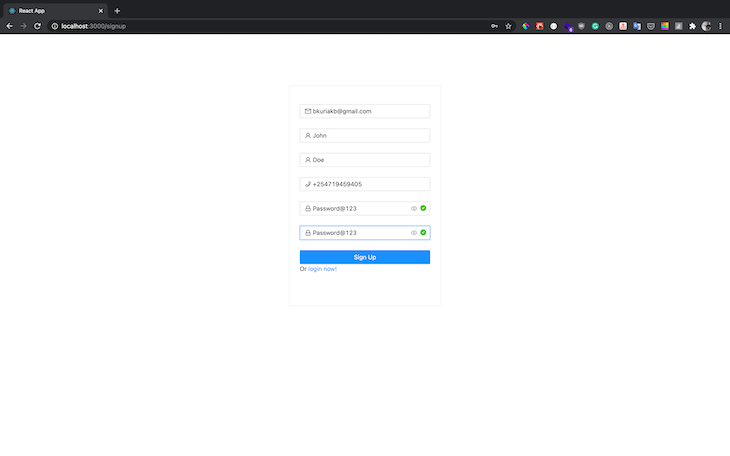
Navigate to the sign-up route and create a new user:
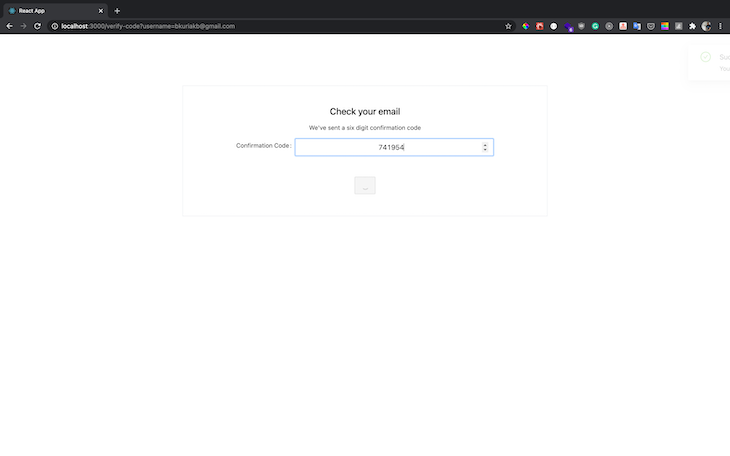
Check your email for a new confirmation code and add it as follows:
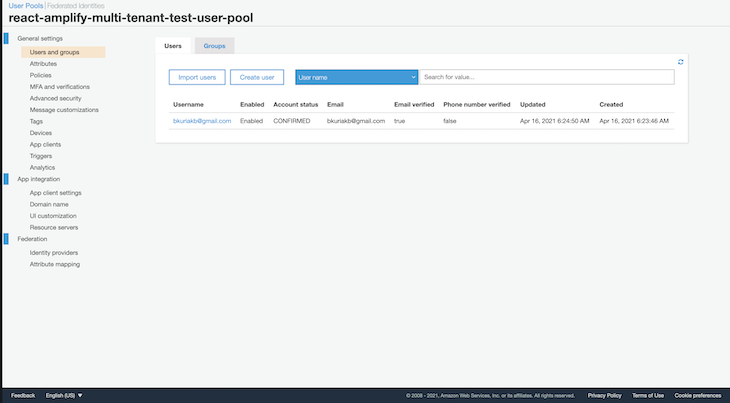
After verification, your user pool should now have a list of new users under users and groups:
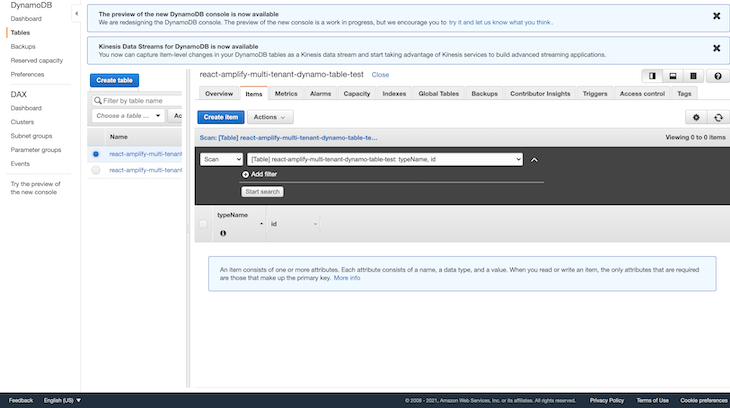
When a new user is signed up, the post confirmation trigger that we set up receives a payload containing user sign-up data, which we then save to DynamoDB as a user record. Open your AWS console, navigate to DynamoDB, and select the newly created table. You should have a new user record saved with details from the sign-up process:
👁 Viewing Newly Created User Record
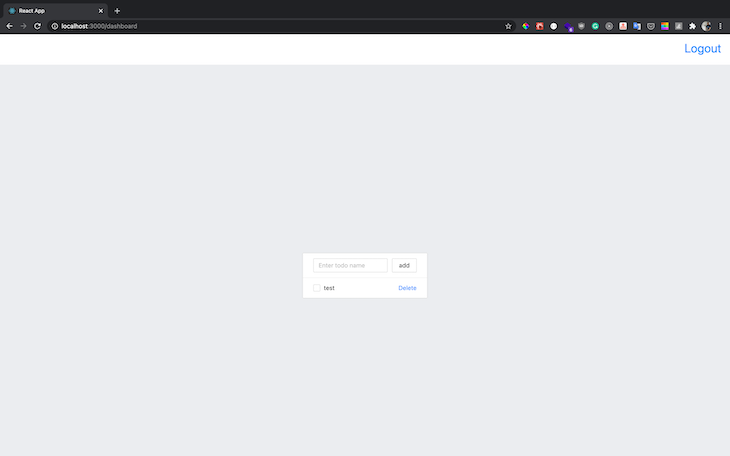
Next, you can now log in using the new credentials, after which you will be redirected to the dashboard page where you can create, edit, and delete new to-do items. Because this article is for demo purposes, we will add one component file that contains all the CRUD logic:
const DataList = () => {
 const [description, updateDescription] = React.useState("");
 const [updateToDoMutation] = useMutation(updateToDo);
 const [createToDoMutation] = useMutation(createToDo);
 const [deleteToDoMutation] = useMutation(deleteToDo);
 const { loading, error, data } = useQuery(listUserToDos);

 function handleCheck(event: CheckboxChangeEvent, item: ToDo) {
 updateToDoMutation({
 variables: { input: { completed, id: item.id } },
 refetchQueries: [
 {
 query: listUserToDos,
 },
 ],
 })
 .then((res) => message.success("Item updated successfully"))
 .catch((err) => {
 message.error("Error occurred while updating item");
 });
 }

 function handleSubmit(event: React.FormEvent) {
 event.preventDefault();
 createToDoMutation({
 variables: { input: { description } },
 refetchQueries: [
 {
 query: listUserToDos,
 },
 ],
 })
 .then((res) => message.success("Item created successfully"))
 .catch((err) => {
 message.error("Error occurred while creating item");
 });
 }

 function handleKeyPress(event: React.KeyboardEvent) {
 if (event.key === "Enter") {
 // user pressed enter
 createToDoMutation({
 variables: { input: { description } },
 refetchQueries: [
 {
 query: listUserToDos,
 },
 ],
 })
 .then((res) => {
 message.success("Item created successfully");
 })
 .catch((err) => {
 message.error("Error occurred while creating item");
 });
 }
 }

 function handleDelete(item: ToDo) {
 deleteToDoMutation({
 variables: { id: item.id },
 refetchQueries: [
 {
 query: listUserToDos,
 },
 ],
 })
 .then((res) => {
 message.success("Deleted successfully");
 })
 .catch((err) => {
 message.error("Error occurred while deleting item");
 });
 }

 if (loading) {
 return (
 <CenterContent>
 <LoadingOutlined style={{ fontSize: 50 }} spin />
 </CenterContent>
 );
 }

 if (error) {
 return <div>{`Error! ${error.message}`}</div>;
 }

 return (
 <ListContainer>
 <List
 header={
 <div style={{ display: "flex" }}>
 <Input
 placeholder="Enter todo name"
 value={description}
 onChange={(event) => updateDescription(event.target.value)}
 style={{ marginRight: "10px" }}
 onKeyDown={handleKeyPress}
 />
 <Button name="add" onClick={handleSubmit}>
 add
 </Button>
 </div>
 }
 bordered
 dataSource={data.listUserTodos}
 renderItem={(item: ToDo) => (
 <List.Item>
 <Checkbox
 checked={item.completed}
 onChange={(event: CheckboxChangeEvent) =>
 handleCheck(event, item)
 }
 >
 {item.description}
 </Checkbox>
 <Popconfirm
 title="Are you sure to delete this item?"
 onConfirm={() => handleDelete(item)}
 okText="Yes"
 cancelText="No"
 >
 <DeleteAction>Delete</DeleteAction>
 </Popconfirm>
 </List.Item>
 )}
 />
 </ListContainer>
 );
};
Now, add a new item:
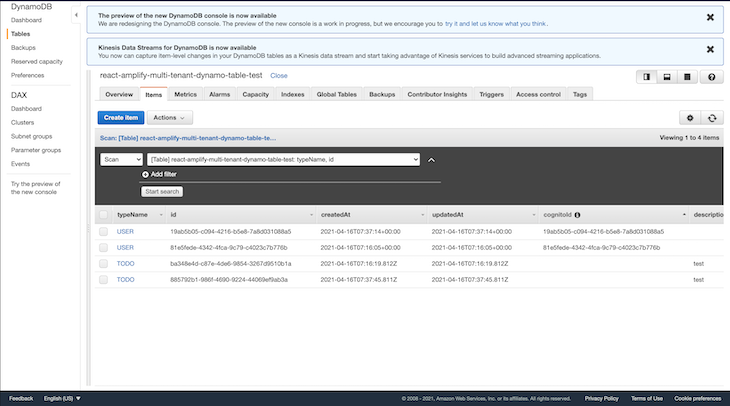
Navigate to the DynamoDB dashboard to view the newly created to-do items. Because we are using the single-table design for our database, the user and to-do records are all stored in the same table, as seen below:
👁 Viewing Single Table Displaying Users and To-dos
In order to test out the multi-tenancy model for the above application, navigate to your terminal and deploy a new instance with a different stage name. The deployment will provision new resources that are independent, with a new database and Cognito user pool.
$ sls deploy --stage=new_stage_name
I hope you enjoyed the article and that you’ve learned something new. As demonstrated, building a multi-tenant app can be quite challenging since there is no one-size-fits-all approach; it requires a lot of pre-planning and choosing what works best for your solution.
I had to omit some of the code in order to keep the article short and readable, but you can view the repo here, and in case anything doesn’t work as you expect it, kindly raise an issue and I will take time to look into it. Happy coding!
Install LogRocket via npm or script tag. LogRocket.init() must be called client-side, not
server-side
$ npm i --save logrocket

// Code:

import LogRocket from 'logrocket';
LogRocket.init('app/id');
// Add to your HTML:

<script src="https://cdn.lr-ingest.com/LogRocket.min.js"></script>
<script>window.LogRocket && window.LogRocket.init('app/id');</script>
Build dynamic LLM routing in Next.js with OpenRouter, TanStack AI, task classification, model fallbacks, and cost-aware routing.
TSRX adds first-class control flow, conditional hooks, and scoped styles to React via a TypeScript compiler extension — no new framework required.
Learn how to build a full React Native auth system using Better Auth and Expo — with email/password login, Google OAuth, session persistence, and protected routes.
Compare the top AI development tools and models of June 2026. View updated rankings, feature breakdowns, and find the best fit for you.
Would you be interested in joining LogRocket's developer community?
Join LogRocket’s Content Advisory Board. You’ll help inform the type of content we create and get access to exclusive meetups, social accreditation, and swag.
Sign up now