|
VOOZH | about |
|
VOOZH | about |
Emojis are used widely across devices as a medium of communication, expressing emotions that can‘t easily be conveyed via plain text.
👁 Standardize Emoji ios Display AndroidAs humans, we tend to prefer verbal, face-to-face conversations, which allow us to read facial expressions and interpret tone of voice. This has been missing from written communications for some time. Emojis make texting and writing a lot more fun, not only by conveying hidden meanings, but by signifying approval or disagreement. With the rise of social media and messaging apps, emojis have become the norm in textual communication.
Did you know that emojis don’t look the same on every platform? An emoji’s appearance depends on what platform you’re using, namely, Android, iOS, Windows, etc. Standardizing emojis to look the same regardless of what device the user is on is a good practice to ensure consistency throughout your application.
In this article, we’ll explore standardizing emojis across iOS and Android. To follow along, you’ll need Android Studio and beginner-level knowledge of Android. Let’s get started!
Jump ahead:
The Replay is a weekly newsletter for dev and engineering leaders.
Delivered once a week, it's your curated guide to the most important conversations around frontend dev, emerging AI tools, and the state of modern software.
Emoji began in 2010, quickly becoming an official, universal method of communication after being added to Unicode, the global standard for encoding text in computing systems. The Unicode Consortium, the body responsible for maintaining Unicode, accepted a proposal from a team of engineers from Google and Apple to standardize these expressive characters, meaning every operating system supports Unicode for all emojis.
However, there is a caveat to this; Unicode does not regulate what an emoji looks like. Therefore, individual vendors like Apple and Google can decide what shape, color, and design to display. Even app developers can define their own set of unique emojis to map to Unicode. Feel free to check out the complete list of emoji unicodes.
Let’s take a look at a few examples. Below is the Face with Rolling Eyes emoji. Most vendors implement eyes that look upwards and a neutral mouth. However, Google and Facebook implement faces that sort of frown, making it a sad expression as well:
The Water Pistol emoji is one of the most evident examples of each vendor or app using its own color and theming, so the emoji looks very different depending on the platform or app:
Emojipedia is a great place to look at all the different emoji icons available on different platforms.
As an app developer, you should standardize how emojis look across Android and iOS devices, thereby keeping the look and feel of your application the same regardless of what platform the user is accessing it from. In this article, we’ll go over step-by-step how to display Apple/iOS-style emojis in an Android app.
We‘ll use the Emoji library that comes with four different variations of emojis to choose from, including iOS, Google, Facebook, and Twitter. Not only is this library well-maintained, but it’s also fairly simple to use.
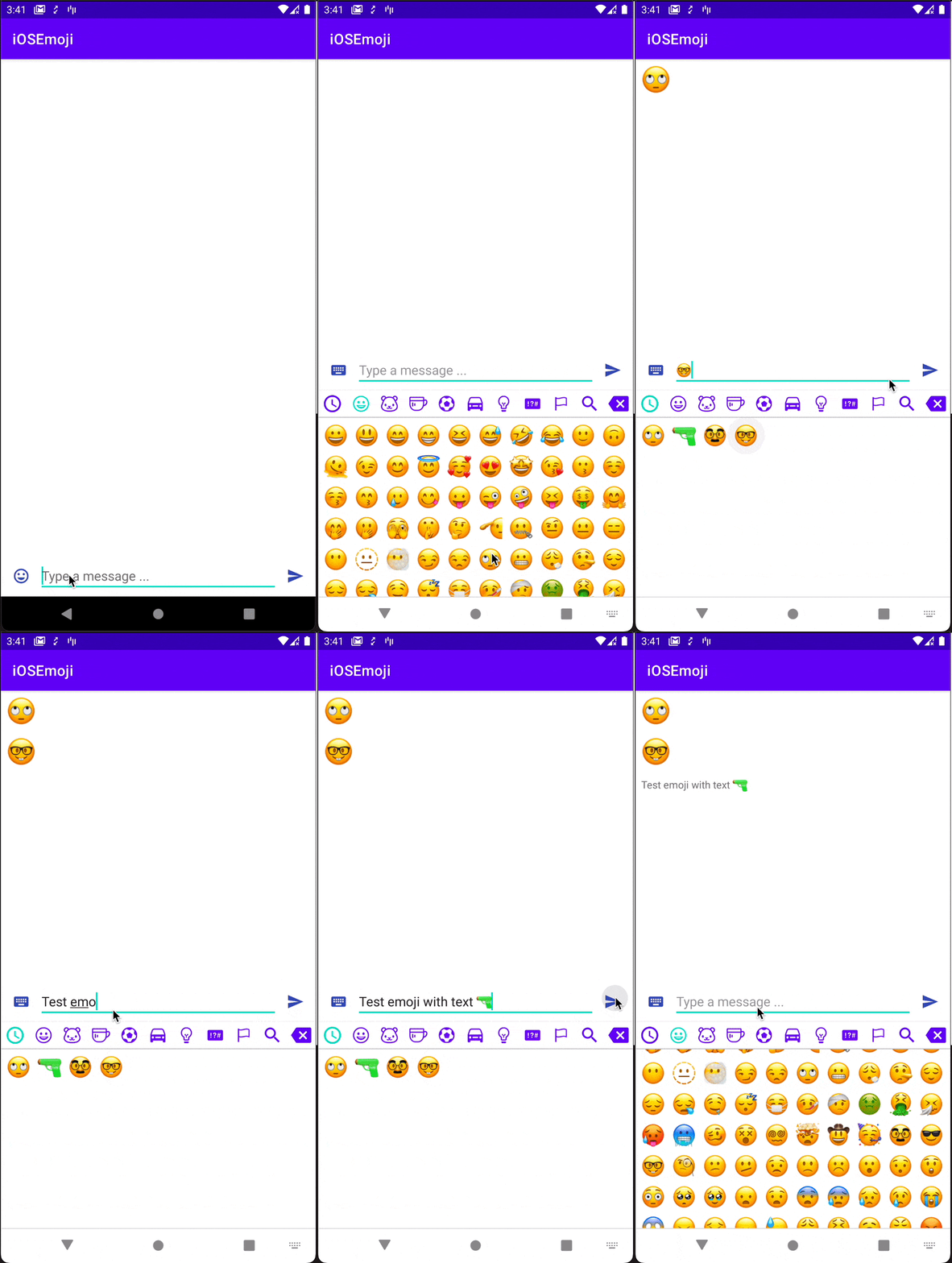
We’ll build a chat screen to demonstrate the input and output, as well as a keyboard to display iOS emojis in our Android app:
Include the following gradle dependency in your app level build.gradle file:
implementation "com.vanniktech:emoji-ios:0.15.0"
Add the following line to your application class:
EmojiManager.install(IosEmojiProvider())
The code above installs the provider in your application class. You can decide what provider to install; for the purposes of this tutorial, we’ll use iOS emojis.
The Emoji library provides an emoji view corresponding to most of the Android views, so you have the following:
EmojiAutoCompleteTextViewEmojiButtonEmojiCheckboxEmojiEditTextEmojiMultiAutoCompleteTextViewEmojiTextViewFor convenience, you can also use EmojiLayoutFactory, which provides automatic Emoji support when using normal Android Views, like TextView, Checkbox, etc.
To display the list of messages, we used EmojiTextView in our chat screen. The EmojiTextView provides all the properties of the usual TextView and can be used in the same way without any additional changes. Below is the code snippet from our sample:
<com.vanniktech.emoji.EmojiTextView
 android:id="@+id/itemAdapterChatTextView"
 android:layout_width="wrap_content"
 android:layout_height="wrap_content"
 android:textIsSelectable="true"
 app:emojiSize="@dimen/emoji_size_default"
 tools:text="my text" />
For user input, we’ve used EmojiEditText instead of the default EditText as follows:
<com.vanniktech.emoji.EmojiEditText
 android:id="@+id/chatEditText"
 android:layout_width="0dp"
 android:layout_height="wrap_content"
 android:layout_weight="1"
 android:hint="Type a message ..."
 android:imeOptions="actionSend"
 android:importantForAutofill="no"
 android:inputType="textCapSentences|textMultiLine"
 android:maxLines="3"
 tools:ignore="HardcodedText,LabelFor" />
Finally, to show an iOS style emoji keyboard, the library provides you with EmojiPopup. To open it, execute the code below:
val emojiPopup = EmojiPopup(
 rootView = binding.rootView,
 editText = binding.chatEditText,
 onEmojiPopupShownListener = { binding.chatEmoji.setImageResource(R.drawable.ic_keyboard) },
 onEmojiPopupDismissListener = { binding.chatEmoji.setImageResource(R.drawable.ic_emojis) },
 keyboardAnimationStyle = com.vanniktech.emoji.ios.R.style.emoji_fade_animation_style,
)
rootView is the rootView of your layout XML file, which you can use to calculate the height of the keyboard. chatEditText is the EmojiEditText that you declared in your layout XML file.
We use onEmojiPopupShownListener to change the left drawable to the keyboard icon as soon as the emoji pop-up is displayed, and onEmojiPopupDismissListener changes the left drawable to the emoji icon as soon as the emoji pop-up is dismissed and the default keyboard becomes visible.
Finally, keyboardAnimationStyle provides fade-in and fade-out transitions between the keyboard and the emoji pop-up window when the user toggles between them. Voila, that’s pretty much it!
In this article, we learned how to display iOS emojis in an Android app, understanding why emojis look different on different platforms. If you want to explore this further, check out the Emoji library here.
You can access the sample app used in the article here on GitHub. Thanks for sticking around, and happy coding!
LogRocket is an Android monitoring solution that helps you reproduce issues instantly, prioritize bugs, and understand performance in your Android apps.
LogRocket's Galileo AI watches sessions for you, instantly identifying and explaining user struggles with automated monitoring of your entire product experience.
LogRocket also helps you increase conversion rates and product usage by showing you exactly how users are interacting with your app. LogRocket's product analytics features surface the reasons why users don't complete a particular flow or don't adopt a new feature.
👁 ImageStart proactively monitoring your Android apps — try LogRocket for free.
Learn how next-browser gives AI agents runtime context for debugging Next.js apps, including React props, hydration, PPR, forms, and performance.
Build dynamic LLM routing in Next.js with OpenRouter, TanStack AI, task classification, model fallbacks, and cost-aware routing.
TSRX adds first-class control flow, conditional hooks, and scoped styles to React via a TypeScript compiler extension — no new framework required.
Learn how to build a full React Native auth system using Better Auth and Expo — with email/password login, Google OAuth, session persistence, and protected routes.
Hey there, want to help make our blog better?
Join LogRocket’s Content Advisory Board. You’ll help inform the type of content we create and get access to exclusive meetups, social accreditation, and swag.
Sign up now