|
VOOZH | about |
|
VOOZH | about |
The Replay is a weekly newsletter for dev and engineering leaders.
Delivered once a week, it's your curated guide to the most important conversations around frontend dev, emerging AI tools, and the state of modern software.
Authentication is an important feature in web applications today, but many developers have difficulties setting it up. Thankfully, there are services and libraries out there that help lift this heavy burden off our hands.
👁 ImageToday we’ll go over how to use Supabase to handle user authentication in a Vue.js application. Supabase will serve as the backend for authentication in an app with sign in and sign up functionality, along with a private route that can only be accessed with valid credentials.
Supabase is often best described as an open source alternative to Firebase. It offers some of the key features of Firebase, one of which includes user authentication and management.
Supabase provides support for different external auth providers such as passwords, phone numbers, and identity providers such as Google, Twitter, Facebook, and Github.
To get started, we’ll be using the Vue CLI to quickly scaffold a new project. The CLI can be installed globally by running the following command:
npm install -g @vue/cli
# OR
yarn global add @vue/cli
Next, run the following command to create a Vue project:
vue create supabase-auth
You’ll be prompted to pick a preset; pick the option to manually select features.
Once there, select Router and Vuex and click Enter, then choose Vue version 3.x, as we’ll be using the new composition API. Finally, click Enter on all other selections to get your Vue app ready.
To get started, first you’ll have to create an account by visiting the Supabase login page and proceed to sign in using your Github account.
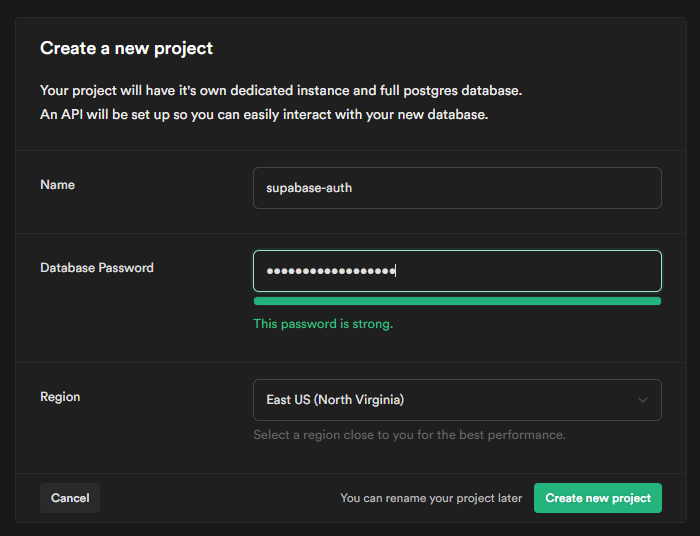
After signing in to the dashboard, click on the new project button to create your first project. You should see the following modal pop up:
👁 Screenshot of supabase create new project screen
Choose a name for your project, a database password, and a region close to you. It will take some time for the project to be fully created.
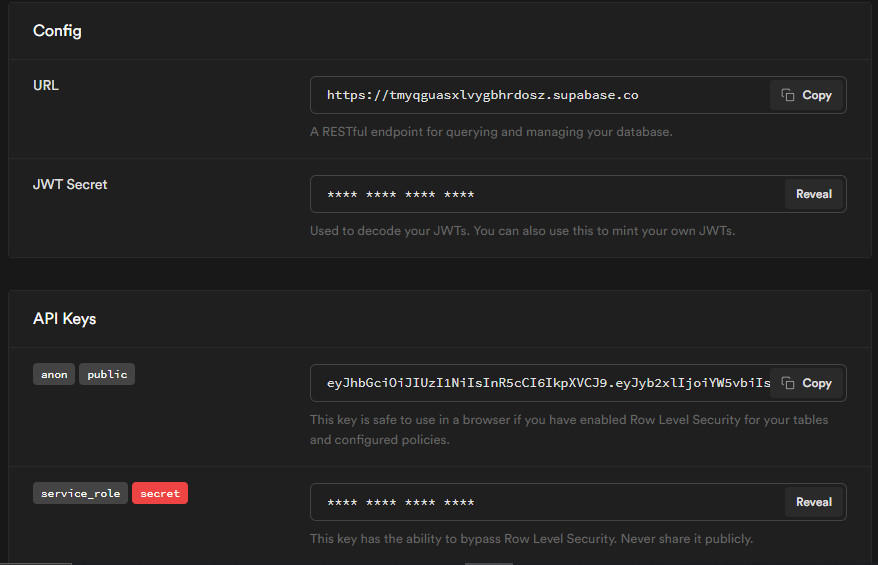
After it’s done, go to Settings, then API, and copy the URL and anonymous public API key:
👁 Screenshot of Supabase config screen
Create a .env.local file in the root of your project and save the credentials in it as such:
VUE_APP_SUPABASE_URL=YOUR_SUPABSE_URL
VUE_APP_SUPABASE_PUBLIC_KEY=YOUR_SUPABSE_PUBLIC_KEY
Run the following command to install the Supabase client library:
yarn add @supabase/supabase-js
Next we’ll have to initialize Supabase by creating a supabase.js file in our src directory and pasting in the following code:
 import { createClient } from '@supabase/supabase-js'

 const supabaseUrl = process.env.VUE_APP_SUPABASE_URL
 const supabaseAnonKey = process.env.VUE_APP_SUPABASE_KEY

 export const supabase = createClient(supabaseUrl, supabaseAnonKey)
Now let’s create some Vue component pages to handle the signup and login functionalities of our project, along with a dashboard page.
In this tutorial, we won’t go into styling our application in order to avoid clouding up our HTML markup, but you can always choose to style yours however you’d like.
Here’s the markup for our SignIn page:
<!-- src/views/SignIn.vue -->
 <template>
 <div>
 <h1>Login Page</h1>
 <form @submit.prevent="signIn">
 <input
 class="inputField"
 type="email"
 placeholder="Your email"
 v-model="form.email"
 />
 <input
 class="inputField"
 type="password"
 placeholder="Your Password"
 v-model="form.password"
 />
 <button type="submit">Sign In</button>
 </form>
 <p>
 Don't have an account?
 <router-link to="/sign-up">Sign Up</router-link>
 </p>
 </div>
</template>
Now let’s do the markup for our SignUp page:
<!-- src/views/SignUp.vue -->
<template>
 <div>
 <h1>SignUp Page</h1>
 <form @submit.prevent="signUp">
 <input
 class="inputField"
 type="email"
 placeholder="Your email"
 v-model="form.email"
 />
 <input
 class="inputField"
 type="password"
 placeholder="Your Password"
 v-model="form.password"
 />
 <button type="submit">Sign Up</button>
 </form>
 <p>
 Already have an account?
 <router-link to="/sign-in">Log in</router-link>
 </p>
 </div>
</template>
And finally, our Dashboard page:
<!-- src/views/Dashboard.vue -->
<template>
 <div>
 <h1>Welcome to our Dashboard Page</h1>
 <button @click.prevent="signOut">Sign out</button>
 <p>Welcome: {{ userEmail }}</p>
 </div>
</template>
Now that we’ve created our pages, we need to set up routes so that we can move between them. For this, we will be using Vue Router.
Let’s declare routes for our different pages in our router file as such:
// router/index.js
import { createRouter, createWebHistory } from 'vue-router';
function loadPage(view) {
 return () =>
 import(
 /* webpackChunkName: "view-[request]" */ `@/views/${view}.vue`
 );
}
const routes = [
 {
 path: '/',
 name: 'Dashboard',
 component: loadPage("Dashboard"),
 meta: {
 requiresAuth: true,
 }
 },
 {
 path: '/sign-up',
 name: 'SignUp',
 component: loadPage("SignUp")
 },
 {
 path: '/sign-in',
 name: 'SignIn',
 component: loadPage("SignIn")
 },
]
const router = createRouter({
 history: createWebHistory(process.env.BASE_URL),
 routes
})

router.beforeEach((to, from, next) => {
 // get current user info
 const currentUser = supabase.auth.user();
 const requiresAuth = to.matched.some
 (record => record.meta.requiresAuth);

 if(requiresAuth && !currentUser) next('sign-in');
 else if(!requiresAuth && currentUser) next("/");
 else next();
})

export default router
The meta object in our first route is used to hold extra information about that route. It has a property named requiresAuth which is set to true, and we’re going to use this property to guard this route against unauthenticated users.
From lines 34-42, we’re setting up what is known as a Navigation Guard.
What’s happening in the code is a check to determine whether a certain route requires authentication, and if a user is currently logged in. If the route requires authentication and no one is logged in, the user is redirected to the sign-in route. But if the route requires authentication and there is a user logged in, then the user is redirected to the dashboard private route.
Vuex is a tool available in Vue applications that is used to store data accessible by all components in our application. It has its own set of rules that ensure the stored data can be changed and updated accordingly.
We are going to store all of the logic for our components here in Vuex.
One caveat to using Vuex is that once the page is reloaded, all stored data resets. To solve this problem we’ll use vuex-persistedstate. This package helps save data stored in Vuex even after the page reloads.
Enter the following in your terminal to install vuex-persistedstate:
yarn add vuex-persistedstate
#OR
npm install --save vuex-persistedstate
Here, we are configuring vuex-persistedstate, then importing Supabase and Vue Router. We’ll be needing them to create our Vuex store actions:
import { createStore } from 'vuex'
import createPersistedState from "vuex-persistedstate";
import router from '../router';
import { supabase } from "../supabase";

// Create store
export default createStore({
 state:{},
 mutations:{},
 actions:{},
 plugins: [createPersistedState()]
});
StateThe state object in our Vuex store is what actually stores the data. Here we can define the default values of our data:
state: {
 user:null
};
In our state object, we set the default value of user to null, as this is the value that it takes on when the user is not signed in to our application.
Mutations are the only way we can change the state object in our Vuex store.
A mutation takes in the state and a value from the action committing it like so:
 mutations: {
 setUser(state, payload) {
 state.user = payload;
 },
 },
When this mutation is committed, it changes the default value of our user state to whatever value is being passed to it.
Actions to commit mutationsThe actions object contains functions that can be used to commit mutations in order to change the state in our application. Actions can also dispatch other actions. For our example app, we will be using three different actions: sign up, sign in, and sign out.
Our signUpAction action takes in form data, then calls on the Supabase signup function. This function takes in the collected form data, validates it, and creates a new user if all the requirements are met:
 async signUpAction({dispatch}, form) {
 try {
 const { error } = await supabase.auth.signUp({
 email: form.email,
 password: form.password,
 });
 if (error) throw error;
 alert("You've been registered successfully");
 await dispatch("signInAction", form)
 } catch (error) {
 alert(error.error_description || error.message);
 }
 },
Once the user has been created, an alert pops up with a success message, then dispatches the signInAction action. The singInAction takes in our form data and logs our newly registered user so they can access the private dashboard route. If at any point it fails, an error alert pops up.
The signInAction action also takes in form data filled by the user. It passes this data on to our Supabase signIn function, which validates this data against our user table to check if such user exists. If so, the user is logged in and redirected to the private dashboard route.
Next, we commit the setUser mutation, which sets the value of our user state to the email of the user currently logged in:
 async signInAction({ commit }, form) {
 try {
 const { error, user } = await supabase.auth.signIn({
 email: form.email,
 password: form.password,
 });
 if (error) throw error;
 alert("You've Signed In successfully");
 await router.push('/')
 commit('setUser', user.email)
 } catch (error) {
 alert(error.error_description || error.message);
 }
 },
Our signOutAction action invokes the Supabase signOut function, resets the value of our user state back to null, then redirects the user back to the sign in page:
 async signOutAction({ commit }) {
 try {
 const { error } = await supabase.auth.signOut();
 if (error) throw error;
 commit('setUser', null)
 alert("You've been logged Out successfully");
 await router.push("/sign-in");
 } catch (error) {
 alert(error.error_description || error.message);
 }
 },
At the end, this is what your Vuex store should look like:
// src/store/index.js
import { createStore } from 'vuex'
import createPersistedState from "vuex-persistedstate";
import router from '../router';
import { supabase } from "../supabase";
export default createStore({
 state: {
 user: null,
 },
 mutations: {
 setUser(state, payload) {
 state.user = payload;
 },
 },
 actions: {
 async signInAction({ commit }, form) {
 try {
 const { error, user } = await supabase.auth.signIn({
 email: form.email,
 password: form.password,
 });
 if (error) throw error;
 alert("You've Signed In successfully");
 await router.push('/')
 commit('setUser', user.email)
 } catch (error) {
 alert(error.error_description || error.message);
 }
 },
 async signUpAction({dispatch}, form) {
 try {
 const { error} = await supabase.auth.signUp({
 email: form.email,
 password: form.password,
 });
 if (error) throw error;
 alert("You've been registered successfully");
 await dispatch("signInAction", form)
 } catch (error) {
 alert(error.error_description || error.message);
 }
 },
 async signOutAction({ commit }) {
 try {
 const { error } = await supabase.auth.signOut();
 if (error) throw error;
 commit('setUser', null)
 alert("You've been logged Out successfully");
 await router.push("/sign-in");
 } catch (error) {
 alert(error.error_description || error.message);
 }
 },
 },
 modules: {
 },
 plugins: [createPersistedState()],
})
It’s time for us to rewind a bit and make the components we created a while ago fully functional by adding some logic.
Let’s start with our SignUp component:
<!-- src/views/SignUp.vue -->
<template>
 <div>
 <!-- Our markup goes here -->
 </div>
</template>
<script>
import { reactive } from "vue";
import { useStore } from "vuex";
export default {
 setup() {
 // wrap data gotten from form input in vue's reactive object
 const form = reactive({
 email: "",
 password: "",
 });
 //create new store instance
 const store = useStore();
 const signUp = () => {
 // dispatch the signup action to register new user
 store.dispatch("signUpAction", form);
 };
 return {
 form,
 signUp,
 };
 },
};
</script>
Now, let’s add logic to our SignIn component. The SignIn and SignUp components are similar; the only difference is in calling the signIn function instead of the signUp function:
<!-- src/views/SignIn.vue -->
<template>
 <div>
 <!-- Our markup goes here -->
 </div>
</template>
<script>
import { reactive } from "vue";
import { useStore } from "vuex";
export default {
 setup() {
 // wrap data gotten from form input in vue's reactive object
 const form = reactive({
 email: "",
 password: "",
 });
 //create new store instance
 const store = useStore();
 const signUp = () => {
 // dispatch the sign in action to Log in the user
 store.dispatch("signInAction", form);
 };
 return {
 form,
 signIn,
 };
 },
};
</script>
Let’s also add logic to the Dashboard component so our logged-in user can log out when they want:
<!-- src/views/Dashboard.vue -->
<template>
 <div>
 <h1>Welcome to our Dashboard Page</h1>
 <button @click.prevent="signOut">Sign out</button>
 <p>Welocome: {{ userEmail }}</p>
 </div>
</template>
<script>
import { useStore } from "vuex";
import { computed } from "vue";
export default {
 setup() {
 //create store instance
 const store = useStore();
 // Fetches email of logged in user from state
 const userEmail = computed(() => store.state.user);
 const signOut = () => {
 // dispatch the sign out action to log user out
 store.dispatch("signOutAction");
 };
 return {
 signOut,
 userEmail,
 };
 },
};
</script>
That wraps up all the logic we need to get our components up and running.
In this tutorial, we reviewed how we can perform user authentication using Supabase and Vue. We also learned how to use Vuex and Vue Router in our Vue apps with the new composition API.
If you want to hit the ground running, the complete source code for this tutorial can be found here.
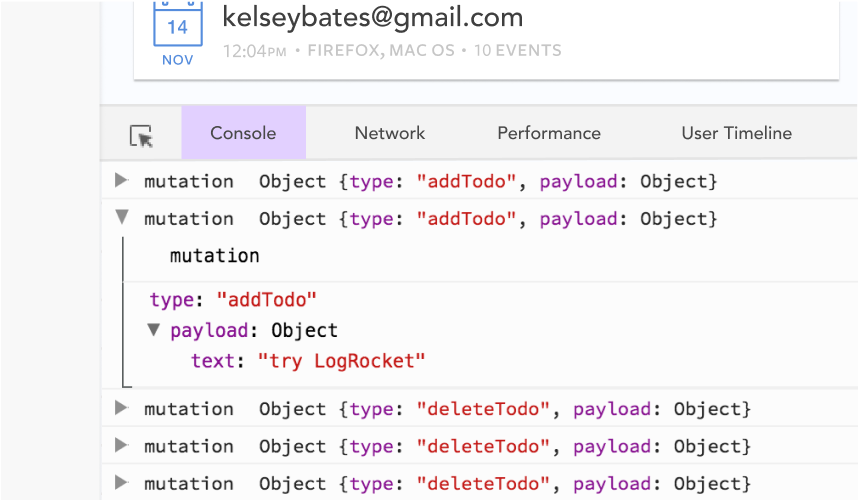
Debugging Vue.js applications can be difficult, especially when users experience issues that are difficult to reproduce. If you’re interested in monitoring and tracking Vue mutations and actions for all of your users in production, try LogRocket.
👁 LogRocket Dashboard Free Trial BannerLogRocket lets you replay user sessions, eliminating guesswork by showing exactly what users experienced. It captures console logs, errors, network requests, and pixel-perfect DOM recordings — compatible with all frameworks.
With Galileo AI, you can instantly identify and explain user struggles with automated monitoring of your entire product experience.
Modernize how you debug your Vue apps — start monitoring for free.
Learn how next-browser gives AI agents runtime context for debugging Next.js apps, including React props, hydration, PPR, forms, and performance.
Build dynamic LLM routing in Next.js with OpenRouter, TanStack AI, task classification, model fallbacks, and cost-aware routing.
TSRX adds first-class control flow, conditional hooks, and scoped styles to React via a TypeScript compiler extension — no new framework required.
Learn how to build a full React Native auth system using Better Auth and Expo — with email/password login, Google OAuth, session persistence, and protected routes.
Hey there, want to help make our blog better?
Join LogRocket’s Content Advisory Board. You’ll help inform the type of content we create and get access to exclusive meetups, social accreditation, and swag.
Sign up now