In my previous article, we explored the basics of AWS Secrets Manager - storing secrets, retrieving them with the AWS SDK, and integrating them into ASP.NET Core’s configuration system. But here’s the thing: storing secrets securely is only half the battle. The real security comes from rotating them regularly.
Secrets in ASP.NET Core with AWS Secrets Manager
If you're new to AWS Secrets Manager, start here. We cover the fundamentals of storing and retrieving secrets in your .NET applications.
In this article, we’ll take it to the next level. We’ll set up an RDS PostgreSQL database, store its credentials in Secrets Manager, enable automatic rotation, and build an ASP.NET Core API that seamlessly picks up new credentials without any downtime or restarts.
Trust me, once you see how smooth this is, you’ll wonder why you ever managed database passwords manually!
The full sample code for this article lives at github.com/iammukeshm/aws-secrets-manager-rotation-dotnet - clone it if you want to follow along.
Why Rotate Secrets?
Before we dive into the implementation, let’s understand why secret rotation matters:
1. Compliance Requirements Many compliance frameworks like PCI-DSS, SOC 2, and HIPAA require regular credential rotation. If you’re building applications that handle sensitive data, this isn’t optional.
2. Reduced Blast Radius If a credential gets leaked (and breaches happen), the damage is limited to the rotation window. A password that rotates every 30 days is far less dangerous than one that’s been the same for 3 years.
3. Security Hygiene Hard-coded or long-lived credentials are a ticking time bomb. Automated rotation removes the human factor entirely - no more “we’ll rotate it next sprint” that never happens.
4. Zero Trust Architecture Modern security practices assume breach. Regular rotation ensures that even if credentials are compromised, they become useless quickly.
How Secret Rotation Works
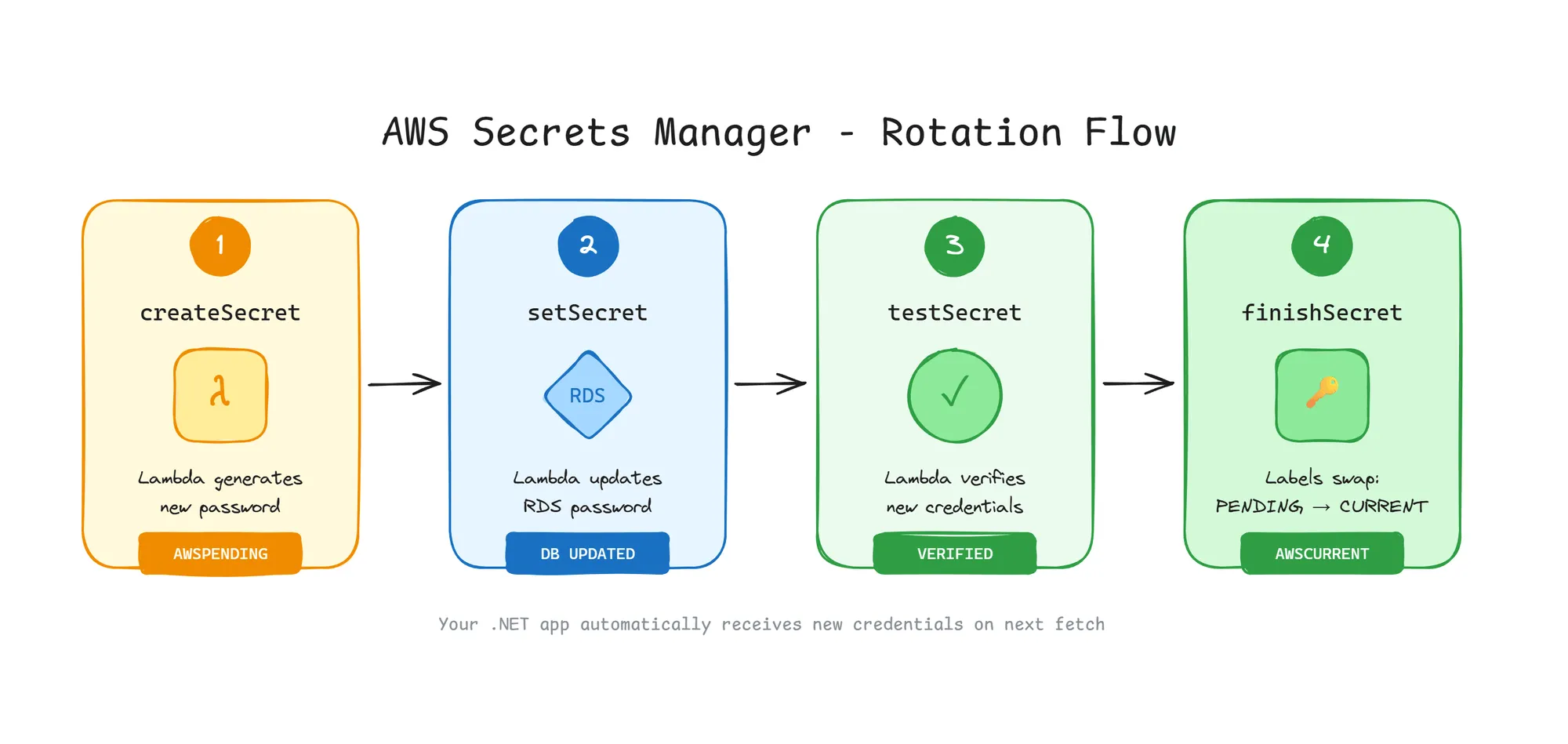
AWS Secrets Manager rotation isn’t magic - it’s a well-orchestrated 4-step process powered by an AWS Lambda function.
The 4-Step Rotation Process
When rotation is triggered (either manually or on schedule), the following steps execute:
Step 1: createSecret
A new version of the secret is created with the staging label AWSPENDING. At this point, the new password exists in Secrets Manager but hasn’t been applied to the database yet.
Step 2: setSecret
The Lambda function connects to the database using the current credentials and changes the password to the new one stored in AWSPENDING.
Step 3: testSecret The Lambda function attempts to connect to the database using the new credentials. If successful, we know the rotation worked.
Step 4: finishSecret The staging labels are updated:
AWSPENDING→AWSCURRENT(new password becomes active)AWSCURRENT→AWSPREVIOUS(old password moves to previous)
Your application, using AWSCURRENT, automatically gets the new credentials on the next fetch.
Single-User vs Alternating-User Rotation
AWS offers two rotation strategies:
Single-User Rotation
- Uses the same database user
- Simpler to set up
- Brief moment where credentials are being updated (potential connection failures)
Alternating-User Rotation
- Uses two database users that alternate
- While one is being rotated, the other serves traffic
- Zero downtime - recommended for production
For this tutorial, we’ll use single-user rotation to keep things simple. In production with high-traffic applications, consider alternating-user rotation.
Prerequisites
Here’s what you need to follow along:
- AWS Account - Free Tier works. Sign up here
- .NET 10 SDK - We’re using the latest
- Visual Studio 2026 or VS Code - Note that .NET 10 requires Visual Studio 2026
- AWS CLI configured - Your machine should be authenticated to AWS. Follow my guide here
Heads up: RDS instances incur costs even on Free Tier after 12 months. We’ll use
db.t3.microwhich is Free Tier eligible, but make sure to clean up resources at the end!
Step 1: Create an RDS PostgreSQL Instance
Let’s start by creating our database. Log in to the AWS Console and navigate to RDS.
Click Create database and configure the following:
👁 Select PostgreSQL as the engine
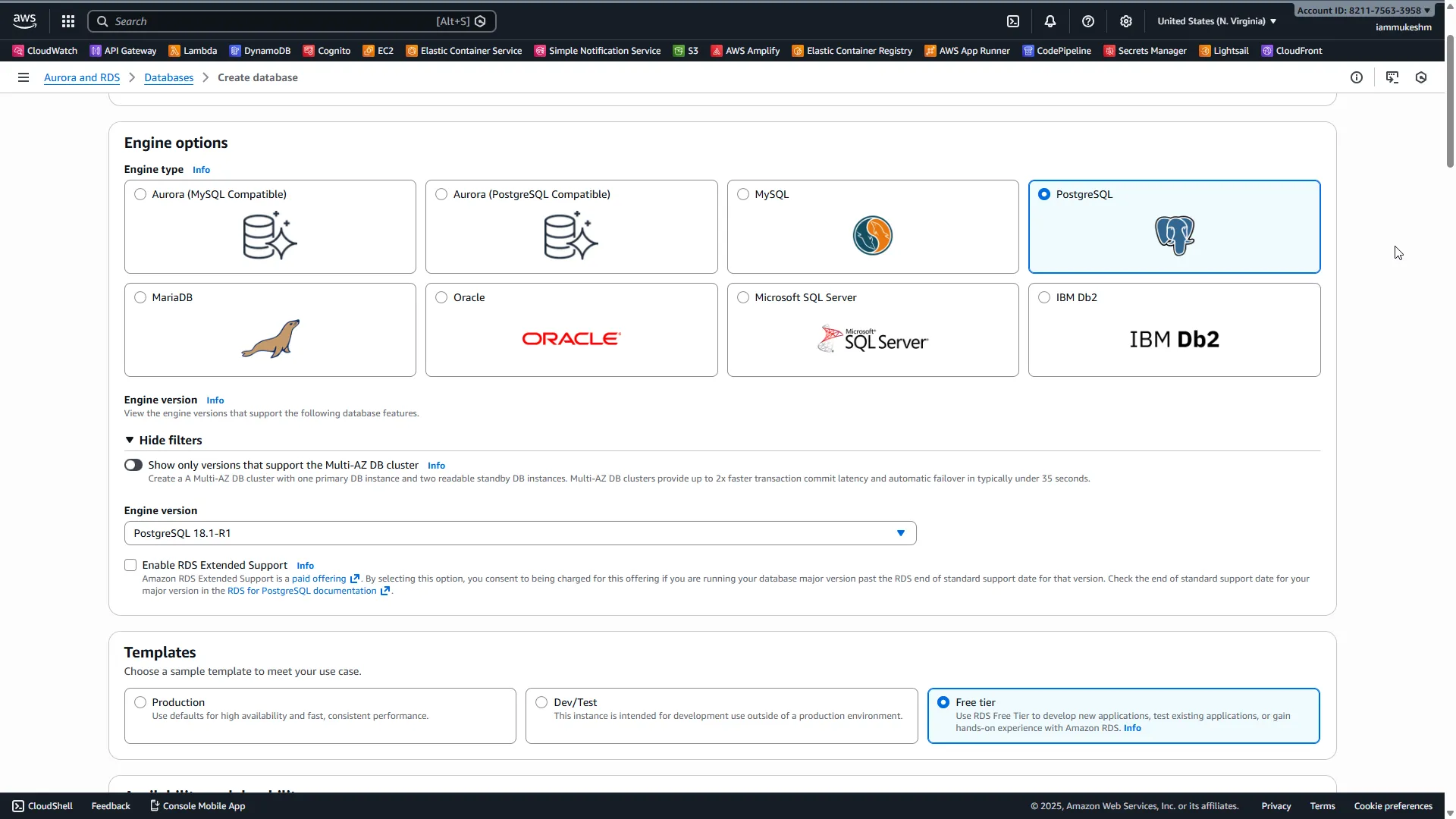
Engine options:
- Engine type: PostgreSQL
- Version: PostgreSQL 18.1-R1 (latest)
Templates:
- Select Free tier (this limits options but keeps costs down)
👁 Configure instance identifier and credentials
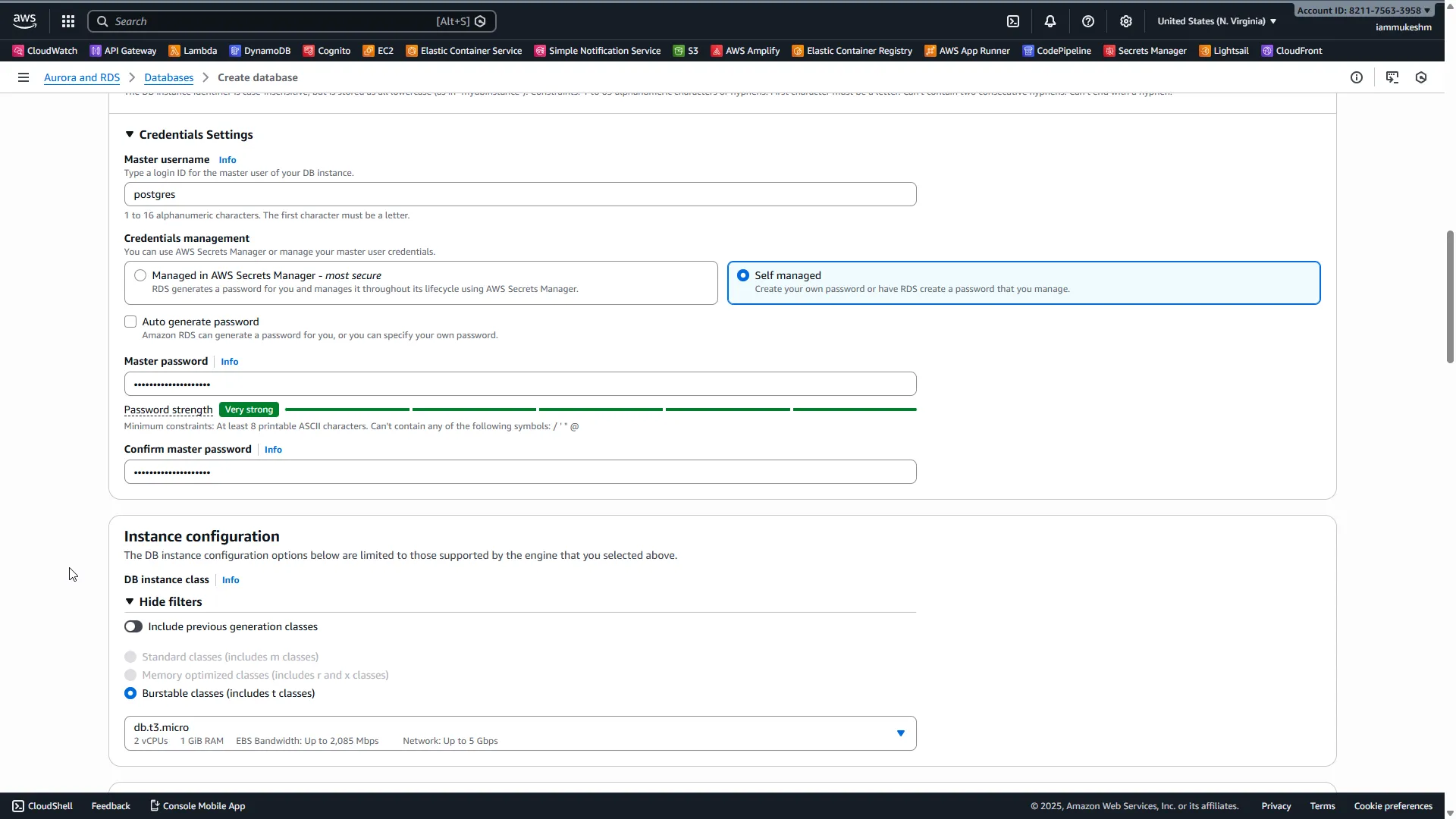
Settings:
- DB instance identifier:
secrets-rotation-demo - Master username:
postgres - Credentials management: Self managed
- Master password: Choose something strong (we’ll rotate this soon anyway!)
Instance configuration:
- DB instance class:
db.t3.micro(Free Tier eligible)
Storage:
- Allocated storage:
20 GB(minimum) - Disable storage autoscaling for this demo
👁 Configure VPC and public access
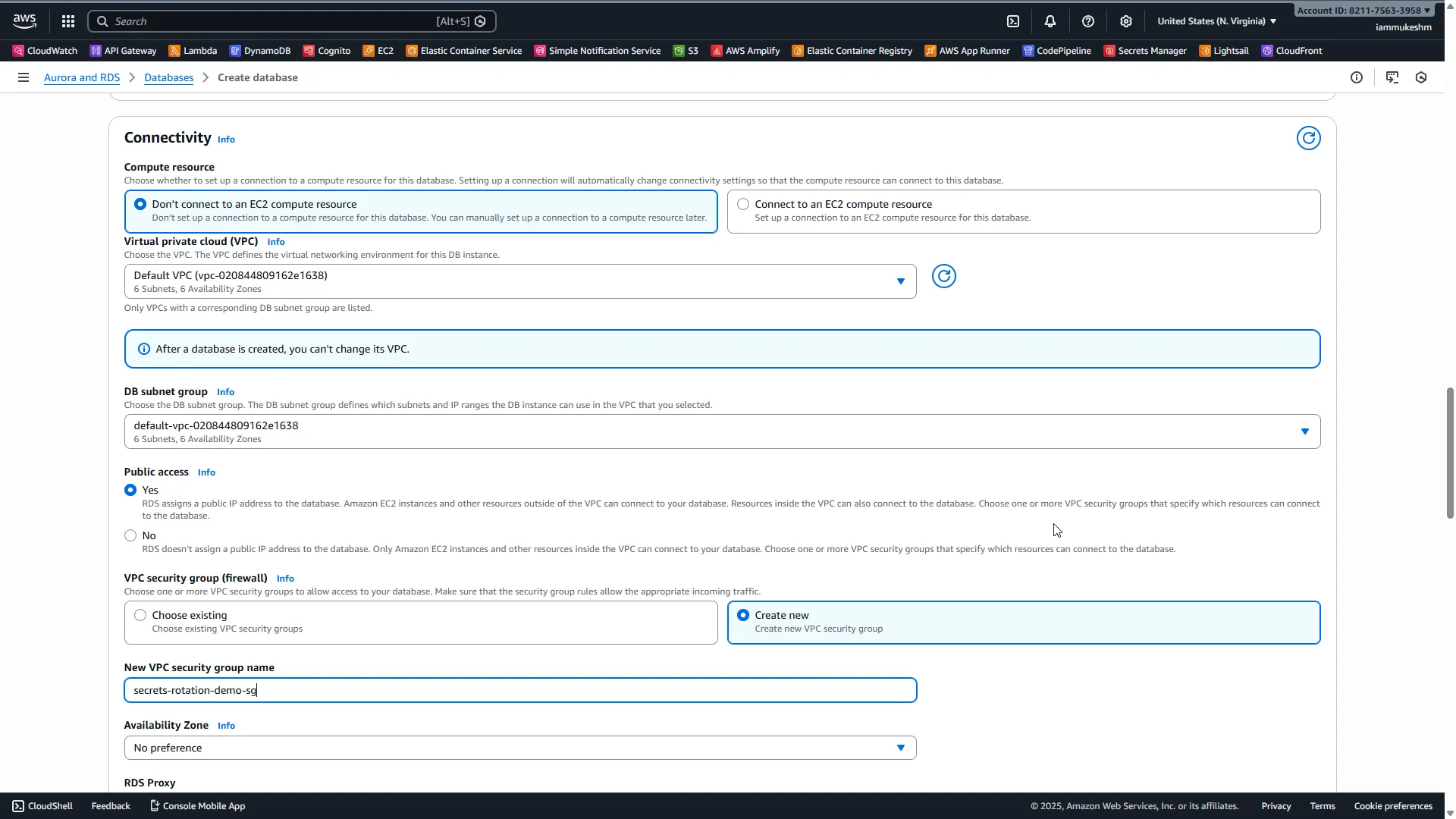
Connectivity:
- VPC: Default VPC
- Public access: Yes (for demo purposes only - never do this in production!)
- VPC security group: Create new →
secrets-rotation-demo-sg
Database authentication:
- Password authentication
Click Create database and wait a few minutes for the instance to become available.
👁 Database instance is now available
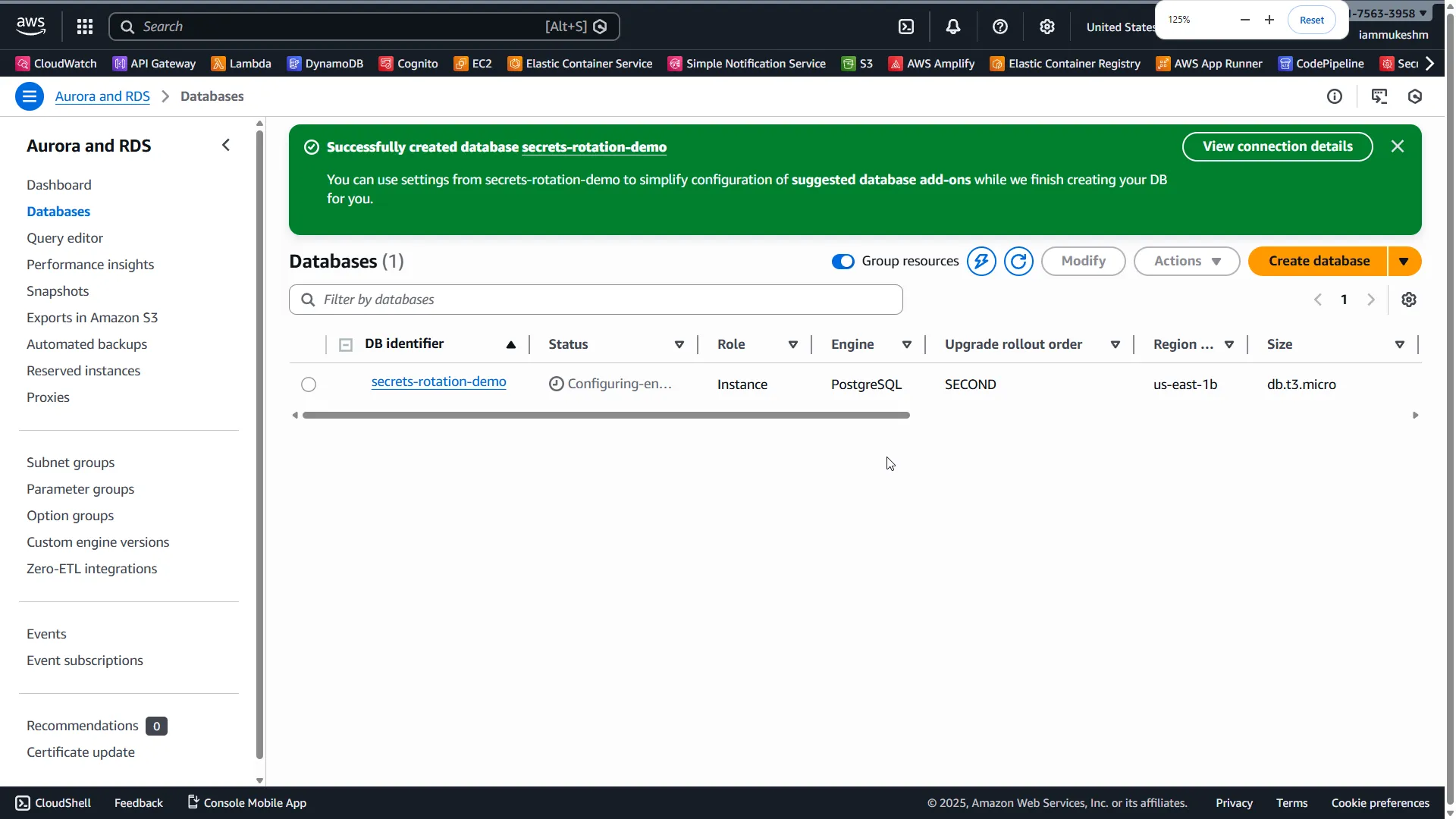
Once ready, note down the Endpoint - you’ll need this for the connection string.
Configure Security Group
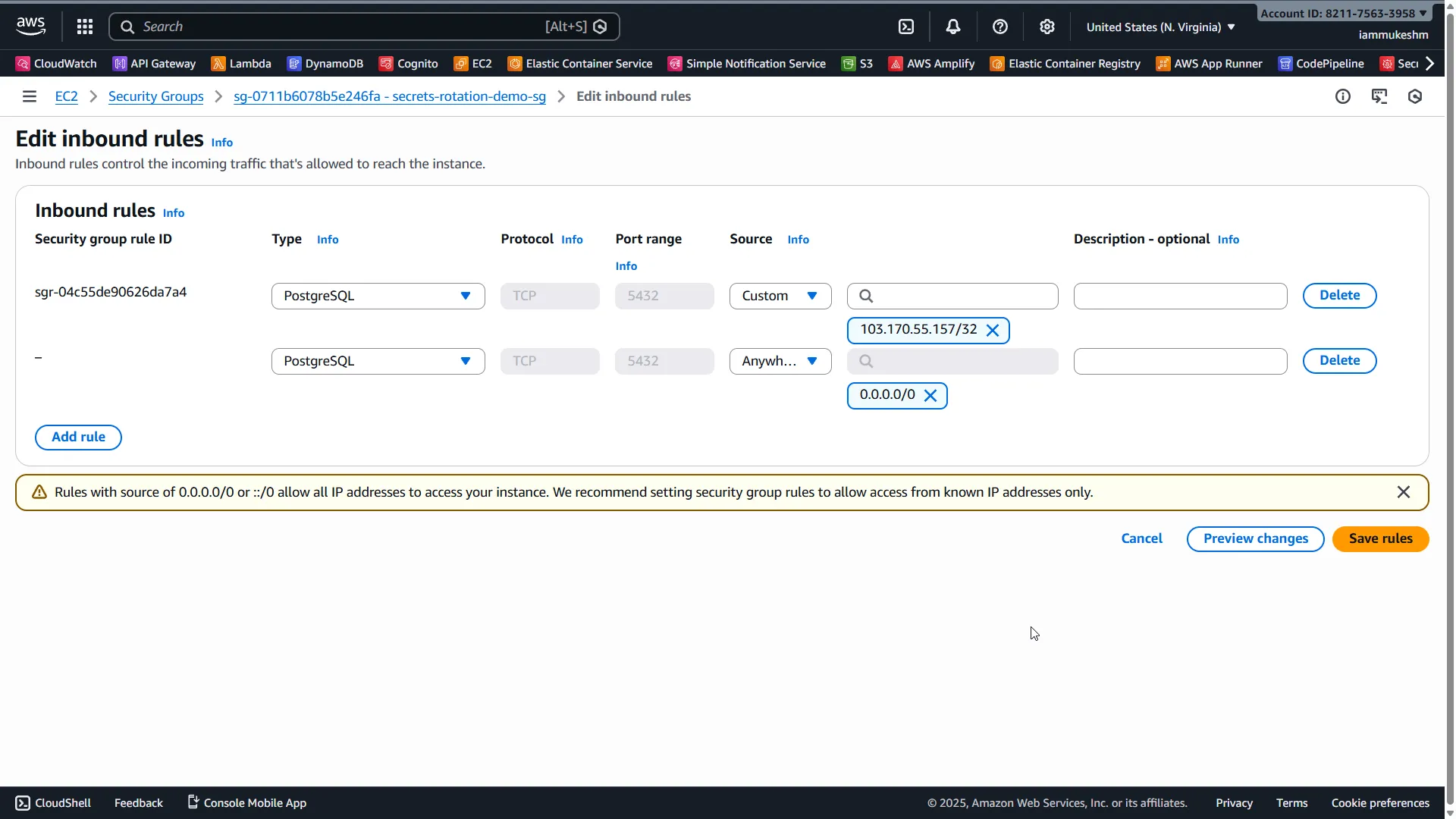
We need to allow inbound traffic to our RDS instance. Navigate to EC2 → Security Groups, find secrets-rotation-demo-sg, and add an inbound rule:
- Type: PostgreSQL
- Port: 5432
- Source: My IP (or
0.0.0.0/0for demo, but not recommended)
👁 Allow PostgreSQL traffic on port 5432
Step 2: Store RDS Credentials in Secrets Manager
Now let’s store our database credentials in Secrets Manager with RDS integration.
Navigate to Secrets Manager and click Store a new secret.
👁 Select 'Credentials for Amazon RDS database'
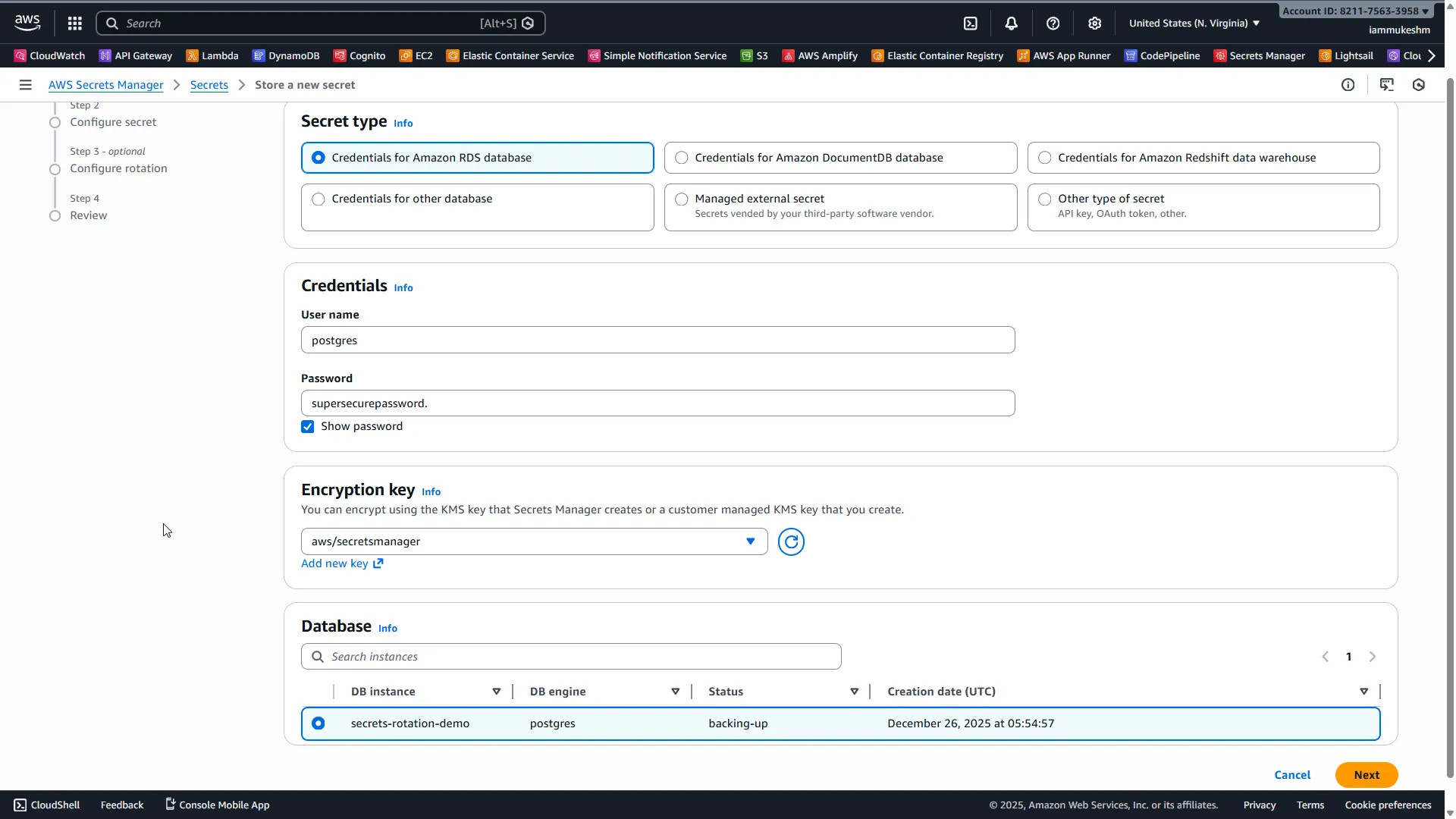
Secret type:
- Select Credentials for Amazon RDS database
Credentials:
- Username:
postgres - Password: The password you set during RDS creation
Database:
- Select your
secrets-rotation-demoinstance from the database list.
This is the key difference from storing a regular secret - by linking it to RDS, AWS knows how to rotate the credentials automatically!
Click Next.
👁 Name your secret with a clear convention
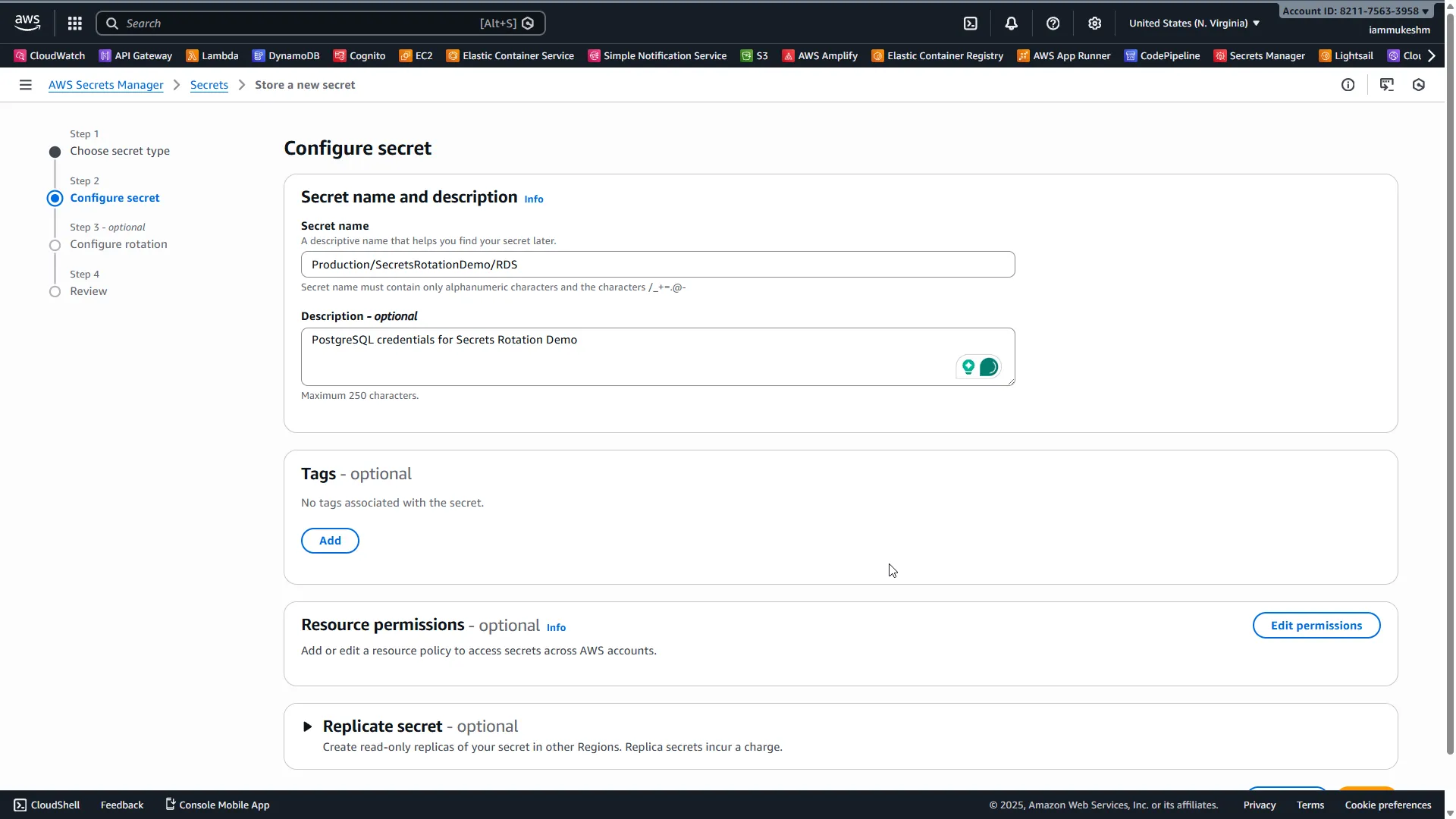
Secret name: Production/SecretsRotationDemo/RDS
Following the naming convention from Part 1: Environment/Application/SecretType
Description: PostgreSQL credentials for Secrets Rotation Demo
Click Next.
Step 3: Enable Automatic Rotation
Here’s where the magic happens. On the rotation configuration screen:
👁 Enable automatic rotation with schedule
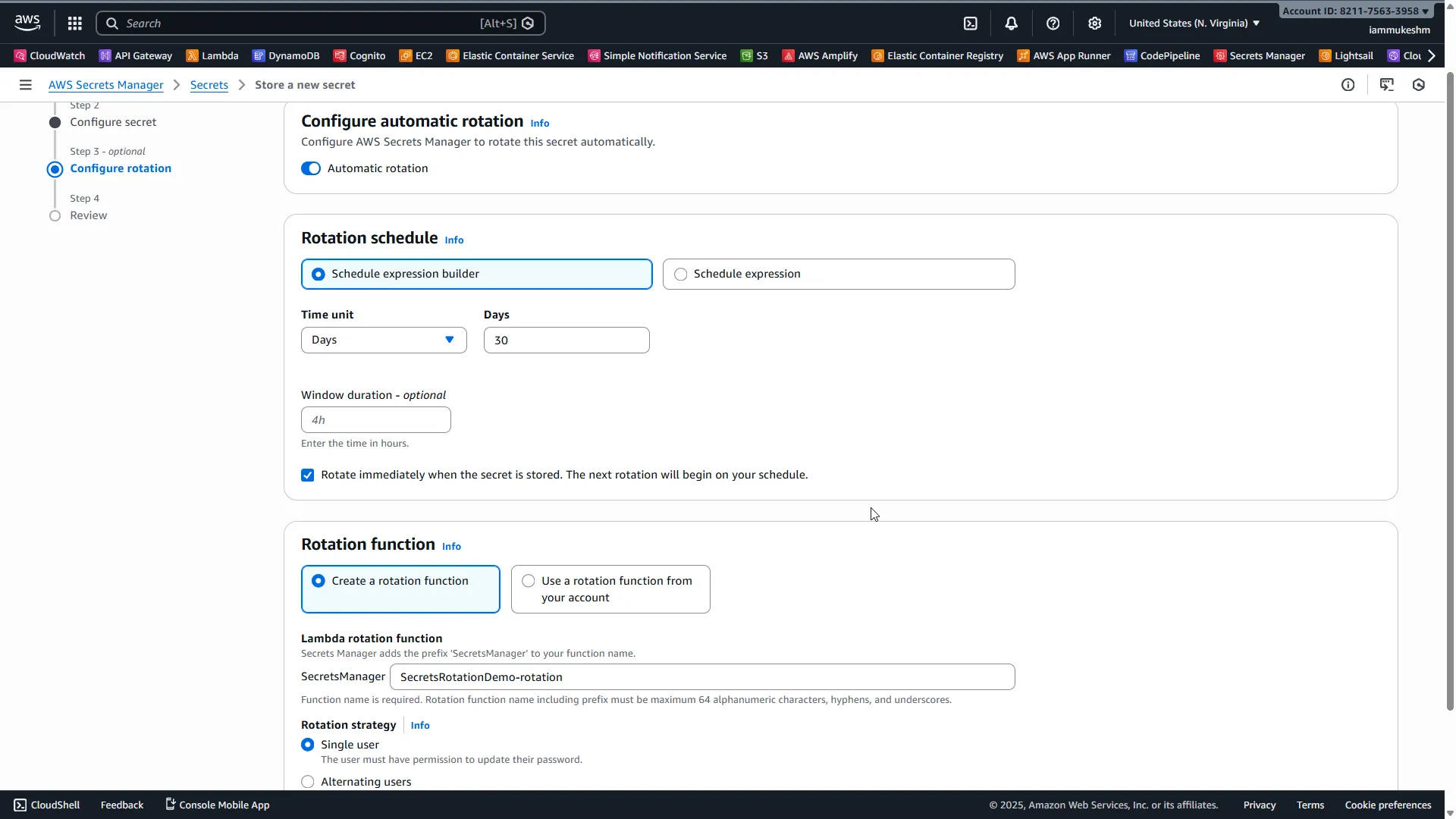
Automatic rotation: Toggle ON
Rotation schedule: Select the schedule expression builder,
- Time Unit: Days
- Days: 30
- Rotate immediately: Yes (this will test rotation right away)
Rotation function:
- Select Create a new Lambda function
- Lambda function name:
SecretsRotationDemo-rotation - Set the rotation strategy as Single user
What’s happening here? AWS is creating a Lambda function that knows how to connect to PostgreSQL and rotate credentials. This Lambda needs network access to your RDS instance, which AWS handles automatically when you link the secret to RDS.
Click Next, review your configuration, and click Store.
👁 AWS creates the rotation Lambda automatically
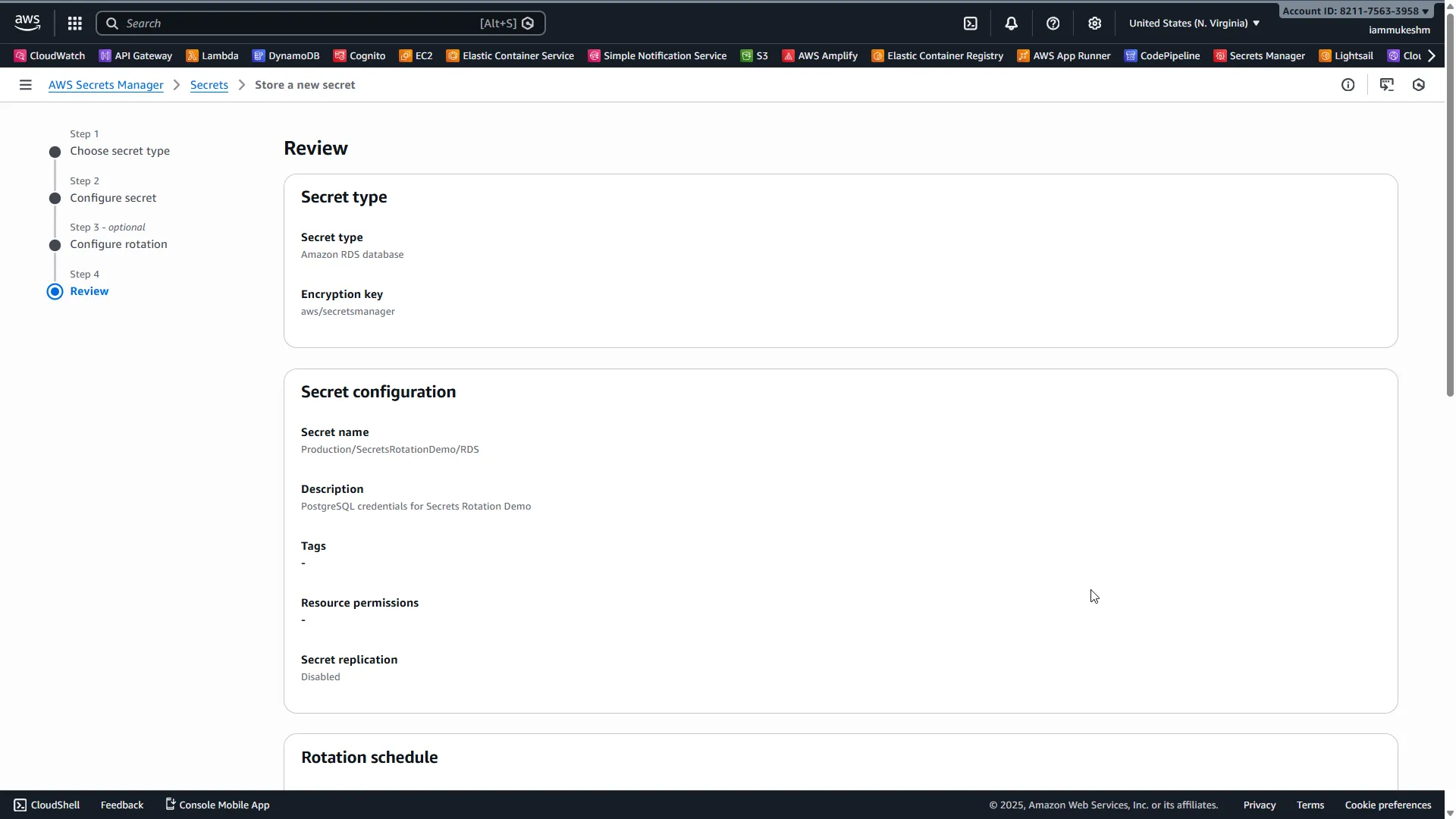
AWS will:
- Create the secret
- Create a Lambda function for rotation
- Configure the Lambda’s VPC settings to reach RDS
- Trigger the first rotation immediately
Give it a minute, then check your secret. You should see:
👁 Rotation completed successfully
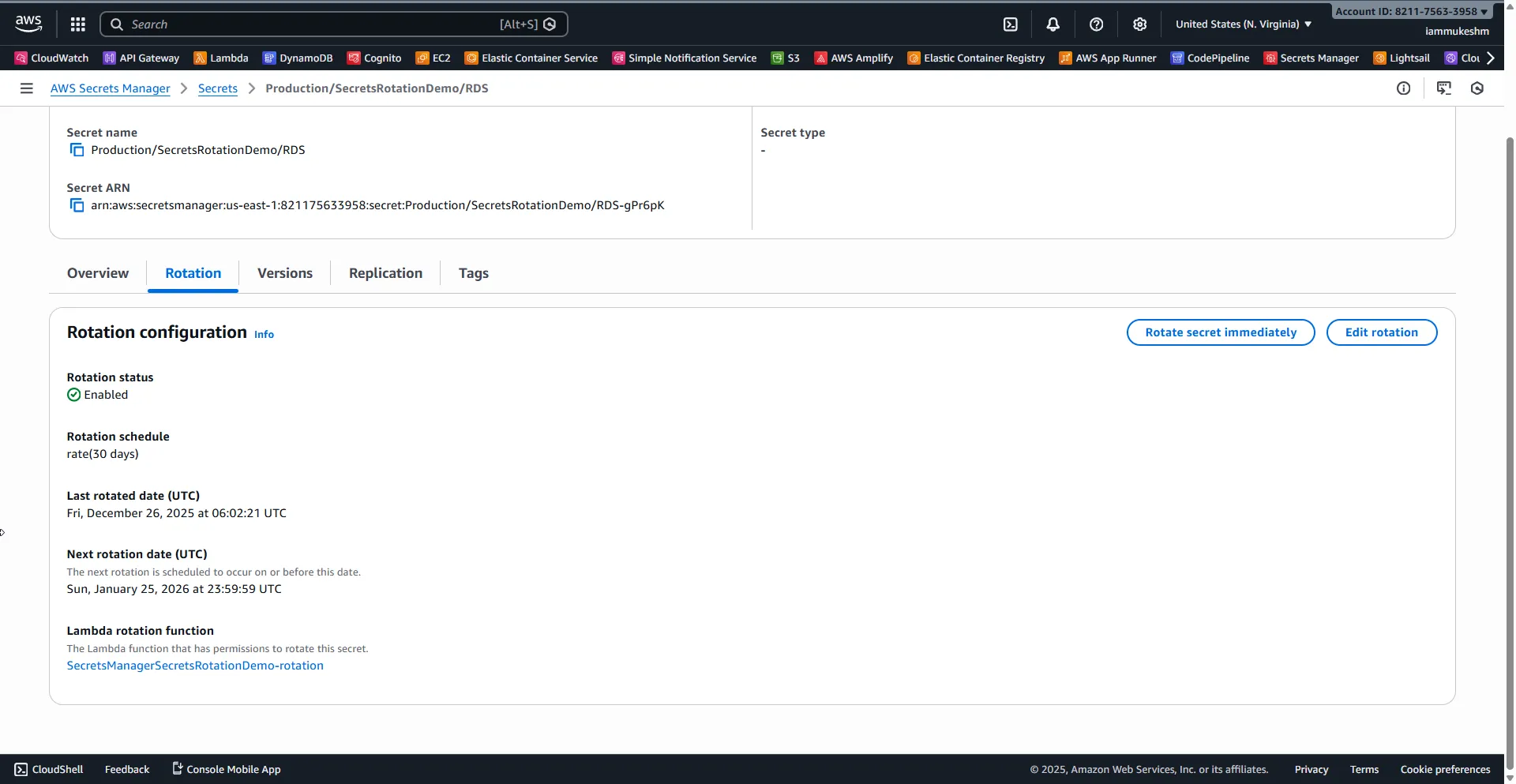
The Rotation status should show the last rotation date and the next scheduled rotation.
Verify Rotation Worked
Click on your secret and go to Retrieve secret value. Notice that the password is different from what you originally set - rotation is working!
👁 The password has been rotated automatically
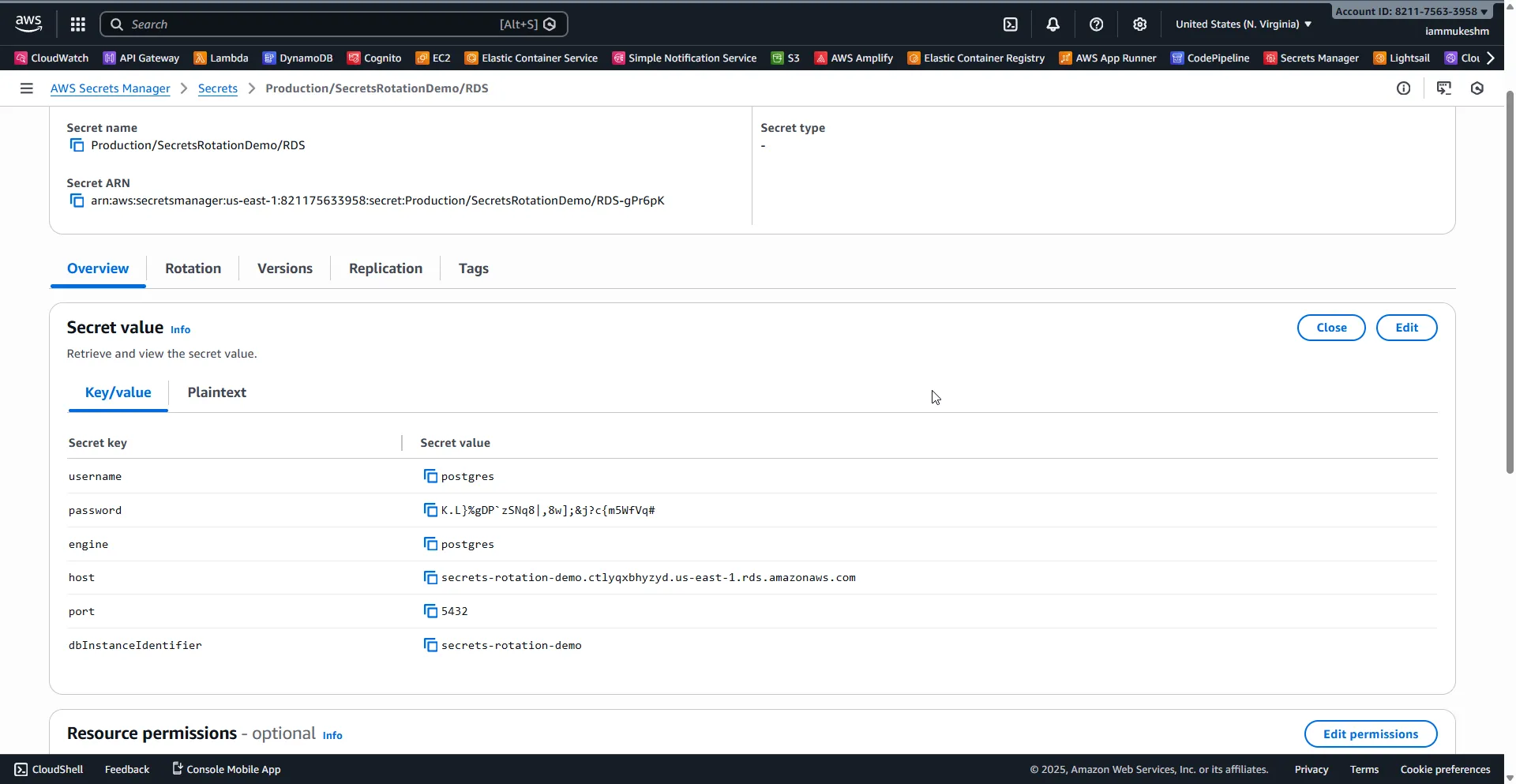
You’ll also see additional fields that Secrets Manager added automatically:
engine: postgreshost: Your RDS endpointport: 5432dbInstanceIdentifier: secrets-rotation-demousername: postgrespassword: The rotated password
This structure is perfect for building connection strings in .NET.
Step 4: Build the ASP.NET Core API
Now let’s build an API that consumes these rotating credentials. We’ll use EF Core with Npgsql to connect to our RDS PostgreSQL instance.
Create a new ASP.NET Core Web API project:
dotnetnewwebapi-nSecretsRotation.Api-oSecretsRotation.ApicdSecretsRotation.ApiInstall the required packages:
dotnetaddpackageNpgsql.EntityFrameworkCore.PostgreSQLdotnetaddpackageAWSSDK.SecretsManagerdotnetaddpackageAWSSDK.Extensions.NETCore.SetupdotnetaddpackageKralizek.Extensions.Configuration.AWSSecretsManagerdotnetaddpackageScalar.AspNetCoreNote: We’re using Scalar instead of Swagger for API documentation. Scalar is the modern replacement that works great with .NET 10’s built-in OpenAPI support. I cover the full story in ASP.NET Core dropped Swagger - here’s what replaced it.
Create the Database Context
First, let’s create a simple entity and DbContext. Nothing fancy here - just a basic Product entity to demonstrate database connectivity:
namespaceSecretsRotation.Api.Models;publicclassProduct{publicintId { get; set; }publicstringName { get; set; } =string.Empty;publicdecimalPrice { get; set; }publicDateTimeCreatedAt { get; set; } =DateTime.UtcNow;}Now, the DbContext. Notice we’re using the primary constructor syntax (introduced in C# 12) - this keeps things clean and concise:
usingMicrosoft.EntityFrameworkCore;usingSecretsRotation.Api.Models;namespaceSecretsRotation.Api.Data;publicclassAppDbContext(DbContextOptions<AppDbContext> options) : DbContext(options){publicDbSet<Product> Products=>Set<Product>();protectedoverridevoidOnModelCreating(ModelBuildermodelBuilder){modelBuilder.Entity<Product>().HasData(newProduct { Id=1, Name="Laptop", Price=999.99m },newProduct { Id=2, Name="Mouse", Price=29.99m },newProduct { Id=3, Name="Keyboard", Price=79.99m });}}We’re seeding some initial data with HasData() so we have something to query right away. This data gets inserted when you run migrations. If you want to compare seeding approaches, see my guide on seeding initial data in EF Core.
Configure Secrets Manager Integration
Here’s where the real magic happens. We need to:
- Register the AWS Secrets Manager client
- Fetch credentials differently based on environment (local vs production)
- Build the connection string dynamically from the secret’s JSON structure
Let’s break this down piece by piece:
usingAmazon.SecretsManager;usingAmazon.SecretsManager.Model;usingMicrosoft.EntityFrameworkCore;usingNpgsql;usingSecretsRotation.Api.Data;usingSystem.Text.Json;usingScalar.AspNetCore;varbuilder=WebApplication.CreateBuilder(args);builder.Services.AddOpenApi();// Register AWS Secrets Managerbuilder.Services.AddDefaultAWSOptions(builder.Configuration.GetAWSOptions());builder.Services.AddAWSService<IAmazonSecretsManager>();// Configure DbContext based on environmentif (builder.Environment.IsDevelopment()){// Use local connection string in developmentvarlocalConnectionString=builder.Configuration.GetConnectionString("DefaultConnection");builder.Services.AddDbContext<AppDbContext>(options=>options.UseNpgsql(localConnectionString));}else{// Fetch credentials from Secrets Manager in productionvarserviceProvider=builder.Services.BuildServiceProvider();varsecretsManager=serviceProvider.GetRequiredService<IAmazonSecretsManager>();varconnectionString=awaitGetConnectionStringFromSecretAsync(secretsManager);builder.Services.AddDbContext<AppDbContext>(options=>options.UseNpgsql(connectionString));}varapp=builder.Build();// Apply migrations on startupusing (varscope=app.Services.CreateScope()){vardb=scope.ServiceProvider.GetRequiredService<AppDbContext>();awaitdb.Database.MigrateAsync();}app.MapOpenApi();app.MapScalarApiReference();app.MapGet("/", () =>"Secrets Rotation Demo API - Visit /scalar/v1 for API docs");app.MapGet("/products", async (AppDbContextdb) =>awaitdb.Products.ToListAsync());app.MapGet("/products/{id:int}", async (intid, AppDbContextdb) =>awaitdb.Products.FindAsync(id) is { } product?Results.Ok(product):Results.NotFound());app.MapPost("/products", async (Productproduct, AppDbContextdb) =>{db.Products.Add(product);awaitdb.SaveChangesAsync();returnResults.Created($"/products/{product.Id}", product);});app.MapGet("/health/db", async (AppDbContextdb) =>{try{awaitdb.Database.CanConnectAsync();returnResults.Ok(new { Status="Healthy", Timestamp=DateTime.UtcNow });}catch (Exceptionex){returnResults.Problem($"Database connection failed: {ex.Message}");}});app.Run();staticasyncTask<string> GetConnectionStringFromSecretAsync(IAmazonSecretsManagersecretsManager){varrequest=newGetSecretValueRequest{SecretId="Production/SecretsRotationDemo/RDS"};varresponse=awaitsecretsManager.GetSecretValueAsync(request);// Use JsonElement to handle mixed types (port is a number, others are strings)varsecret=JsonSerializer.Deserialize<Dictionary<string, JsonElement>>(response.SecretString)!;// Use NpgsqlConnectionStringBuilder to properly escape special characters in passwordvarbuilder=newNpgsqlConnectionStringBuilder{Host=secret["host"].ToString(),Port=secret["port"].GetInt32(),Database=secret["dbInstanceIdentifier"].ToString(),Username=secret["username"].ToString(),Password=secret["password"].ToString()};returnbuilder.ConnectionString;}Understanding the Code
Let’s break down what’s happening in each section:
AWS SDK Registration
builder.Services.AddDefaultAWSOptions(builder.Configuration.GetAWSOptions());builder.Services.AddAWSService<IAmazonSecretsManager>();These two lines do a lot of heavy lifting:
AddDefaultAWSOptionsreads AWS configuration fromappsettings.jsonor environment variables (region, profile, etc.)AddAWSService<IAmazonSecretsManager>registers the Secrets Manager client in the DI container
The SDK automatically handles credential resolution - it checks environment variables, AWS profiles, IAM roles, and more. You don’t need to hardcode any AWS credentials.
Environment-Based Configuration
if (builder.Environment.IsDevelopment()){// Use local connection stringvarlocalConnectionString=builder.Configuration.GetConnectionString("DefaultConnection");builder.Services.AddDbContext<AppDbContext>(options=>options.UseNpgsql(localConnectionString));}else{// Fetch from Secrets ManagervarserviceProvider=builder.Services.BuildServiceProvider();varsecretsManager=serviceProvider.GetRequiredService<IAmazonSecretsManager>();varconnectionString=awaitGetConnectionStringFromSecretAsync(secretsManager);// ...}This pattern is crucial for a smooth development experience:
- Development: Uses the connection string from
appsettings.json- no AWS calls, works offline - Production: Fetches credentials from Secrets Manager at startup
Why not always use Secrets Manager? Because during local development, you don’t want to depend on AWS connectivity or pay for API calls. Keep it simple locally, secure in production.
Fetching and Parsing the Secret
staticasyncTask<string> GetConnectionStringFromSecretAsync(IAmazonSecretsManagersecretsManager){varrequest=newGetSecretValueRequest{SecretId="Production/SecretsRotationDemo/RDS"};varresponse=awaitsecretsManager.GetSecretValueAsync(request);// Use JsonElement to handle mixed types (port is a number, others are strings)varsecret=JsonSerializer.Deserialize<Dictionary<string, JsonElement>>(response.SecretString)!;// Use NpgsqlConnectionStringBuilder to properly escape special characters in passwordvarbuilder=newNpgsqlConnectionStringBuilder{Host=secret["host"].ToString(),Port=secret["port"].GetInt32(),Database=secret["dbInstanceIdentifier"].ToString(),Username=secret["username"].ToString(),Password=secret["password"].ToString()};returnbuilder.ConnectionString;}Here’s what’s happening:
- We create a
GetSecretValueRequestwith the secret’s name (the one we created in Secrets Manager) GetSecretValueAsynccalls AWS and returns the secret value- The
SecretStringproperty contains JSON like:{"host":"xxx.rds.amazonaws.com","port":5432,"username":"postgres","password":"rotated-password-here","dbInstanceIdentifier":"secrets-rotation-demo",...} - We deserialize to
Dictionary<string, JsonElement>because theportfield is a number, not a string - We use
dbInstanceIdentifieras the database name - this matches the RDS instance name you configured - We use
NpgsqlConnectionStringBuilderto build the connection string - this is critical!
Why
JsonElementinstead ofstring? AWS Secrets Manager storesportas a number (e.g.,5432not"5432"). UsingDictionary<string, string>would throw aJsonException.JsonElementhandles mixed types gracefully.
Why
NpgsqlConnectionStringBuilder? AWS generates random passwords with special characters like},|,&,{,#, etc. If you build the connection string manually with string interpolation, these characters break the parsing.NpgsqlConnectionStringBuilderproperly escapes everything for you.
Health Check Endpoint
app.MapGet("/health/db", async (AppDbContextdb) =>{try{awaitdb.Database.CanConnectAsync();returnResults.Ok(new { Status="Healthy", Timestamp=DateTime.UtcNow });}catch (Exceptionex){returnResults.Problem($"Database connection failed: {ex.Message}");}});This endpoint is essential for testing rotation. It attempts to connect to the database and returns the result. After rotation, hit this endpoint to verify your app still connects successfully with the new credentials.
Create the Migration
Generate and apply the initial migration (see running migrations in EF Core if you want the different ways to apply them compared):
dotnetefmigrationsaddInitialCreateRun the Application
dotnetrunNavigate to https://localhost:5001/scalar/v1 to access the API documentation.
👁 API documentation with Scalar
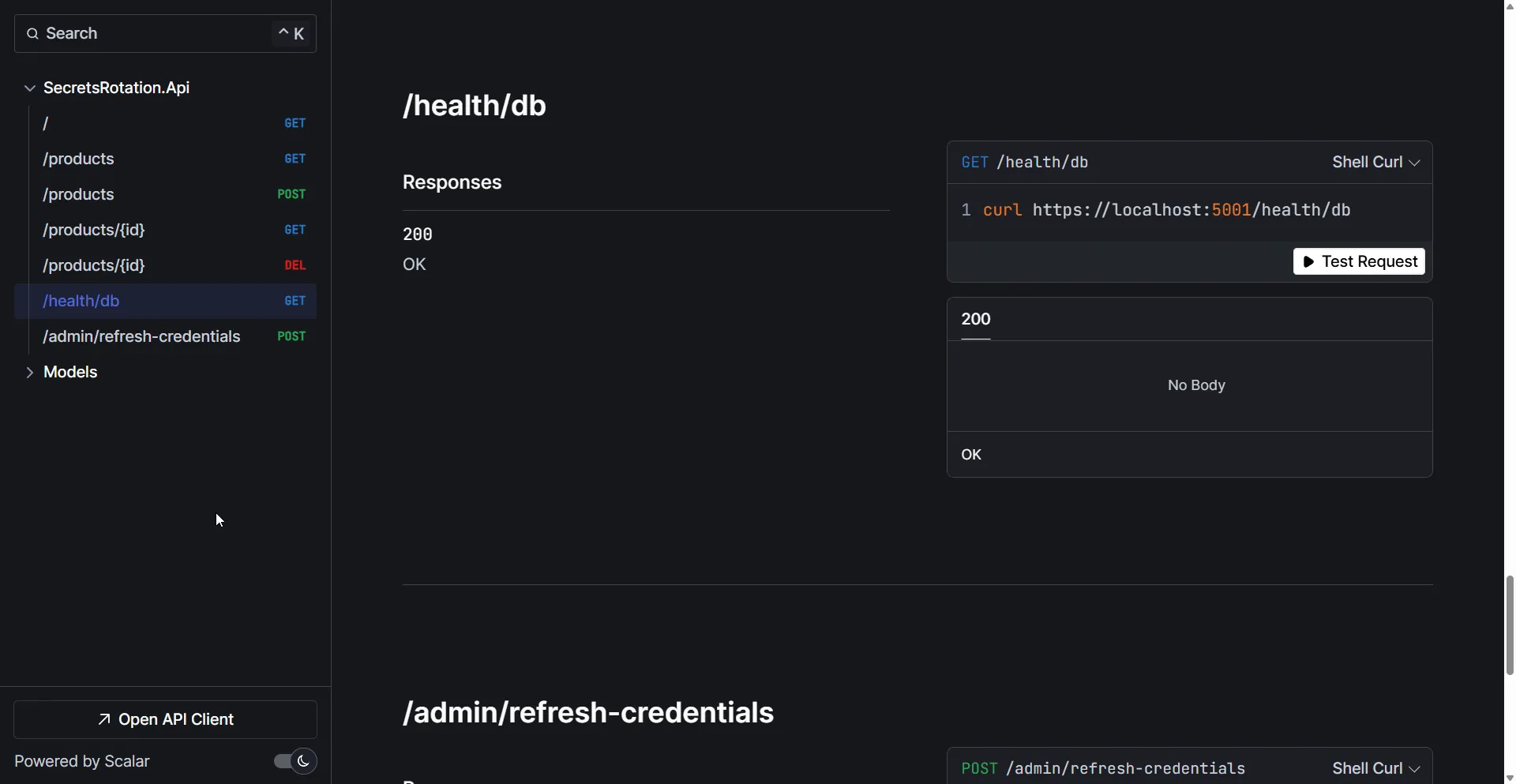
Test the /health/db endpoint - you should see a healthy response confirming the database connection works.
👁 Database connection is healthy
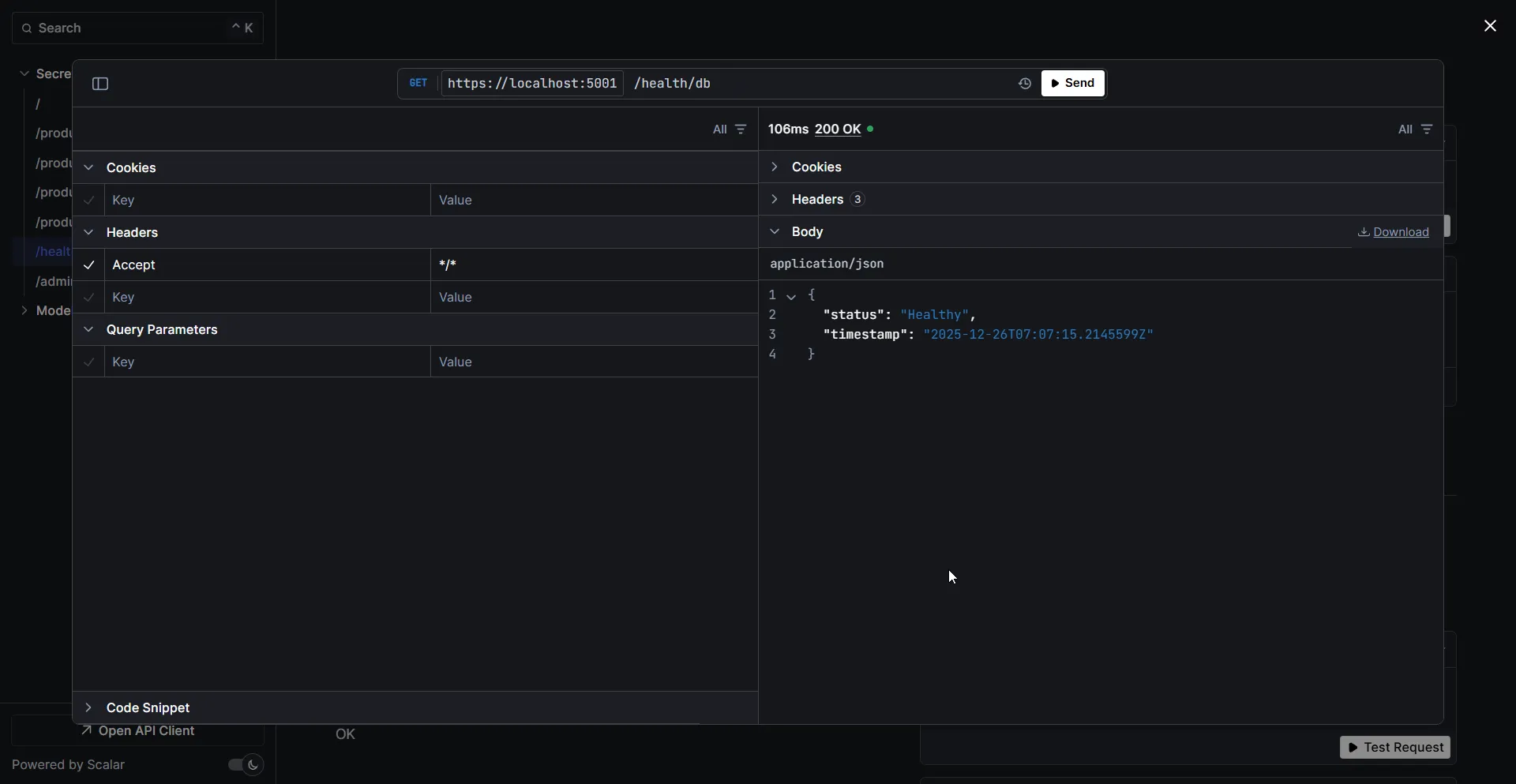
Testing with Secrets Manager (Production Mode)
By default, the application runs in Development mode, which uses the local connection string from appsettings.Development.json. To test the Secrets Manager integration, you need to switch to Production mode.
The project includes an https-production launch profile for this purpose. Run the application with:
dotnetrun--launch-profilehttps-productionThis sets ASPNETCORE_ENVIRONMENT=Production, which triggers the app to fetch credentials from AWS Secrets Manager instead of using the local connection string. Make sure you have:
- Valid AWS credentials configured (via AWS CLI, environment variables, or IAM role)
- The secret
Production/SecretsRotationDemo/RDSexists in your AWS account - Your RDS instance is accessible from your machine
If everything is configured correctly, the app will connect to your RDS PostgreSQL instance using the credentials stored in Secrets Manager!
Step 5: Handling Credential Rotation at Runtime
The current implementation fetches credentials once at startup. But what happens when credentials rotate while your app is running?
Think about it - your app starts, grabs credentials, opens a connection pool, and serves requests. 30 days later, rotation happens. The old password is now invalid. If your connection pool tries to open new connections with the old password… boom, authentication failures.
For long-running applications, you need to handle credential refresh. Here are two approaches:
Approach 1: Configuration Provider with Polling
If you’re using the Secrets Manager configuration provider approach (from Part 1), you can enable polling to automatically detect changes:
// Add Secrets Manager as configuration source with pollingif (!builder.Environment.IsDevelopment()){builder.Configuration.AddSecretsManager(configurator: config=>{config.SecretFilter=record=>record.Name.Contains("SecretsRotationDemo");config.PollingInterval=TimeSpan.FromMinutes(5);});}How it works:
SecretFilterensures we only load secrets relevant to our app (saves API calls and costs)PollingIntervaltells the provider to check for updates every 5 minutes- Combined with
IOptionsMonitor<T>(see the Options pattern in ASP.NET Core), your app automatically sees the new values
The catch: This works great for configuration values, but EF Core’s DbContext is typically registered with a fixed connection string at startup. You’d need additional plumbing to rebuild the connection when credentials change.
Approach 2: Resilient DbContext Factory (Recommended)
For EF Core, a more robust approach is to build a factory that caches credentials and can refresh them when needed:
usingAmazon.SecretsManager;usingAmazon.SecretsManager.Model;usingMicrosoft.EntityFrameworkCore;usingNpgsql;usingSystem.Text.Json;namespaceSecretsRotation.Api.Services;publicclassResilientDbContextFactory(IAmazonSecretsManagersecretsManager,ILogger<ResilientDbContextFactory> logger){privatestring? _cachedConnectionString;privateDateTime_cacheExpiry=DateTime.MinValue;privatereadonlyTimeSpan_cacheDuration=TimeSpan.FromMinutes(5);publicasyncTask<AppDbContext> CreateDbContextAsync(){varconnectionString=awaitGetConnectionStringAsync();varoptions=newDbContextOptionsBuilder<AppDbContext>().UseNpgsql(connectionString).Options;returnnewAppDbContext(options);}privateasyncTask<string> GetConnectionStringAsync(boolforceRefresh=false){if (!forceRefresh&&_cachedConnectionString!=null&&DateTime.UtcNow<_cacheExpiry){return_cachedConnectionString;}logger.LogInformation("Fetching fresh credentials from Secrets Manager");varrequest=newGetSecretValueRequest{SecretId="Production/SecretsRotationDemo/RDS"};varresponse=awaitsecretsManager.GetSecretValueAsync(request);// Use JsonElement to handle mixed types (port is a number, others are strings)varsecret=JsonSerializer.Deserialize<Dictionary<string, JsonElement>>(response.SecretString)!;// Use NpgsqlConnectionStringBuilder to properly escape special characters in passwordvarconnBuilder=newNpgsqlConnectionStringBuilder{Host=secret["host"].ToString(),Port=secret["port"].GetInt32(),Database=secret["dbInstanceIdentifier"].ToString(),Username=secret["username"].ToString(),Password=secret["password"].ToString()};_cachedConnectionString=connBuilder.ConnectionString;_cacheExpiry=DateTime.UtcNow.Add(_cacheDuration);return_cachedConnectionString;}publicasyncTaskInvalidateCacheAsync(){_cacheExpiry=DateTime.MinValue;awaitGetConnectionStringAsync(forceRefresh: true);}}Let’s break down what this factory does:
Credential Caching
privatestring? _cachedConnectionString;privateDateTime_cacheExpiry=DateTime.MinValue;privatereadonlyTimeSpan_cacheDuration=TimeSpan.FromMinutes(5);We cache the connection string for 5 minutes. This is crucial - without caching, every database operation would call Secrets Manager, which is slow and expensive. The 5-minute window balances freshness with performance.
Smart Refresh Logic
if (!forceRefresh&&_cachedConnectionString!=null&&DateTime.UtcNow<_cacheExpiry){return_cachedConnectionString;}If the cache is still valid, return it immediately. No AWS call needed. This makes subsequent requests fast.
Cache Invalidation
publicasyncTaskInvalidateCacheAsync(){_cacheExpiry=DateTime.MinValue;awaitGetConnectionStringAsync(forceRefresh: true);}When you detect an authentication failure (catch a PostgresException with auth errors), call this method to force a credential refresh. The next request will use the new password.
Why 5 minutes? It’s a reasonable balance. Secrets Manager rotation takes about 30 seconds, so a 5-minute cache means you’ll pick up new credentials within 5 minutes of rotation. For most apps, this is fine. If you need faster recovery, reduce the cache duration (but watch your API costs).
Using the Resilient Factory
To use the ResilientDbContextFactory, register it as a singleton in your Program.cs:
// Register the resilient factory for runtime credential refreshbuilder.Services.AddSingleton<ResilientDbContextFactory>();Then inject and use it in your endpoints or services:
// Endpoint to force credential refresh (useful for testing rotation)app.MapPost("/admin/refresh-credentials", async (ResilientDbContextFactoryfactory, CancellationTokenct) =>{awaitfactory.InvalidateCacheAsync(ct);returnResults.Ok(new { Message="Credentials cache invalidated and refreshed", Timestamp=DateTime.UtcNow });});For scenarios where you need to create a DbContext on-demand with the latest credentials:
app.MapGet("/products/resilient", async (ResilientDbContextFactoryfactory, CancellationTokenct) =>{awaitusingvardb=awaitfactory.CreateDbContextAsync(ct);returnawaitdb.Products.ToListAsync(ct);});This approach is particularly useful when:
- You have long-running background services that need fresh credentials
- You want to manually trigger a credential refresh after detecting auth failures
- You need to create
DbContextinstances outside the normal DI scope
Step 6: Testing the Rotation Flow
Let’s verify that rotation works end-to-end.
Trigger Manual Rotation
In the AWS Console, navigate to your secret and click Rotate secret immediately.
👁 Manually trigger rotation to test
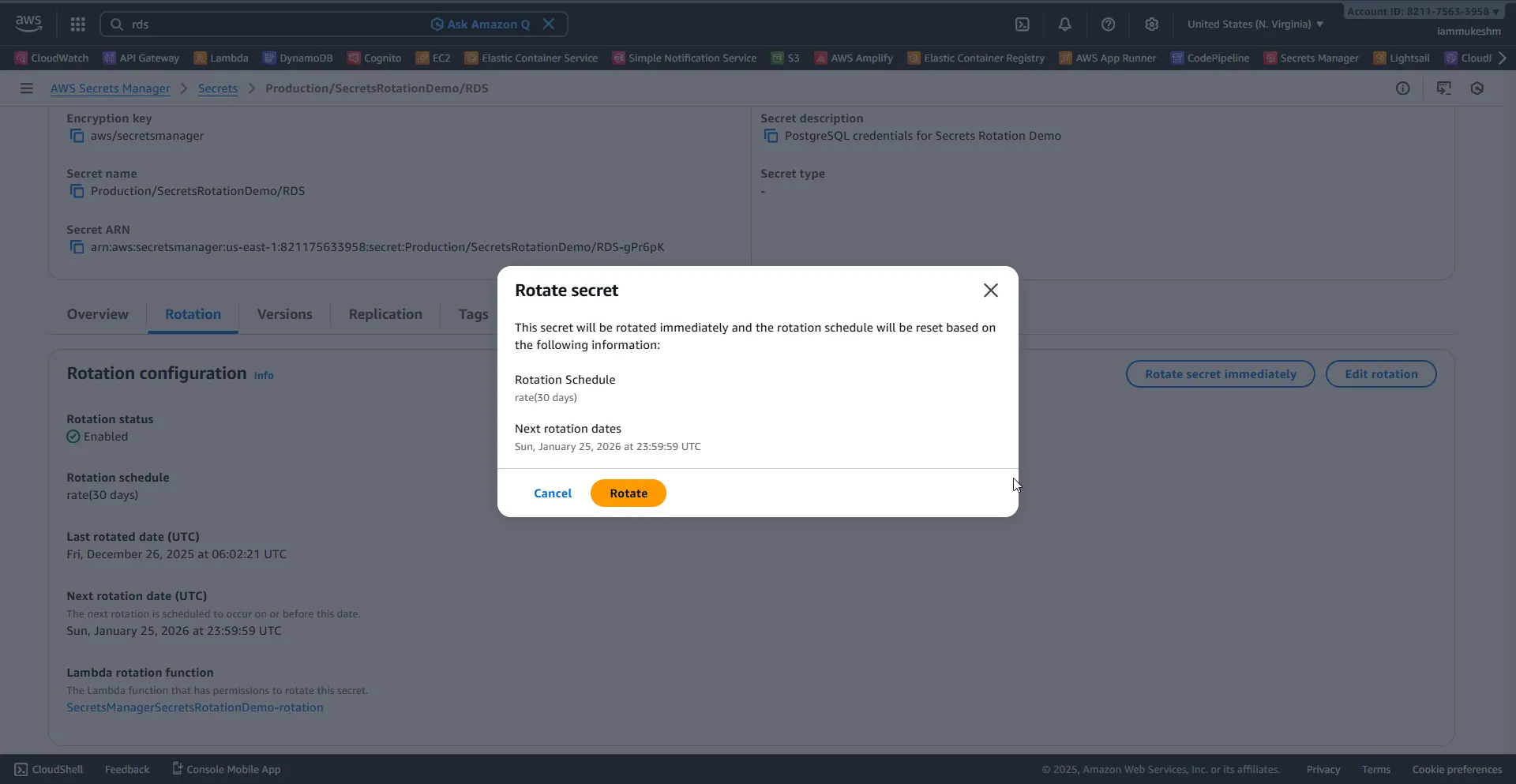
Wait about 30 seconds for the rotation to complete.
Verify Your Application
With your application still running, hit the /health/db endpoint again.
If you’re using the startup-only approach: The old credentials are still cached in the DbContext. Restart the application and it will pick up the new credentials.
If you’re using the resilient factory: The cache will expire within 5 minutes, and the next request will use fresh credentials automatically.
The connection works with zero code changes or deployments!
Best Practices & Gotchas
Rotation Schedule Recommendations
| Environment | Rotation Frequency | Notes |
|---|---|---|
| Development | 90 days | Less aggressive, fewer API calls |
| Staging | 30 days | Match production behavior |
| Production | 7-30 days | Balance security vs. operational overhead |
Cost Considerations
- Secrets Manager: $0.40/secret/month + $0.05 per 10,000 API calls
- Lambda invocations: Minimal (once per rotation)
- Tip: Cache credentials in your app to minimize
GetSecretValuecalls. For non-sensitive configuration that doesn’t need rotation, Parameter Store is a free alternative
Common Pitfalls
- Lambda VPC Configuration: The rotation Lambda must be in the same VPC as RDS, or have proper networking. AWS handles this automatically when you link the secret to RDS.
- Security Group Rules: The Lambda’s security group must allow outbound traffic to RDS on port 5432.
- Secret Permissions: Your application’s IAM role needs
secretsmanager:GetSecretValuepermission for the specific secret. - Connection Pool Stale Connections: After rotation, existing connections in the pool may fail. Configure your connection pool to validate connections before use.
Cleanup
Don’t forget to clean up resources to avoid charges!
- Delete the Secret: Secrets Manager → Select secret → Actions → Delete secret
- Delete RDS Instance: RDS → Databases → Select instance → Actions → Delete
- Delete Lambda Function: Lambda → Functions → Delete
SecretsRotationDemo-rotation - Delete Security Group: EC2 → Security Groups → Delete
secrets-rotation-demo-sg
Summary
In this article, we took AWS Secrets Manager to the next level by implementing automatic credential rotation for RDS databases. Here’s what we covered:
- Why rotation matters - compliance, security hygiene, and reduced blast radius
- How rotation works - the 4-step process and version staging
- Hands-on setup - RDS instance, Secrets Manager, and automatic rotation configuration
- ASP.NET Core integration - consuming rotating credentials with EF Core
- Runtime handling - caching strategies and resilient connection factories
- Best practices - monitoring, cost optimization, and common pitfalls
The beauty of this approach is that once it’s set up, you never think about database passwords again. They rotate automatically, your application picks them up seamlessly, and you sleep better at night knowing your credentials aren’t sitting unchanged for years.
If you found this helpful, share it with your team - and if there’s a topic you’d like me to cover next, drop a comment below!
Parameter Store for .NET Developers
The free-tier alternative to Secrets Manager for non-sensitive configuration that doesn't need rotation.
Amazon RDS for .NET Developers with EF Core
A deeper look at running EF Core against Amazon RDS - the database we rotate credentials for in this guide.
Happy Coding :)