|
VOOZH | about |
|
VOOZH | about |
Section:
Platforms
Frameworks
Languages
Welcome to Apryse. C++ for the Apryse SDK is cross-platform and supported on Windows and Linux. To get started, choose your preferred platform from the tabs below.
This guide will help you run Apryse samples and integrate a free trial of the Apryse SDK into C++ applications on Windows. Your free trial includes unlimited trial usage and support from solution engineers.
Desktop development with C++ workload and Windows 8.1 SDK are part of your installation. This guide will use Visual Studio 2017. The Troubleshooting section has information about other versions.Download the SDK
download Windows 64-bit Apryse SDK
A commercial license key is required for use in a production environment. Please contact sales to purchase a commercial key or if you need any other license key assistance.
License keys are uniquely generated. Please make sure that it is not publicly available (e.g. in your public GitHub).
This article uses PDFNET_BASE as the path into the folder that you extracted.
Apryse collects some data regarding your usage of the SDK for product improvement.
The data that Apryse collects include:
For clarity, no other data is collected by the SDK and Apryse has no access to the contents of your documents.
If you wish to continue without data collection, contact us and we will email you a no-tracking trial key for you to get started.
Navigate to the location of extracted contents. Find and enter the Samples folder (PDFNET_BASE/Samples). Here you can find sample code for a large number of features supported by the Apryse SDK.
Find Samples_VC20XX.sln inside the Samples folder and open it with Visual Studio. Choose the appropriate solution based on your Visual Studio installation.
Run a specific sample
Run all samples
If you prefer using command line to compile and run code, have a look at the Advanced section.
This section will help you build the "Apryse Hello World" application. It is easy to integrate the rest of Apryse SDK if you are able to open, save and close a PDFDoc.
Before writing the application, some dependencies needed to be with Visual Studio.
myapp.PDFNET_BASE\Lib\PDFNetC.lib to the project's Additional Dependencies in the Linker Input settings.PDFNET_BASE\Headers to the project's Additional Include Directories in the C/C++ General Settings.PDFNET_BASE\Lib\PDFNetC.dll file to the project's output directory. Verify that the right version of PDFNetC.dll was added from the path used to add the reference.The Troubleshooting section below has more detailed instructions for newcomers to Visual Studio.
Replace the contents of myapp.cpp with:
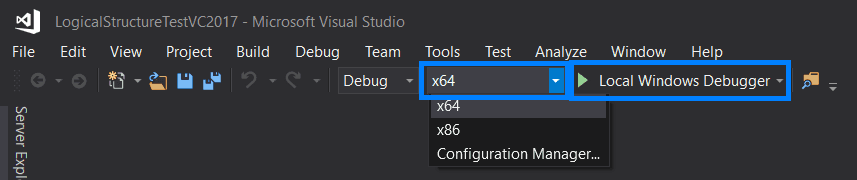
You can use the Local Windows Debugger button to build the solution and run the main function.
Once the code has been run, you can find a new document called linearized_output.pdf in the output directory of your project.
You can learn about and add more features by reading our guides, samples and API.
Run samples using batch files and command prompt
1. Navigate into the folder for any sample that you like (PDFNET_BASE/Samples/X).
2. Create a new file inside the CPP folder called RunTest.bat. Paste the following code in it (replace X with the name of the Test folder):Save the file.
3. Open the Windows Start Menu and in Apps, scroll down and find the Visual Studio 2019 folder (not application). Expand it and click on Developer Command Prompt for Visual Studio 2017. Navigate to the test folder on your system.
4. Use the following to compile, build and run the test:RunTest.bat
Older versions of Visual Studio
Find out more about the Visual Studio versions we support.
Trouble setting dependencies
Set dependencies for the Apryse SDK in a startup project with Visual Studio.
This guide will help you run Apryse samples and integrate a free trial of the Apryse SDK into C++ applications on Linux. Your free trial includes unlimited trial usage and support from solution engineers.
Download the SDK
A commercial license key is required for use in a production environment. Please contact sales to purchase a commercial key or if you need any other license key assistance.
License keys are uniquely generated. Please make sure that it is not publicly available (e.g. in your public GitHub).
tar xvzf PDFNetC64.tar.gz or tar xvzf PDFNetCArm64.tar.gz or tar xvzf PDFNetCAlpine64.tar.gz or tar xvzf PDFNetC.tar.gz.Apryse collects some data regarding your usage of the SDK for product improvement.
The data that Apryse collects include:
For clarity, no other data is collected by the SDK and Apryse has no access to the contents of your documents.
If you wish to continue without data collection, contact us and we will email you a no-tracking trial key for you to get started.
Run a specific sample
CPP folder in the sample you want to run and make the project by calling make. Then run the test by executingFor example to run AddImageTest, navigate to /Samples/AddImageTest/CPP and execute ./AddImageTest.
Run all samples
/Samples and executeThe tests will run one by one.
This section will show you how to use our SDK to create a simple Apryse "Hello World!" application. It will create a document with one blank page and save it as a linearized PDF in its running directory.
/Samples directory and create a new directory called myApp if it does not exist already. This guide will assume your project is named myApp. Enter your myApp directory and create a CPP directory for organization. Then create a myApp.cpp file in the CPP directory.myApp.cpp with your favorite text editor and paste this inside:./myApp. The output should read:Check the output.pdf that the program output in the same directory. It should be a PDF with one blank page.
This guide will help you run Apryse samples and integrate a free trial of the Apryse SDK into C++ applications on macOS. Your free trial includes unlimited trial usage and support from solution engineers.
Download the SDK
A commercial license key is required for use in a production environment. Please contact sales to purchase a commercial key or if you need any other license key assistance.
License keys are uniquely generated. Please make sure that it is not publicly available (e.g. in your public GitHub).
Apryse collects some data regarding your usage of the SDK for product improvement.
The data that Apryse collects include:
For clarity, no other data is collected by the SDK and Apryse has no access to the contents of your documents.
If you wish to continue without data collection, contact us and we will email you a no-tracking trial key for you to get started.
Run a specific sample
CPP folder in the sample you want to run and make the project by calling make. Then run the test by executingFor example to run AddImageTest, navigate to /Samples/AddImageTest/CPP and execute ./AddImageTest.
Run all samples
/Samples and executeThe tests will run one by one.
This section will show you how to use our SDK to create a simple Apryse "Hello World!" application. It will create a document with one blank page and save it as a linearized PDF in its running directory.
/Samples directory and create a new directory called myApp if it does not exist already. This guide will assume your project is named myApp. Enter your myApp directory and create a CPP directory for organization. Then create a myApp.cpp file in the CPP directory.myApp.cpp with your favorite text editor and paste this inside:./myApp. The output should read:Check the output.pdf that the program output in the same directory. It should be a PDF with one blank page.
Did you find this helpful?
Trial setup questions?
Ask experts on DiscordNeed other help?
Contact SupportPricing or product questions?
Contact Sales