|
VOOZH | about |
|
VOOZH | about |
Ubuntu is distributed over the Internet as DVD image (.iso) files. The GettingUbuntu page has links to the ISO image files, as well as other methods of getting Ubuntu.
If you have downloaded an .img file, please refer to the .img writing documentation. |
Before burning a DVD, it is highly recommended that you verify the md5 sum or sha256 sum (hash) of the .iso file. For instructions, please see HowToMD5SUM and HowToSHA256SUM. For the current list of Official Ubuntu SHA256 hashes, see the SHA256SUMS file for the release you're using under http://releases.ubuntu.com (and optionally the PGP signatures in the SHA256SUMS.gpg file); hashes for the older MD5 algorithm are in the same directory. UbuntuHashes currently has only md5sums. Checking the hash ensures that the file was not damaged during the download process and is 100% intact.
You can also install Ubuntu from a USB stick. |
Unlike a regular data file, the ISO file cannot be simply dragged and dropped or copied directly onto a disc. It needs to be burned in a specific way that expands/extracts the image so you have usable files on your disc.
To install Ubuntu from a DVD, you first need to burn the downloaded ISO image onto a DVD. This requires:
Inexpensive "write once" DVD-Rs are a good choice for burning ISO images.
If you check “Verify disc after burning”, it will verify that the ISO image has been burned correctly |
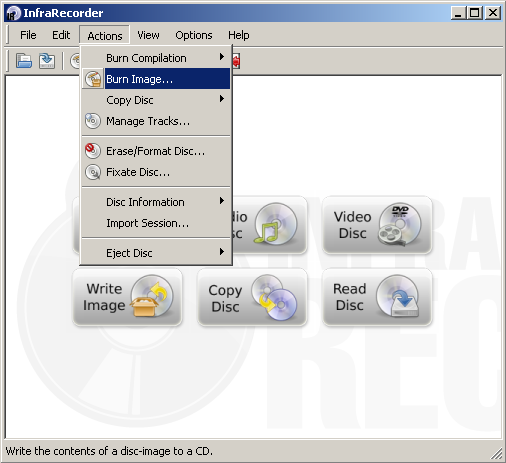
Download and install Infra Recorder, a free and open source image burning program.
Insert a blank CD in the drive and select Do nothing or Cancel if an autorun dialog pops up.
Download and install the appropriate version of ISO Recorder.
Insert an unformatted CD into your burner. (Note: one can burn DVDs with this tool only from Vista.)
Note: To burn most ISOs, you can use Apple's Disk Utility (Disk Copy in older versions).
The procedure may differ slightly depending on which version of Ubuntu you are using |
The procedure may differ slightly depending on which version of Kubuntu you are using |
See CdDvd/Burning if you would like to burn from the command line (terminal) |
If the CD writing fails, try writing at a slower speed. For better results, try the slowest burn speed reasonably possible. Most GUI tools have a "Properties" button to select speed but with Brasero those sorts of options appear after pressing the "burn" button first. This is the single most likely cause of problems but is much more widely known than MD5sum/SHA error-checking. Slower speeds ensure greater accuracy.
The CDIntegrityCheck page describes how to verify the integrity of the finished disk. Please try your DVD as a LiveDVD. If your finished disk fails to boot when you restart your computer, please refer to the BootFromCD page.
BurningIsoHowto (last edited 2015-03-29 19:16:35 by dynamic-adsl-78-14-100-92)
The material on this wiki is available under a free license, see Copyright / License for details
You can contribute to this wiki, see
Wiki Guide for details