sqlite3 Python (How It Works For Developers)

The sqlite3 module in Python offers a way to interact with SQLite databases. It is part of the Python Standard Library, so you don't need to install anything extra to use it. Let's explore its features and see some code examples. Later in this article, we will explore IronPDF, a PDF generation library developed by Iron Software.
SQLite is a lightweight, disk-based database that doesn't require a separate database server process. The sqlite3 module provides an SQL interface-compliant environment to interact with an existing database or newly created database seamlessly. The module enforces the DB-API 2.0 specification described by PEP 249.
Basic Usage
Here's a simple example and multiple SQL statements to get you started with sqlite3.
Connecting to a Database
First, you'll need to connect to your SQLite database. If the database file is missing, it will be generated:
import sqlite3

# Connect to the database (or create it if it doesn't exist)
conn = sqlite3.connect('example.db')
# Create a cursor object
cur = conn.cursor()
import sqlite3
# Connect to the database (or create it if it doesn't exist)
conn = sqlite3.connect('example.db')
# Create a cursor object
cur = conn.cursor()Creating a Table
Use the CREATE TABLE SQL statement to create a new data table:
# Create a table using SQL statements
cur.execute('''
 CREATE TABLE IF NOT EXISTS users (
 id INTEGER PRIMARY KEY,
 name TEXT NOT NULL,
 age INTEGER
 )
''')
# Create a table using SQL statements
cur.execute('''
CREATE TABLE IF NOT EXISTS users (
id INTEGER PRIMARY KEY,
name TEXT NOT NULL,
age INTEGER
)
''')Inserting Data
Here's how to insert data into the database table:
# Insert data into the table
cur.execute('''
 INSERT INTO users (name, age) VALUES (?, ?)
''', ('Alice', 30))

# Commit the transaction using the connection object
conn.commit()
# Insert data into the table
cur.execute('''
INSERT INTO users (name, age) VALUES (?, ?)
''', ('Alice', 30))
# Commit the transaction using the connection object
conn.commit()Querying Data
You can run SQL commands and fetch results from the database table:
# Query the database
cur.execute('SELECT * FROM users')

# Fetch all results
rows = cur.fetchall()

# Print the results
for row in rows:
 print(row)
# Query the database
cur.execute('SELECT * FROM users')
# Fetch all results
rows = cur.fetchall()
# Print the results
for row in rows:
print(row)Updating Data
To update existing data in the table:
# Update data in the table
cur.execute('''
UPDATE users SET age = ? WHERE name = ?
''', (31, 'Alice'))
# Commit the transaction
conn.commit()# Update data in the table
cur.execute('''
UPDATE users SET age = ? WHERE name = ?
''', (31, 'Alice'))
# Commit the transaction
conn.commit()Deleting Data
To delete data from the database rows where the name is Alice:
# Delete data from the table
cur.execute('''
DELETE FROM users WHERE name = ?
''', ('Alice',))
# Commit the transaction
conn.commit()# Delete data from the table
cur.execute('''
DELETE FROM users WHERE name = ?
''', ('Alice',))
# Commit the transaction
conn.commit()Closing the Connection
Remember to close both the cursor and the connection when you are finished:
# Close the cursor and connection
cur.close()
conn.close()# Close the cursor and connection
cur.close()
conn.close()Advanced Features
Using Context Managers
You can use context managers to handle closing the connection automatically:
with sqlite3.connect('example.db') as conn:
cur = conn.cursor()
cur.execute('SELECT * FROM users')
rows = cur.fetchall()
for row in rows:
print(row)with sqlite3.connect('example.db') as conn:
cur = conn.cursor()
cur.execute('SELECT * FROM users')
rows = cur.fetchall()
for row in rows:
print(row)Handling Transactions
SQLite supports transactions, and you can use BEGIN, COMMIT, and ROLLBACK to manage them:
try:
conn.execute('BEGIN')
cur.execute('INSERT INTO users (name, age) VALUES (?, ?)', ('Bob', 25))
conn.commit()
except sqlite3.Error as e:
conn.rollback()
print(f"An error occurred: {e}")try:
conn.execute('BEGIN')
cur.execute('INSERT INTO users (name, age) VALUES (?, ?)', ('Bob', 25))
conn.commit()
except sqlite3.Error as e:
conn.rollback()
print(f"An error occurred: {e}")Introducing IronPDF
👁 sqlite3 Python (How It Works For Developers): Figure 1 - IronPDF: The Python PDF Library
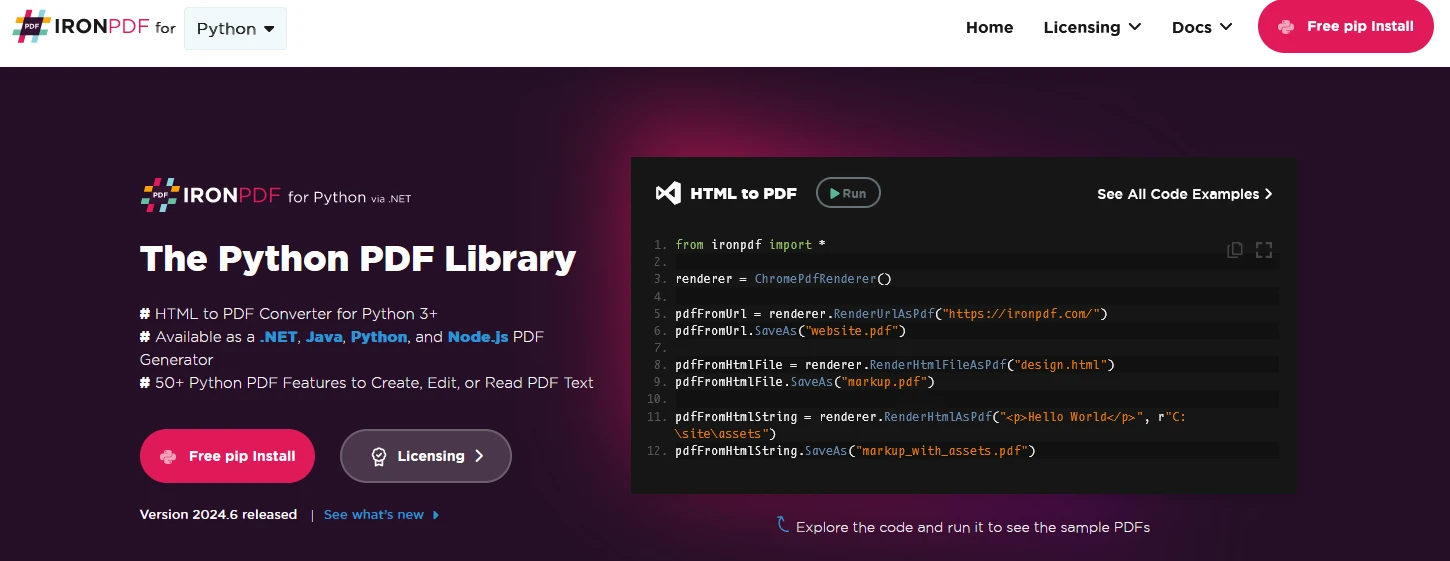
IronPDF is a powerful Python library designed to create, edit, and sign PDFs using HTML, CSS, images, and JavaScript. It offers commercial-grade performance with a low memory footprint. Key features include:
HTML to PDF Conversion:
Convert HTML files, HTML strings, and URLs to PDFs. For example, render a webpage as a PDF using the Chrome PDF renderer.
Cross-Platform Support:
Compatible with various .NET platforms, including .NET Core, .NET Standard, and .NET Framework. It supports Windows, Linux, and macOS.
Editing and Signing:
Set properties, add security with passwords and permissions, and apply digital signatures to your PDFs.
Page Templates and Settings:
Customize PDFs with headers, footers, page numbers, and adjustable margins. It supports responsive layouts and custom paper sizes.
Standards Compliance:
It complies with PDF standards like PDF/A and PDF/UA, supports UTF-8 character encoding, and manages assets such as images, CSS, and fonts.
Generate PDF Documents using IronPDF and SQLite3 Python
import sqlite3
from ironpdf import *
# Apply your license key
License.LicenseKey = "key"
# Connect to the sqlite database file (or create it if it doesn't exist)
conn = sqlite3.connect('example.db')
# Create a cursor object for database connection
cur = conn.cursor()
# Create a table SQL command
cur.execute('''
CREATE TABLE IF NOT EXISTS users (
id INTEGER PRIMARY KEY,
name TEXT NOT NULL,
age INTEGER
)
''')
# Insert data into the table
cur.execute('''
INSERT INTO users (name, age) VALUES (?, ?)
''', ('IronUser1', 30))
cur.execute('''
INSERT INTO users (name, age) VALUES (?, ?)
''', ('IronUser2', 31))
cur.execute('''
INSERT INTO users (name, age) VALUES (?, ?)
''', ('IronUser3', 25))
cur.execute('''
INSERT INTO users (name, age) VALUES (?, ?)
''', ('IronUser4', 28))
# Commit the transaction using the connection object
conn.commit()
# Query the database
cur.execute('SELECT * FROM users')

# Fetch all results
rows = cur.fetchall()

# Print the results
for row in rows:
 print(row)
# Update data in the table
cur.execute('''
 UPDATE users SET age = ? WHERE name = ?
''', (31, 'Alice'))

# Commit the transaction
conn.commit()
# Delete data from the table
cur.execute('''
DELETE FROM users WHERE name = ?
''', ('IronUser1',))
# Commit the transaction
conn.commit()
# Initialize PDF renderer
renderer = ChromePdfRenderer()
# Create a PDF from an HTML string using Python
content = "<h1>Awesome Iron PDF with Sqlite3</h1>"
content += "<p>table data</p>"
for row in rows:
content += "<p>" + str(row) + "</p>"
# Close the cursor and connection
cur.close()
conn.close()
# Render the HTML as a PDF
pdf = renderer.RenderHtmlAsPdf(content)
# Export to a file
pdf.SaveAs("DemoSqlite3.pdf")import sqlite3
from ironpdf import *
# Apply your license key
License.LicenseKey = "key"
# Connect to the sqlite database file (or create it if it doesn't exist)
conn = sqlite3.connect('example.db')
# Create a cursor object for database connection
cur = conn.cursor()
# Create a table SQL command
cur.execute('''
CREATE TABLE IF NOT EXISTS users (
id INTEGER PRIMARY KEY,
name TEXT NOT NULL,
age INTEGER
)
''')
# Insert data into the table
cur.execute('''
INSERT INTO users (name, age) VALUES (?, ?)
''', ('IronUser1', 30))
cur.execute('''
INSERT INTO users (name, age) VALUES (?, ?)
''', ('IronUser2', 31))
cur.execute('''
INSERT INTO users (name, age) VALUES (?, ?)
''', ('IronUser3', 25))
cur.execute('''
INSERT INTO users (name, age) VALUES (?, ?)
''', ('IronUser4', 28))
# Commit the transaction using the connection object
conn.commit()
# Query the database
cur.execute('SELECT * FROM users')
# Fetch all results
rows = cur.fetchall()
# Print the results
for row in rows:
print(row)
# Update data in the table
cur.execute('''
 UPDATE users SET age = ? WHERE name = ?
''', (31, 'Alice'))

# Commit the transaction
conn.commit()
# Delete data from the table
cur.execute('''
DELETE FROM users WHERE name = ?
''', ('IronUser1',))
# Commit the transaction
conn.commit()
# Initialize PDF renderer
renderer = ChromePdfRenderer()
# Create a PDF from an HTML string using Python
content = "<h1>Awesome Iron PDF with Sqlite3</h1>"
content += "<p>table data</p>"
for row in rows:
content += "<p>" + str(row) + "</p>"
# Close the cursor and connection
cur.close()
conn.close()
# Render the HTML as a PDF
pdf = renderer.RenderHtmlAsPdf(content)
# Export to a file
pdf.SaveAs("DemoSqlite3.pdf")Code Explanation
This Python program demonstrates how to use the SQLite library to create a database, insert data into it, perform queries, update records, delete records, and finally generate a PDF document using IronPDF.
Importing Libraries:
sqlite3: Python's built-in module for working with SQLite databases.ironpdf: Importing components from IronPDF, which allows for PDF generation.
Connecting to the Database:
- Establishes a connection to an SQLite database named
example.db.
- Establishes a connection to an SQLite database named
Creating a Table:
- Defines an SQLite table
userswith columnsid(INTEGER, PRIMARY KEY),name(TEXT, NOT NULL), andage(INTEGER).
- Defines an SQLite table
Inserting Data:
- Insert multiple rows of data into the
userstable.
- Insert multiple rows of data into the
Committing Transactions:
- Commits the changes to the Database to make them persistent.
Querying the Database:
- Executes a SELECT statement to retrieve all rows from the
userstable.
- Executes a SELECT statement to retrieve all rows from the
Updating Data:
- Updates the
ageof a user named 'Alice'.
- Updates the
Deleting Data:
- Deletes a user named 'IronUser1' from the
userstable.
- Deletes a user named 'IronUser1' from the
Generating PDF:
- Uses IronPDF (
ChromePdfRenderer) to create a PDF document from HTML content. - Combines header and table data (retrieved from the database) into the HTML content.
- Saves the PDF document as
DemoSqlite3.pdf.
- Uses IronPDF (
- Closing Connections:
- Closes the cursor (
cur) and connection (conn) to release resources.
- Closes the cursor (
This script demonstrates a complete workflow from database setup to data manipulation and PDF generation using Python's SQLite3 and IronPDF libraries.
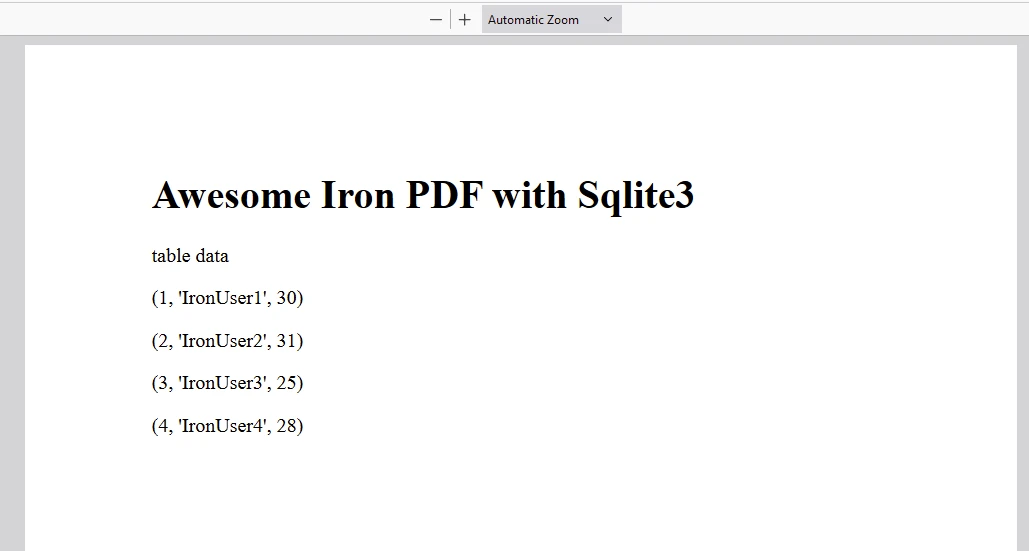
Output
👁 sqlite3 Python (How It Works For Developers): Figure 2 - Example console output

IronPDF License
IronPDF runs on a license key. IronPDF for Python offers a free trial license key to allow users to test its extensive features before purchase.
Place the License Key here:
import {IronPdfGlobalConfig, PdfDocument} from "@ironsoftware/ironpdf";

// Apply your IronPDF license key
IronPdfGlobalConfig.getConfig().licenseKey = "Add Your key here";
import {IronPdfGlobalConfig, PdfDocument} from "@ironsoftware/ironpdf";
// Apply your IronPDF license key
IronPdfGlobalConfig.getConfig().licenseKey = "Add Your key here";Conclusion
👁 sqlite3 Python (How It Works For Developers): Figure 4 - IronPDF Licensing page
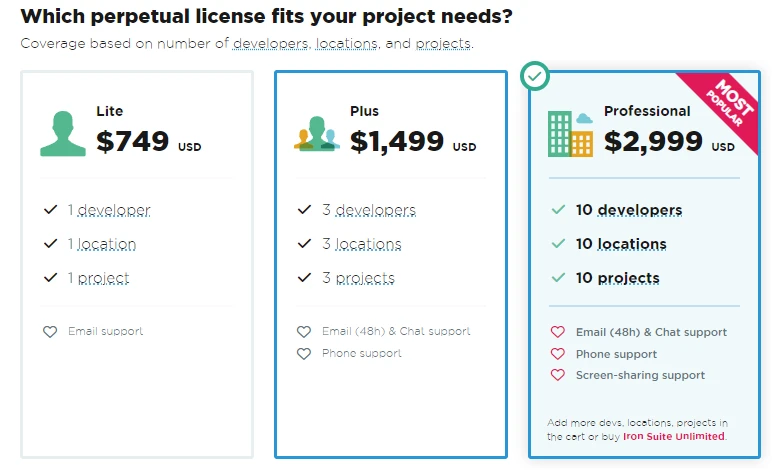
The sqlite3 module is a powerful and easy-to-use tool for working with SQLite databases in Python. Its integration into the Python Standard Library makes simple and complex database operations convenient. The IronPDF offers a trial license. Afterward, the license starts at $999 and upwards.