

- IronBarcode
- Tutorials
- Reading Barcodes in .NET

C# Barcode Scanner: Read Barcodes & QR Codes in .NET Applications

Need to quickly scan barcodes or QR codes in your .NET application? IronBarcode makes barcode reading simple and reliable, whether you're processing perfect digital images or challenging real-world photos. This guide shows you exactly how to implement barcode scanning in C# with practical examples you can use immediately.
Quickstart: Read a Barcode from a File Instantly
This quick example shows you how easy it is to get started with IronBarcode. In just one line of code, you can read barcodes from an image file—no complex setup required.
-
Install IronBarcode with NuGet Package Manager
PM > Install-Package BarCode -
Copy and run this code snippet.
var results = IronBarCode.BarcodeReader.Read("path/to/barcode.png"); -
Deploy to test on your live environment
Start using IronBarcode in your project today with a free trial

Minimal Workflow (5 steps)
- Install IronBarcode from NuGet or via DLL download
- Use the
BarcodeReader.Readmethod to scan any barcode or QR code - Read multiple barcodes or QR codes in a single scan, PDF, or multiframe TIFF file
- Enable IronBarcode to decode imperfect scans and photos with advanced filters
- Download the tutorial project and start scanning immediately
How do I install IronBarcode in my .NET project?
IronBarcode installs easily through NuGet Package Manager or by downloading the DLL directly. The NuGet installation is the recommended approach as it automatically manages dependencies and updates.
Install-Package BarCode
After installation, add using IronBarCode; to your C# files to access the barcode scanning functionality. For detailed installation instructions across different development environments, check our installation guide.
How can I read my first barcode using C#?
Reading barcodes with IronBarcode requires just one line of code. The library automatically detects barcode formats and extracts all encoded data.
:path=/static-assets/barcode/content-code-examples/tutorials/reading-barcodes-3.csusing IronBarCode;
BarcodeReaderOptions options = new BarcodeReaderOptions()
{
// Choose which filters are to be applied (in order)
ImageFilters = new ImageFilterCollection() {
new AdaptiveThresholdFilter(),
},
// Uses machine learning to auto rotate the barcode
AutoRotate = true,
};
// Read barcode
BarcodeResults results = BarcodeReader.Read("TryHarderQR.png", options);Imports IronBarCode
Private options As New BarcodeReaderOptions() With {
.ImageFilters = New ImageFilterCollection() From {New AdaptiveThresholdFilter()},
.AutoRotate = True
}
' Read barcode
Private results As BarcodeResults = BarcodeReader.Read("TryHarderQR.png", options)The BarcodeReader.Read method returns a BarcodeResults collection containing all detected barcodes. Each BarcodeResult provides access to the barcode's text value, format type, position coordinates, and binary data. This approach works seamlessly with common barcode formats including Code128, Code39, QR codes, and Data Matrix codes.
What options help read challenging or damaged barcodes?
Real-world barcode scanning often involves imperfect images - skewed angles, poor lighting, or partial damage. IronBarcode's advanced options handle these challenges effectively.
:path=/static-assets/barcode/content-code-examples/tutorials/reading-barcodes-4.csusing IronBarCode;
using System;
// Multiple barcodes may be scanned up from a single document or image. A PDF document may also used as the input image
BarcodeResults results = BarcodeReader.ReadPdf("MultipleBarcodes.pdf");
// Work with the results
foreach (var pageResult in results)
{
string Value = pageResult.Value;
int PageNum = pageResult.PageNumber;
System.Drawing.Bitmap Img = pageResult.BarcodeImage;
BarcodeEncoding BarcodeType = pageResult.BarcodeType;
byte[] Binary = pageResult.BinaryValue;
Console.WriteLine(pageResult.Value + " on page " + PageNum);
}Imports IronBarCode
Imports System
' Multiple barcodes may be scanned up from a single document or image. A PDF document may also used as the input image
Private results As BarcodeResults = BarcodeReader.ReadPdf("MultipleBarcodes.pdf")
' Work with the results
For Each pageResult In results
Dim Value As String = pageResult.Value
Dim PageNum As Integer = pageResult.PageNumber
Dim Img As System.Drawing.Bitmap = pageResult.BarcodeImage
Dim BarcodeType As BarcodeEncoding = pageResult.BarcodeType
Dim Binary() As Byte = pageResult.BinaryValue
Console.WriteLine(pageResult.Value & " on page " & PageNum)
Next pageResultThe ExpectBarcodeTypes property significantly improves performance by limiting the search to specific formats. For maximum accuracy with problematic images, combine image filters with automatic rotation:
:path=/static-assets/barcode/content-code-examples/tutorials/reading-barcodes-5.csusing IronBarCode;
// Multi frame TIFF and GIF images can also be scanned
BarcodeResults multiFrameResults = BarcodeReader.Read("Multiframe.tiff");
foreach (var pageResult in multiFrameResults)
{
//...
}Imports IronBarCode
' Multi frame TIFF and GIF images can also be scanned
Private multiFrameResults As BarcodeResults = BarcodeReader.Read("Multiframe.tiff")
For Each pageResult In multiFrameResults
'...
Next pageResultThese advanced features make IronBarcode ideal for scanning barcodes from photos, security cameras, or mobile device captures where image quality varies significantly.
How do I scan multiple barcodes from PDF documents?
PDF barcode scanning is essential for processing invoices, shipping labels, and inventory documents. IronBarcode reads all barcodes across every page efficiently.
Reading barcodes from PDF files
:path=/static-assets/barcode/content-code-examples/tutorials/reading-barcodes-6.csusing IronBarCode;
// The Multithreaded property allows for faster barcode scanning across multiple images or PDFs. All threads are automatically managed by IronBarCode.
var ListOfDocuments = new[] { "image1.png", "image2.JPG", "image3.pdf" };
BarcodeReaderOptions options = new BarcodeReaderOptions()
{
// Enable multithreading
Multithreaded = true,
};
BarcodeResults batchResults = BarcodeReader.Read(ListOfDocuments, options);Imports IronBarCode
' The Multithreaded property allows for faster barcode scanning across multiple images or PDFs. All threads are automatically managed by IronBarCode.
Private ListOfDocuments = { "image1.png", "image2.JPG", "image3.pdf" }
Private options As New BarcodeReaderOptions() With {.Multithreaded = True}
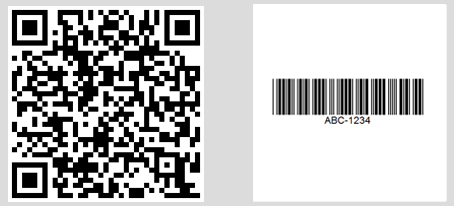
Private batchResults As BarcodeResults = BarcodeReader.Read(ListOfDocuments, options)👁 Multiple barcodes detected across PDF pages showing console output
Console output showing multiple barcodes found across different PDF pages
For specific page ranges or advanced PDF processing, use BarcodeReaderOptions:
:path=/static-assets/barcode/content-code-examples/tutorials/reading-barcodes-7.cs// Read only specific pages to improve performance
BarcodeReaderOptions pdfOptions = new BarcodeReaderOptions
{
// Scan pages 1-5 only
PageNumbers = new[] { 1, 2, 3, 4, 5 },
// PDF-specific settings
PdfDpi = 300, // Higher DPI for better accuracy
ReadBehindVectorGraphics = true
};
BarcodeResults results = BarcodeReader.ReadPdf("document.pdf", pdfOptions);
Imports System

' Read only specific pages to improve performance
Dim pdfOptions As New BarcodeReaderOptions With {
 ' Scan pages 1-5 only
 .PageNumbers = New Integer() {1, 2, 3, 4, 5},

 ' PDF-specific settings
 .PdfDpi = 300, ' Higher DPI for better accuracy
 .ReadBehindVectorGraphics = True
}

Dim results As BarcodeResults = BarcodeReader.ReadPdf("document.pdf", pdfOptions)How can I process multiframe TIFF images?
Multiframe TIFF files, common in document scanning and fax systems, receive the same comprehensive support as PDFs.
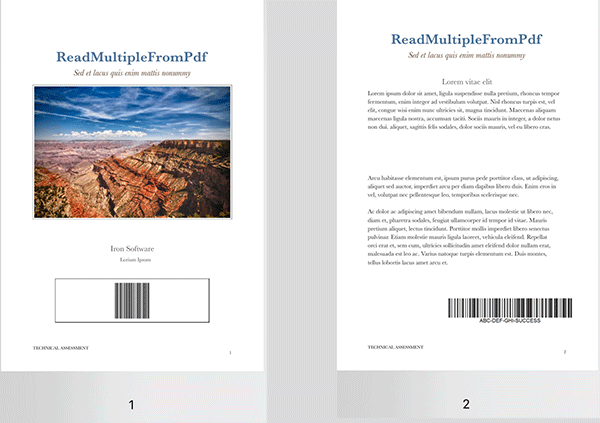
👁 Multiframe TIFF containing multiple barcodes across frames
A multiframe TIFF file with barcodes on different frames
:path=/static-assets/barcode/content-code-examples/tutorials/reading-barcodes-8.csusing IronBarCode;
// TIFF files are processed similarly to regular images
// Each frame is scanned automatically
BarcodeResults multiFrameResults = BarcodeReader.Read("Multiframe.tiff");
foreach (var result in multiFrameResults)
{
// Access frame-specific information
int frameNumber = result.PageNumber; // Frame number in TIFF
string barcodeValue = result.Text;
Console.WriteLine($"Frame {frameNumber}: {barcodeValue}");
// Save individual barcode images if needed
result.BarcodeImage?.Save($"barcode_frame_{frameNumber}.png");
}
Imports IronBarCode

' TIFF files are processed similarly to regular images
' Each frame is scanned automatically
Dim multiFrameResults As BarcodeResults = BarcodeReader.Read("Multiframe.tiff")

For Each result In multiFrameResults
 ' Access frame-specific information
 Dim frameNumber As Integer = result.PageNumber ' Frame number in TIFF
 Dim barcodeValue As String = result.Text

 Console.WriteLine($"Frame {frameNumber}: {barcodeValue}")

 ' Save individual barcode images if needed
 result.BarcodeImage?.Save($"barcode_frame_{frameNumber}.png")
NextThe same BarcodeReaderOptions apply to TIFF processing, including image filters and rotation settings. For detailed TIFF handling scenarios, see our image processing tutorials.
Can I speed up processing with multithreading?
Processing multiple documents benefits dramatically from parallel processing. IronBarcode automatically utilizes available CPU cores for optimal performance.
:path=/static-assets/barcode/content-code-examples/tutorials/reading-barcodes-9.csusing IronBarCode;
// List of documents to process - mix of formats supported
var documentBatch = new[]
{
"invoice1.pdf",
"shipping_label.png",
"inventory_sheet.tiff",
"product_catalog.pdf"
};
// Configure for batch processing
BarcodeReaderOptions batchOptions = new BarcodeReaderOptions
{
// Enable parallel processing across documents
Multithreaded = true,
// Limit threads if needed (0 = use all cores)
MaxParallelThreads = Environment.ProcessorCount,
// Apply consistent settings to all documents
Speed = ReadingSpeed.Balanced,
ExpectBarcodeTypes = BarcodeEncoding.All
};
// Process all documents in parallel
BarcodeResults batchResults = BarcodeReader.Read(documentBatch, batchOptions);
// Group results by source document
var resultsByDocument = batchResults.GroupBy(r => r.Filename);
foreach (var docGroup in resultsByDocument)
{
Console.WriteLine($"\nDocument: {docGroup.Key}");
foreach (var barcode in docGroup)
{
Console.WriteLine($" - {barcode.BarcodeType}: {barcode.Text}");
}
}
Imports IronBarCode

' List of documents to process - mix of formats supported
Dim documentBatch = New String() {
 "invoice1.pdf",
 "shipping_label.png",
 "inventory_sheet.tiff",
 "product_catalog.pdf"
}

' Configure for batch processing
Dim batchOptions As New BarcodeReaderOptions With {
 .Multithreaded = True,
 .MaxParallelThreads = Environment.ProcessorCount,
 .Speed = ReadingSpeed.Balanced,
 .ExpectBarcodeTypes = BarcodeEncoding.All
}

' Process all documents in parallel
Dim batchResults As BarcodeResults = BarcodeReader.Read(documentBatch, batchOptions)

' Group results by source document
Dim resultsByDocument = batchResults.GroupBy(Function(r) r.Filename)

For Each docGroup In resultsByDocument
 Console.WriteLine(vbCrLf & "Document: " & docGroup.Key)
 For Each barcode In docGroup
 Console.WriteLine($" - {barcode.BarcodeType}: {barcode.Text}")
 Next
NextThis parallel approach processes documents simultaneously, reducing total scanning time by up to 75% on multicore systems. For enterprise-scale barcode processing, explore our performance optimization guide.
Summary
IronBarcode transforms complex barcode scanning into straightforward C# code. Whether you're building inventory systems, document processors, or mobile applications, the library handles everything from pristine digital barcodes to challenging real-world captures.
Key capabilities covered:
- Single-line barcode reading from images
- Advanced options for damaged or rotated barcodes
- Comprehensive PDF and TIFF document scanning
- High-performance batch processing with multithreading
- Support for all major barcode formats
Further Reading
Expand your barcode processing capabilities with these resources:
- Barcode Generation Tutorial - Create custom barcodes
- QR Code Guide](/csharp/barcode/tutorials/csharp-qr-code-generator/) - Specialized QR code features
BarcodeReaderClass Reference - Complete API documentation- Troubleshooting Guide - Common issues and solutions
Source Code Downloads
Run these examples yourself:
Ready to implement barcode scanning in your application? Start your free trial and add professional barcode reading to your .NET project today.
Frequently Asked Questions
How can I install a barcode reading library in a .NET project?
You can install the IronBarcode library via NuGet Package Manager using the command dotnet add package BarCode or through Visual Studio's NuGet interface. Alternatively, download the DLL for manual installation.
What is the method to read a barcode from an image using C#?
Use the BarcodeReader.Read method from IronBarcode with a single line of code: var results = BarcodeReader.Read('image.png'); This method detects and reads all barcode formats present in the image.
Is it possible to detect multiple barcodes in a single image or document?
Yes, IronBarcode can automatically detect and read multiple barcodes in an image, PDF, or multiframe TIFF, returning each barcode's value, type, and position in a BarcodeResults collection.
How do I read barcodes from a PDF using C#?
Use IronBarcode's BarcodeReader.ReadPdf method to scan all pages of a PDF document: var results = BarcodeReader.ReadPdf('document.pdf'); Each result includes the page number where the barcode was found.
What should I do if the barcode images are blurry or rotated?
Configure BarcodeReaderOptions to handle challenging images by setting AutoRotate = true and applying image filters like SharpenFilter or AdaptiveThresholdFilter. Use Speed = ExtremeDetail for better accuracy.
Which barcode formats are supported in .NET applications?
IronBarcode supports all major barcode formats such as QR Code, Code 128, Code 39, EAN-13, UPC-A, Data Matrix, PDF417, and more. Utilize BarcodeEncoding.All to scan for any supported format.
How can I enhance barcode scanning performance in a C# application?
Improve performance by specifying expected barcode types with ExpectBarcodeTypes, enabling Multithreaded processing, and choosing appropriate Speed settings. For batch tasks, utilize BarcodeReader.Read with file paths.
What is the recommended approach for handling barcode reading errors?
Encapsulate barcode reading in try-catch blocks and verify if the results are null or empty. IronBarcode provides detailed error messages and a Confidence property to indicate detection reliability.
Can I extract barcode images after they are scanned?
Yes, IronBarcode's BarcodeResult includes a BarcodeImage property that contains a Bitmap of the detected barcode, which can be saved or processed separately.
How do I read barcodes from specific pages within a PDF document?
Set the PageNumbers property in BarcodeReaderOptions to specify pages: options.PageNumbers = new[] {1, 2, 3}; This optimizes performance by scanning only the designated pages.
What image formats are compatible with barcode scanning in .NET?
IronBarcode supports scanning in formats like PNG, JPEG, BMP, GIF, TIFF (including multiframe), and PDF. You can load images from file paths, streams, or byte arrays.
How can I access binary data from scanned barcodes in C#?
Utilize the BinaryValue property of BarcodeResult to obtain raw binary data, especially useful for barcodes containing non-text data such as compressed information or binary protocols.


Still Scrolling?
Want proof fast? PM > Install-Package BarCode
run a sample watch your string become a barcode.
























