


The launcher on the left-hand side of Ubuntu is a handy tool for quickly accessing applications. When you click on an icon in the launcher, the application window appears in focus.
If you click again on an application icon already in focus, the default behaviour is to show previews. This may bother you if you expect the application window to be minimized on the second click.
Perhaps this GIF will better explain the click-on-minimize behaviour on Ubuntu.

In my opinion, this should be the default behaviour but apparently, Ubuntu doesn’t think so. So what? Customization is one of the main reasons why I use Linux and this behaviour can also be easily changed.
In this quick tutorial, I’ll show you how to enable click to minimize on Ubuntu 22.04 and 20.04. I’ll show both the command line and the GUI methods here.
Enable click to minimize on Ubuntu using the command line (recommended)
This method is for Ubuntu 20.04, 22.04 and newer version users with the GNOME desktop environment.
The first option is using the terminal. I recommend this way to ‘minimize on click’ even if you are uncomfortable with the command line.
It’s not at all complicated. Open a terminal using the Ctrl+Alt+T shortcut or search for it in the menu. All you need is to copy and paste the command below into the terminal.
gsettings set org.gnome.shell.extensions.dash-to-dock click-action 'minimize'
No need to restart your system or anything of that sort. You can test the minimize on click behaviour immediately after it.
If you do not like the click to minimize behaviour, you can set it back to default using the command below:
gsettings reset org.gnome.shell.extensions.dash-to-dock click-action
Enable click to minimize on Ubuntu using the GUI tool
You can do the steps mentioned above using a GUI tool called Dconf Editor. It is a powerful tool that allows you to change many hidden aspects of your Linux desktop. I avoid recommending it because one wrong click here and there may screw up your desktop settings. So be careful while using this tool because it works with a single click and changes are applied immediately.
You can find and install Dconf Editor in the Ubuntu Software Center.
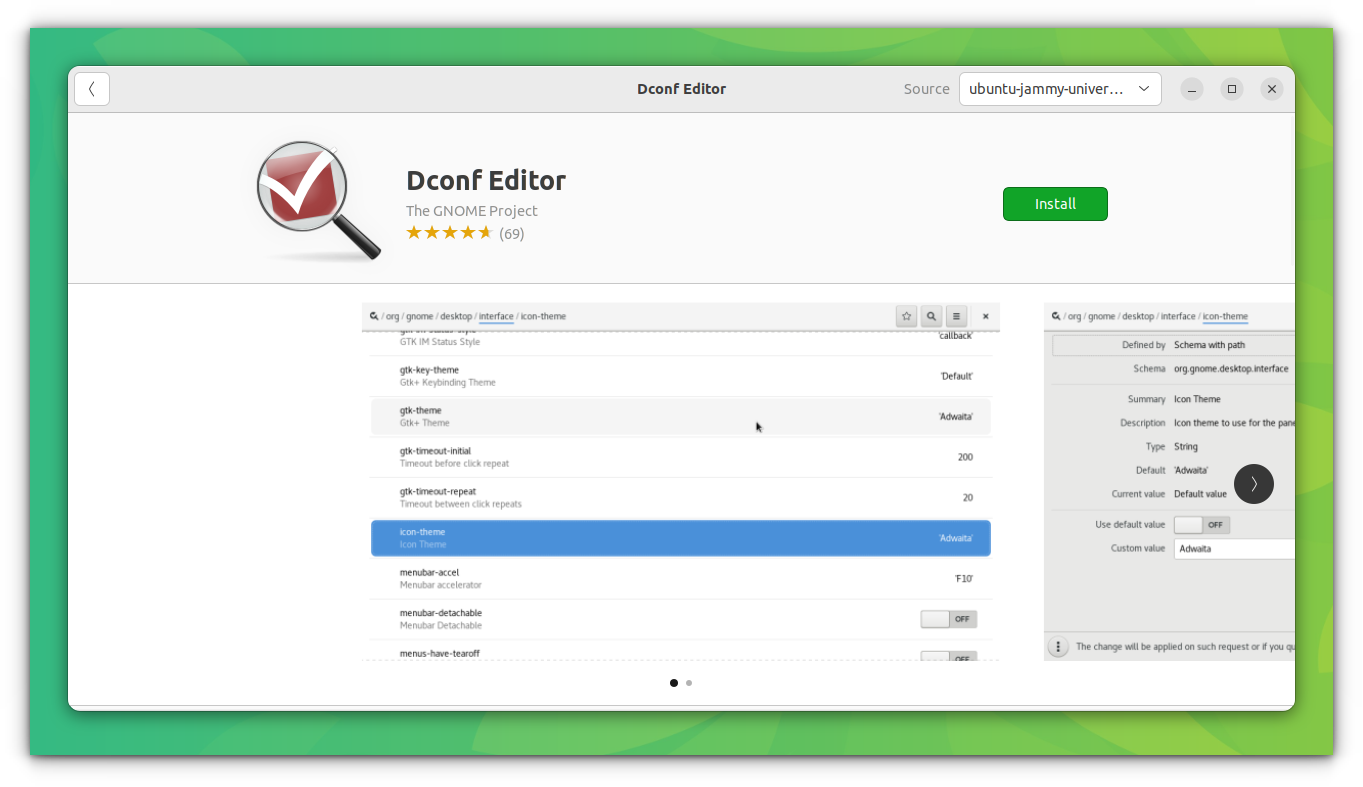
Once installed, launch Dconf Editor and go to org -> gnome -> shell -> extensions -> dash-to-dock. Scroll down a bit until you find click-action. Click on it to access the click action settings.
Turn off the Use default value option and change the Custom Value to ‘minimize’.
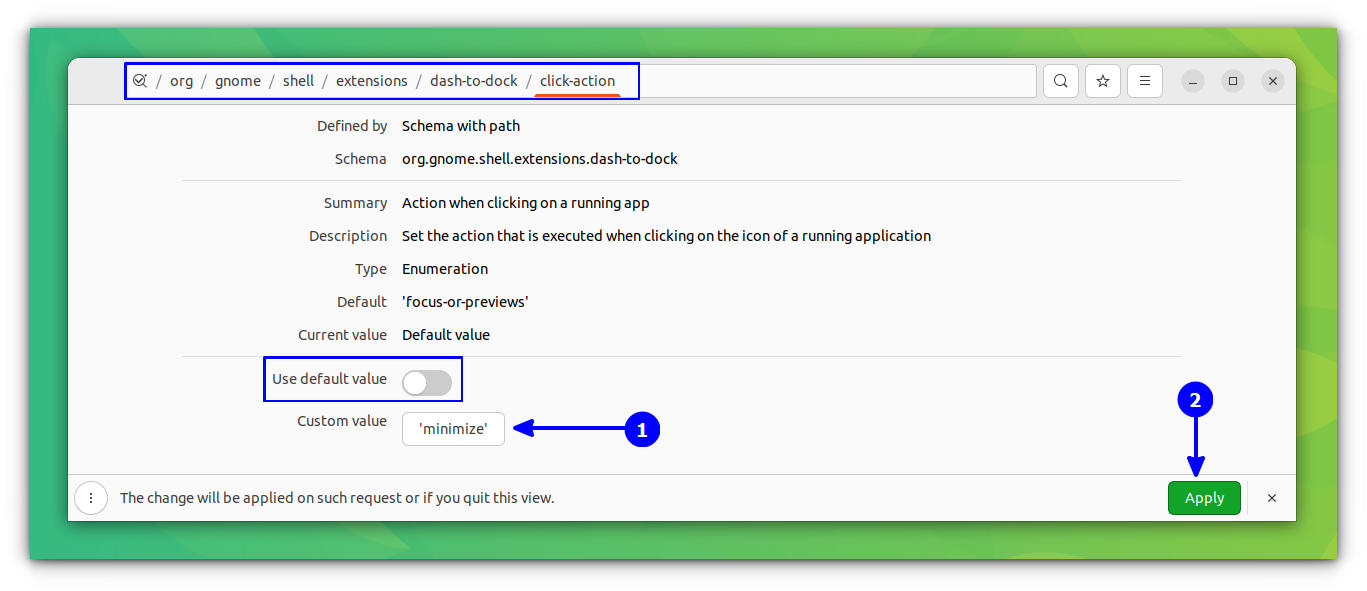
You can see that the minimize-on-click behaviour has been applied instantly.
Did it work for you?
I hope this quick tip helped you to enable the minimize-on-click feature in Ubuntu.
There are more ways to customize the Dock. Check it out if interested.

If you are using Ubuntu, I suggest reading GNOME customization tips for even more customization options.
Or, if you are new to Ubuntu, you can read our essential things to do after installing the Ubuntu article.
If you have any questions or suggestions, please leave a comment. If it helped you, perhaps you could share this article on various social media platforms such as Reddit and Twitter.
