


The other day when I installed Elementary OS in dual boot with Windows, I encountered a Grub error at the reboot time. I was presented with a command line interface displaying this error message:
Minimal BASH like line editing is supported. For the first word, TAB lists possible command completions. anywhere else TAB lists possible device or file completions.
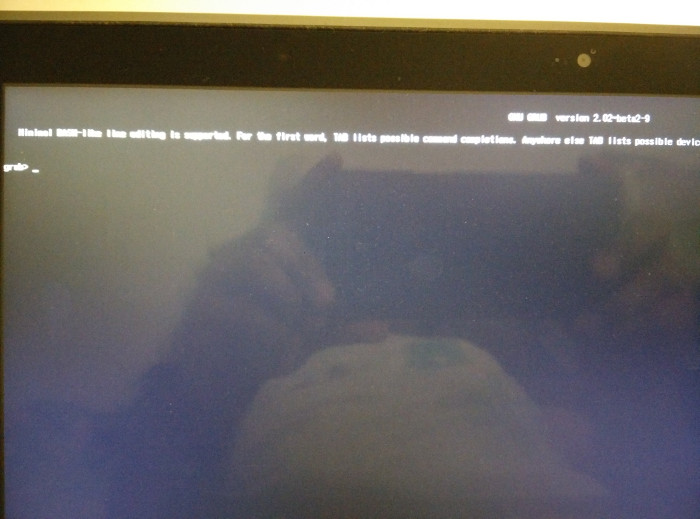
Indeed, this is not an error specific to Elementary OS. It is a common Grub error that could occur with any Linux OS be it Ubuntu, Fedora, Linux Mint etc.
In this article, you'll see how to fix this “minimal BASH like line editing is supported” Grub error in Ubuntu based Linux systems.
You can read this tutorial to fix a similar and more frequent issue, error: no such partition grub rescue in Linux.

Prerequisites
To fix this issue, you would need the following:
- A live USB or disk of (preferably) the same Linux distribution
- A working internet connection in the live session
Once you ensure you have the prerequisites, let’s see how to fix the black screen of death for Linux (if I can call it that ;)).
Fixing “minimal BASH like line editing is supported” Grub error
The process is simple if you follow the steps carefully (not blindly). You may have to change the partition names as per your system.
Step 1: Boot into the live Linux USB.
Step 2: You need to find out if your system uses EFI or BIOS. To do that, open the terminal and use the following command to list your partitions:
sudo fdisk -lLook closely at its output because it could be a huge output. If you see something like EFI, it’s an indication that your system has EFI. This information is important in later stages.
Device Start End Sectors Size Type
/dev/sda1 2048 976895 974848 476M EFI System
/dev/sda2 976896 40038399 39061504 18.6G Linux filesystem
/dev/sda3 40038400 79099903 39061504 18.6G Linux filesystem
/dev/sda4 79099904 468875263 389775360 185.9G Linux filesystem
You need to note two things here. The partition where EFI is installed (if it is installed) and the partition where root partition is installed.
Step 3 (for UEFI systems only): Now, what you need to do is to reinstall grub.
Mount the root partition first. I am using /dev/sda2 for root but you should change this with what you have on your system:
sudo mount /dev/sda2 /mntIf you have EFI system, mount that partition as well:
sudo mount /dev/sda1 /mnt/boot/efiNow, the next step is to finally install grub for UEFI system like this:
sudo grub-install --boot-directory=/mnt/boot --bootloader-id=ubuntu --target=x86_64-efi --efi-directory=/mnt/boot/efi Restart Ubuntu Linux using this command:
shutdown -r nowYou should have the grub back to normal.
Step 3 (only for non-EFI system): Installing grub on non-EFI system is even easier.
Mount the root partition of Linux:
sudo mount /dev/sda1 /mntAnd then install grub:
sudo grub-install /dev/sd1Reboot and it should be fine.
Alternate method to fix “minimal BASH like line editing is supported” Grub error in Ubuntu
I know that you might point out that this Grub error is not exclusive to Ubuntu or Ubuntu-based Linux distributions, then why am I emphasizing the world Ubuntu? The reason is that we will take an easy way out and use a tool called Boot Repair to fix our problem. I am not sure if this tool is available for other distributions like Fedora.
Let’s see how to solve minimal BASH like line editing is supported Grub error.
Step 1: Boot in live session
Plug in the live USB and boot into the live session. Make sure to connect to the internet.
Step 2: Install Boot Repair
Once you are in the lives session, open the terminal and use the following commands to install Boot Repair:
sudo add-apt-repository ppa:yannubuntu/boot-repair
sudo apt-get update
sudo apt-get install boot-repairStep 3: Repair boot with Boot Repair
Once you have installed Boot Repair, run it from the command line using the following command:
boot-repair &Actually things are pretty straight forward from here. You just need to follow the instructions provided by Boot Repair tool. First, click on Recommended repair option in the Boot Repair.
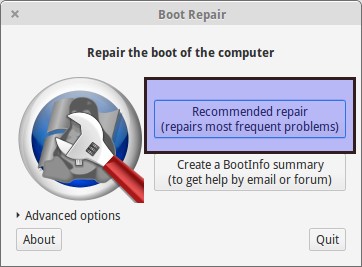
It will take a couple of minutes for Boot Repair to analyze the problem with boot and Grub. Afterwards, it will provide you some commands to use in the command line. Copy the commands one by one in terminal. For me it showed me a screen like this:
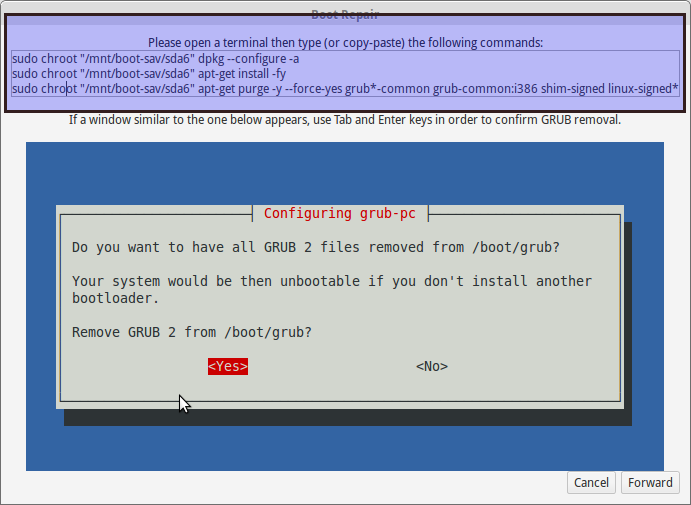
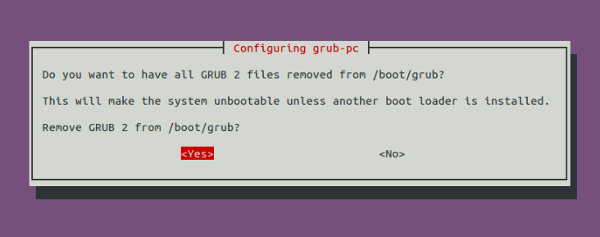
It will do some processes after you enter these commands:

Once the process finishes, it will provide you a URL which consists of the logs of the boot repair. If your boot issue is not fixed even now, you can go to the forum or mail to the dev team and provide them the URL as a reference. Cool, isn’t it?
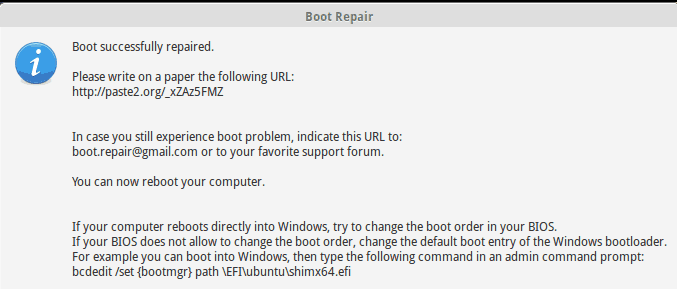
After the boot repair finishes successfully, shut down your computer, remove the USB and boot again.
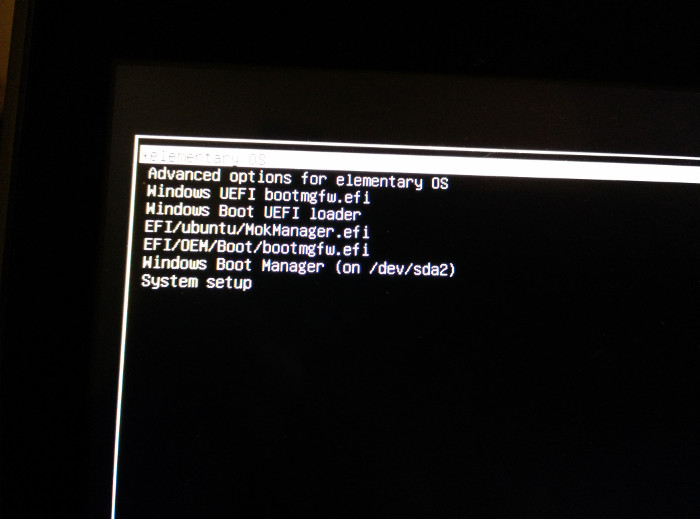
For me, it booted successfully but added two additional lines in the Grub screen. Something which was not of importance to me as I was happy to see the system booting normally again.
Did it work for you?
So this is how I fixed minimal BASH like line editing is supported Grub error in Elementary OS.
As with many other troubleshooting cases, patience is the key here.
How about you? Did it work for you? Feel free to ask a question or drop a suggestion in the comment box below.
