


This tutorial shows you how to install the Cinnamon desktop environment on Ubuntu.
Cinnamon is the default desktop environment of Linux Mint. Unlike the GNOME desktop environment in Ubuntu, Cinnamon is a more traditional but elegant-looking desktop environment with a bottom panel, app menu, etc. Many Windows migrants prefer Linux Mint over Ubuntu because of the Cinnamon desktop and its Windows-resembling user interface.
You don’t need to install Linux Mint just to try Cinnamon. In this tutorial, I’ll show you how to install Cinnamon in Ubuntu.
How to Install Cinnamon on Ubuntu
Installing Cinnamon on Ubuntu
At the time of updating this tutorial, Cinnamon desktop version 5.2.7 is available in the universe repository of Ubuntu 22.04 LTS.
So make sure to enable the universe repository and then use this command to install Cinnamon on Ubuntu 22.04:
sudo apt install cinnamonInstalling the latest Cinnamon daily builds from PPA (not recommended)
The Linux Mint team provides a daily build unstable PPA to install the latest Mint packages on Ubuntu. Packages on this repository are unstable and for testing purposes, so you should know what you are doing.
sudo add-apt-repository ppa:linuxmint-daily-build-team/daily-builds
sudo apt update
sudo apt install cinnamon nemo-pythonNote that this version of Cinnamon desktop, only worked correctly for Ubuntu 22.04 LTS and it failed for my system with an “unmet dependency error” on Ubuntu 20.04 LTS.
Using the Cinnamon desktop environment in Ubuntu
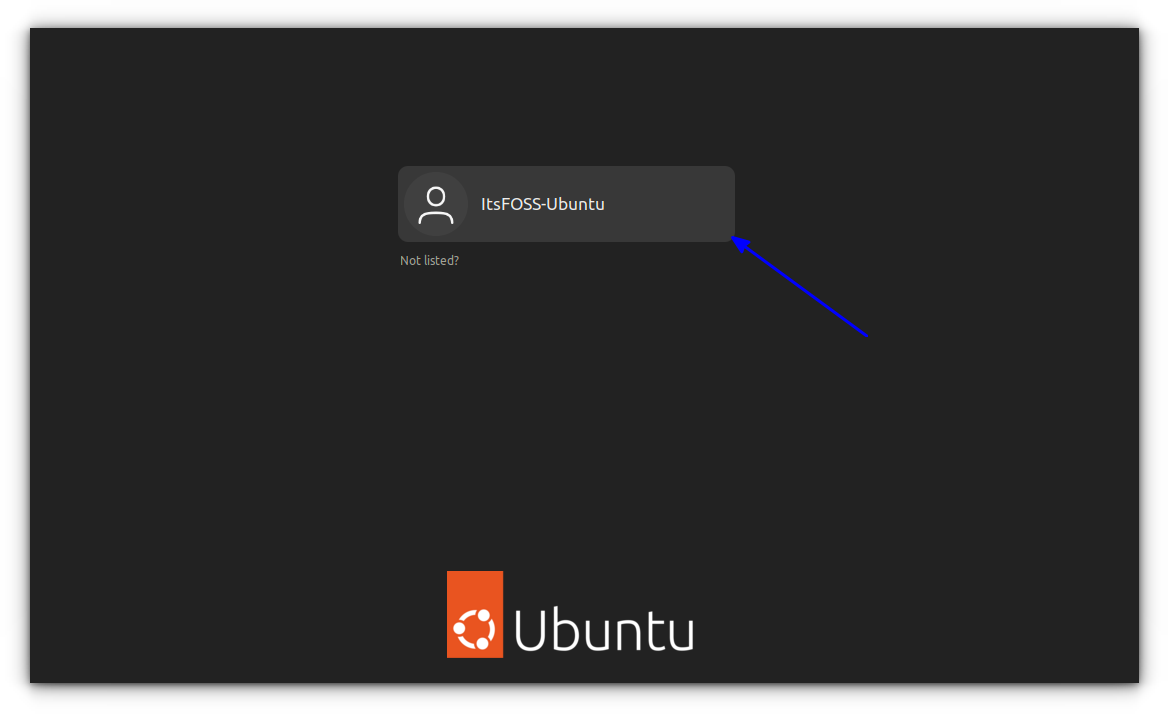
Once you have installed Cinnamon, log out of the current session. At the login screen, click on the Ubuntu symbol beside the username:
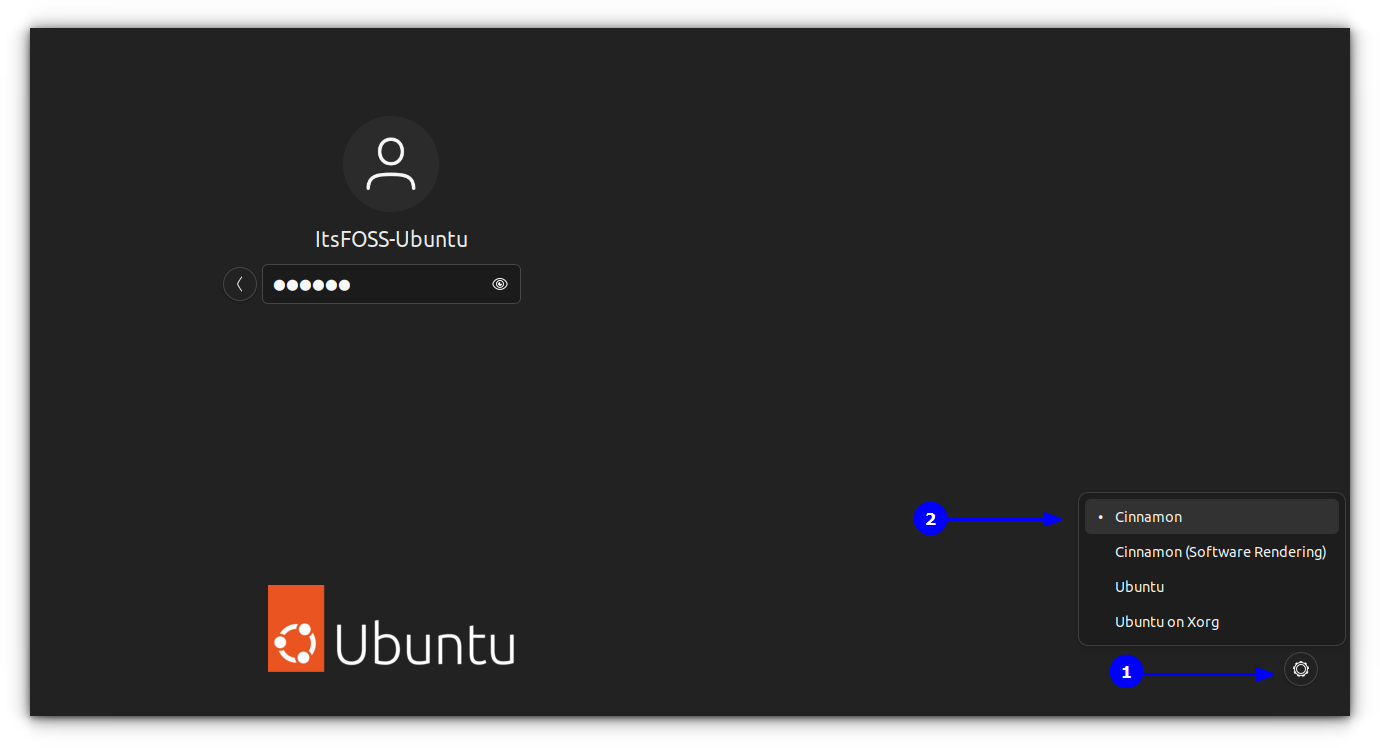
When you do this, it will give you all the desktop environments available for your system. No need to tell you that you have to choose Cinnamon:
Now, you should be logged in to Ubuntu with the Cinnamon desktop environment. Remember, you can do the same to switch back to GNOME. Here is a quick screenshot of what it looked like to run Cinnamon in Ubuntu:
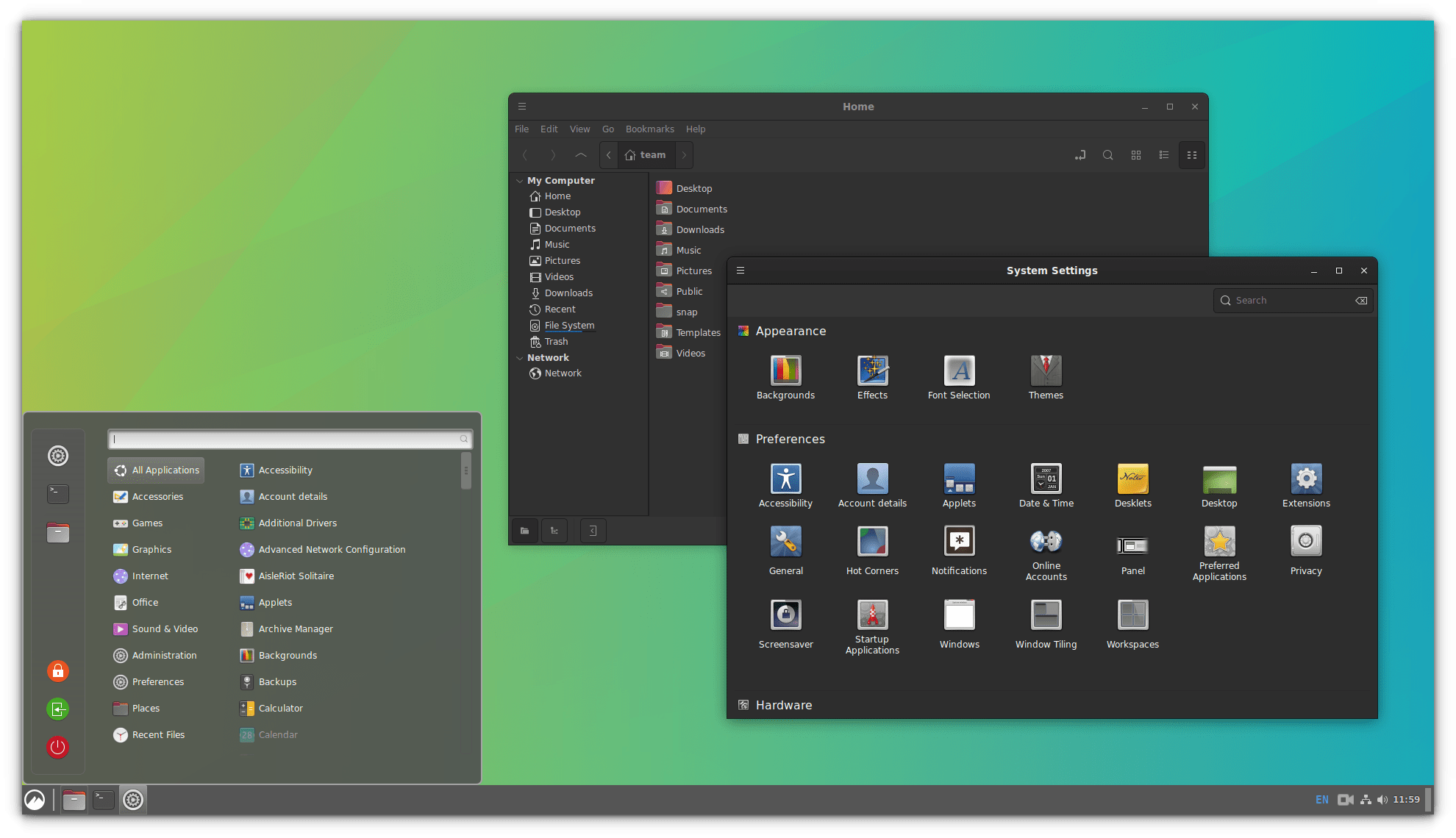
Looks completely like Linux Mint, doesn’t it? I didn’t find any compatibility issues between Cinnamon and GNOME. I switched back and forth between GNOME and Cinnamon, and both worked perfectly.
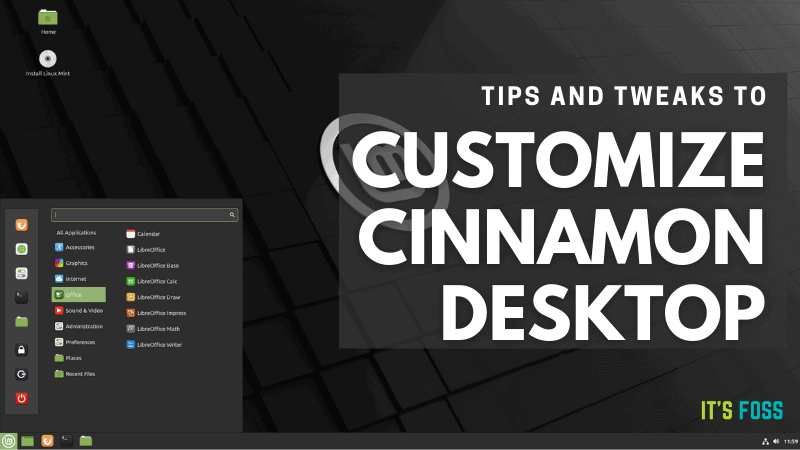
Now that you have it installed, here are some tips on customizing the Cinnamon desktop.

Remove Cinnamon from Ubuntu
It is understandable that you might want to uninstall Cinnamon. First, change back to GNOME or whichever desktop environment you use.
Now, remove the Cinnamon package installed:
sudo apt remove cinnamonIf you used the PPA to install Cinnamon, you should also delete the PPA from your list of repositories:
sudo add-apt-repository -r ppa:linuxmint-daily-build-team/daily-buildsTroubleshooting tip
If you are facing any issues like missing some Ubuntu apps after uninstalling the Cinnamon desktop, you can install the Ubuntu-desktop package:
sudo apt install ubuntu-desktopMore desktop choices
You can also install many other desktop environments on your existing Ubuntu.

Budgie is a modern and elegant desktop choice.

KDE needs no introduction. If you did not opt for Kubuntu or KDE Neon, you can always install KDE on your existing Ubuntu.
I hope this post helps you to install Cinnamon in Ubuntu. Do share your experience with Cinnamon.
