


Recently, I wrote about installing Cinnamon in Ubuntu. In this tutorial, I'll share how to install MATE desktop in Ubuntu.
I think you might have already heard of MATE desktop environment. A fork of now-dead classic GNOME 2, MATE provides the classic desktop experience with the latest applications. Soon after its release, MATE started to be considered one of the best desktop environments for Linux.
You can guess the popularity of the MATE desktop from the fact that Ubuntu MATE is one of the official Ubuntu flavors. Even Linux Mint has a MATE version.
We will actually use the packages provided by Ubuntu Mate team to easily install MATE desktop environment in Ubuntu.
Install MATE desktop on Ubuntu
Okay, so you have been warned, let’s see how to install MATE in Ubuntu.
Ubuntu has the MATE Desktop in its repositories now, so there is no need to add any PPAs.
You should ensure that our system is fully updated before installing a new Desktop Environment.
sudo apt update && sudo apt upgrade -y
sudo apt install ubuntu-mate-desktop
As the last step of installation, you’ll have the choice to choose between “lightdm” and “gdm3” which are the login screens for MATE and GNOME respectively. Choose lightdm for a full MATE experience.
Using MATE desktop in Ubuntu
Once you have installed the MATE desktop, log out of the system. On the login screen, click on the Ubuntu sign beside the username to choose a desktop environment.
Here, you’ll see plenty of options. Choose MATE to use the MATE desktop environment:
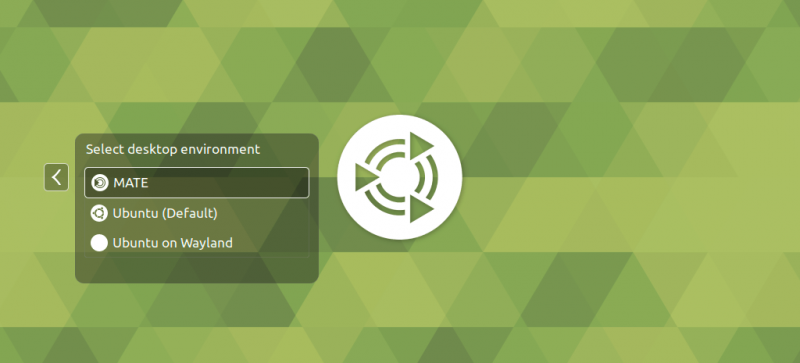
Select that and enter your regular password and then you will be logged in to the MATE desktop environment. Here is how it looks on my laptop. I really liked the Ubuntu MATE background.

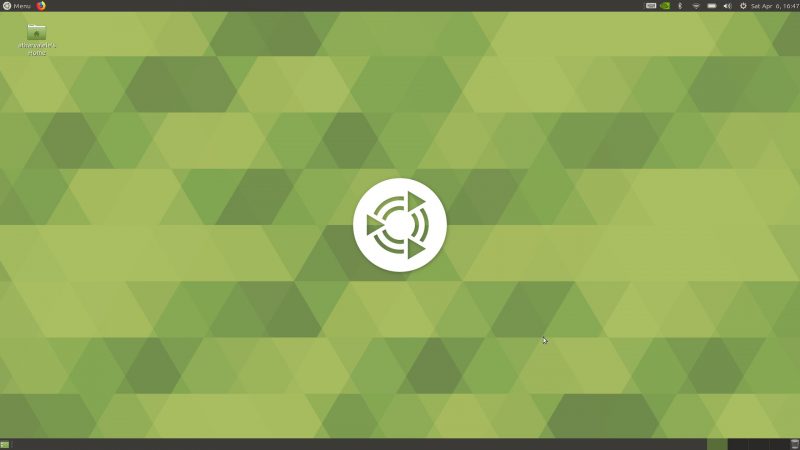
In my brief testing, I found no visible issue with MATE. But then, I didn’t try a lot of things. The experience was smooth, and no glitches were seen.
I advise reading the MATE customization guide to learn how to change the appearance of the MATE desktop.

Going back to GNOME from Mate
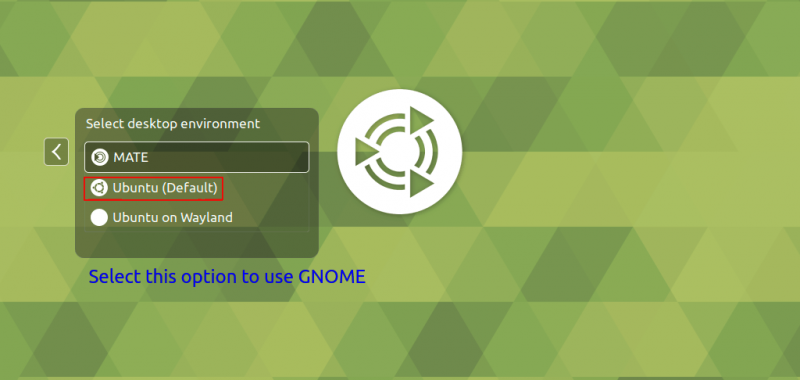
If you want to switch between MATE and GNOME, log out of the system. Then using the same prompt we used to select MATE, select Ubuntu (Default).
Remove MATE desktop from Ubuntu
Okay! So you tried MATE and you did not like it. Now, how to uninstall MATE from Ubuntu? To do that, we shall be using the apt remove commands as follows:
sudo apt remove -y ubuntu-mate-desktop mate-* ubuntu-mate-* plymouth-theme-ubuntu-mate-* lightdm
sudo apt autoremove -y
sudo apt install --reinstall -y gdm3
This will uninstall (almost) all the MATE packages. So now you won’t even see the Ubuntu MATE background while logging out.
After this, we’ll reboot our system to fully restore it back to the default Ubuntu DE, i.e. GNOME.
More DEs can be installed on Ubuntu
The thing about Linux is that you can easily install any other desktop environment on top of your current system.
I already mentioned installing Cinnamon on Ubuntu.
Similarly, you can also install KDE on Ubuntu.
Installing Budgie desktop on Ubuntu is equally simple.

🗨 Did you install MATE in Ubuntu? How is your experience with it? If you face any issues or have questions, feel free to drop a comment.
