


ONLYOFFICE is an open source office software. Initially started as an enterprise-focused online collaboration tool, it now offers desktop tools for individuals that can be used offline as well.
Want to try it? There are many ways to use ONLYOFFICE on Linux.
There are Snap, Flatpak and AppImage packages available.
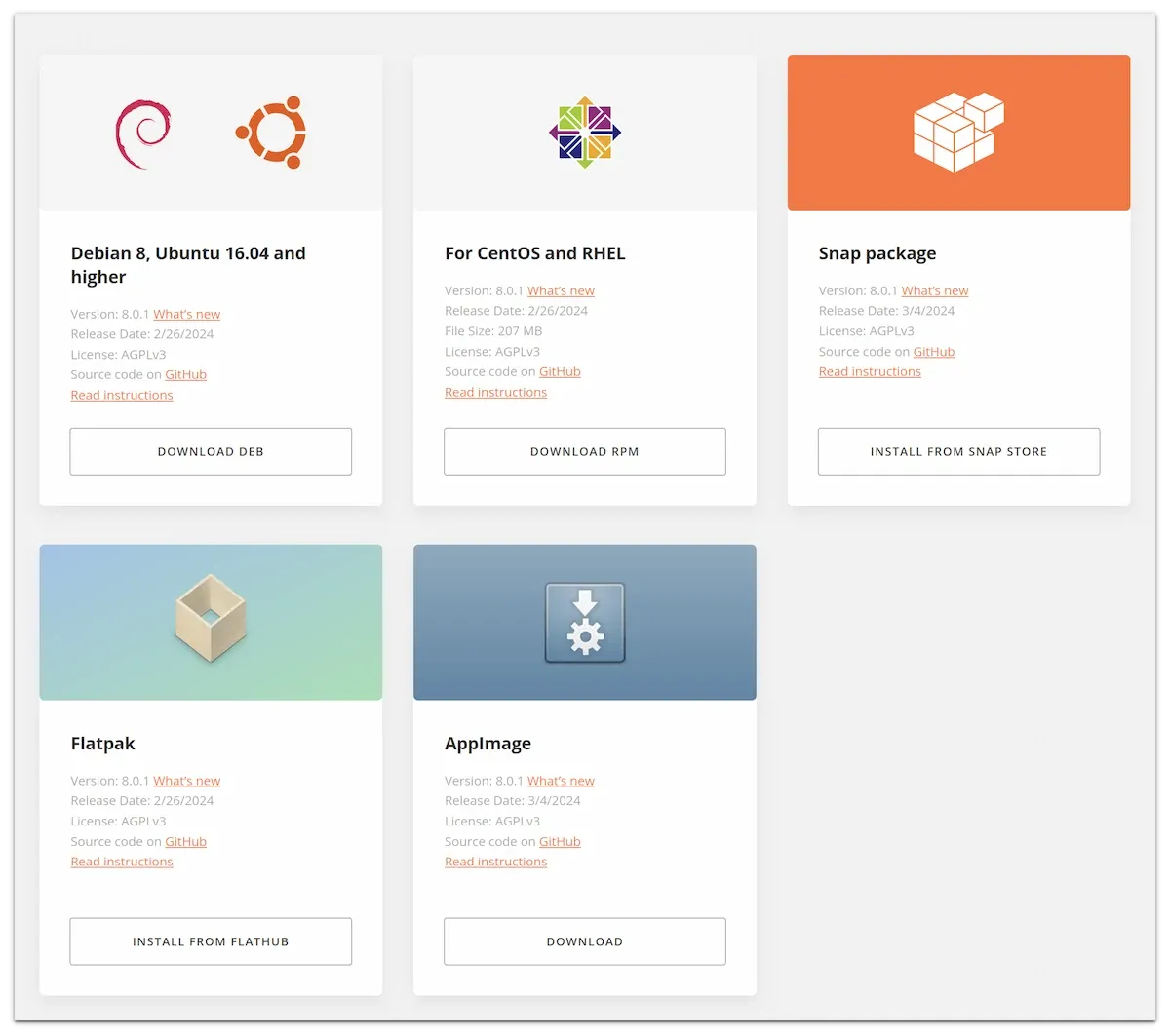
Easy method: Use the snap package from App Store
The effortless method here would be to use the App Store (formerly Ubuntu Software Center) and look for ONLYOFFICE.
The package is named ONLYOFFICE Desktop Editors. Install it from there.
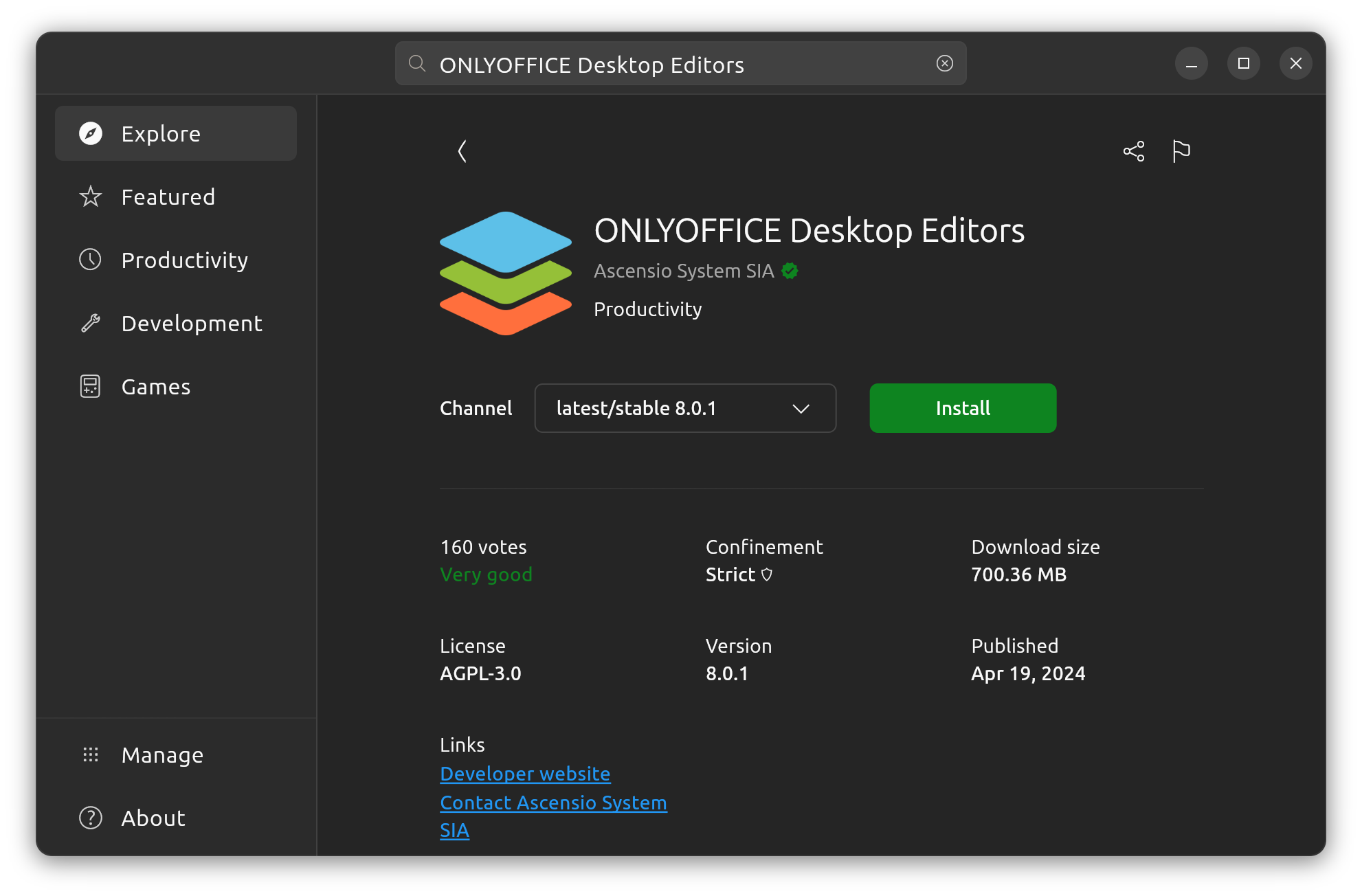
You can remove it the same way from the App Store.
Apart from that, ONLYOFFICE can also be installed in Ubuntu either using the DEB file available to download from the official repository or through setting up the ONLYOFFICE repository.
Let's discuss that.
Method 2: Install ONLYOFFICE with DEB File
First, go to ONLYOFFICE official website and download the Deb file.
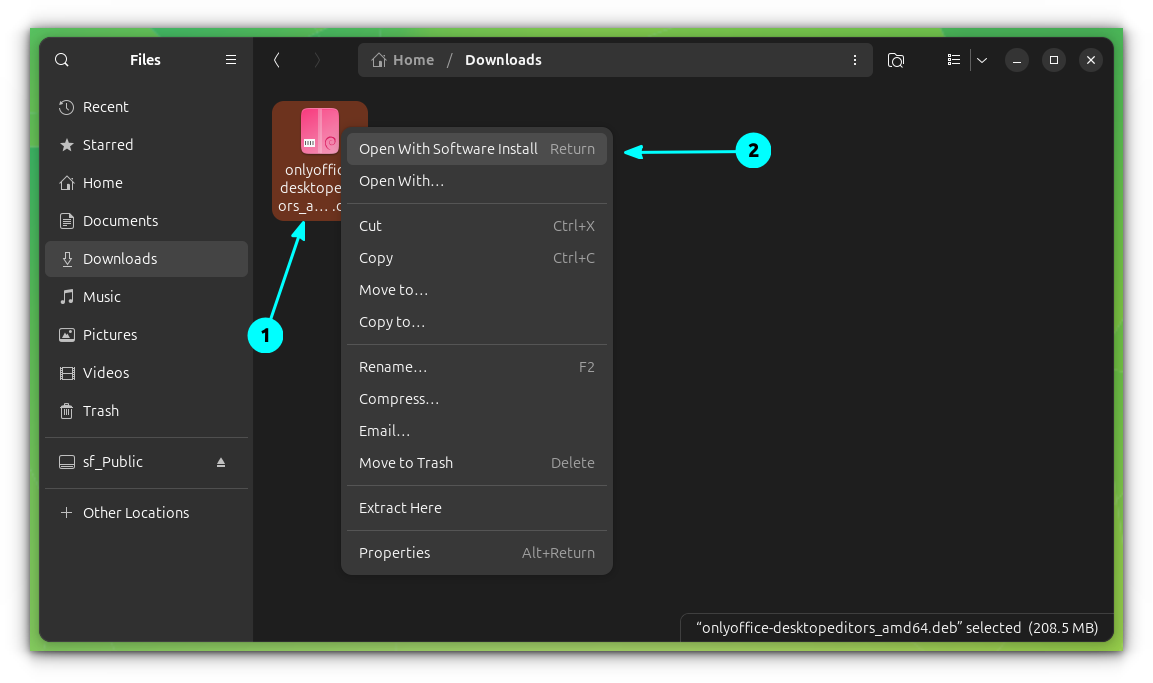
If you have GNOME Software installed, right-click on the downloaded deb file and select “Software Install”.
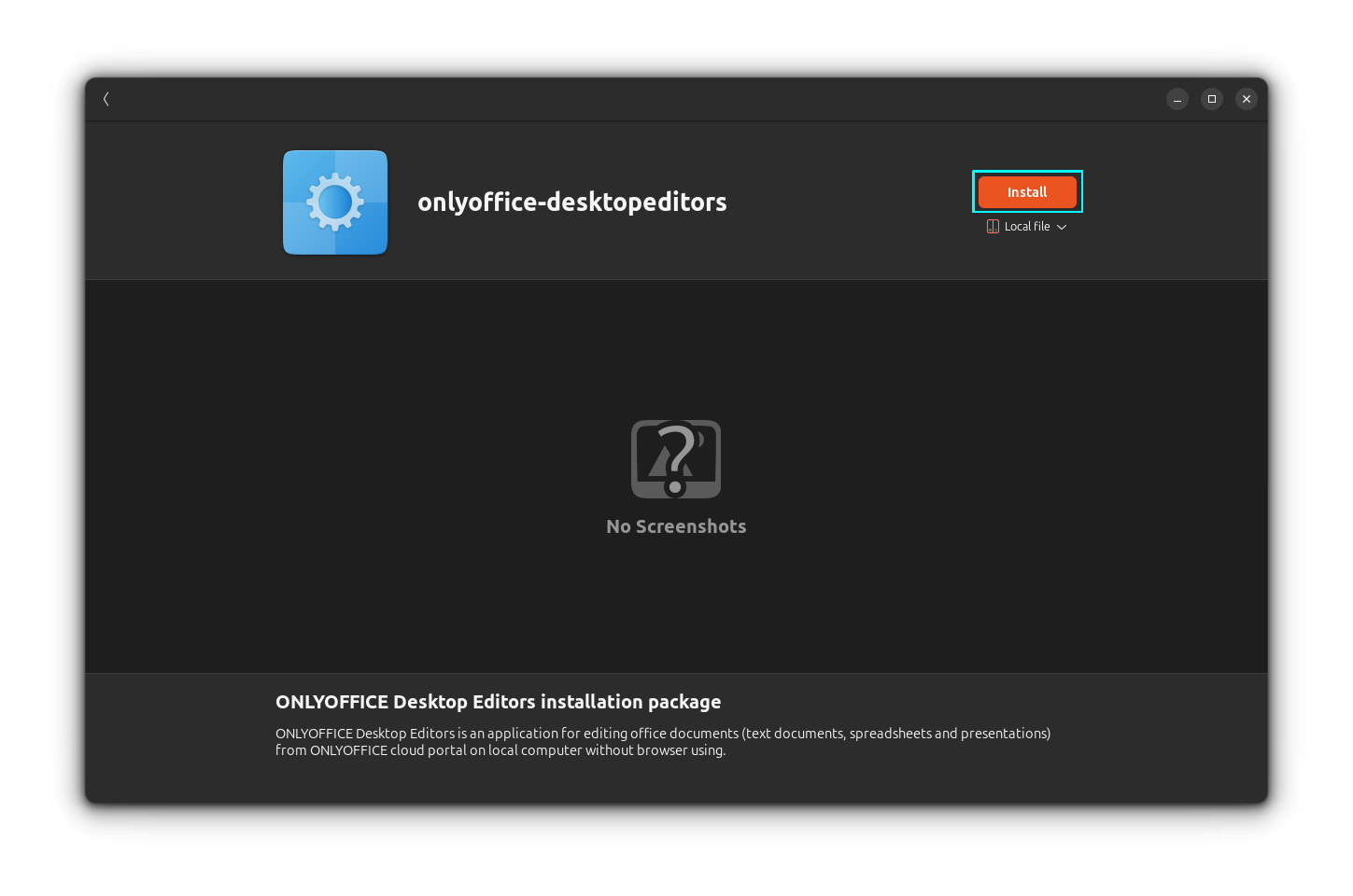
Install it using the install button.
Or, you can install the deb file using Gdebi.
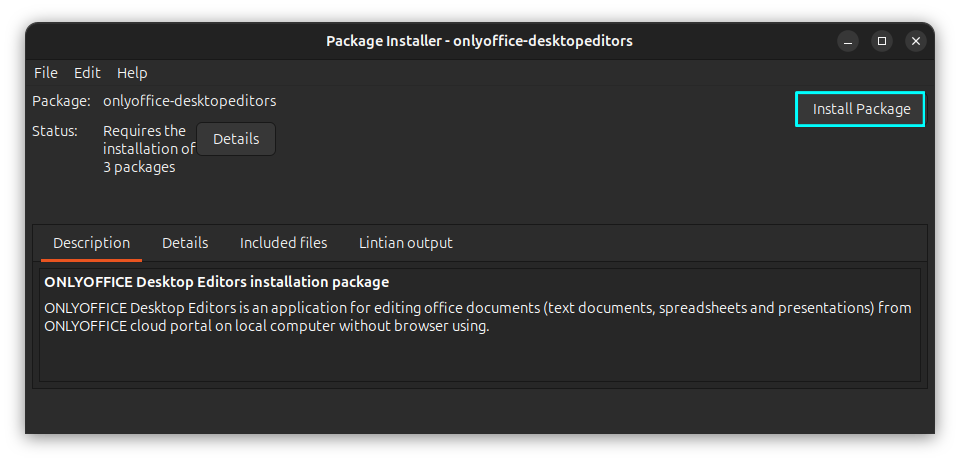
Similarly, you can use the apt command to install. Open a terminal and run:
sudo apt install <path/to/onlyoffice/deb/file>Method 3: Install it using official repository
Another way to set up ONLYOFFICE is by adding their repo to your system. First, add and configure their GPG key.
mkdir -p -m 700 ~/.gnupg
gpg --no-default-keyring --keyring gnupg-ring:/tmp/onlyoffice.gpg --keyserver hkp://keyserver.ubuntu.com:80 --recv-keys CB2DE8E5
chmod 644 /tmp/onlyoffice.gpg
sudo chown root:root /tmp/onlyoffice.gpg
sudo mv /tmp/onlyoffice.gpg /usr/share/keyrings/onlyoffice.gpg
Now, add the Desktop Editors’ repository to your system.
echo 'deb [signed-by=/usr/share/keyrings/onlyoffice.gpg] https://download.onlyoffice.com/repo/debian squeeze main' | sudo tee -a /etc/apt/sources.list.d/onlyoffice.list
Once done, update your package cache and install ONLYOFFICE.
sudo apt update
sudo apt install onlyoffice-desktopeditors
That’s it. You can open ONLYOFFICE from Ubuntu activities overview.

Fedora users can get an RPM file. ONLYOFFICE is also available as a Flatpak, Snap and AppImage application.
Remove ONLYOFFICE
If you have installed the ONLYOFFICE through the deb file, remove it using:
sudo apt purge onlyoffice-desktopeditorsFor those installed using the repository, first remove the package.
sudo apt purge onlyoffice-desktopeditorsNow, remove the repository added.
sudo rm /etc/apt/sources.list.d/onlyoffice.listAnd then remove the key.
sudo rm /usr/share/keyrings/onlyoffice.gpgNow, update your package cache.
sudo apt updateConclusion
ONLYOFFICE requires Microsoft fonts installed. So, if it is not already installed, you can install by following our guide.

ONLYOFFICE is a good choice for a modern office experience on Linux. It can also be integrated with ChatGPT and other AI tools thus giving you an edge on productivity.
