

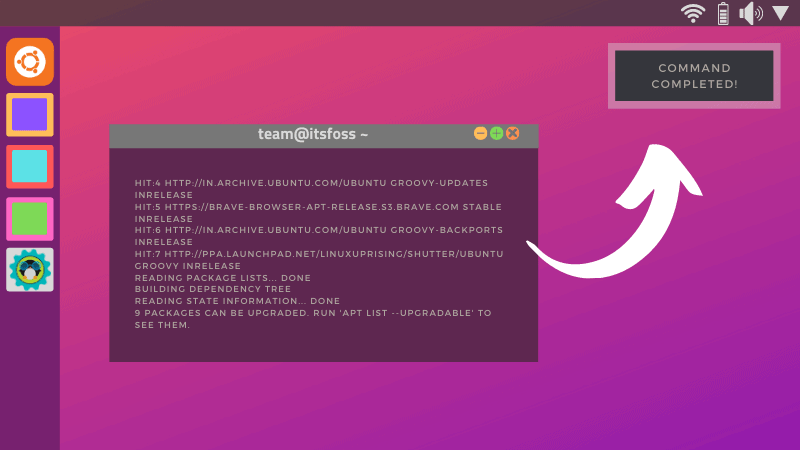
Whenever I work on something in the terminal that takes time to complete, it is quite common get distracted in the meantime. This is because there’s no notification reminding you about the command that were working with in the terminal, even if it was just a simple system update.
However, there are two ways with which you can get notified when a command completes in your terminal.
You can utilize Noti or simply libnotify-bin package (from the default repository) to get notified.
While this could be a default feature in elementary OS, you can utilize these both methods in Ubuntu (and any other flavors) or any other Linux distribution.
Get desktop notification for command completion in Ubuntu
In my opinion, using Noti is easier and quicker. The second method also works quite well but may not be user-friendly to type every time you work with commands.
Method 1: Using Noti
To get started, you need to install Noti first.
Unfortunately, there’s no package to install nor an easy way to uninstall, let me show you what you can do to set it up.
You need to first download the archive for Linux from its GitHub releases page. Once done, extract it to your home directory or anywhere you like.
Next, to get it installed, make sure you’re in the directory where you have it extracted and then type in:
sudo install noti*linux-amd64/noti /usr/local/binNow, all you need to do is type “noti” before any command that you want to be notified about. For instance:
noti sudo apt updateAnd, you will see something like this:

To remove Noti, you need to navigate to the usr/local/bin directory and remove it manually using commands or the GUI as root.
The commands to do that are:
cd /usr/local/bin
sudo rm Noti
Method 2: Using libnotify-bin package
You should be able to find this package in your default repositories. So, you can easily install it by typing:
sudo apt install libnotify-binIf you’ve already have it installed, you’re in luck. Now, all you have to do is type “notify-send MESSAGE” after any command you type.
But, make sure to separate it after the command using a semicolon (;)
Here’s how it looks like:
sudo apt update; notify-send DoneYou can easily replace “Done” with any text you like and even with a special character like an exclamation mark !
Wrapping Up
Even if you are not a programmer, you might find it handy while installing an application via PPA or just updating or upgrading the system. The apt update command might take some time to run, depending upon available updates and your network speed, so that could use a reminder.
I hope you find this little tool useful in your desktop Linux experience with terminal notification. In other terminal trick, you can change sudo password time period. If you have questions or suggestion, feel free to drop a comment.
