


Linux Mint is one of my favorite distributions. The flagship (or default) Cinnamon desktop is why I like it so much.
The user experience offered by Cinnamon desktop may not be mind-blowing or fancy. But, the desktop environment provides enough reasons for users to like it and easily work with it to get things done.
At the end of the day, that’s what we want. A user interface that works as expected and does not get in the way.
I think Cinnamon desktop does a few things right to give you an exciting experience. Let me mention some of those here.
1. Familiar User Interface
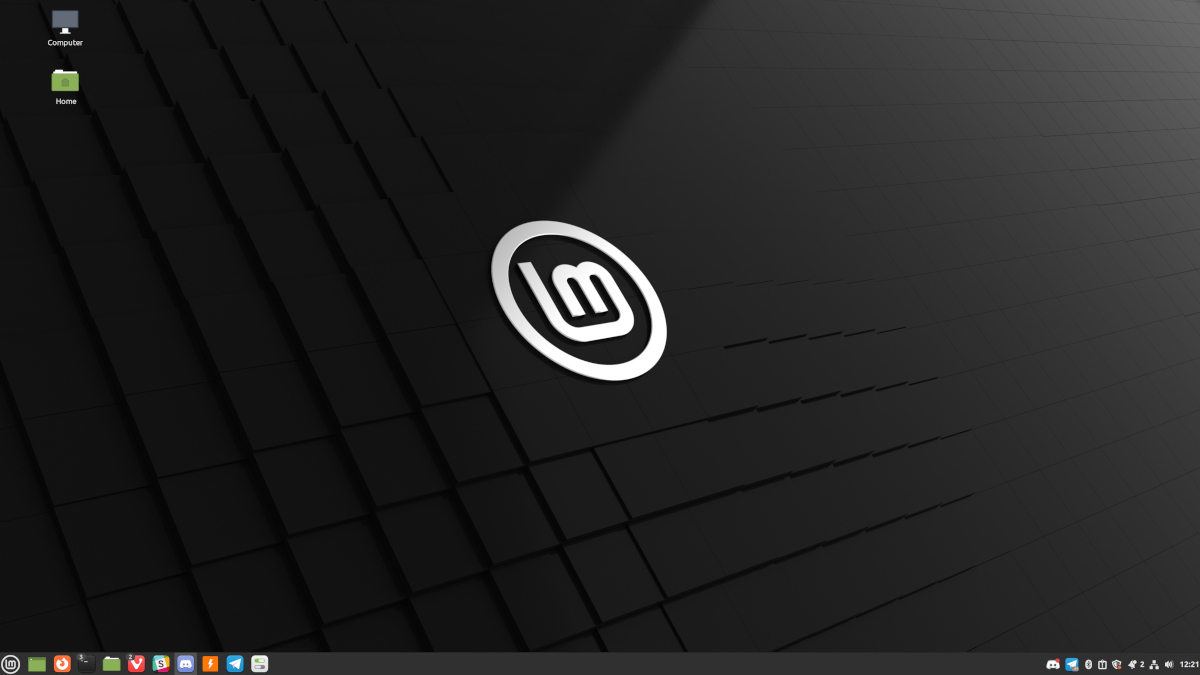
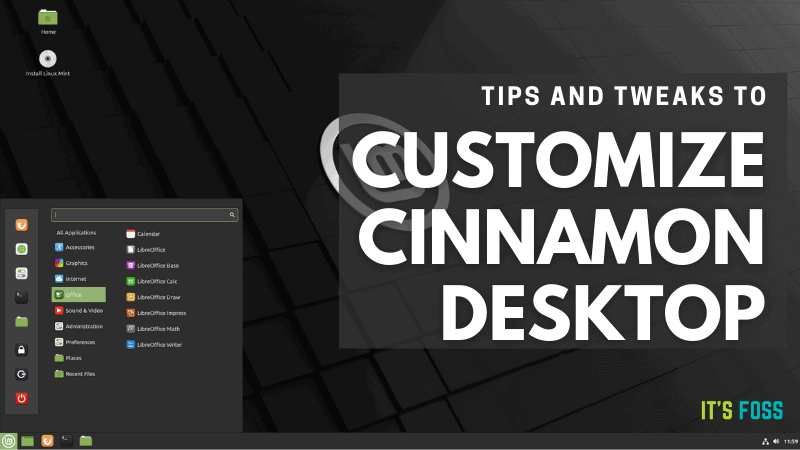
The primary objective of building Cinnamon was to keep the GNOME 2 desktop style alive.
And that is why you get a familiar desktop layout compared to the most popular consumer desktop operating system, i.e., Windows.
Of course, Windows 11 has evolved its usual layout with time. But, accessing a start menu, a taskbar, system icons in the tray, and a couple of window decorations make it easy to grasp.
Whether you are a Windows user or a macOS user, the Cinnamon desktop layout should not feel challenging at all.
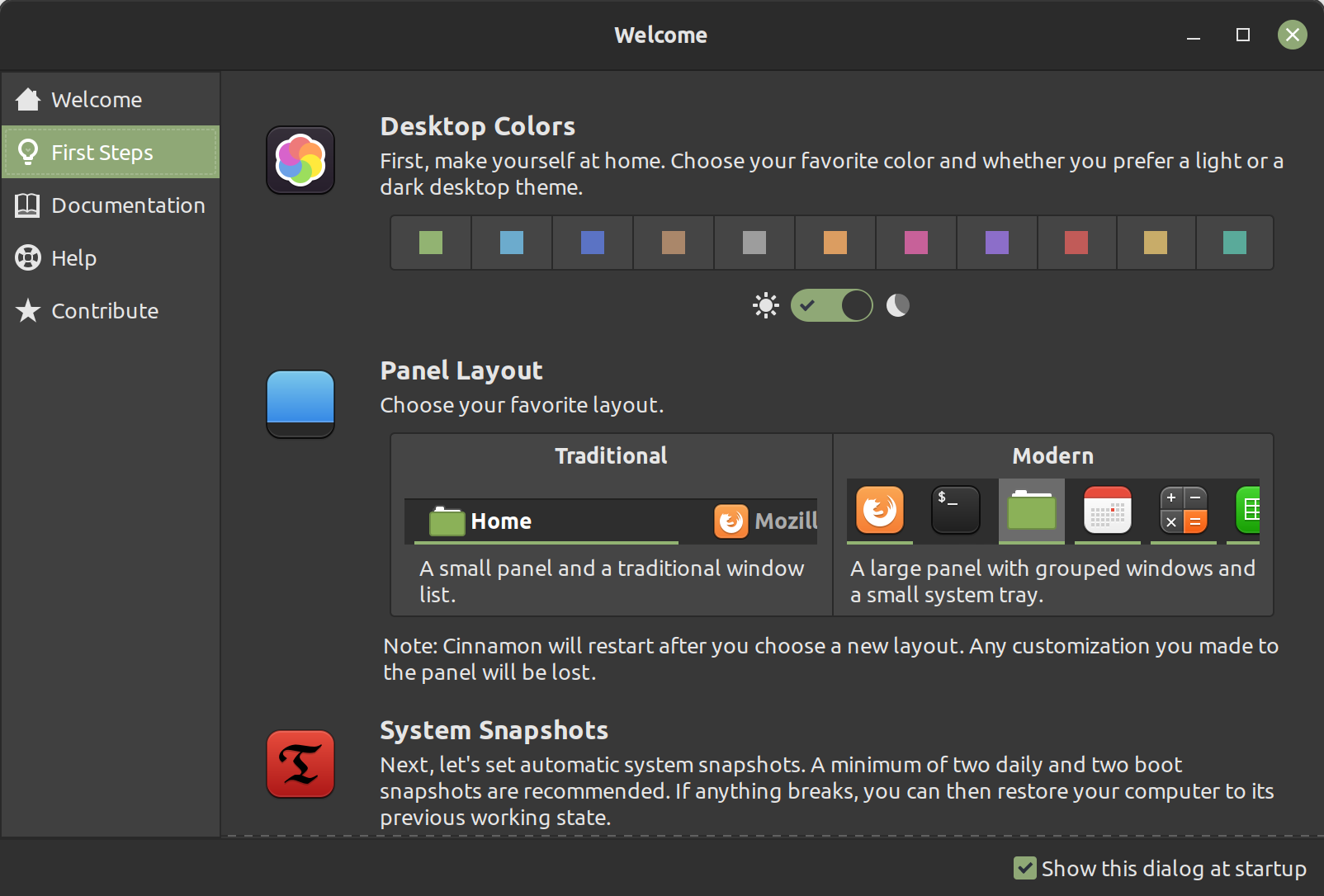
To help you further, the “Welcome Screen” in Linux Mint provides you with all the information quickly.
2. Lightweight
To get a comfortable experience with Cinnamon desktop (usually with Linux Mint), you have the following system requirements:
- 4 GB RAM
- 100 GB of disk space
- 1024×768 resolution screen
In the modern computing age, these specifications should suit almost everyone. So, you do not have to worry about needing an insane amount of memory or disk space to run a Linux distro powered by Cinnamon.
Of course, you can try installing Cinnamon desktop on Ubuntu.
But, for this article, we consider Linux Mint as the ideal use case.
3. Fast Performance Without Sacrificing User Experience
When we think about a lightweight desktop environment—we usually imagine a bland user interface that focuses on performance.
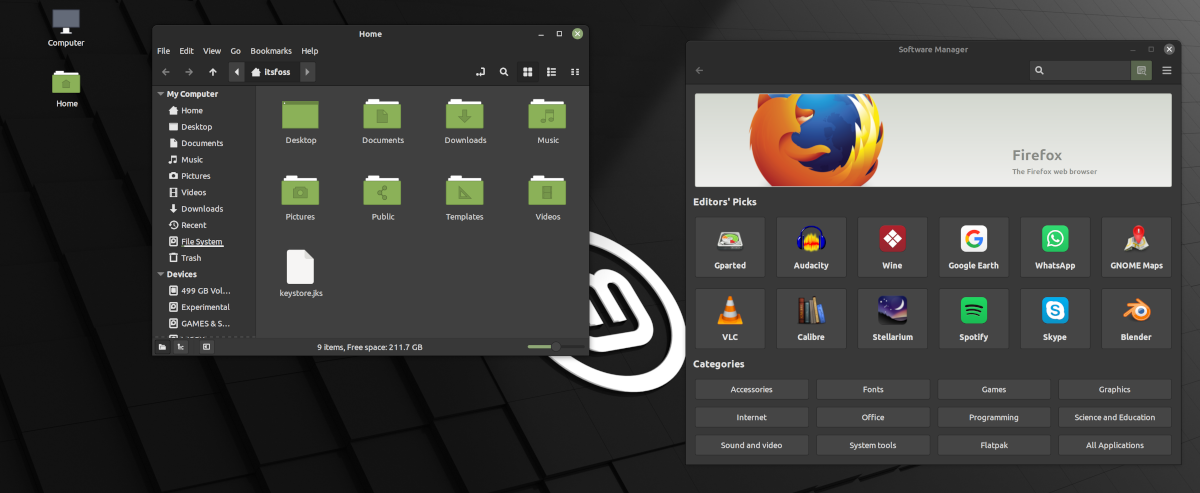
With Cinnamon desktop, that is not the case. It does include subtle animations and features icons/themes that make up for a modern look, if not the best.
It looks pleasing to the eyes with a minimal approach.
Typically, I am a sucker for pretty user interfaces, but I can still live with Linux Mint’s straightforward user experience running it on a dual-monitor setup (1440p + 1080p).
It may not be the best dual-monitor experience with Linux Mint Cinnamon edition (no dock/panel on the second screen for me). So, there is little room for improvement.
4. Default Customization Options
You might already know that KDE is probably the king when it comes to giving the ability to customize out-of-the-box.
We have super useful guides if you are curious about going that way:
- KDE Customization Guide
- How to Properly Theme KDE Plasma [In-depth Guide]
- Best Gorgeous KDE Plasma Themes
But, for many users, it is overwhelming.
I think Linux Mint gives the right amount of extra controls/customizations, which you also learn on its Welcome Screen.
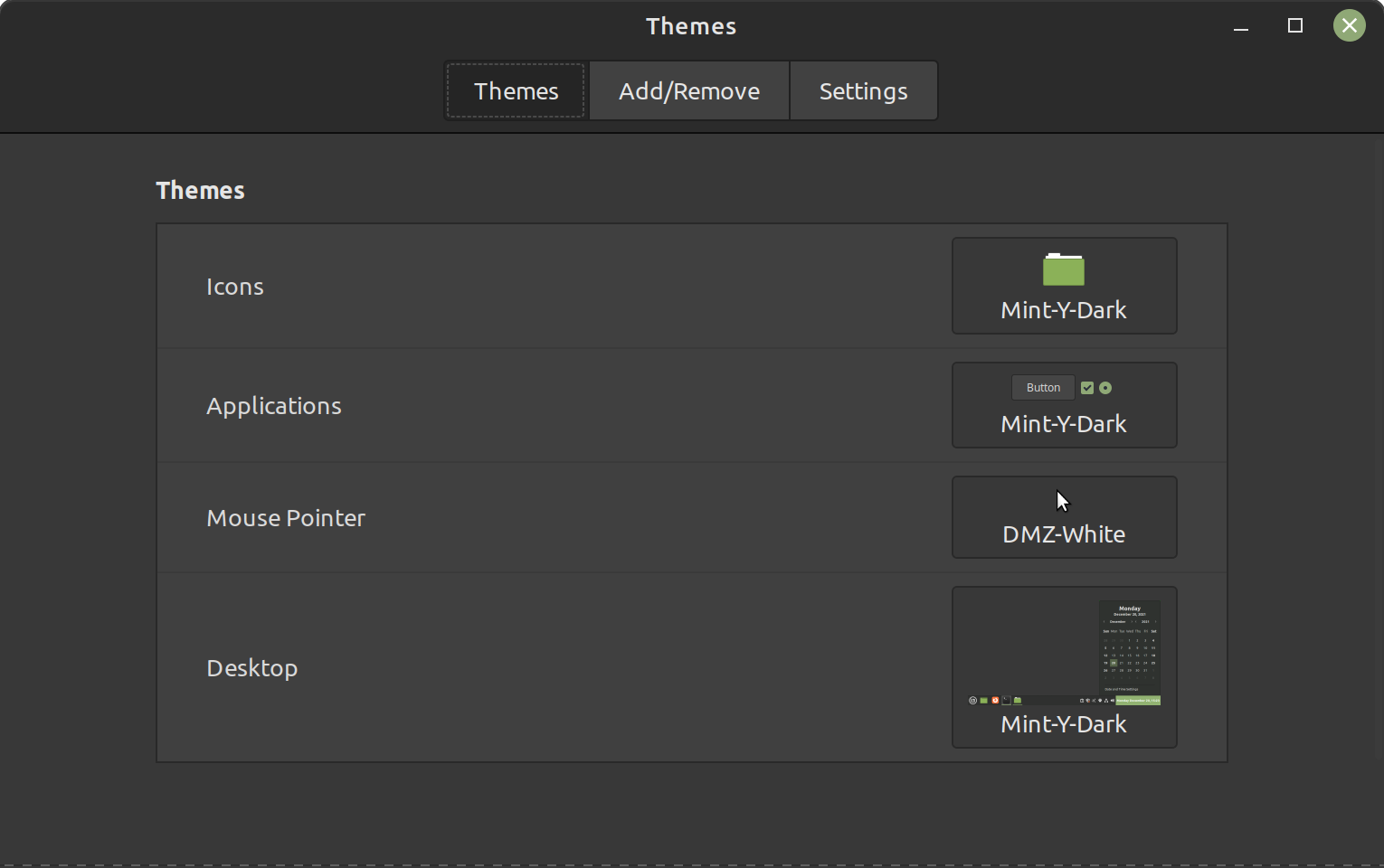
Some of the elements that you can easily customize include:
- Desktop color (accent)
- Light/Dark theme toggle
- Panel layout
- Icons, buttons, and mouse pointer.
You can head to the system settings and navigate to “Themes” to find the essential tweaks.

5. Official Add-ons to Spice Up Your Experience
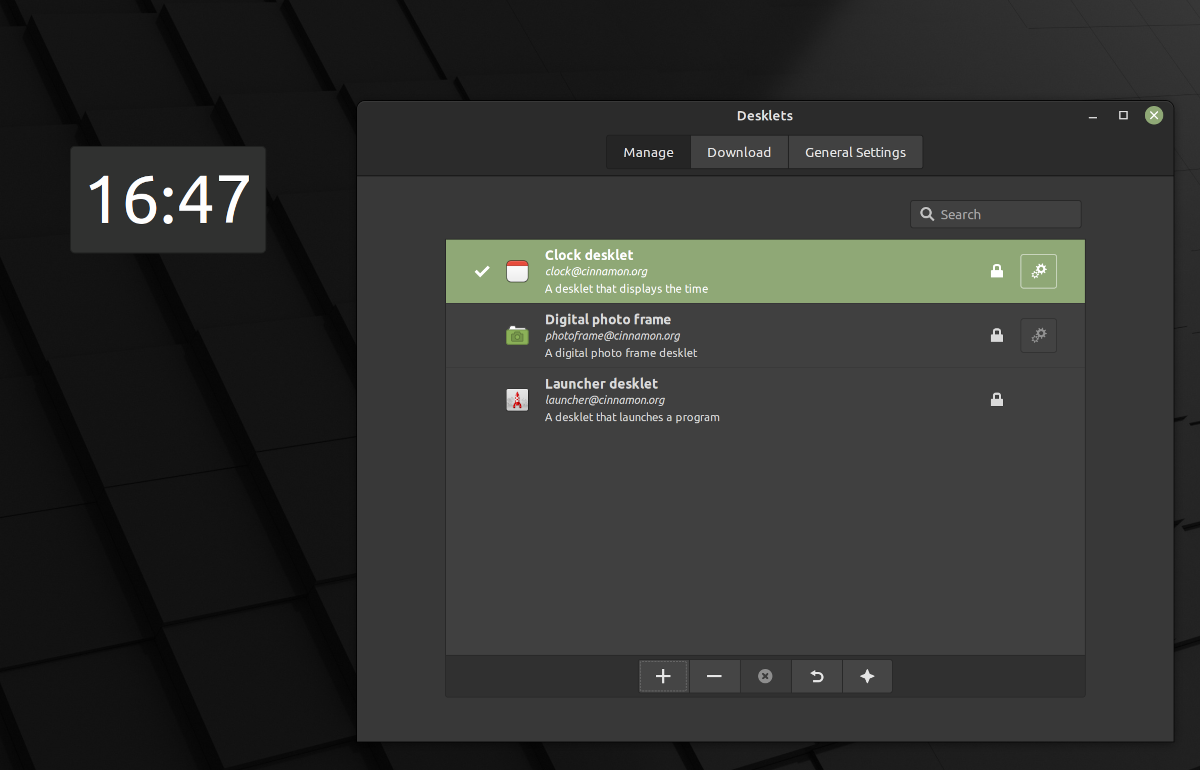
Linux Mint supports various add-ons to enhance your experience. These are all part of its Cinnamon Spices offering. They include:
- Themes
- Extensions
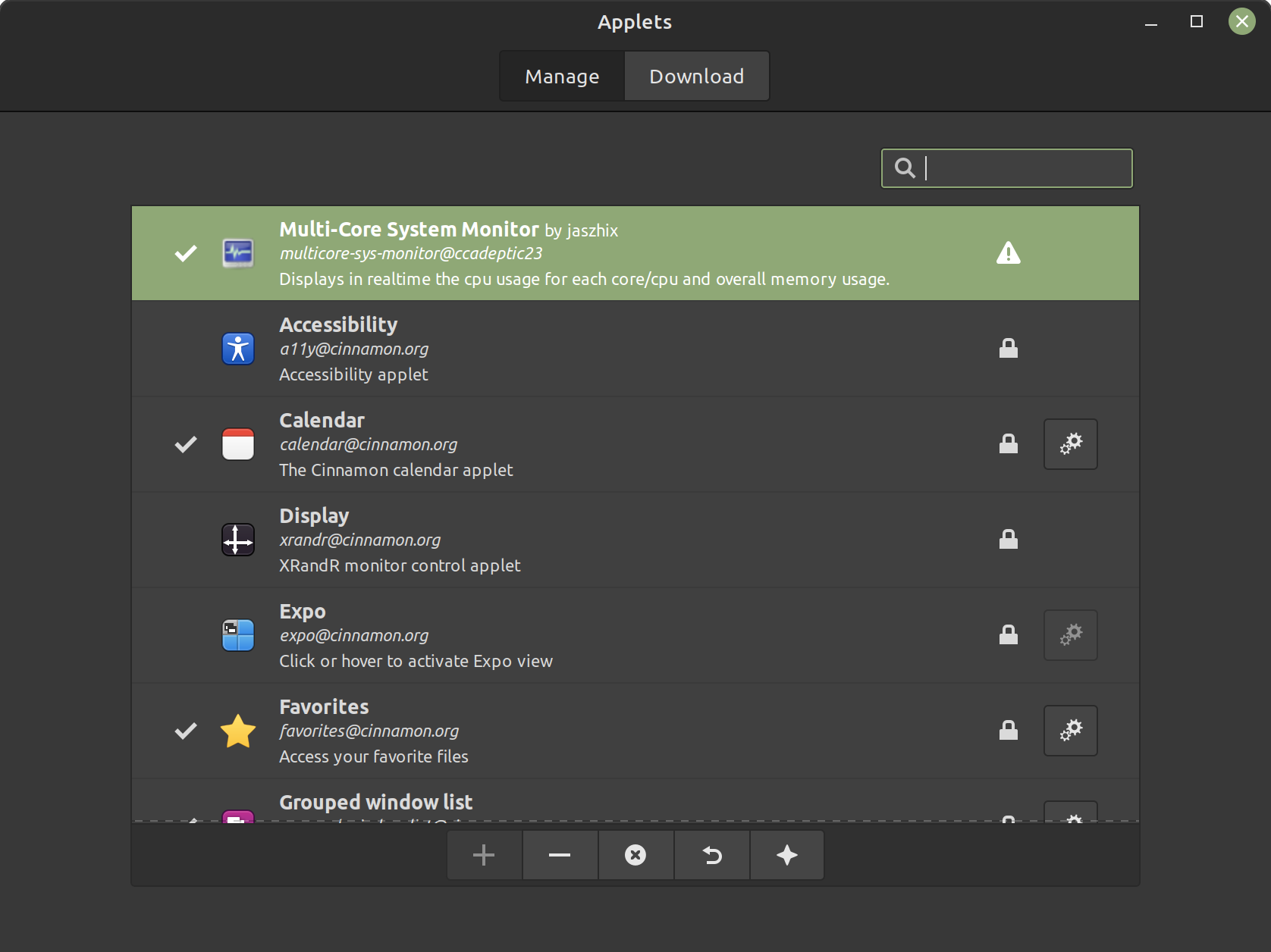
- Applets
- Desklets
Applets and Desklets are tiny programs that you can add on top of the panel (near the system tray) and the desktop, respectively.

You can manage system default applets or download more from the official repositories:
Similarly, you can add a Desklet from the available defaults or get a new one from the repositories.
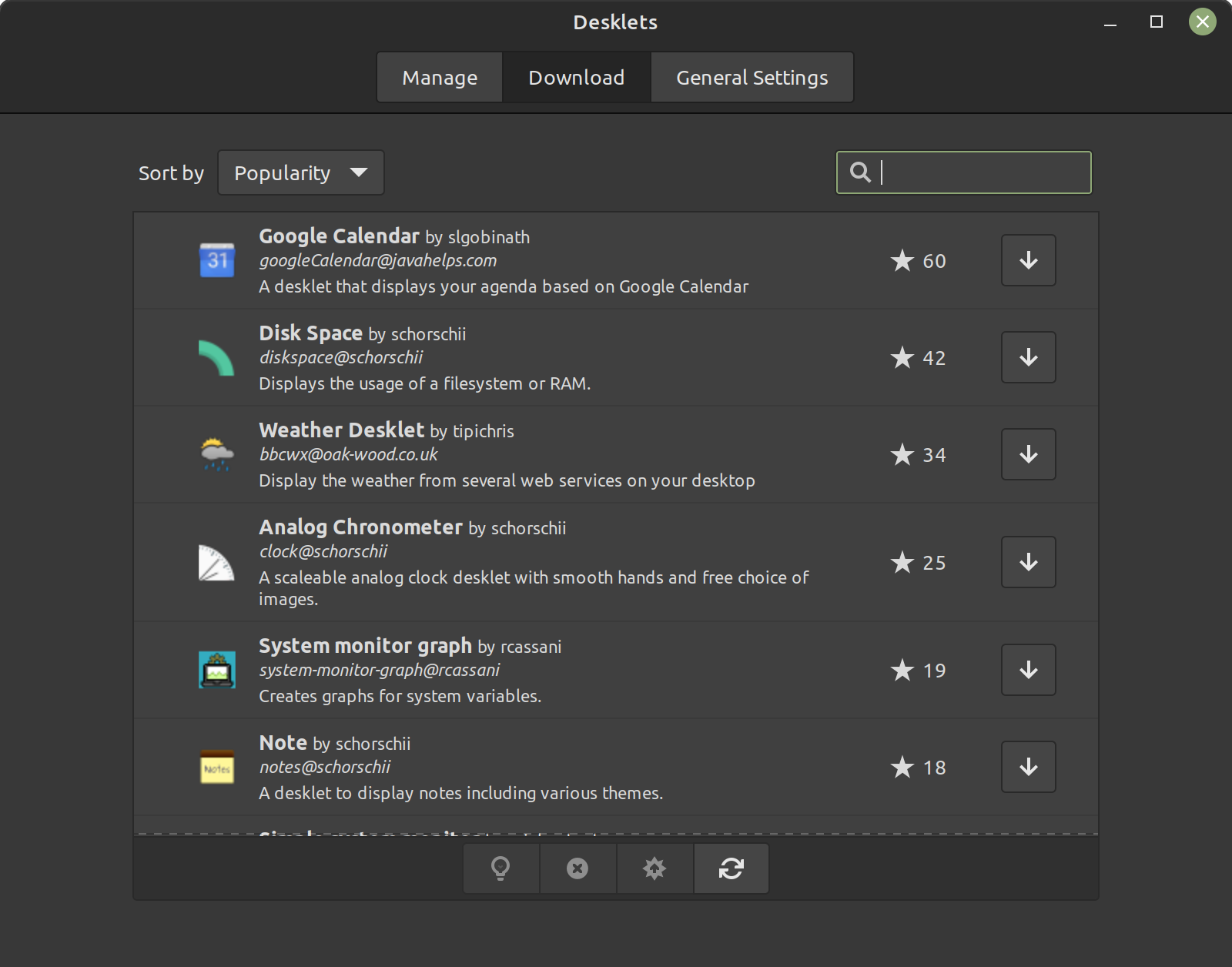
Plenty of valuable utilities to monitor system resources, check the weather, and more.
In addition, you get access to various themes built by the community that could easily give you the look you always wanted.
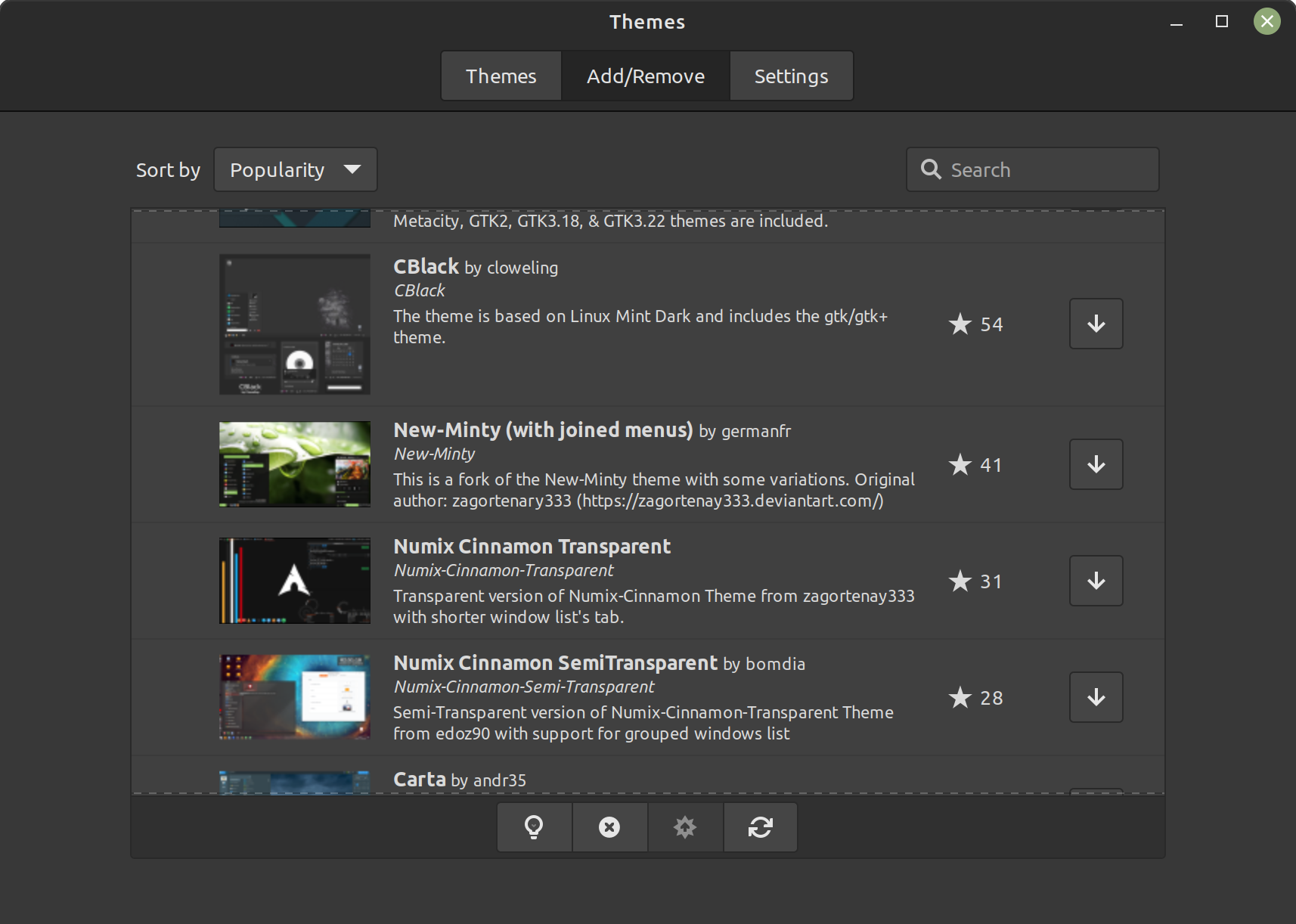
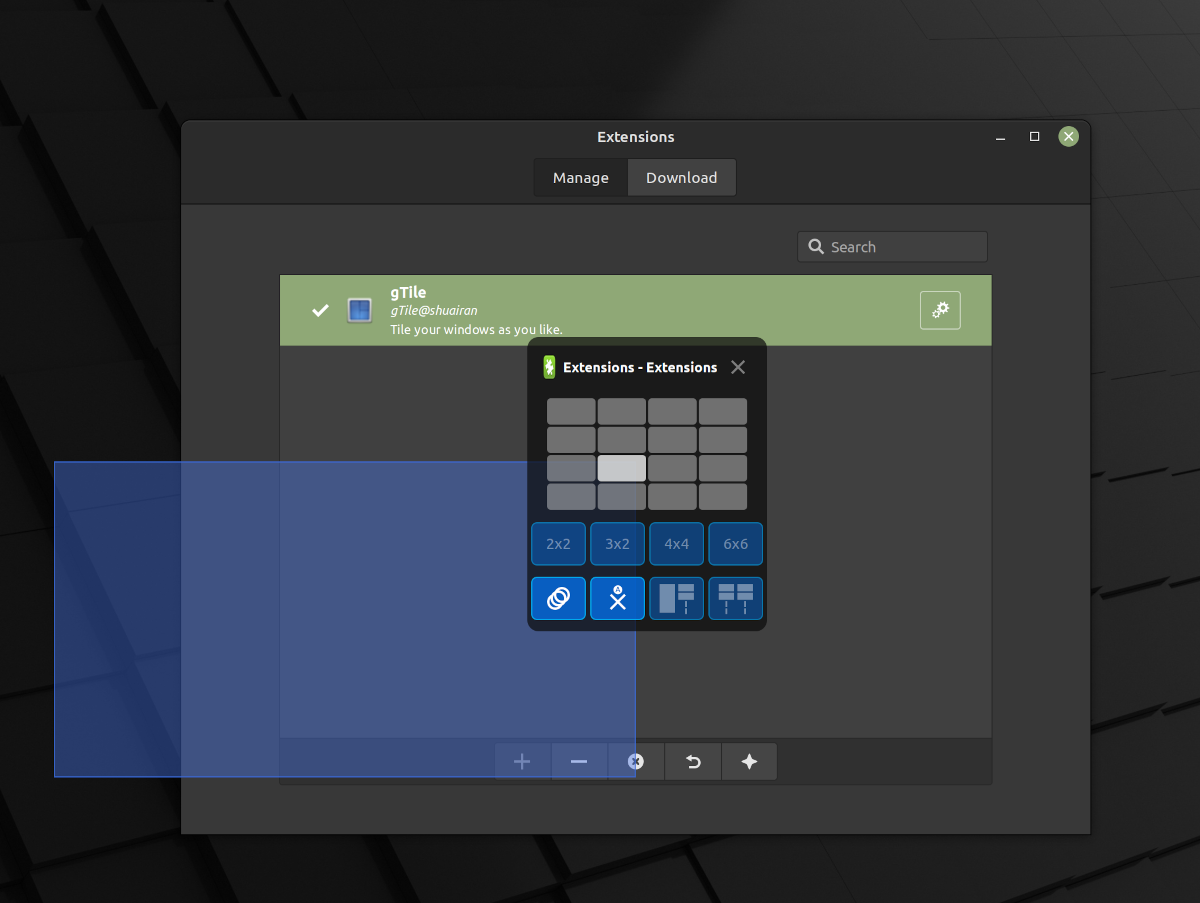
To complement all the above spices, you can use extensions to make the panel transparent, add a watermark to your desktop, enable windows tiling, and add some exciting window animations.
6. Compatible and Seamless User Experience
Why do I highlight the user experience again?
The best part about Cinnamon desktop is that it evolves in a way that respects and supports all functionalities.
For instance, if you want to install an app you enjoyed using on KDE Plasma, it should work the same way here. There’s nothing special with Cinnamon desktop that would break the experience.
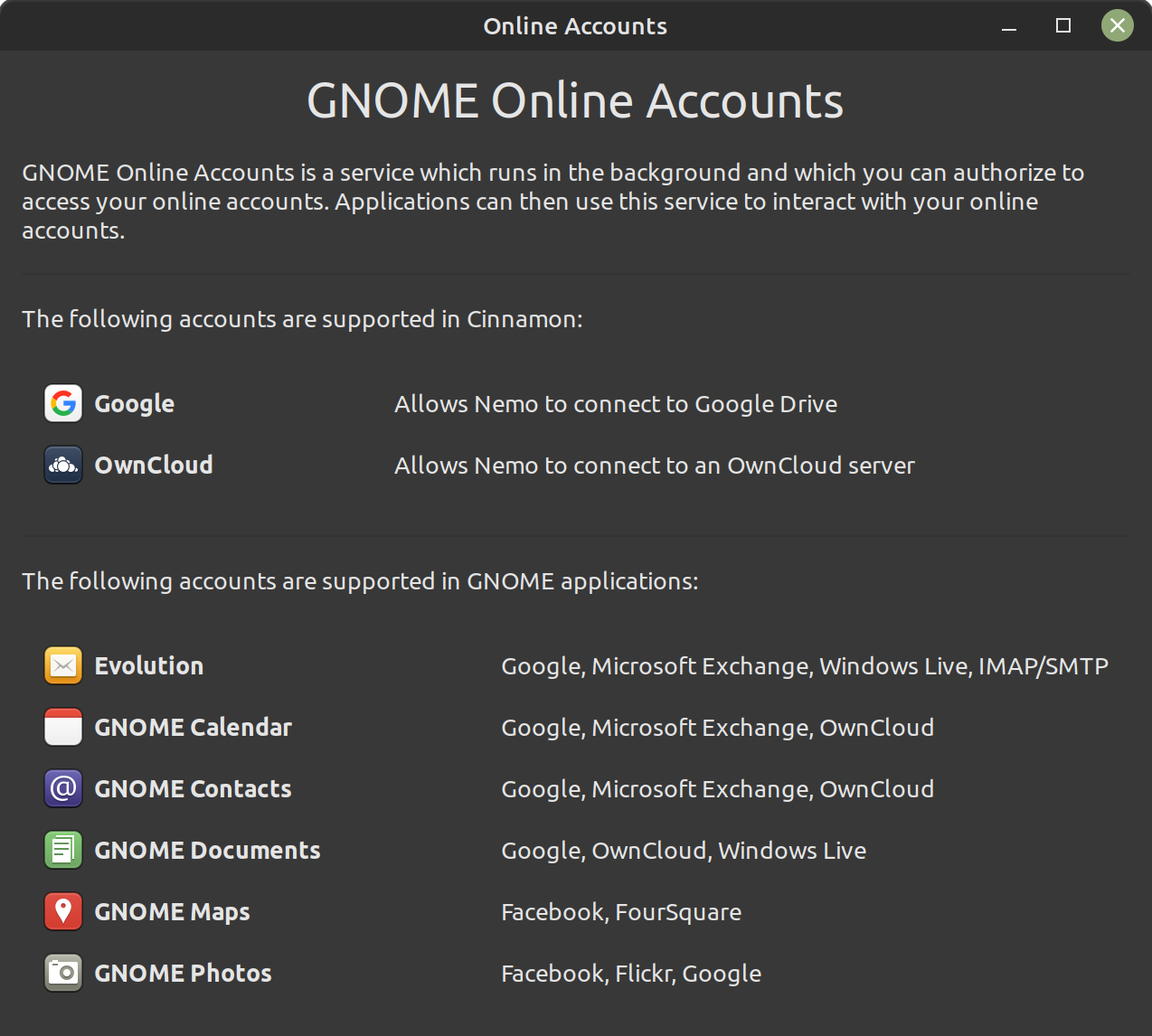
Similarly, the desktop adds features that try to co-exist with services from other desktop environments. For instance, calendar events support using GNOME Online Accounts.
7. Panel Customization
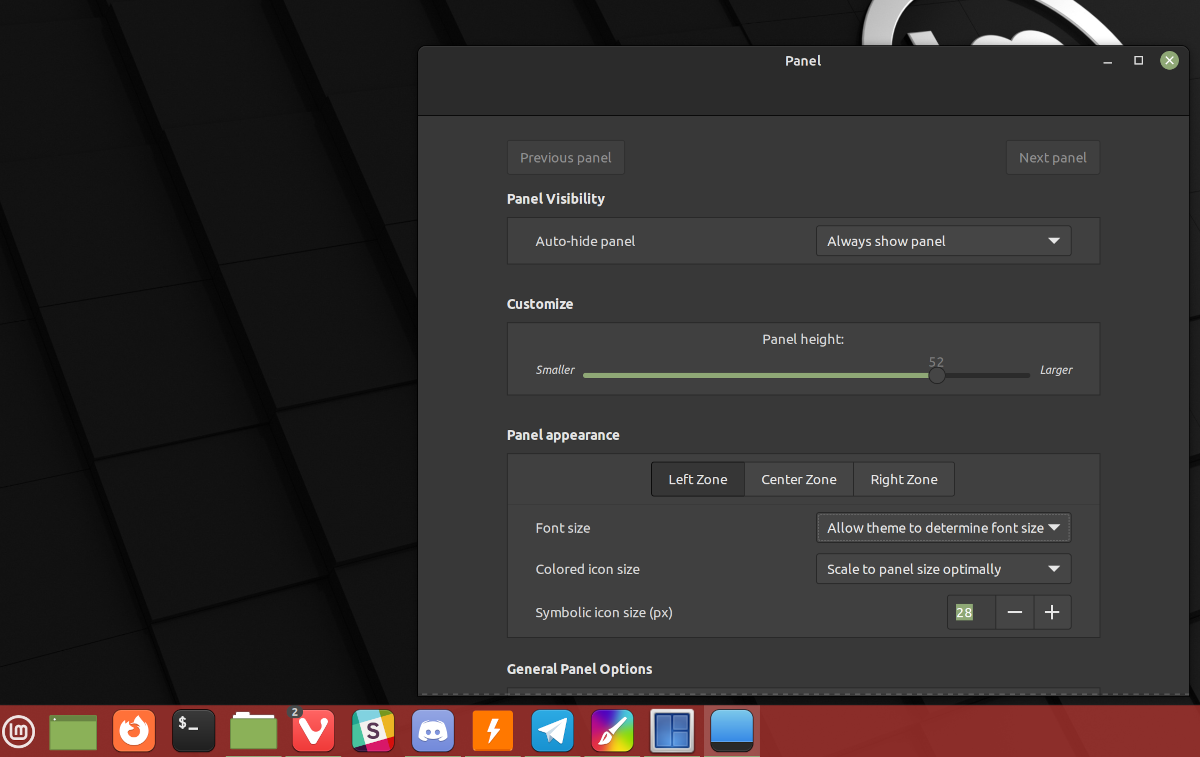
The dock, taskbar, or panel comprises an integral part of the user interface.
Yes, other desktop environments allow you to customize the same to some extent. With Cinnamon, you get a good amount of control to tweak it.
I think you get all the essential options a user would want.
Wrapping Up
I believe the system updates mechanism in Cinnamon is better than others.
It's just one of many things Mint does better than Ubuntu.
GNOME and KDE Plasma are popular desktop environments. However, Cinnamon is not far off on essential parts to provide an optimal user experience.
What do you think of the Cinnamon desktop environment? Do you prefer to try it with Linux Mint? Share your thoughts in the comments section below.
