Securing your WordPress password is crucial to protect your website from unauthorized access. Whether you forgot your password, suspect a security breach, or just want to update your credentials, there are several ways to change your WordPress password. This guide will walk you through five reliable methods.
TL;DR
Use the lost password link when you can access the account email.
Use Users > Profile to change your own password from the dashboard.
Use Users > All Users to reset another user’s password only when you have administrator access and a valid reason.
Use phpMyAdmin or WP-CLI only when normal login and email recovery are unavailable.
Generate a long, unique password and store it in a password manager.
Change related passwords after a compromise, including hosting, FTP, database, email, and connected services.
Enable 2FA for administrators after resetting passwords.
Why you may need to change your WordPress password
There are several reasons you might need to reset your WordPress password:
You forgot your password: Perhaps you forgot your password and, therefore, can’t log into your website.
Your site was hacked: You might have recently experienced (and recovered from) a hack, or perhaps you suspect someone has gained unauthorized access to your site.
You’re performing routine security maintenance: Regularly updating passwords helps keep your site secure.
You’re transferring site access: You’re handing over the site to another person or team.
Now that we’ve explored some potential reasons for changing your password, let’s explore five ways to do so in WordPress.
1. Use the “Lost your password?” feature
This is the simplest method for resetting your password if you have access to the email associated with your WordPress account.
Steps:
Go to your WordPress login page (e.g. yoursite.com/wp-admin).
✅ No external tools needed. Everything is done directly within WordPress.
✅ Quick process. It’s ideal if you still have dashboard access.
❌ Requires login. This method won’t work if you’re locked out.
3. Reset your password via phpMyAdmin
If you don’t have access to your email or WordPress dashboard, phpMyAdmin provides a way to manually reset your password. The instructions below use cPanel. If your hosting provider has a different type of dashboard, review their documentation for steps.
Steps:
Log into your hosting account and open cPanel.
Navigate to phpMyAdmin under the Database section.
Select your WordPress database from the left sidebar.
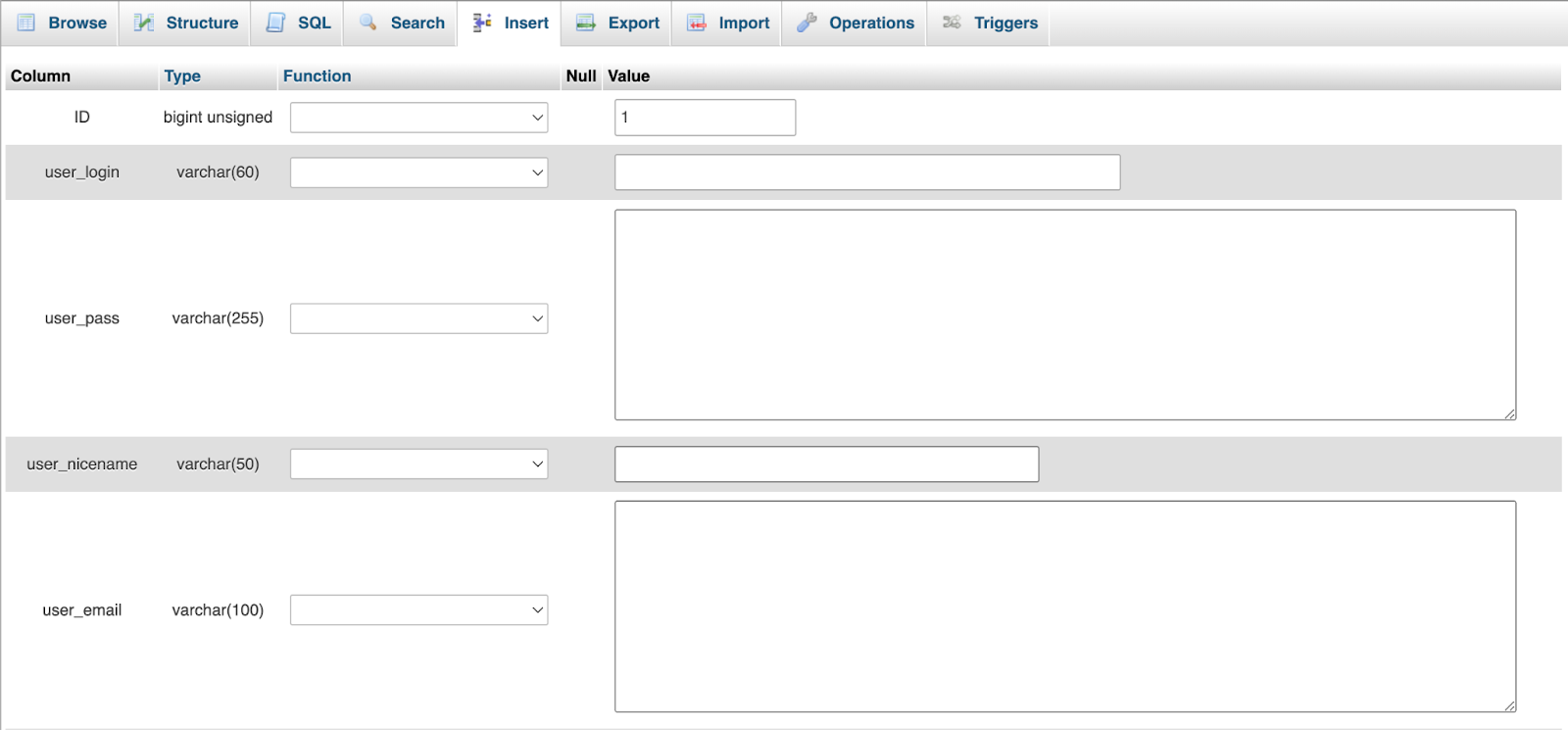
Find and click the wp_users table (the prefix might vary).
Locate your admin username and click Edit.
In the user_pass field, select MD5 from the dropdown.
Replace YourNewPassword with a secure password, and 1 with the admin user ID.
Save the file and upload it back to the server.
Log into WordPress with the new password.
Remove the added line from functions.php to prevent security risks.
Pros and cons:
✅ Useful when other methods fail. This is a great backup method if the others listed here don’t work.
✅ No database access required. You don’t need to log in to or access your database.
❌ Requires FTP or file manager access. You’ll need to have familiarity or experience when it comes to working with website files.
❌ Risk of site errors. If you don’t remove this line after logging in, this could create security vulnerabilities.
We guard your site. You run your business.
Jetpack Security provides easy‑to‑use, comprehensive WordPress site security, including real‑time backups, a web application firewall, malware scanning, and spam protection.
For advanced users with SSH access, WP-CLI offers a command-line method to reset passwords.
Steps:
Access your server via SSH.
Navigate to your WordPress installation directory.
Run the following command:
wp user update 1 --user_pass=NewSecurePassword
Replace 1 with the admin user ID and NewSecurePassword with your desired password.
Pros and cons:
✅ Fastest method for advanced users. If you’re familiar with SSH, you can reset your password in seconds.
✅ No need for an email or dashboard access. This is useful if your site is down or your account is inaccessible for any reason.
❌ Requires SSH and WP-CLI installed. You’ll need both of these installed and configured in order to use this method.
❌ Not suitable for beginners. You’ll need development and server management experience to use this method.
Final thoughts on securing your WordPress account
Changing your WordPress password is essential for maintaining security and control over your site. Whether you use the built-in password reset feature, phpMyAdmin, or WP-CLI, each method provides a way to regain access.
To take security one step further, follow these best practices:
Use a security plugin to monitor suspicious activity.
By implementing these techniques, you can address password-related challenges and maintain control over your WordPress site.
Enhance your site’s security with Jetpack Security
While changing your WordPress password is important, there are more steps you should take for a comprehensive security approach. Jetpack Security is the perfect, all-in-one solution to safeguard your site against a range of threat threats. Let’s take a look at a few of its features:
Real-time backups with Jetpack VaultPress Backup
Unexpected issues can occur at any time, but real-time backups can save the day! VaultPress Backup saves every change made to your site, from updated plugins and edited pages to WooCommerce orders. In the event of a problem, you can quickly revert to a previous version of your site.
Malware scanning and a web application firewall with Jetpack Scan
Jetpack Scan continually monitors your website for malware and security vulnerabilities. If any threats are detected, Jetpack Scan offers one-click fixes, enabling you to address issues promptly and maintain your site’s integrity. And with its web application firewall (WAF), it blocks malicious traffic before it even reaches your site.
Spam protection with Akismet Anti-spam
Spam comments and form submissions can clutter your site and hurt the user experience. Akismet Anti-spam automatically filters out unwanted content, allowing genuine interactions to flourish. By eliminating spam, your site remains professional, safe, and engaging for visitors.
Additional security features
Jetpack Security also includes:
Brute force attack protection: Automatically block attempts to hack your site from known malicious attackers
Downtime monitoring: Notifies you instantly if your site goes down, allowing you to address issues before they affect your audience
Anactivity log: Provides a detailed record of site changes, helping you understand and manage changes and concerns
Jetpack Security equips your WordPress site with robust defenses against a wide range of threats, ensuring a secure and seamless experience for both you and your visitors.
Jen is a Customer Experience Specialist for Jetpack. She has been working with WordPress and Jetpack for over a decade. Before starting at Automattic, Jen helped small businesses, local non-profits, and Fortune 50 companies create engaging web experiences for their customers. She is passionate about teaching others how to create on the web without fear.
We guard your site. You run your business.
Jetpack Security provides easy‑to‑use, comprehensive WordPress site security, including real‑time backups, a web application firewall, malware scanning, and spam protection.