|
VOOZH | about |
|
VOOZH | about |
If you’re looking to build a website, you’ve probably run across information on WordPress, the most popular content management system (CMS) on the web. But what exactly is WordPress? What can you create with it? And how can you build a site using its tools?
Let’s take a look at the answers to all of those questions, plus a few more.
At its core, WordPress is free software that anyone can use to create a website. It falls into the category of CMS — content management system — which is a tool used to build and manage websites without code. In fact, this is a key component of WordPress, because it empowers business owners, bloggers, influencers, and the average person to share what they’re passionate about on the web.
On their website, WordPress states: “We believe great software should work with minimum set up, so you can focus on sharing your story, product, or services freely.” This is at the heart of everything they do.
Here are some other important things to know about WordPress:
We touched just a bit on how flexible WordPress is, so it should be no surprise that it can be used in a huge variety of ways. Let’s look at just a few!
You can use WordPress to build absolutely any kind of site you can imagine, from a hobby blog to a business site with hundreds of thousands of visitors. And you can do all of this without having to edit a single line of code!
How does it work?
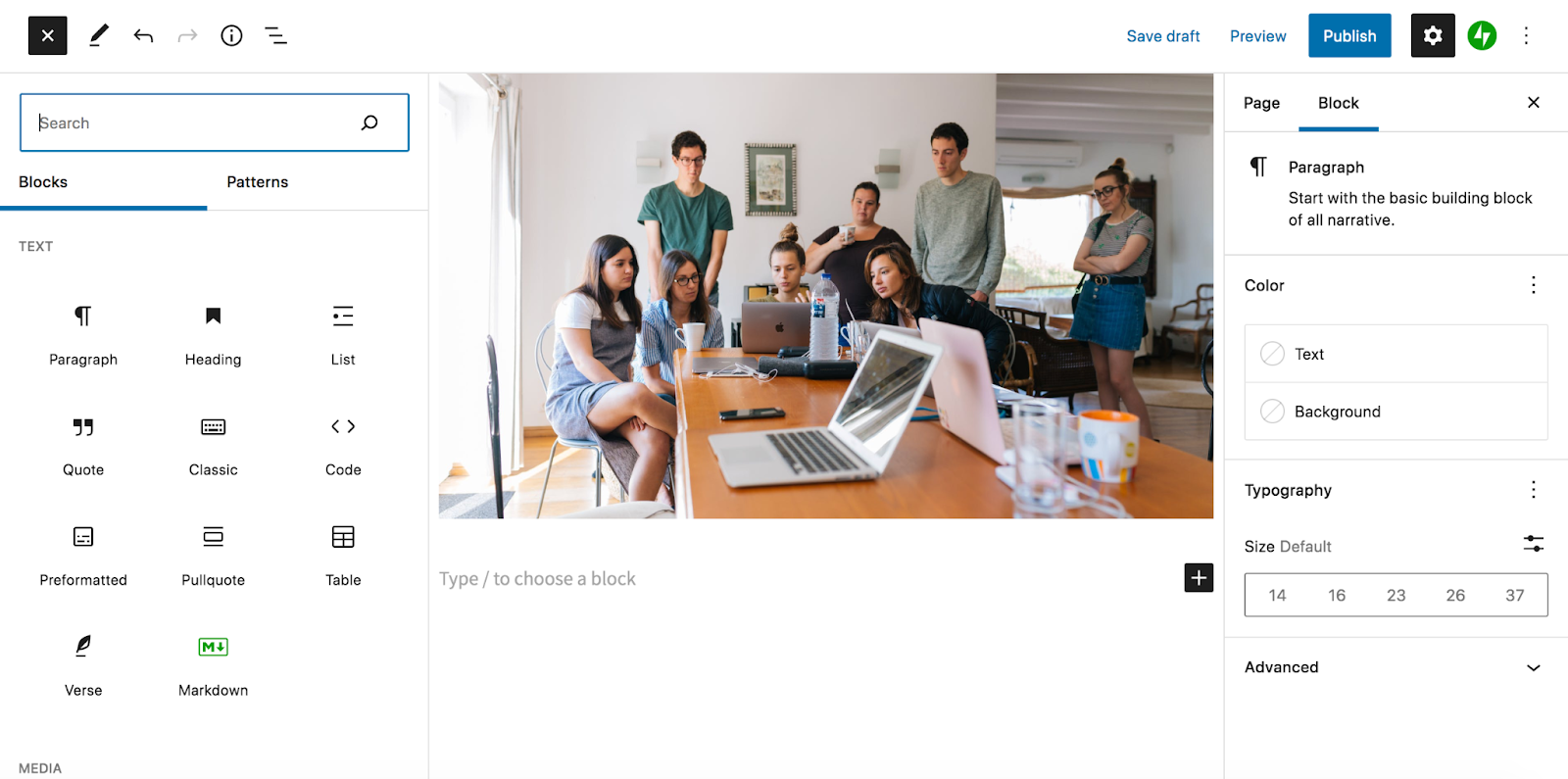
WordPress content revolves around the block editor, a powerful drag-and-drop tool that you can use to create any sort of design you’d like. It uses blocks to construct pages and posts — these are individual elements that make up a page, like paragraphs, headings, images, videos, and columns. All you have to do is find the one you want to use, drag it into your page, then click a few buttons to customize settings like colors and styles.
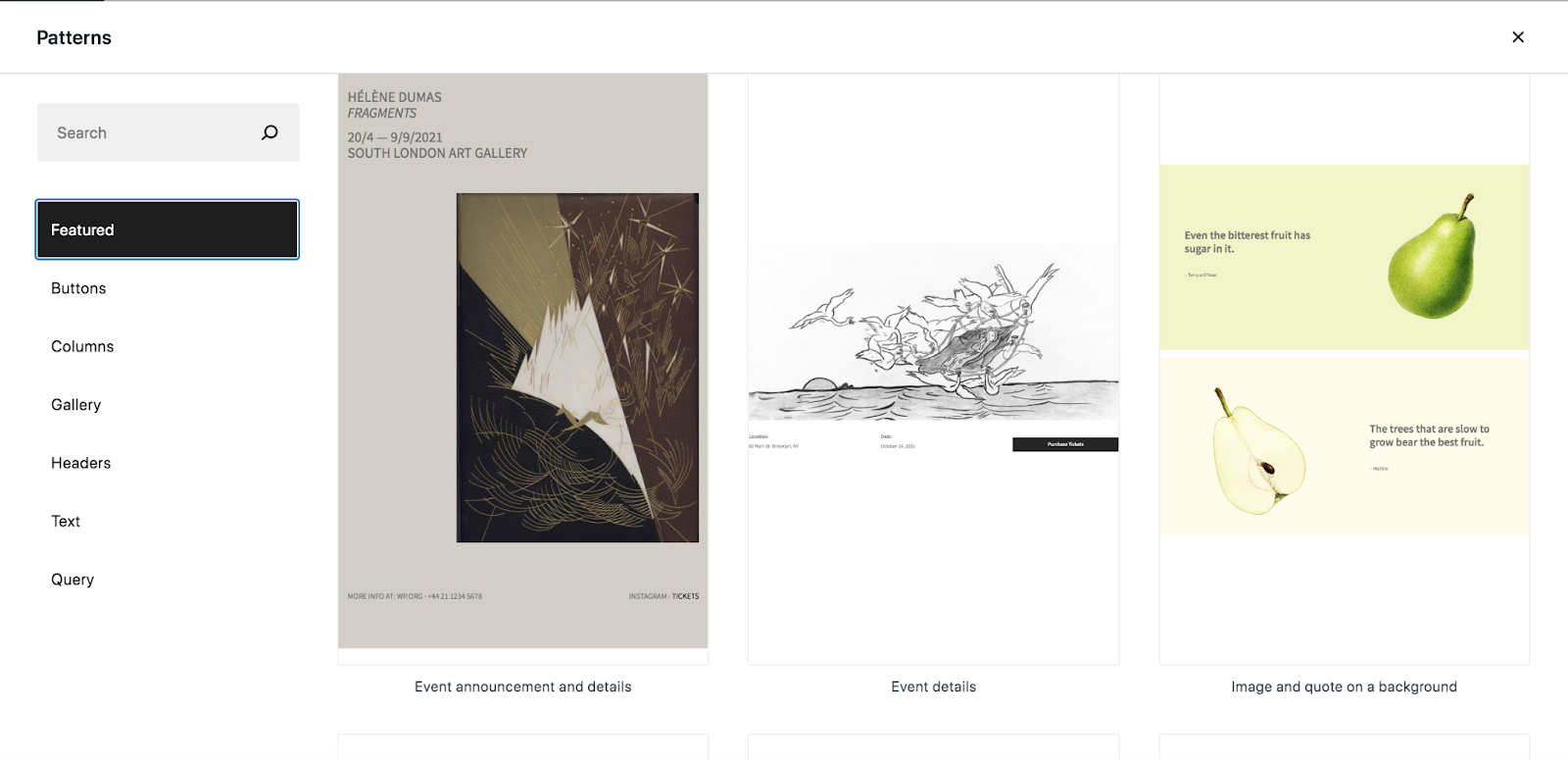
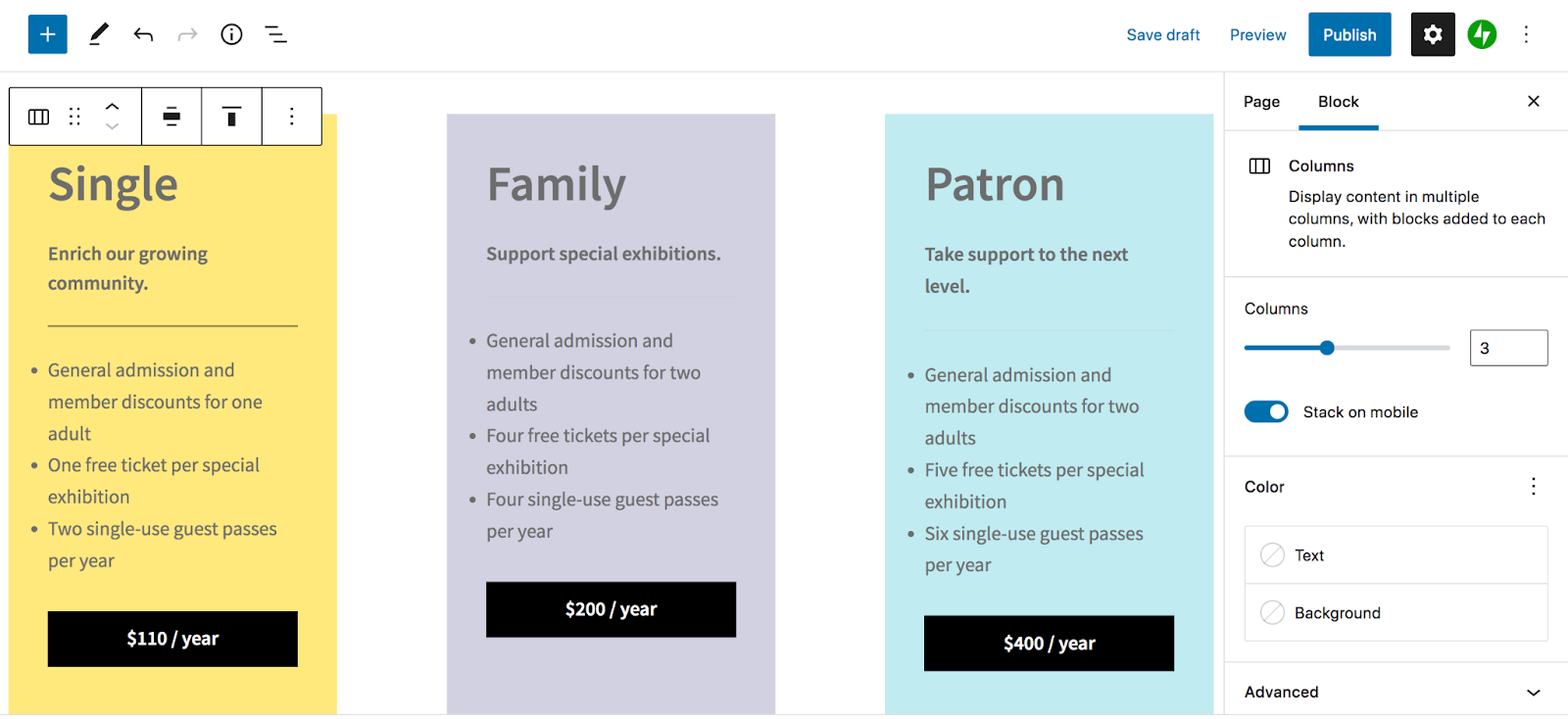
There’s also a library full of block patterns that you can choose from. These act as pre-designed layouts for entire sections of content — think pricing tables, portfolios, FAQs, and service grids. Just drag a section you like into your page design, then switch out images and text as necessary. Then you’re ready to go — it’s that simple!
And you really can create anything you can dream up. Gracenote, for example, created a clean, professional website to showcase their entertainment services and impressive client database. Thatgamecompany built a highly-visual site with full-screen videos and fun animations that feature their video games. And the Dallas Mavericks have a WordPress website full of grunge textures, interactive elements, and colorful photos.
Three completely different sites — all built with WordPress.
Online stores can encompass a wide variety of merchants, from traditional retailers and digital product creators to membership sites, service-based businesses, wholesalers, and software engineers. And WordPress enables you to create all of those store types — and more — with the help of WooCommerce.
WooCommerce is the eCommerce arm of WordPress, supported and maintained by Automattic. It’s completely free, and integrates seamlessly with WordPress sites to add everything you need for an online store. It enables you to list products, accept payments, ship physical items, offer coupons, and more. There’s also an impressive library full of free and premium extensions that provide additional functionality for subscriptions, memberships, marketing, design, and more.
Adding products and setting up your store is just as simple as creating pages and posts. There’s a setup wizard that walks you through all the steps you need to get started, even making suggestions based on the type of store you’re running.
And the product builder is straightforward, making adding items to your store fast and easy. All you have to do is fill out a series of fields — like the product title, price, SKU, description, and inventory levels — then add images to the gallery.
Of course, there’s a lot more you can do with your store, especially when harnessing the power of extensions. And there’s extensive documentation and a knowledgeable support team available to help you along the way.
Want some real-life examples? Here are some WooCommerce stores across a variety of industries and product types:
As you can see, the possibilities with WordPress and WooCommerce are endless. See even more examples.
Content creation and publishing are at the heart of everything that WordPress does. In fact, it was originally built as a blogging platform! That means that it provides top-level tools for bloggers and publishers.
It’s easy to present content in a way that’s consumable by site visitors, whether that’s in a grid, masonry format, or simple vertical feed. And, of course, the technical aspects are all there, too. WordPress is responsive, accessible, and SEO-friendly, ensuring that everyone can make the most of your posts — from mobile, desktop, and screen reader users to search engine robots.
You can add blog posts to your website using the block editor that we discussed in more detail above. This enables you to easily create truly unique content that’s more than just text. You can include images, videos, quote boxes, social media feeds, sliders, and more! You can also change the design of your blog using themes built for blogs and magazines.
But don’t just take it from us. There are endless examples of sites using WordPress as a blog or publishing tool. TechCrunch, for instance, has a clean, super engaging layout for their blog posts, including elements like social share buttons and email newsletter options. Oh She Glows has a beautiful, image-heavy blog feed to showcase available recipes. And Pousta uses WordPress to display the content that makes up their graphic-focused arts and culture magazine.
A customer relationship management tool (CRM) corrals all the information about your contacts, prospects, customers, and clients in one place, making it easier to manage and keep up with each and every one.
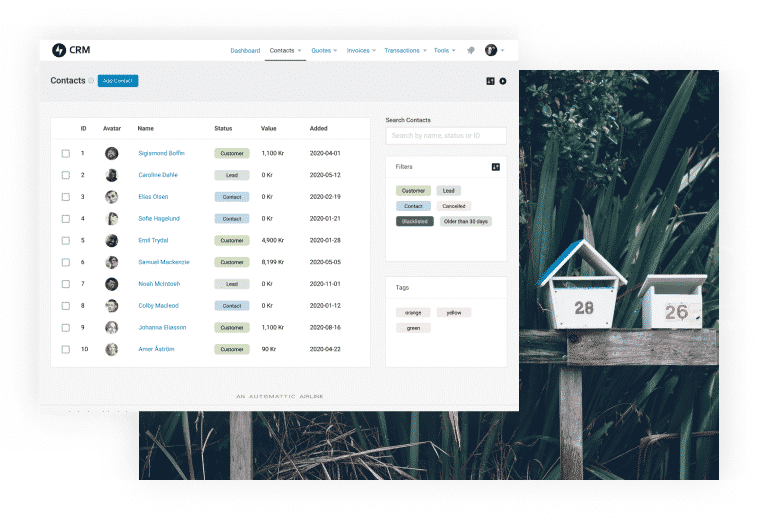
Jetpack CRM allows you to truly use WordPress as a CRM. It pulls all of its tools directly into the WordPress dashboard, available in the same place that you add posts, create pages, and more. But what exactly does it do and how can it help you?
It strengthens your sales, marketing, and customer service processes no matter what type of business you run. It gathers all of your customer and prospect data in one place, so you can view key information — like revenue and sales funnel information — at a glance. The CRM also has a detailed profile for each contact, with a record of every single interaction you’ve had with them, plus their preferences and engagement history with your company.
Want to set up a client portal? Send quotes and invoices? Share prospect information across sales team members? Email specific segments of your customer base? Jetpack CRM enables you to do all of that, from inside WordPress. This is an incredibly powerful opportunity for any business, whether you run an ice cream shop, online store, or graphic design agency.
Okay, so now that you have the answer to, “What is WordPress?” and you’ve learned what WordPress is used for, let’s dive into how you can use WordPress to build a safe, secure website.
A hosting provider stores your website’s files and makes them available for visitors to view when they type in your URL. It serves as the foundation of your site when it comes to security, site speed, and more. So it’s important to choose the right one!
Here are some important qualities of a good host:
If you’re looking for the easiest, fastest way to start, with a host that’s 100% dedicated to WordPress, consider giving WordPress.com a try. It takes file and server maintenance completely off your plate and simplifies all of your site management. There are several plans available, but we highly recommend choosing a premium plan that allows you to install and utilize plugins.
We’ve also put together a list of recommended hosts that cover a wide range of budgets and features.
Next, you’ll need to install WordPress on your host’s server. Most providers include one-click WordPress installation, which simplifies and speeds up the process. Check out their documentation for detailed instructions.
Or, if you do need or want to install WordPress manually, you can follow these instructions.
Note: If you’re using WordPress.com, it’s pre-installed, so you can skip to the next step.
The WordPress dashboard is the area where you’ll manage every aspect of your site, from pages and posts to comments, products, and settings. You can log in to your WordPress site by going to yoururl.com/wp-admin and using the credentials you created when installing WordPress.
Check out our guide to the WordPress admin dashboard for detailed instructions on navigating every aspect.
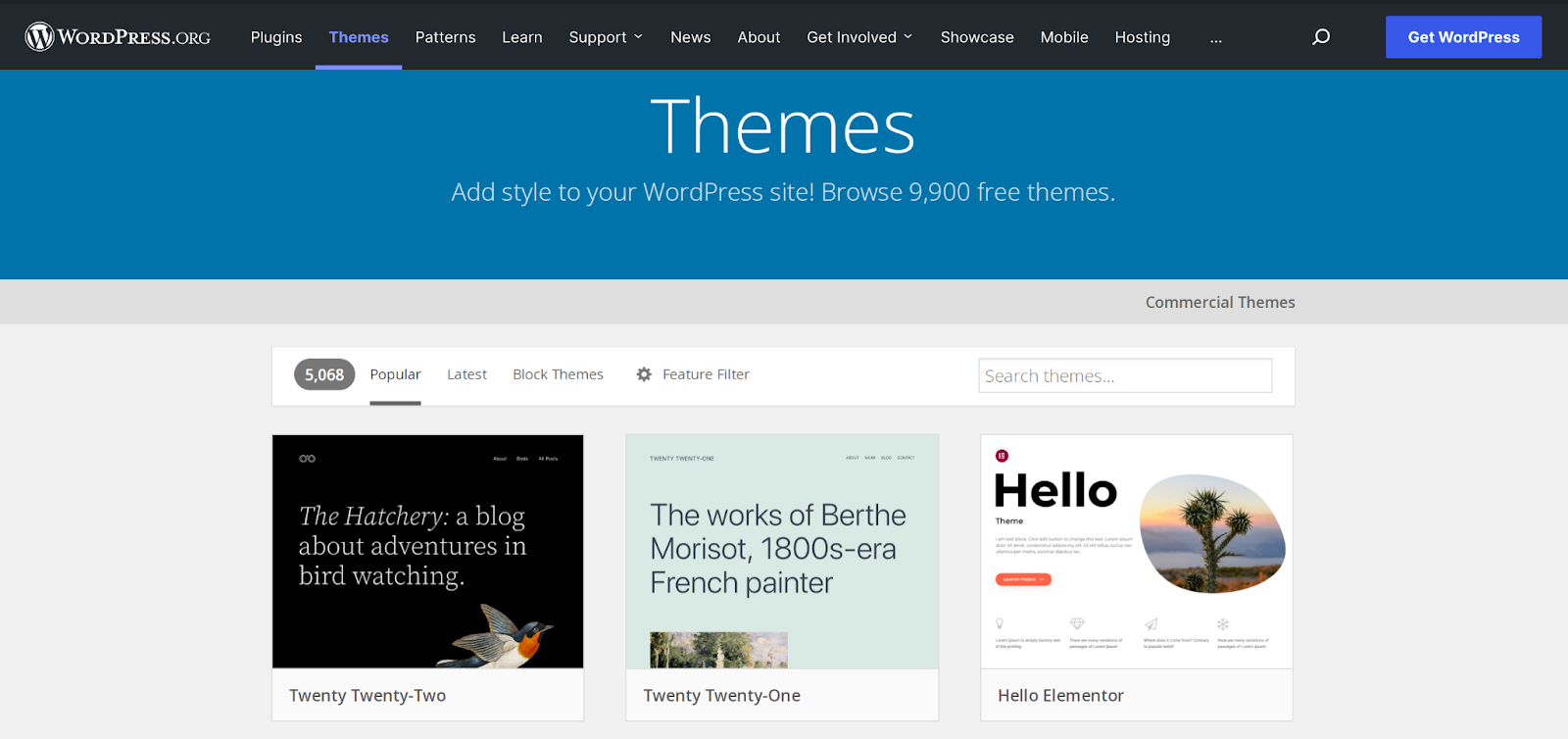
A theme sets the general design of your site as a whole, though you can customize details like colors, fonts, and more. Some themes act as pre-designed templates, enabling you to simply switch out elements and run with a ready-to-go site. Others are more like frameworks, allowing room for tons of customization. You’ll want to choose one that fits your experience and knowledge level.
Here are some other considerations:
You can add your theme by going to Appearance → Themes in the WordPress dashboard. There, you can either choose the one you’ve selected from the WordPress theme library or upload your own.
Note: We highly recommend using a child theme, which enables you to make changes to your theme files without losing them when you update in the future. Many themes come with one included, but you can also create a child theme yourself.
Now it’s time to build the pages and posts that will make up your website content. Your exact pages will vary based on your business, audience, and specific needs, but may include Home, About, Contact, FAQs, and more.
To build a page, go to Pages → Add New in your WordPress dashboard. Add a title to the page. Then, you can get started with the block editor.
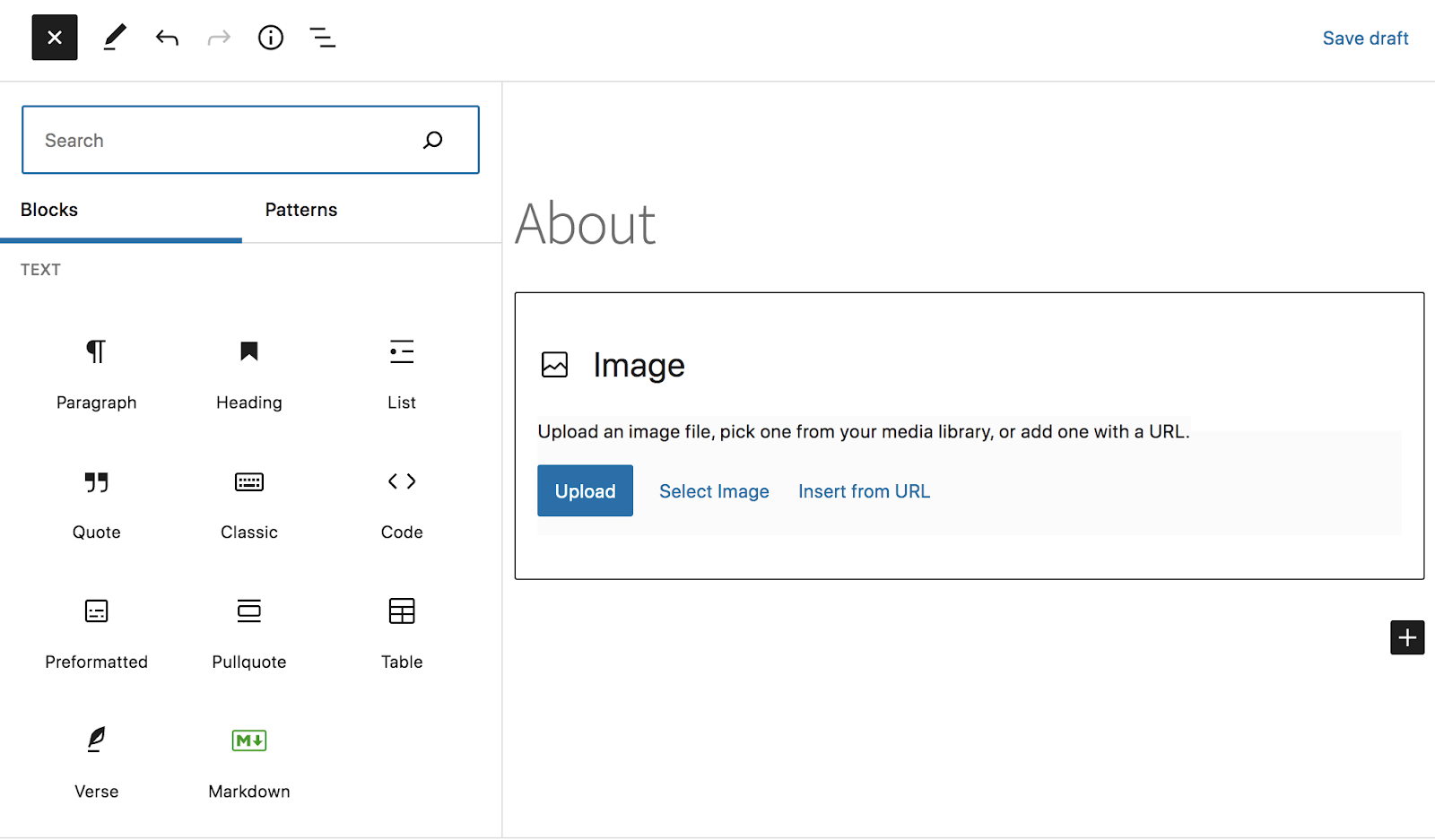
In the top left, you’ll see a blue plus icon. Click this to open up a full list of available blocks. You can either scroll through to find the one you want, or use the search bar if you have something specific in mind.
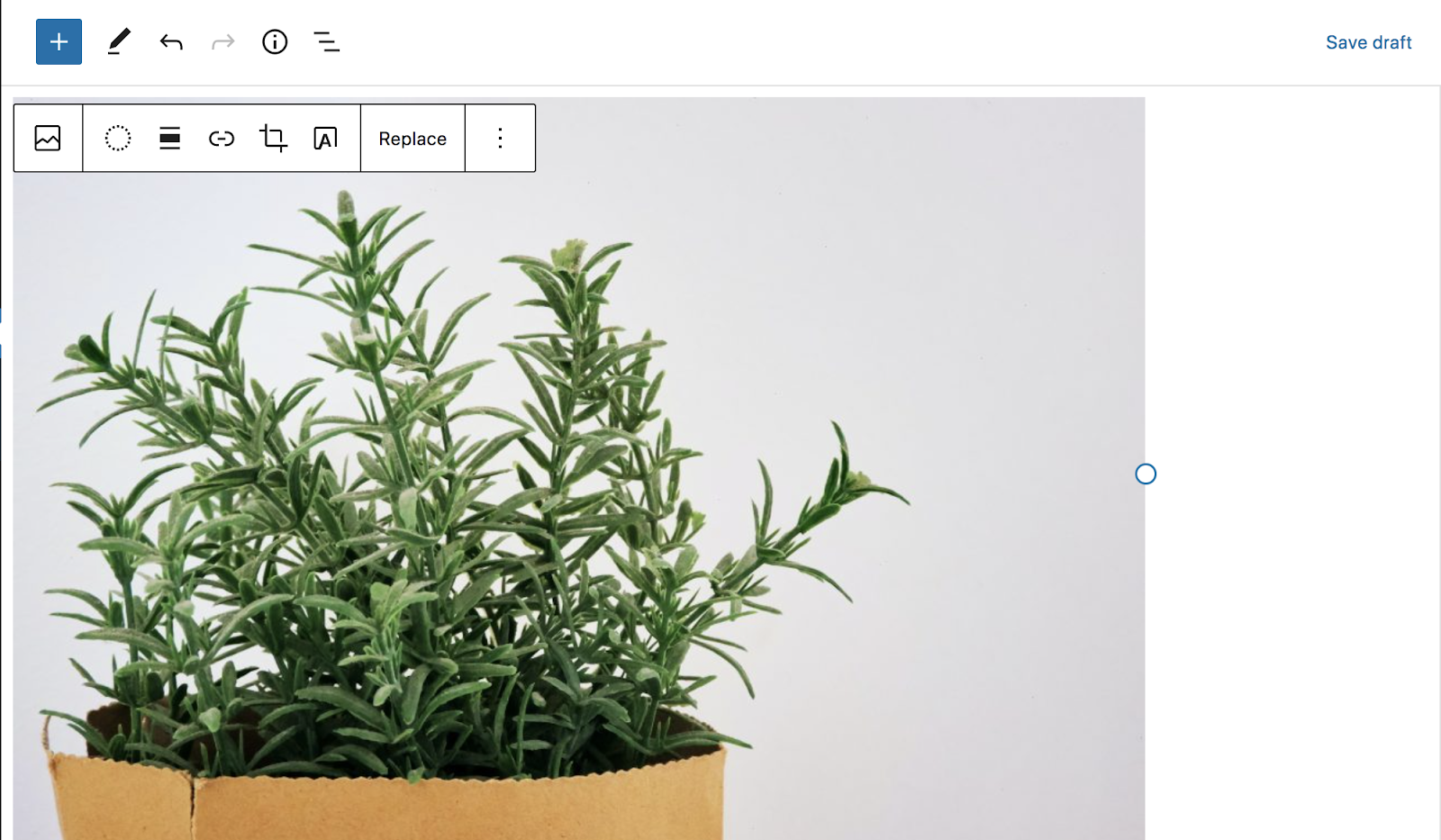
Click your chosen block to add it to your page. You can also drag and drop it anywhere you’d like in relation to other content. Then you can manage the settings for that specific block. These will vary, of course, but let’s use an Image block as an example.
You’ll see a placeholder for an image after initially adding the block. There are three options that you can use to add an image: Upload, Select Image, and Insert from URL. Once you add the picture you want to use, more settings will appear.
You can use the toolbar on top of the image block to apply filters, choose the alignment, add text on top, and more. Or, use the settings panel on the right-hand side of the page to configure settings for things like alt text and image size.
Again, these will vary based on the block that you’re using.
Want to implement more of a ready-made design? Try clicking the plus icon again and selecting Patterns. This will open up the pattern library, with fully-configured layouts for things like pricing tables and FAQs. Just add one to a page, switch out the content, and you’re good to go!
For more information about using the block editor, read this guide from WordPress.com.
A navigation menu is a key component of any website. It provides an easy way for visitors to move through your site and helps guide their journey. For example, you might include an attractive button that directs people to your email capture or sales page.
While your primary menu typically lives at the top of your site, in the header, there are other options, such as the sidebar, if you want to go with something a bit different. But no matter what location you choose, you’ll want to think through the organization of your menu items. Packing too many links in can be overwhelming to site visitors. If you have a lot of content, you can break your primary navigation menu down into categorized submenus, or even create a highly-visual mega menu.
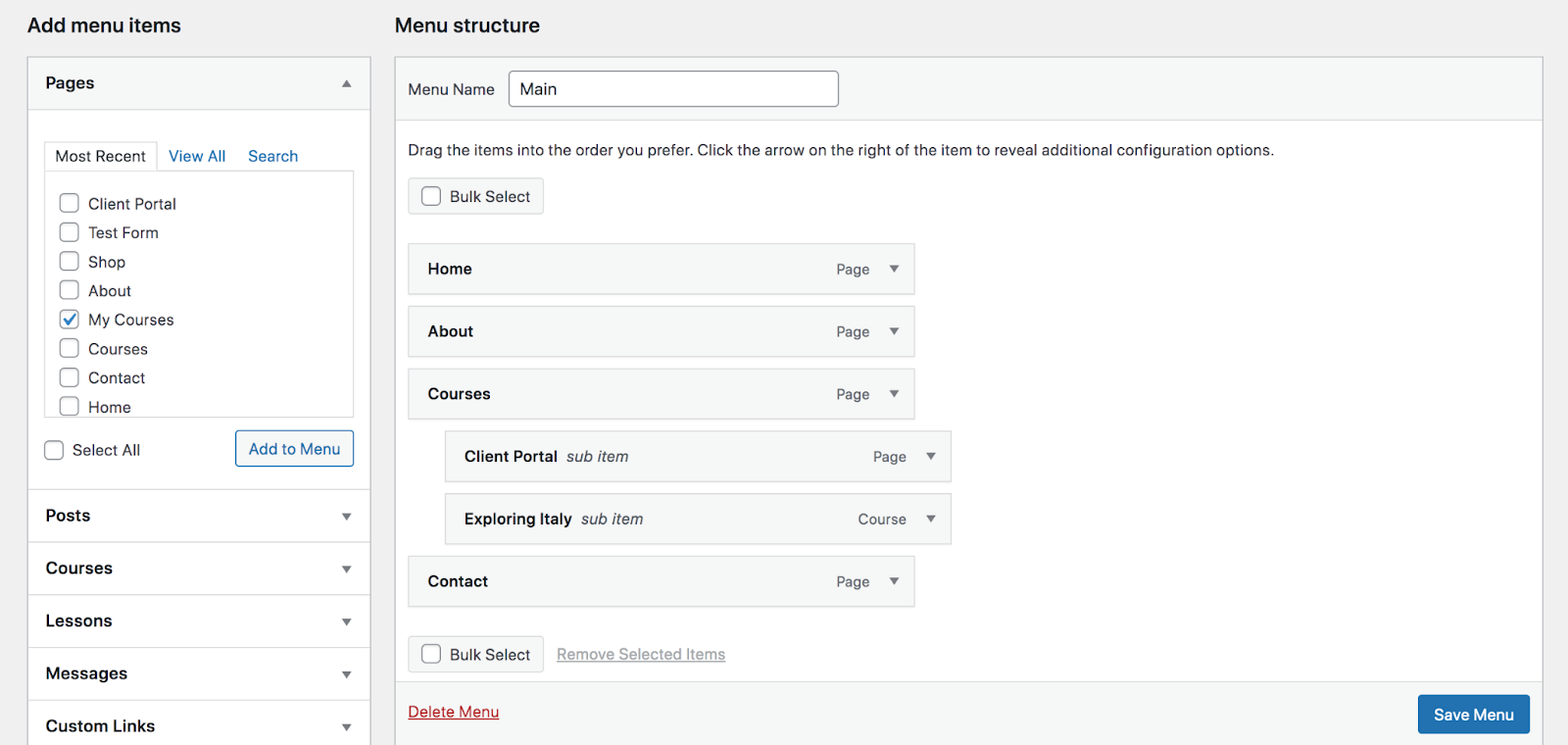
To build your navigation menu, go to Appearance → Menus in the WordPress dashboard. Add a name for your menu, then use the checkboxes on the left to add pages, posts, categories, and more. You can then drag and drop each item wherever you’d like, indenting them to create submenus as necessary.
Finally, select a display location for your menu at the bottom of the page — typically “primary menu” — and click the blue Save button. Your menu will now appear on your website!
Now that the design of your site is ready, it’s time to start thinking about functionality like security and speed. Security is critical, whether you’re running a personal blog or an eCommerce store. It prevents you from losing the hard work you’ve put into your website and protects both you and your visitors’ data from hackers.
While WordPress is a secure platform, there are still some steps you need to take to lock down your site. Here are a few best WordPress security practices:
Jetpack is a WordPress security plugin that checks off almost all of the items in the list above, in one fell swoop! From brute force attack protection and malware scanning to real-time backups and more, you can trust that your site is locked down. And it’s all easy to use for beginners and developers alike. For example, backing up your WordPress site takes just a few clicks, and restoring a backup is even faster!
See all of the available features of Jetpack Security.
If you want your site visitors to have a top-notch experience, speed should be something you invest time into. The faster your website loads, the more likely it is that people will stick around and take the actions that you want them to take — sign up for an email list, make a purchase, call your company, etc.
The best place to start with site speed is by choosing a high-quality host and a well-coded theme, as we already discussed here. Then, install a speed optimization plugin like Jetpack Boost.
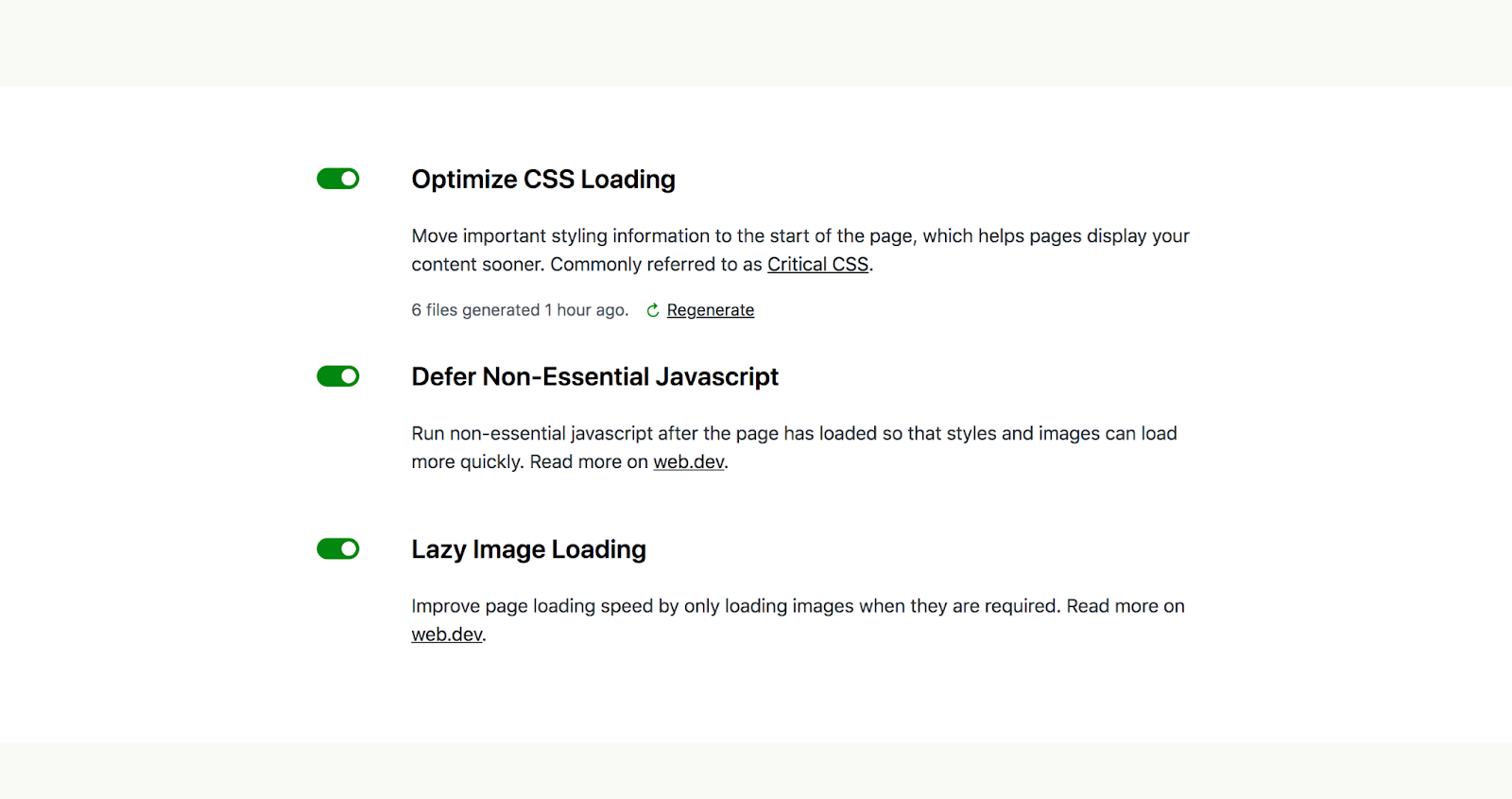
When you install the plugin, it will analyze your site performance so you get an idea of where you stand. Then, by just toggling on a few settings, you can optimize CSS loading, defer non-essential JavaScript, and turn on lazy loading images. If you’re not sure what this means, that’s okay — you don’t have to! Jetpack Boost takes on all the heavy lifting, so you don’t have to be a developer to ensure your site loads quickly.
(But if you’re curious, that’s okay, too! Read our core web vitals guide for more information.)
You can find additional speed optimization tools with the core Jetpack plugin as well. For example, its content delivery network (CDN) displays your website from high-speed servers around the world, so it’s always shown from the location closest to each individual visitor. It also automatically resizes your images for mobile devices to improve speed when it counts the most.
Comments are a powerful way to drive engagement on your site and build a community around your brand. But, unfortunately, when you enable comments in WordPress, you open yourself up to spam — responses that are unrelated, unwanted, and sometimes even malicious. These can impede the discussion, make you look unprofessional, and, in the worst case scenario, cause your visitors to fall prey to hackers’ schemes.
But you shouldn’t have to spend time weeding through comment after comment to determine if it’s spam. Instead, let a WordPress spam plugin like Akismet take care of it for you.
It can automatically get rid of the worst spam comments on your site so you never even have to see them. It also integrates seamlessly with popular WordPress tools to protect not just your comment section, but also your contact forms. Ultimately, this saves you a lot of time and protects both your site visitors and reputation.
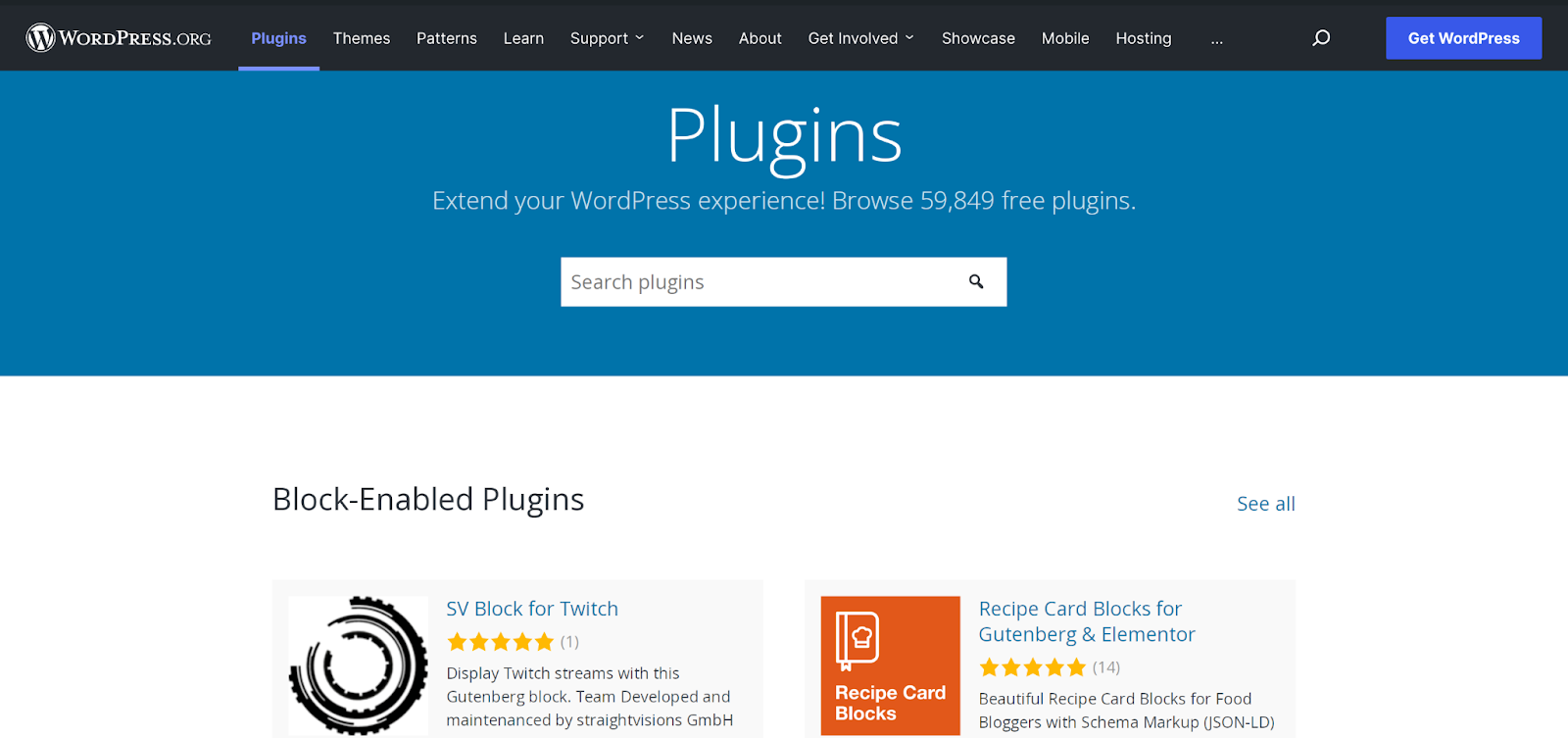
One of the best things about WordPress is the ability to add any functionality you’d like with the help of hundreds of available plugins. The WordPress repository is full of free options, offering everything from extra blocks and contact forms to integrations with your favorite marketing tools. Plus, these are all vetted by Automattic, so you can trust that they’re high-quality and safe.
There are also excellent developers in the WordPress community that sell premium plugins on their own websites or on third-party plugin marketplaces. Take the time to look into the ones that you choose to add, however, to ensure that they’re from a good source. Reviews can be one of the easiest ways to tell a plugin’s legitimacy and quality. Learn more about choosing the best WordPress plugins.
Now that your site looks exactly the way you want, loads quickly, and is secure, it’s time to launch! Give yourself a pat on the back — you’ve put a lot of work in and now you can reap the benefits.
Still have questions? We’ve taken some time to answer some frequently asked questions about WordPress below.
Explore the benefits of Jetpack
Learn how Jetpack can help you protect, speed up, and grow your WordPress site. Get up to 50% off your first year.
Explore plansWordPress was created in 2003 by Mike Little and Matt Mullenweg, who built a new personal publishing platform on top of b2/cafelog, which had been discontinued. Its open-source nature created an entire community of supporters, and it eventually turned into the revolutionary CMS that it is today, powering more than 43% of the web. It’s grown to become much more than a blogging tool as well, with everything from eCommerce stores and membership sites to forums and enterprise-level companies building their sites with the software.
Yes, the core WordPress software is 100% free. And, since it’s licensed under the GNU General Public License, it’s also completely free to use however you’d like, including modifying and customizing it.
There are a number of WordPress plugins from Automattic that are free as well. These include WooCommerce, Akismet (free for personal use), and Jetpack (free for some plans).
Yes, WordPress is a secure content management system. It was built with security in mind and is updated regularly to fix any bugs or vulnerabilities.
That being said, any website or piece of software can be hacked, no matter how secure it is. You’ll want to take some additional security measures to protect your content and visitor information. A great place to start is with a robust WordPress security plugin like Jetpack, which implements valuable strategies like downtime monitoring, malware scanning, two-factor authentication, brute force attack protection, and real-time backups.
You should also take other basic security steps, like using secure passwords and providing login access just to trusted people who absolutely need it.
Yes, WordPress was designed to be easy to use. You do not need to know HTML, CSS, or PHP to create a working site. You can install themes, add pages, and manage your content through a visual interface. In addition to this, most hosting providers offer one-click installations and guided setup tools.
Beginners can expect a short adjustment period. The WordPress interface and basic tools are easy to understand. Creating a page, writing a post, or uploading images can be learned in a day. Customizing a theme, managing plugins, or working with settings may take longer. However, the interface is consistent, and help is easy to find thanks to the large WordPress community.
When it comes to the web, accessibility means making your website usable for every single visitor, including those with physical and mental impairments. WordPress is dedicated to this practice, requiring all new and updated WordPress code to conform to specific accessibility standards. There is also a category of themes available from the theme repository that have been reviewed and marked as “accessible ready.”
You can use plugins to add accessibility features to your website, allowing site visitors to resize fonts, toggle grayscale mode, turn on high contrast, and more.
WordPress is available for download directly from the WordPress.org website. Many hosting providers also include one-click WordPress installation, so there’s no need for you to manually download or install the software.
If you’re new to WordPress, you might be trying to decide between WordPress.org and WordPress.com. Let’s take a look at the differences.
With WordPress.org, you pick a hosting provider and install the WordPress software on your server. You have complete freedom to do whatever you’d like with your site, though there is a bit more technical know-how required.
With WordPress.com, everything is taken care of for you. It includes a hosting plan that’s specifically optimized for the WordPress software, and it comes with everything pre-installed. All you have to do is sign up for an account and you can start building! Each plan has limits, however, so while a lot of the technical aspects of managing a site are taken care of for you, there’s also a certain loss of flexibility and freedom.
If you don’t want to worry about the technical aspects of a site and want to just jump in quickly, you may want to choose WordPress.com. If you want to be more involved in site management and building, and have more freedom and flexibility, then WordPress.org is the route to take.
For a more detailed explanation, see our guide on the difference between WordPress.com and WordPress.org.
A WordPress theme is a set of files that dictate the look and feel of your site. They can be very specific, acting as a template with content you can simply switch out, or more flexible, like a framework that you can build anything on top of.
There’s an entire library of free and premium themes that are vetted by WordPress. You can filter these based on features, like number of columns and subject matter. There are also themes that you can download from third-party marketplaces and developers. When choosing one of these, check the source, read reviews, and ensure that it’s updated regularly.
A WordPress plugin is an add-on that you can install to create additional functionality on your website. Unlike a theme, its focus is on functionality, not design.
You can find a plugin for just about anything — create an online store, market your business, add blocks or block patterns to the WordPress Editor, build contact forms, connect to third-party software, and more.
There are thousands of free options available in the WordPress plugin repository, along with support forums for each one. You can also find some great premium options in locations like the WooCommerce marketplace, and third-party websites. But, like with themes, take the time to examine each one for security and quality. Learn more about how to choose the best WordPress plugins.
A WordPress page builder is a plugin or theme tool that enables you to build a website without using any code. They speed up the page creation process, typically allowing users to drag and drop elements to design virtually any layout.
However, thanks to the WordPress block editor, you can create pages and posts without code and without a page builder. Drag any element into place — like paragraphs, headings, images, videos, and columns — and configure settings to get the exact look you want.
And if you’re using a block theme, with full site editing, you can even apply this same principle to other parts of your site, like headers and footers.
In WordPress, widget areas are special reusable areas that contain blocks — the footer and sidebar, for example. You can add blocks to these areas by going to Appearance → Widgets in your WordPress dashboard.
These can come in handy in a variety of ways. If you have an online store, you might want to add filters, a search bar, and a list of product categories to the sidebar of your Shop page. If you run a service-based business, you might include links to important pages, an email capture, and your company hours in your footer.
Note, however, that if you’re using a theme that supports full site editing, you’ll need to edit these areas by going to Appearance → Editor instead.
The plugins that you choose will vary based on the specific needs of your site, along with the type of website that you run — online store, blog, service-based business, portfolio, etc. However, there are a few types of plugins that nearly every WordPress site will need:
For more information, read our posts about choosing the right WordPress plugins, as well as a selection of the best must-have plugins to install on your WordPress site.
Yes, absolutely! WordPress was designed from the start as a blogging platform. And, while it offers so much more, blogging is still at its heart.
WordPress makes it easy to create a blog around any topic that you’d like, add blog posts with text, images, videos, and more, accept and reply to comments, get your posts in front of your audience — the list goes on and on! Any blog functionality you need, you can create with WordPress.
So it’s no surprise that popular sites like the TED blog, WilWheaton.net, the Martha Stewart blog, and TechCrunch all use WordPress as their blogging platform of choice.
Of course! WordPress can be used to create absolutely any kind of site you’d like. You can use the platform to showcase your work in a portfolio, write about your services, and create a client portal. Or if you want to sell products or services online, you can use WooCommerce to build an online store, complete with checkout functionality, shipping tools, and more.
Looking to manage all of your prospects and clients? Jetpack CRM even turns your WordPress dashboard into a customer relationship management (CRM) tool that will help you grow your business.
Want some examples? The WooCommerce Showcase is chock full of beautiful online stores powered by WordPress. You’ll also find lots of other businesses using the platform, including Gracenote, The Clorox Company, and the Bedford Hotel.
Yes, WordPress powers lots of enterprise sites and there are no limits on what you can create. You can use it to scale as large as you like, with no restrictions on number of pageviews, products, etc. It also has features that make running an enterprise website simple, like team management capabilities, mobile-friendly and accessible design, and multilingual plugins.
WordPress VIP is also an exclusive option specifically for enterprise businesses. It’s built on a super powerful server foundation, and includes special tools that help you maximize content effectiveness, create a compelling digital experience for all team members, explore in-depth analytics, and build a hyper-agile commerce system. And all of that comes with enterprise-level scalability, reliability, speed, and security. Learn more about WordPress VIP in this guide.
See some examples of enterprise WordPress sites, including The New York Post, Venture Beat, and USA TODAY Sports Media.
WordPress is currently used by 43% of all websites online and by 64.3% of websites using a content management system. This, of course, makes it by far the most popular CMS.
This isn’t shocking. WordPress is a completely free but incredibly powerful tool that enables absolutely anyone to create a beautiful, effective website. It’s easy to use, endlessly flexible and scalable, SEO-friendly, and constantly improving and innovating.
WordPress.org and WordPress.com provide lots of tutorials with instructions for nearly anything you’d like to achieve with WordPress. If you’re building an online store, the WooCommerce blog offers everything you need to know to build and grow your eCommerce site. And there’s also a wealth of information on the Jetpack blog, including posts like:
Now that you know how to use WordPress, it’s time to create! You have all the tools in hand to build anything you can dream up, whether you want to start a blog, open an online store, or launch a service-based business.
If you get stuck, don’t worry! There’s a whole team of Happiness Engineers ready to help. You can find answers to any of your questions in the WordPress documentation and support forums.
Simon has over 10 years of experience in marketing and product development at HubSpot, Workday, and now at Automattic, where he leads the Product team for Agencies. He holds a degree in chemical engineering and a master's in computer science, and is passionate about helping people and their businesses grow.
Explore the benefits of Jetpack
Learn how Jetpack can help you protect, speed up, and grow your WordPress site. Get up to 50% off your first year.
Explore plansHave a question?
Comments are closed for this article, but we're still here to help! Visit the support forum and we'll be happy to answer any questions.
View support forum