|
VOOZH | about |
|
VOOZH | about |
Comment sections are often seen as a standard feature for websites and blogs. They can be great for engagement and provide vital feedback about your content, but they also require good management and moderation.
Whether you’ve decided to allow them on your posts or not, it’s essential that you know how to implement, manage, and disable comments in WordPress. To help you become a pro at WordPress comment settings, we’ve put together an extensive guide that covers what comments are, where to find them, how to manage them, and how to prevent comment spam. We also give our top picks for the best WordPress comment plugins.
Every WordPress site comes with a built-in commenting system. WordPress comments are an excellent way for visitors to engage with your content and leave their thoughts. They also give you an opportunity to connect with your audience and for them to connect with one another.
By default, a comment form will appear at the bottom of each post on your WordPress site. Your visitors can use it to leave a reaction or offer their thoughts and views about your content. Once you approve the comment, it’s displayed on the front end of your site. Then, you and other visitors can reply to the published comment.
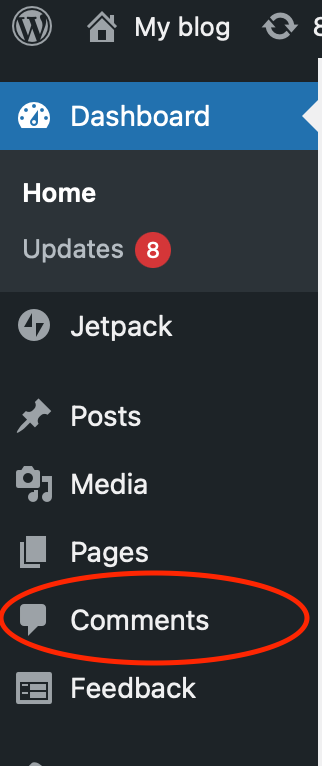
You can find your WordPress comments by clicking on Comments in the side menu of your admin panel. You can also find them by clicking on the speech bubble in the top WordPress admin bar.
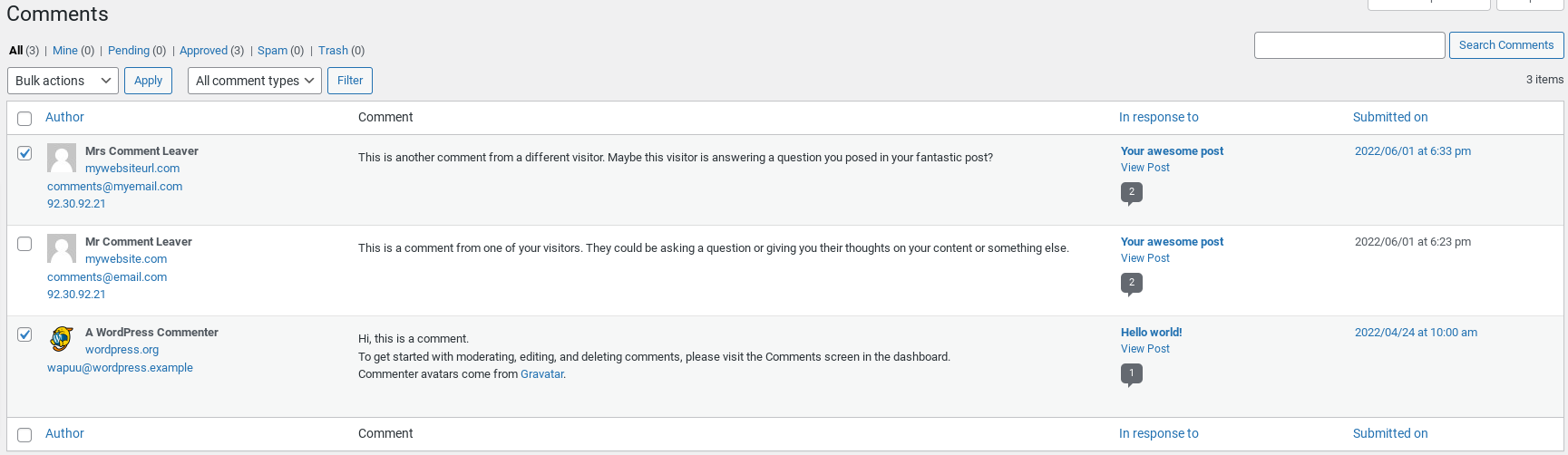
Either link will take you to the WordPress Comments screen, which will display all of your comments by default, organized from newest to oldest. In addition, you’ll see the name, email address, and website of the person who left the comment.
You can use the filtering options at the top left of the screen to control which comments you see. You can show:
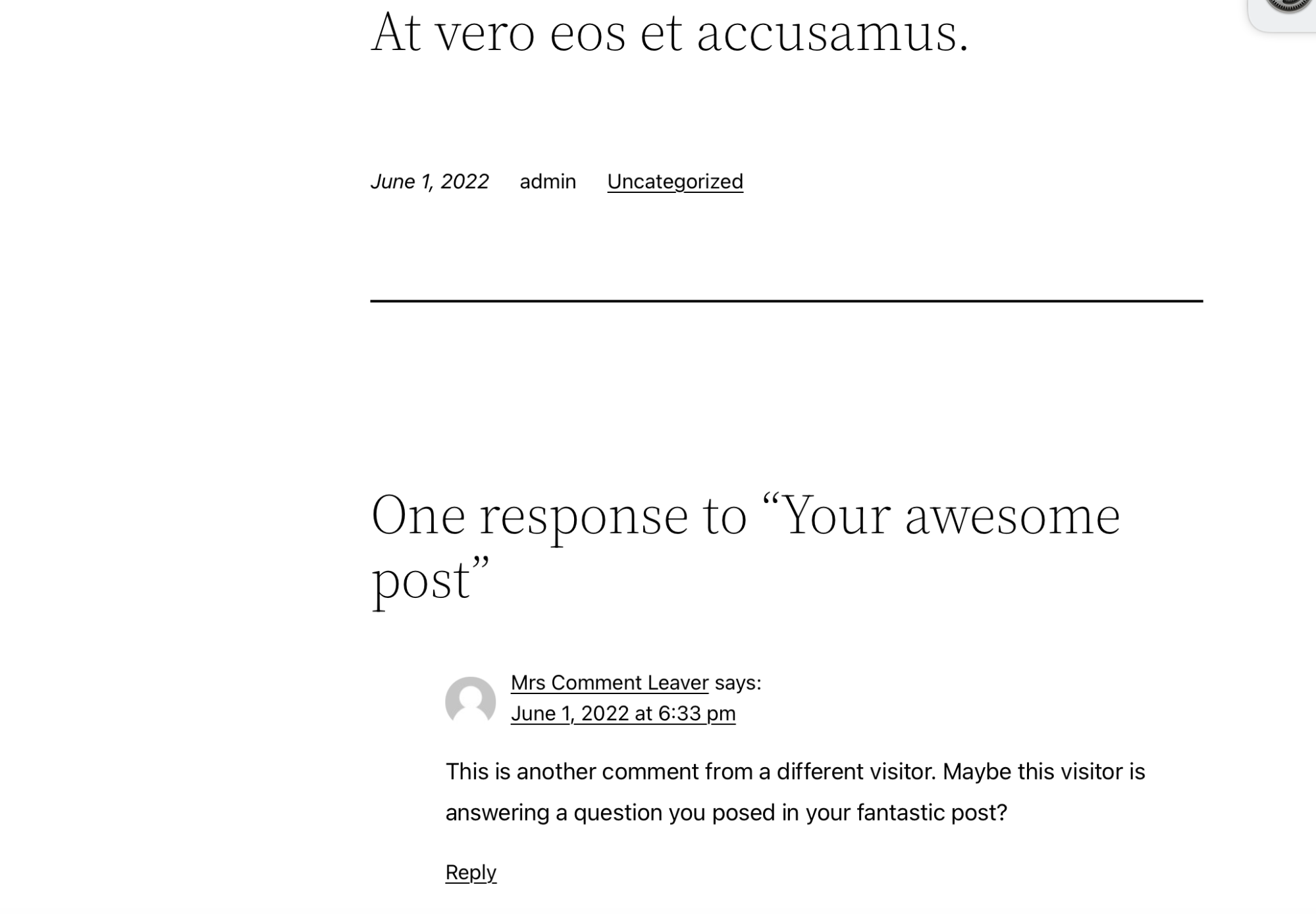
In most themes, WordPress comments are shown immediately below your post. Remember, comments won’t appear publicly unless they’ve been approved. If you’ve disabled them, you will not see any below your posts.
By default, comments are displayed with the commenter’s name and the date and time they left it.
By default, WordPress won’t publicly show a comment on your website unless the same person has a previously-approved comment. This means that you need to approve comments from first-time commenters. In your WordPress dashboard, click on Comments. There, you can see the ones waiting for approval, highlighted in yellow.
If you hover over a comment you have yet to approve, you’ll see Approve in the list of options that appear below the Comment column. When you click Approve, your comment is instantly visible to other visitors on your site.
If you need to revert an approved comment to an unapproved state, you can do this directly from the Comments screen. Simply hover over a comment that has already been approved, and select the Unapprove option.
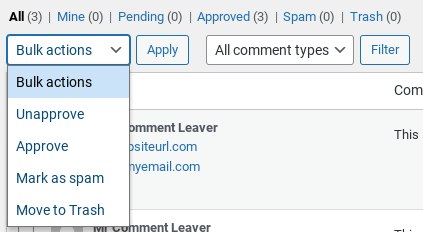
If you have several comments that you need to approve or unapprove at once, you can check the box next to each one, choose Approve or Unapprove from the Bulk actions drop-down menu, and then click Apply.
In your WordPress dashboard, click on Comments. From this screen, you can delete both approved and unapproved WordPress comments by hovering over each one and selecting the Trash option.
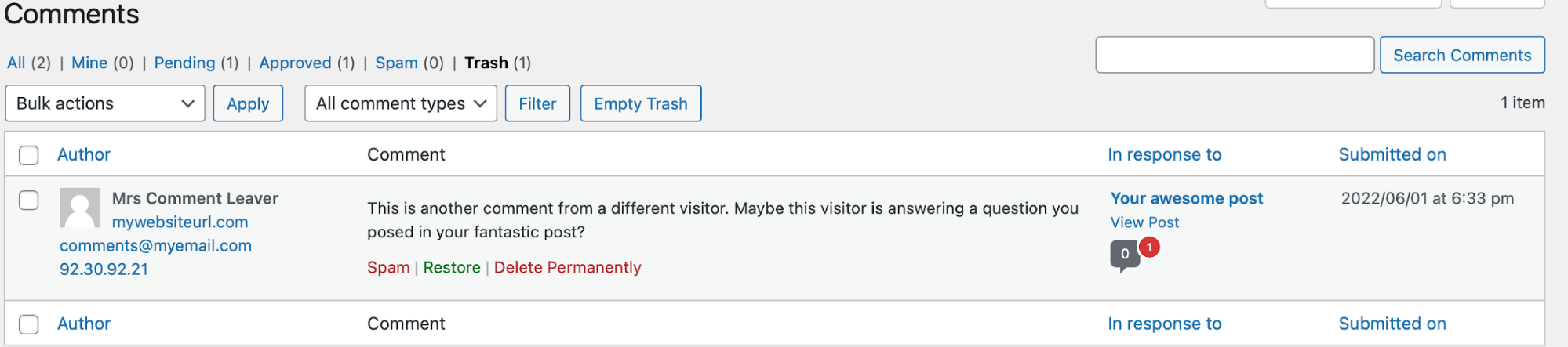
You can view comments that you’ve moved to the trash by clicking on the Trash option at the top of the WordPress Comments page. From here, you can restore deleted comments by clicking Restore, or delete them permanently by clicking Delete Permanently.
If you need to delete comments in bulk, you can check the box next to each comment, choose Move to Trash from the Bulk actions drop-down menu, and click Apply.
Sadly, sometimes people leave spam comments, and we’ve outlined some ways to protect your WordPress comment section from spam later in this article.
While tools such asJetpack Anti-spam can help you catch most spam, it can sometimes still make its way into your comment section. It’s important to check your comments periodically for spam and if you find any, mark them as such. Doing this helps anti-spam plugins learn how to better identify spam before it reaches your moderation queue in future.
In your WordPress dashboard, click on Comments. From here, you can easily mark comments as spam by hovering over them and clicking the Spam option.
If you need to classify comments as spam in bulk, you can check the box next to each comment, choose Mark as spam from the Bulk actions drop-down menu, then click Apply.
Sometimes, you may need to edit a visitor’s comment. For example, maybe it contains language you’d rather not publish on your site or is full of typos.
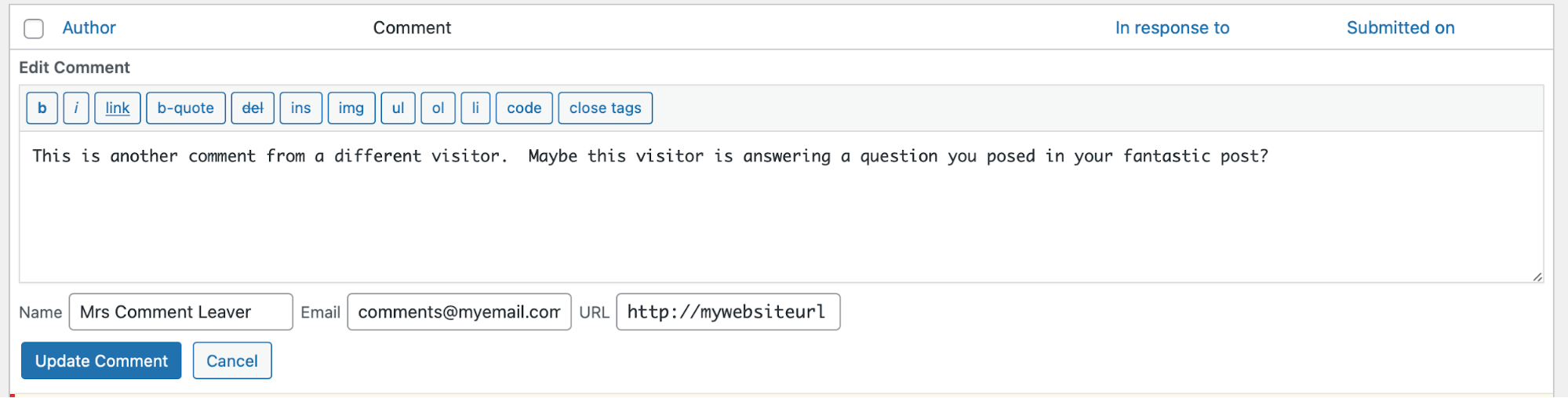
In your WordPress dashboard, click on Comments. You can edit any comment on your WordPress site by hovering over it and selecting Quick Edit. This will enable you to edit the content, along with the name, email address, and URL.
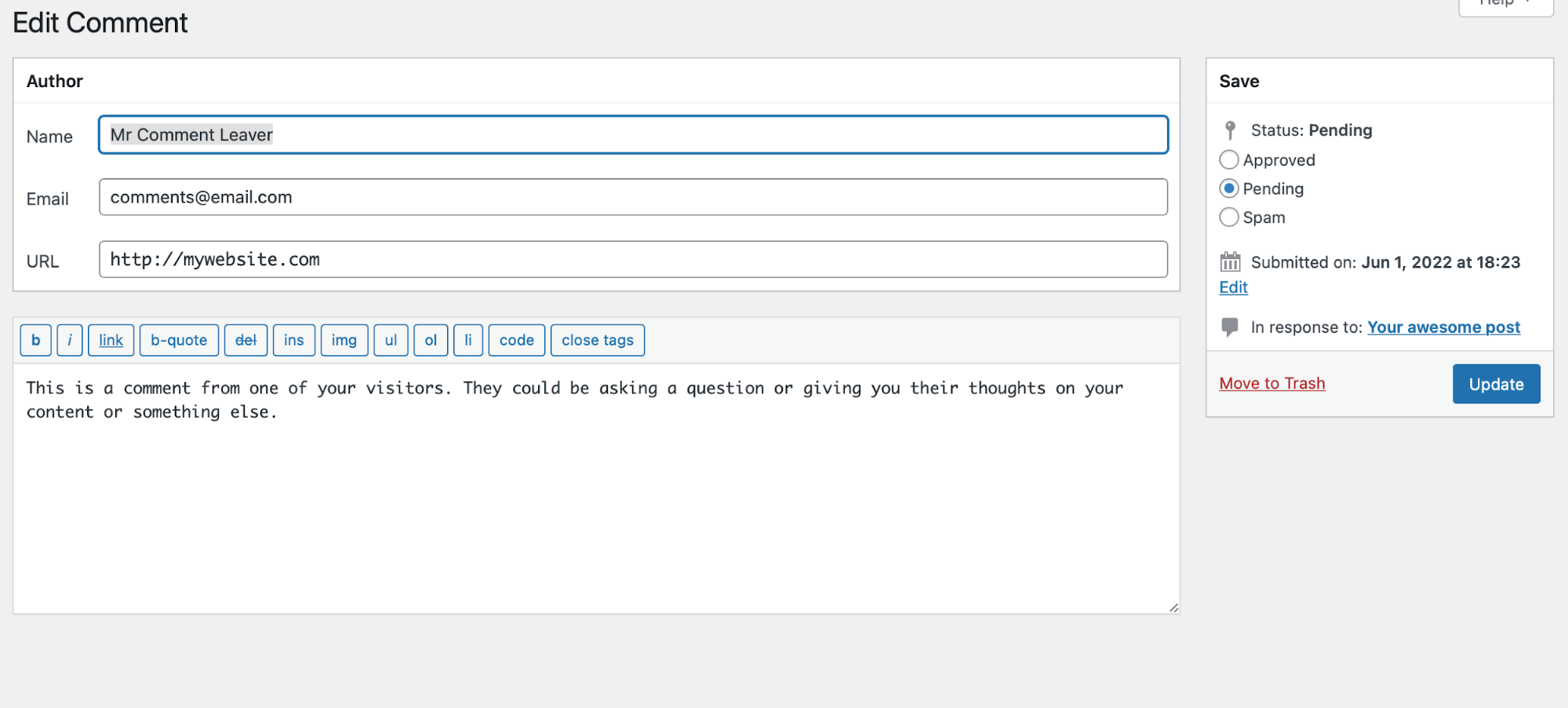
If you want to make more changes, including changing the date and time that the comment was left, hover over the comment and select Edit.
You’ll then be taken to the comment editor, where you can make changes to the author name, email, and URL as well as editing the comment itself, the date it was submitted, and its status as Approved, Pending, or Spam. Press Update to save your changes or click Move to Trash if you decide to delete the comment instead.
Replying to WordPress comments is a great way to engage with visitors. You can reply in your WordPress dashboard or on the front-end of your site (although you may have to be logged in to leave a comment, depending on your settings).
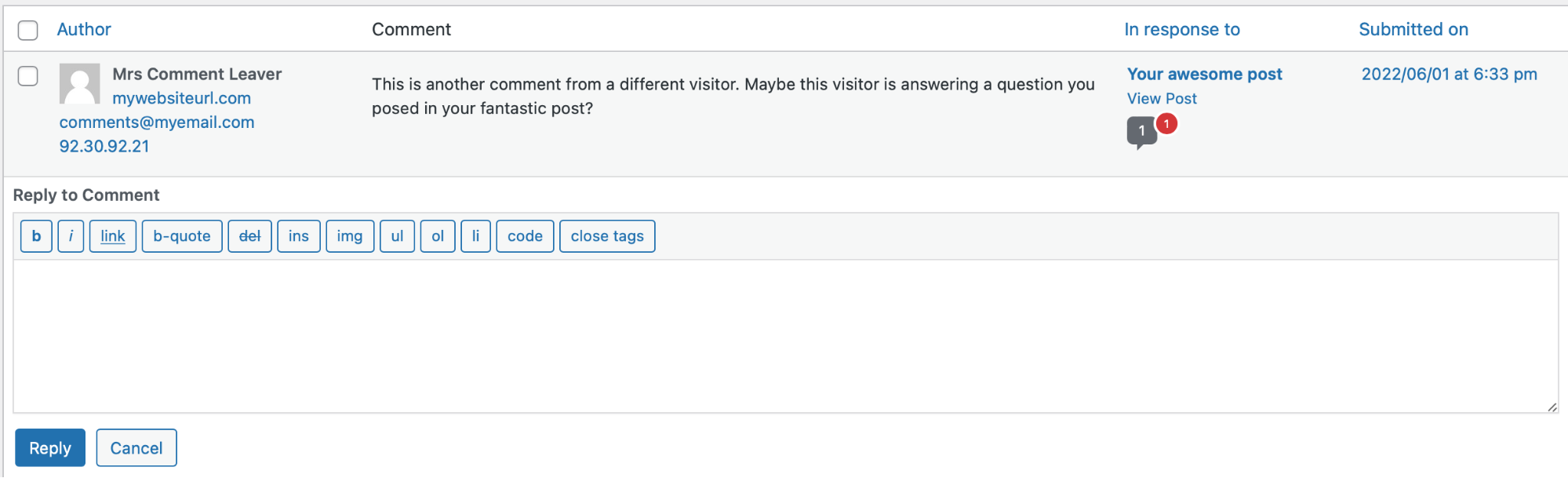
To reply to comments in the WordPress dashboard, navigate to Comments, then hover over the one you’d like to reply to and click Reply. A text field will display directly below the comment. You can format the text using the options directly above the text field.
Once you’ve finished typing your response, click Reply to publish it. It will be shown to your site visitors underneath the original comment. Depending on the settings of your site and the options chosen by the visitor who left the comment, they may receive an email notification informing them of your reply.
You can also reply by visiting the post or page on your website and scrolling to the comment section, where you’ll find a Reply button next to each comment. If your settings require that visitors must be logged in to leave a comment, you’ll need to be logged into your account before you can reply.
If your settings don’t require visitors to log in, you can leave a reply without logging in, but people might not know that it’s you leaving the comment. Also, your past comments and replies may be difficult to find in the WordPress dashboard if you want to edit or delete them. So it’s a good idea to log in to your account before replying to comments on the front-end of your site.
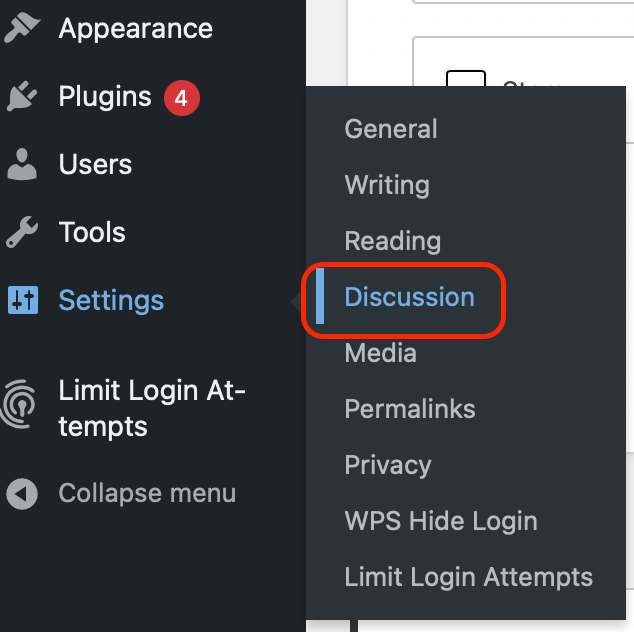
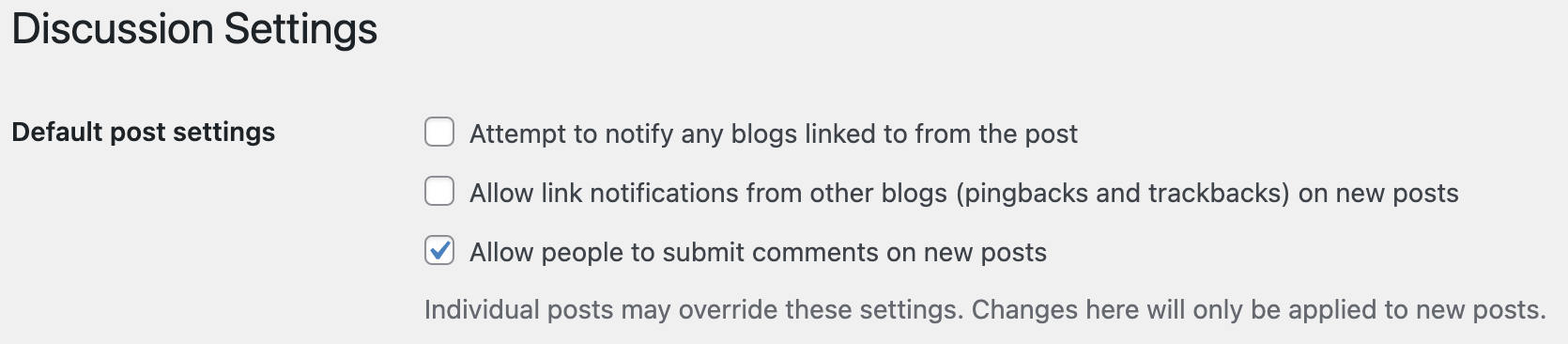
You can manage WordPress comment settings under Settings → Discussion in your dashboard. WordPress has various comment settings, ranging from automatically approving comments to disabling them entirely. In this section we’ll go over each of the settings that you can manage on the Discussion settings page.
WordPress enables comments by default on all posts. If the comment form is not appearing on a post, make sure you’ve checked the Allow people to submit comments on new posts option in Discussion Settings.
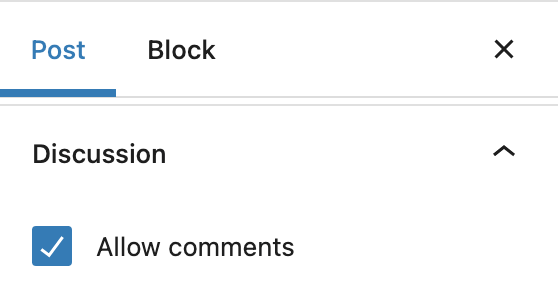
If this option is checked but you still see that the comment section is missing from some or all pages, you should check the discussion settings for each post and make sure that Allow comments is checked under the Discussion options in the block editor.
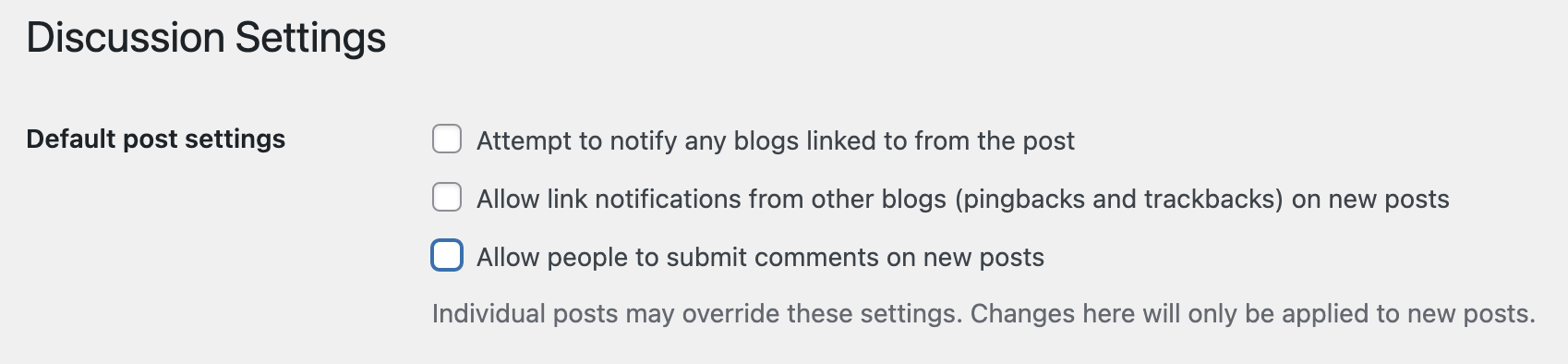
You can disable the comment form on both new and existing posts in your Discussion Settings under Settings → Discussion in your WordPress dashboard.
Untick Allow people to submit comments on new posts, and then scroll down and select Save Changes. The comment section will no longer appear on any new posts you make on your site. Older posts will still have comments enabled.
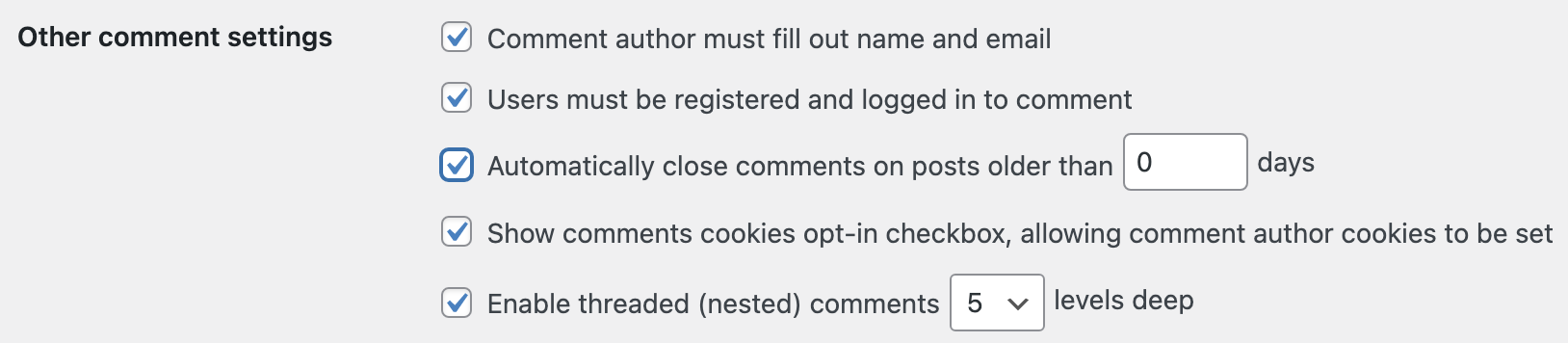
If you want to remove the comment form from all existing posts, disable comments by following the steps above and scroll down to the Automatically close comments on articles older than __ days option. Enter 0 into the box, then click Save Changes.
Closing comments only removes the comment submission form from your posts — it does not delete the existing comments themselves. If you want to remove all existing comments in addition to the comment form, you’ll need to delete those under Comments in your WordPress dashboard.
Comment settings for posts automatically follow the site-wide options set in Settings → Discussion, but you can also enable or disable comments on each post individually.
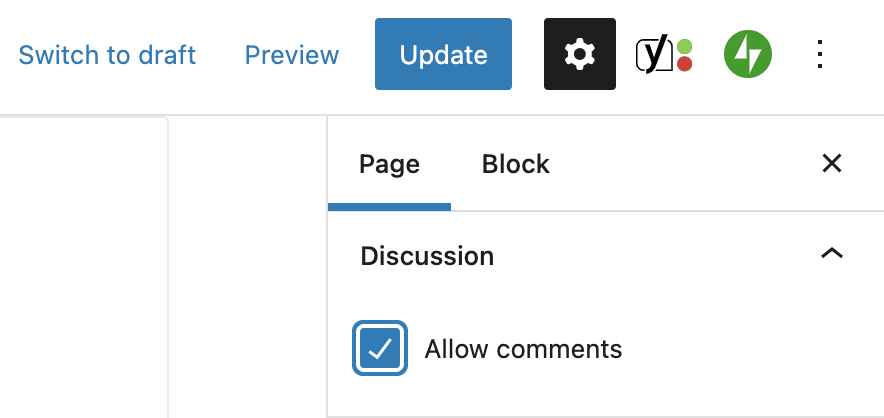
When you’re writing or editing a post, you’ll find a Discussion option in the post settings that appear to the right of the WordPress Editor. Click on the right-hand caret to expand this section, and tick or untick the Allow comments option to either enable or disable comments.
Click Update at the top of the screen to save your changes.
By default, WordPress will not publish any visitors’ comments until you’ve approved one of their previous ones. This helps protect your site from spam and gives you the opportunity to review comments to ensure that they’re genuine.
If you want WordPress to approve all comments regardless of whether the visitor has commented on a post before, navigate to Settings → Discussion and scroll down to find the Before a comment appears section. Untick the box next to Comment author must have a previously approved comment, then scroll down and select Save Changes.
If you would rather approve all comments from your visitors yourself, regardless of whether or not they’ve had an approved comment in the past, navigate to Settings → Discussion and select the Comment must be manually approved option in the Before a comment appears section.
Scroll down to the bottom of the page and select Save Changes.
Inauthentic comments are something that almost all website owners face. Bots scour the web for websites with any type of form — including comment forms — and attempt to submit spam. If you don’t put steps in place to protect against WordPress comment spam, you may find that it overruns the comment section of your website and negatively impacts your visitors’ experience.
Luckily, there are a few key steps you can take to get rid of comment spam:
One of the best ways to get rid of WordPress comment spam is to use an anti-spam plugin such as Jetpack Anti-spam, powered by Akismet.
Used by millions of websites worldwide, Akismet’s anti-spam system protects comment and other forms on your WordPress website. It can automatically filter spam so you can avoid the hassle of having to manually review comments. It also improves visitor engagement by preventing spam without the need to resort to cumbersome solutions such as adding CAPTCHA to WordPress.
Jetpack Anti-spam is available as a subscription by itself or as part of Jetpack Security, which can further protect your site with real-time backups, a web application firewall (WAF), malware prevention, and other valuable tools.
Visitors who have left a genuine comment are less likely to submit spam in the future. By default, WordPress comment settings require that the author have a previously approved comment in order for their new one to be automatically approved.
If you want to make sure that this option is enabled for your site, go to Settings → Discussion and scroll down to find the Before a comment appears section. Check to see if the box next to Comment author must have a previously approved comment is ticked. If it’s not, click the box to enable that option, then scroll down and click Save Changes.
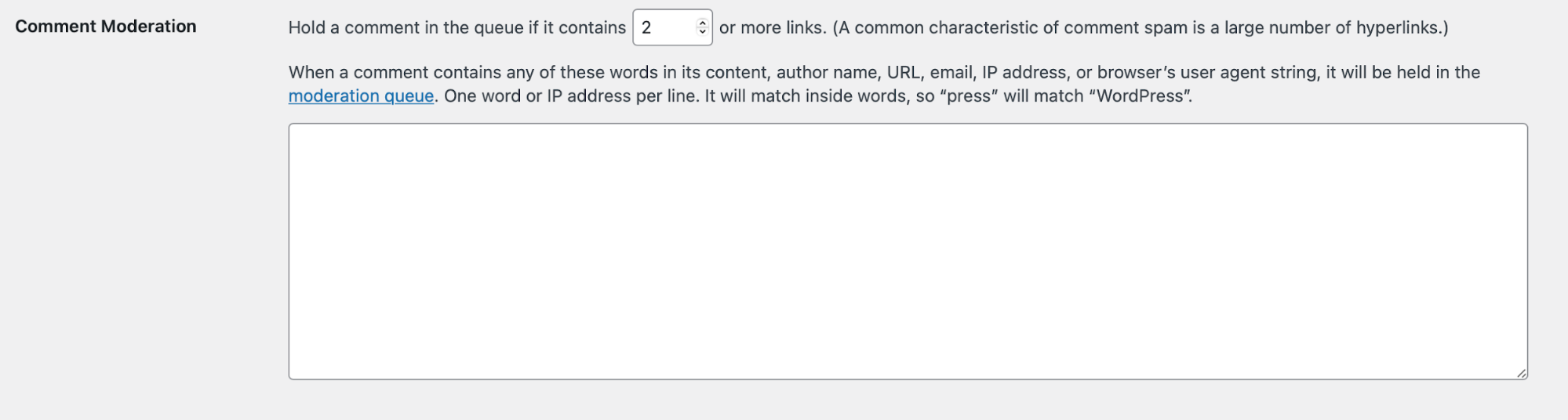
Spam comments often contain many links, and WordPress automatically holds a comment for moderation if it has two or more. You can change the number of links required before a comment is held by going to Settings → Discussion and scrolling down to Comment Moderation.
You can also hold comments for review if they contain specific words, or if they have been sent from certain IP addresses or email addresses. You can add these items to the box in this section.
WordPress will look for these keywords in the comment content, author name, URL, IP address, or browser’s user agent string. If it finds the word either by itself or as part of a longer word (e.g. “press” within “WordPress”), it will hold it for moderation. So be cautious when adding keywords to this section if they’re commonly found within other words that legitimate visitors might use. For instance, “con” sounds like a word a spammer might use, but is also found in “connect,” “concentrate,” and “congratulations.”
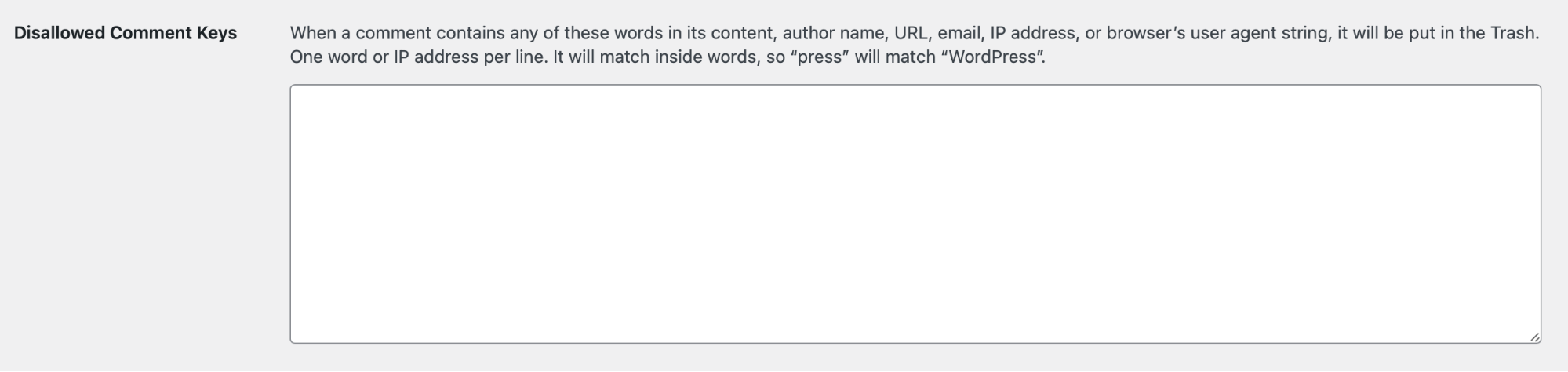
You may find that spam or otherwise offensive comments share certain characteristics and you’d prefer that they go straight to the trash. You can automatically block these comments in the Discussion Settings of your WordPress site under the Disallowed Comment Keys section.
WordPress will look for these keywords in the comment content, author name, URL, IP address, or the browser’s user agent string. If it finds the phrase either as a standalone word or as part of a longer word (e.g. “Jet” within “Jetpack”), it will put it in the trash. So be cautious when adding keywords to this section if they might be commonly found within other words that legitimate visitors might use.
The comment functionality that WordPress natively provides is an excellent way for people to interact with your site. For some types of sites, these features may be all that’s needed. However, if you run a strong and engaged community, you can supercharge your comment sections by using a plugin.
The plugins we’ll discuss here provide features like automatic spam protection, social login capabilities, and likes or comment votes. To help you navigate the many different comment plugins available, we’ve gathered eight of the best WordPress comment plugins below.
Jetpack Comments is one of the best WordPress comment plugins. It expands the capabilities of the default WordPress comment form with powerful features such as integrated social media logins and like buttons.
The social login feature lets your visitors comment using their WordPress.com, Facebook, or Twitter accounts. Since most people are already logged in to their social media accounts when they’re online, it saves them time to use those same credentials to log in to your site. It makes for a better experience.
This popular WordPress comment plugin also helps you turn your commenters into regular visitors. When people register, they can choose to be notified by email of new posts or responses to their comments.
Create a sense of community in your comment section by enabling the Jetpack Comments like button. This helps commenters feel like their input is noticed and valued — so they’re more likely to contribute again in the future.
Jetpack Comments is part of the Jetpack suite of tools and is made by the experts at Automattic — the same people behind WordPress.com. This means that Jetpack Comments will integrate seamlessly with your WordPress website and Anti-spam to protect the integrity of your comment section.
The same people behind WordPress make Jetpack Comments, so it’s super easy to use and integrates perfectly with WordPress. Detailed documentation is available, and if you do run into a problem, Jetpack’s team of Happiness Engineers will be glad to help.
Jetpack Comments is completely free of charge.
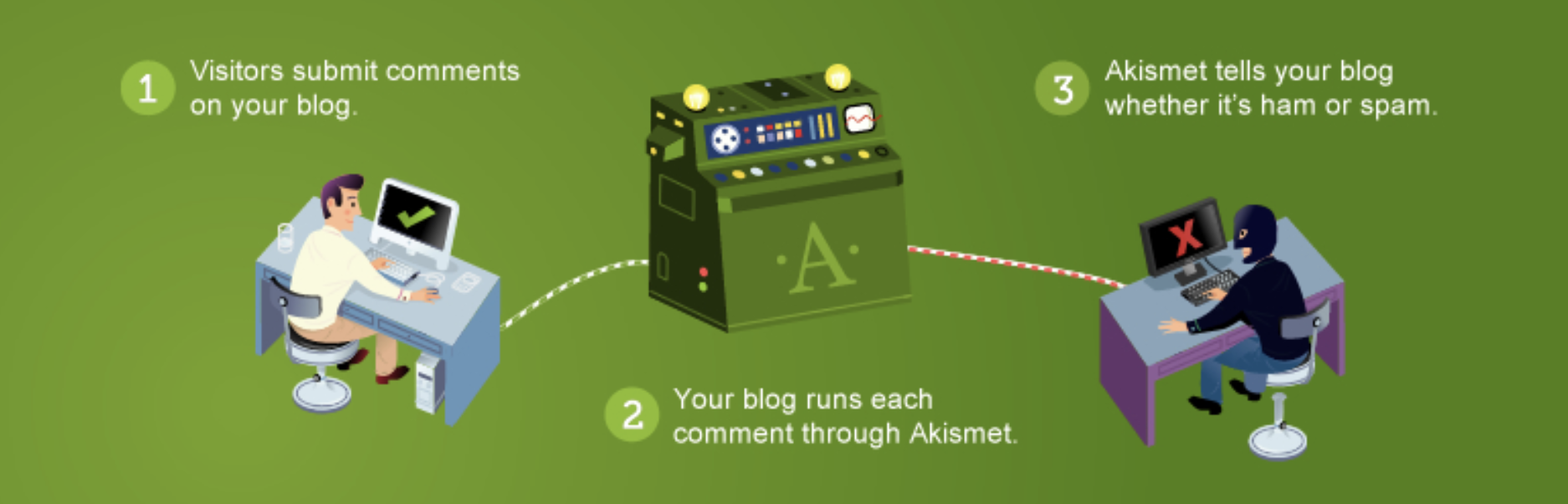
Akismet is a powerful anti-spam plugin for WordPress that works perfectly alongside the WordPress native comment system as well as many of the premium plugins in this list. That makes it one of the best plugins available for protecting your WordPress comment section. Akismet helps you keep spam off your WordPress website, automatically checking all comments and filtering out ones that look like spam.
Akismet is effective, blocking an impressive 7,500,000 pieces of spam per hour. It will automatically discard the worst spam comments while flagging others for you to review. It also gives you the ability to see the number of approved comments for each user, and the status history for each comment.
Akismet often comes pre-installed with WordPress, so you may be able to start without even having to download the plugin. Regardless, after you obtain an API key from Akismet.com, everything starts working in the background right away and is intuitive to use.
Akismet is free for personal sites. Plans for business sites start at $8.33/month (billed yearly).
wpDiscuz is a comments plugin for WordPress that offers a range of advanced features, including Reddit-style upvoting and downvoting. It also allows people to log in via social media and gives site owners the option of enabling a ‘comments bubble,’ which notifies users on your website of new comments as soon as they’re posted. This can be a great way of driving engagement and demonstrating the popularity of your website.
wpDiscuz also gives you the ability to inline questions and feedback within a post, so commenters can provide feedback immediately without needing to scroll to the comment section.
We guard your site. You run your business.
Jetpack Security provides easy‑to‑use, comprehensive WordPress site security, including real‑time backups, a web application firewall, malware scanning, and spam protection.
Secure your sitewpDiscuz is easy to install and has clear documentation. In addition, the plugin developers offer support via a support forum.
The base plugin is free. Extensions are available to add additional features, which vary in price.
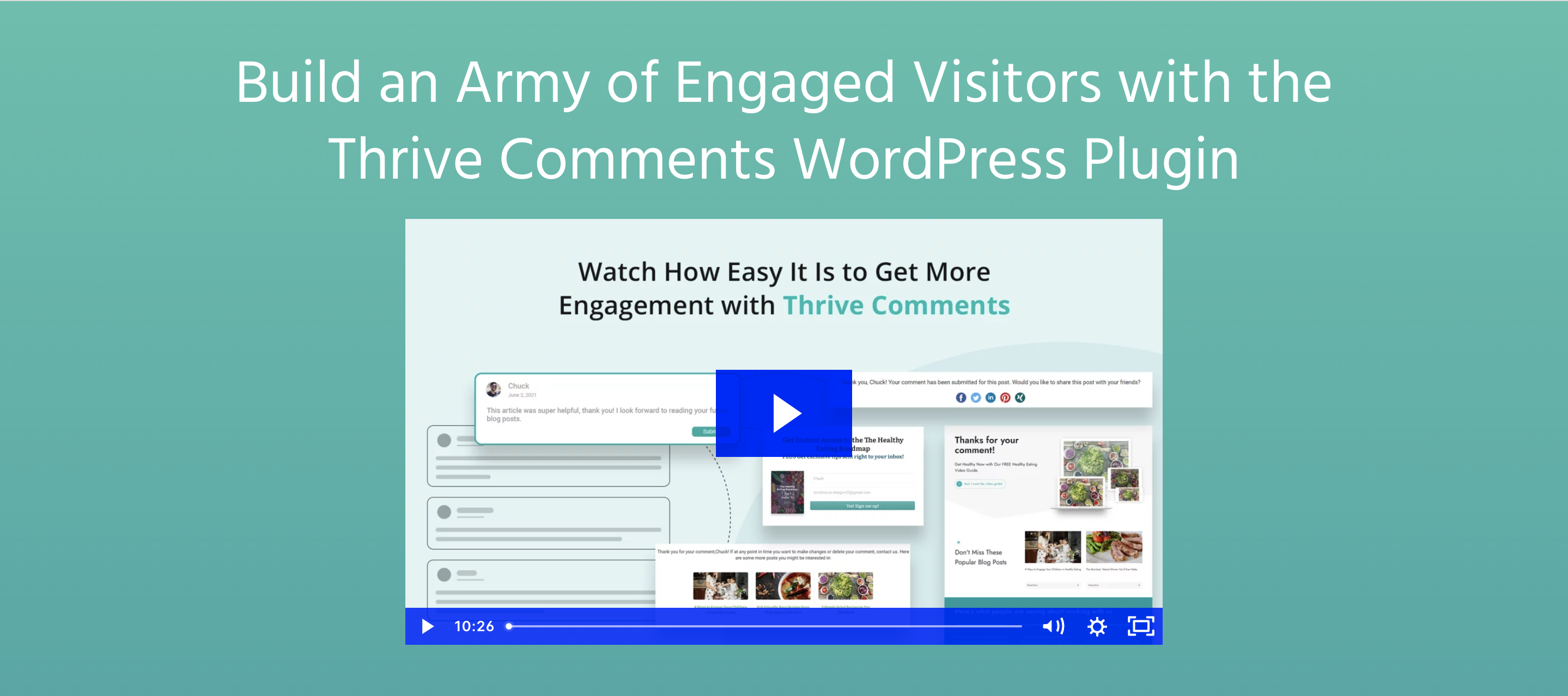
Thrive Comments is a WordPress comments plugin that replaces the native WordPress system. It incentivizes discussion with “likes” and badges that can be awarded to the most loyal contributors.
You can also use comments to enhance lead generation by encouraging visitors to register for an account and sign up for updates, or by redirecting commenters to different pages after leaving a comment.
The plugin also includes social media style features, including upvoting and downvoting, and gives contributors the option to share their comment on their own social media profiles.
The plugin has an intuitive interface and is easy to install. In addition, Thrive provides detailed documentation, and you can also submit support tickets to the Thrive Themes team.
Thrive Comments costs $47 per year. Lead generation features require Thrive Leads, which costs $97 a year.
GraphComment is a WordPress comments plugin that replaces the default comment system with its Bubble Flow interface. This makes your comment section appear more like a forum, where your site visitors can navigate through different discussion threads while reacting to and liking individual comments.
GraphComment automatically displays the most relevant discussions first, and allows contributors to include images and GIFs in their comments. It also includes various ways to engage your visitors and encourage interaction, including comment sidebars, widgets, badges, and user profiles.
The plugin integrates well with WordPress, but the number of features can be overwhelming. It has extensive documentation and a support forum for free users. Premium users can submit support tickets.
There’s a free version of the plugin available. Premium plans — which include additional features like push notifications, keyword alerts, single sign-on (SSO) connections, appearance customization, and pinned/featured comments — start at $7 a month.
Yoast Comment Hacks focuses on making tweaks to the native WordPress comment system, adding features to help you manage and moderate comments. In addition, the plugin allows you to generate deeper engagement with your visitors by redirecting first-time commenters to a thank you page, changing the default comment notification email, and allowing you to email commenters from within your WordPress comments dashboard.
There’s limited documentation, and the developer is not active on the plugin’s support forum.
Yoast Comment Hacks is free of charge.
Super Socializer is a WordPress comments plugin focused on enhancing your comment section with social sharing and social login features. It supports a variety of social networks and is compatible with several forum plugins, as well as WooCommerce. It provides other useful features to help engage users, including encouraging visitors to follow you on social media.
Super Socializer will also sync your commenter’s basic information to your website from their social media account, including their profile picture. It can also auto-approve comments by visitors who have logged in via their social media accounts.
The plugin is easy to install and activate. There’s detailed documentation provided, and an active Facebook fan page that provides support.
Super Socializer is a free WordPress comment plugin. Several add-ons are available for a fee.
Disqus is a WordPress comments plugin that completely replaces the native WordPress comment system with its own. It features comment threads, reactions, and the ability for users to mention each other in their comments. Disqus will also recommend other content on your website to your visitors, and will help your comment section stay on-brand by automatically adapting to your website design.
Some of the advanced features of Disqus require you to log in to Disqus.com. This means that the plugin is not as easy to use as others, since you can’t manage all features from within your WordPress dashboard.
There’s an ad-supported, free version of Disqus with basic features. Disqus Plus starts at $11 a month.
Yes. Comments are enabled by default for posts within WordPress. Your visitors will find a comment section at the end of each post, which contains a form for them to submit their comments.
You can leave your own comment on a post by going to the post on your website and scrolling down to the comment section. If you’re not logged in, you may be able to leave a comment as a guest if this option is enabled on your site in Settings → Discussion.
If you’re already logged in, you can type your comment without entering any other details. If you’re logged in as an admin, your comments will be automatically approved and will display in the post’s comment section immediately.
You can add comments to custom post types, but this sometimes requires the use of an additional plugin. The default WordPress comment system may be automatically enabled depending on how the custom post types are set up. If it’s not, you can use a plugin such as Custom Post Type UI to enable comments.
Some comment plugins, including wpDiscuz, also allow you to enable comments for custom post types.
As pages and posts are generally used for different purposes, WordPress does not enable comments on pages by default. However, you’ll also find discussion settings in the WordPress editor when editing pages, meaning you can enable comments on specific pages of your WordPress website.
In the page editor, scroll down to Discussion and click the caret on the right to reveal the discussion options. Check the box next to Allow comments, then click the Update button at the top of the page. Comments will now be enabled on your page.
You can delete WordPress comments in bulk through several different methods, depending on the number of comments you want to delete.
If you want to delete just a few WordPress comments, you can go to the comment section in your WordPress dashboard and select the checkbox next to the ones you wish to remove.
You can then select Move to Trash from the Bulk actions dropdown and click Apply. This will move the selected comments to the trash.
If you have a large number of comments that need to be removed or you would like to remove all comments from your WordPress site, you can achieve this by using a plugin such as Delete All Comments of WordPress. It’s important to note that deleting all comments in this way is irreversible, and you should make a backup of your WordPress site before you use the plugin.
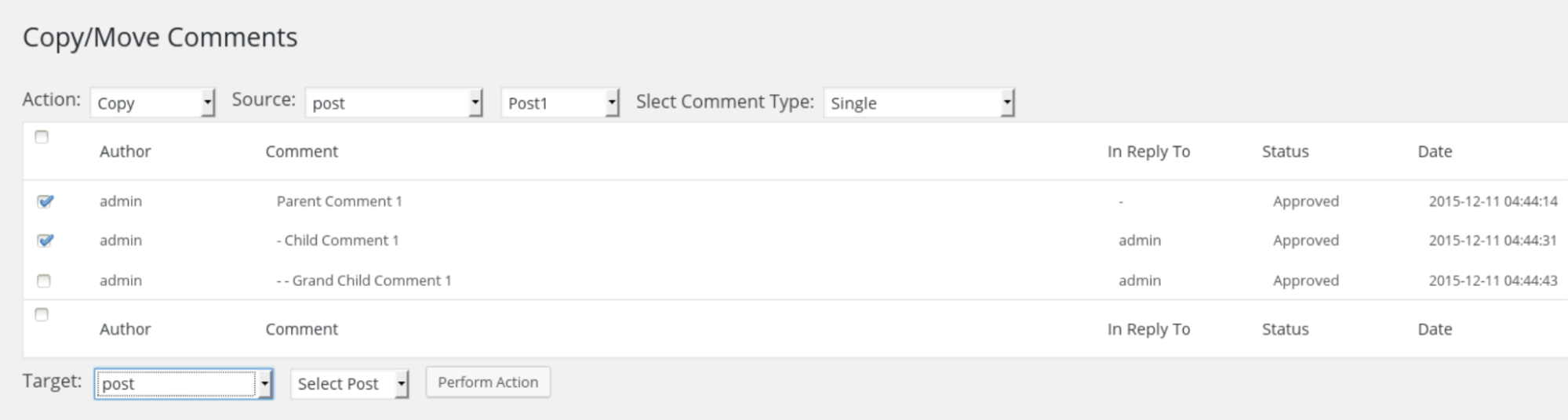
You can move or copy WordPress comments from one post to another using a plugin, such as ‘Copy or Move Comments.’
This tool provides a simple, free, and reliable way to copy or move comments from one post to another on your WordPress site. Make sure to back up your site before copying, moving, or deleting any comments in case you encounter problems.
You can enable voting in your WordPress comments by using a plugin. Many of the plugins mentioned earlier allow users to vote on other users’ comments. For example, Jetpack Comments allows you to enable Facebook-style likes, whereas wpDiscuz and Thrive Comments extend this further by allowing Reddit-style upvoting/downvoting.
eCommerce tools such as WooCommerce offer reviews and star ratings, allowing your visitors to rate products and leave reviews. Other plugins, like Site Reviews and WP Customer Reviews, offer this functionality for any post or page on your website, including custom post types. Premium plugins such as Stars Testimonials Pro and Strong Testimonials Pro can also be used to allow your visitors to leave testimonials.
Rob works on building tools for creators and their audiences. He's focused on building an open, calm platform that will be loved by bloggers, newsletter publishers, podcasters, and readers alike. He's worked on marketing and product for 15 years, primarily at Automattic, Mailchimp, and UPS.
We guard your site. You run your business.
Jetpack Security provides easy‑to‑use, comprehensive WordPress site security, including real‑time backups, a web application firewall, malware scanning, and spam protection.
Secure your siteHave a question?
Comments are closed for this article, but we're still here to help! Visit the support forum and we'll be happy to answer any questions.
View support forum