👁 Image
A Visual Studio Code - ChatGPT Integration
Prompt OpenAI's GPT-4, GPT-3.5, GPT-3 and Codex models within Visual Studio Code
This repository is meant for documentation, bug reports and feature requests
👁 Image
👁 Image
👁 Image
Testimonials
❄️ Featured by Snowflake on Medium blogpost
❤️ ChatGPT the pair programmer - VS Code on Youtube
💙 Generative AI on LinkedIn
Level up your developer experience with Genie
- ➕ Use GPT-4o and other improved models via your own OpenAI API Key.
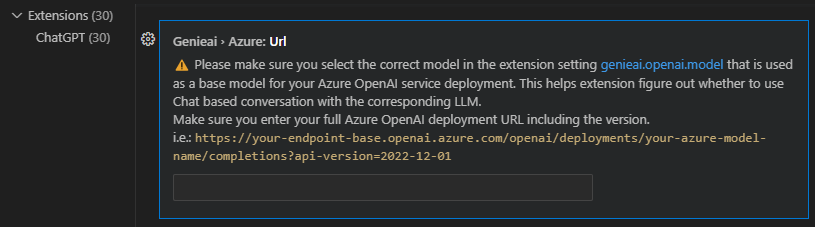
- ✨ Use your own Azure OpenAI Service deployments
- ⚡ Generate commit messages from your git changes
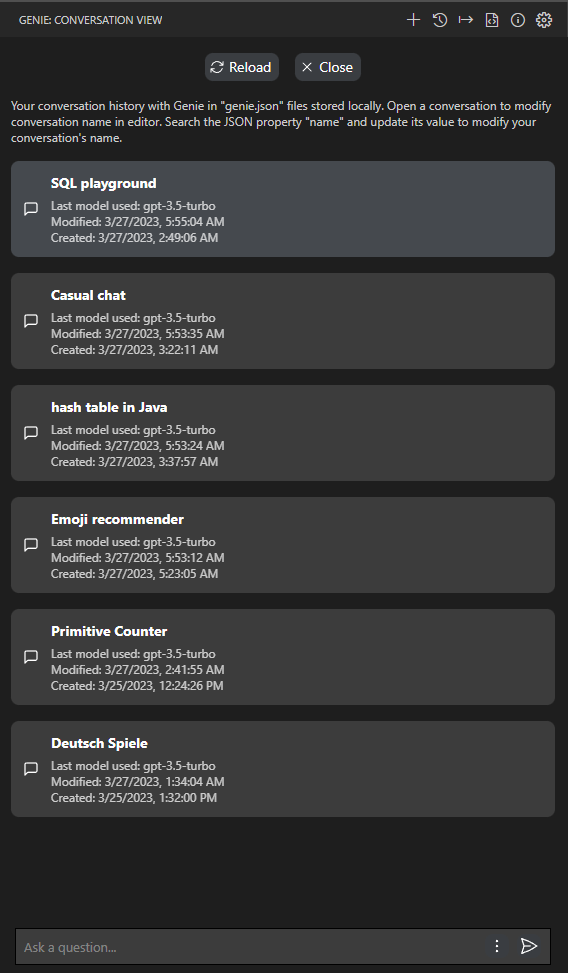
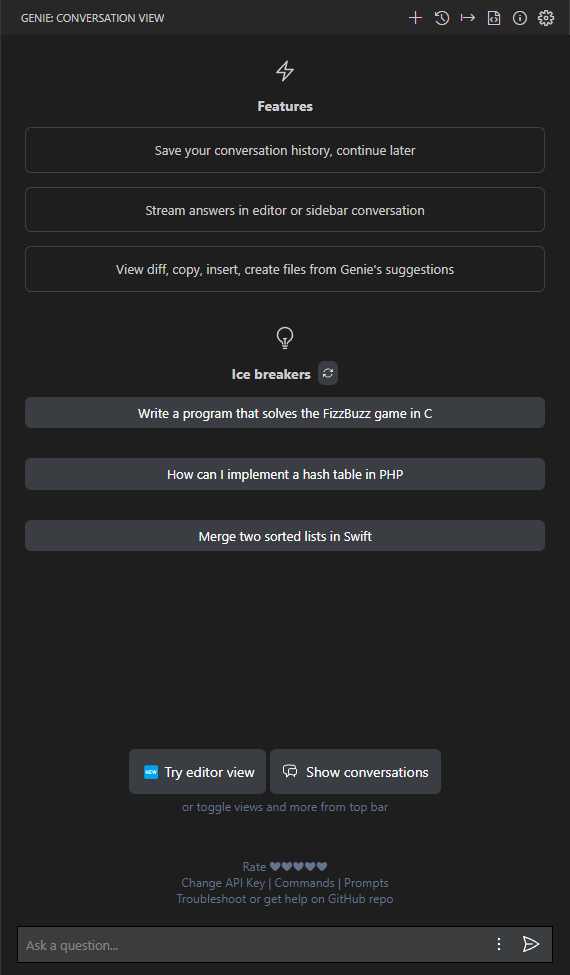
- 💬 Store your conversation history on your disk and continue at any time.
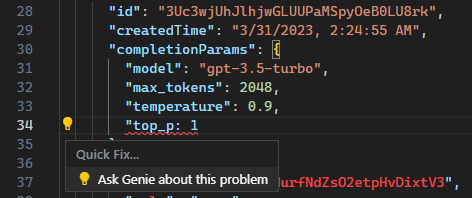
- 💡 Use Genie in Problems window to explain and suggest fix for compile-time errors.
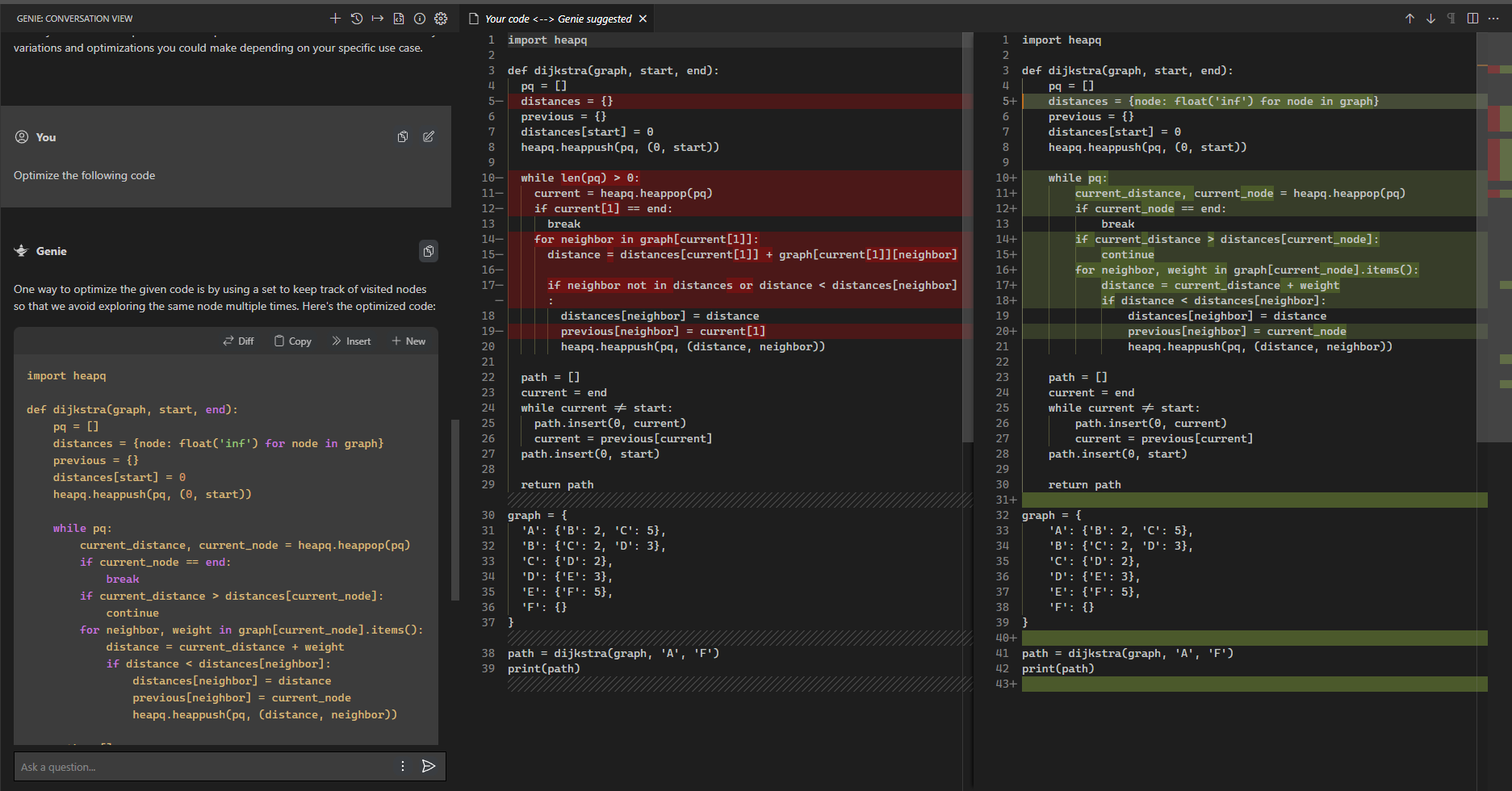
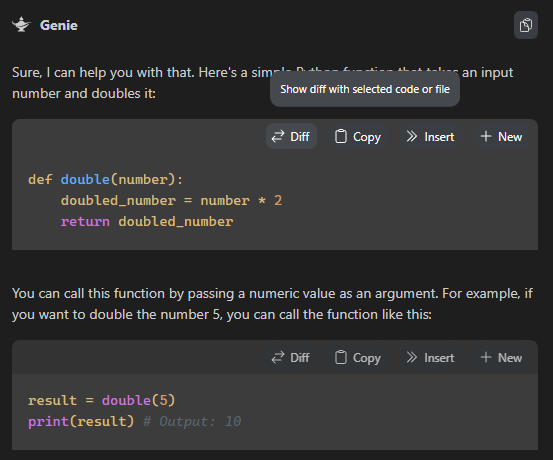
- 🔁 See diff between your code and Genie's suggestion right within editor with one click.
- 👤 Rename and personalize your assistant.
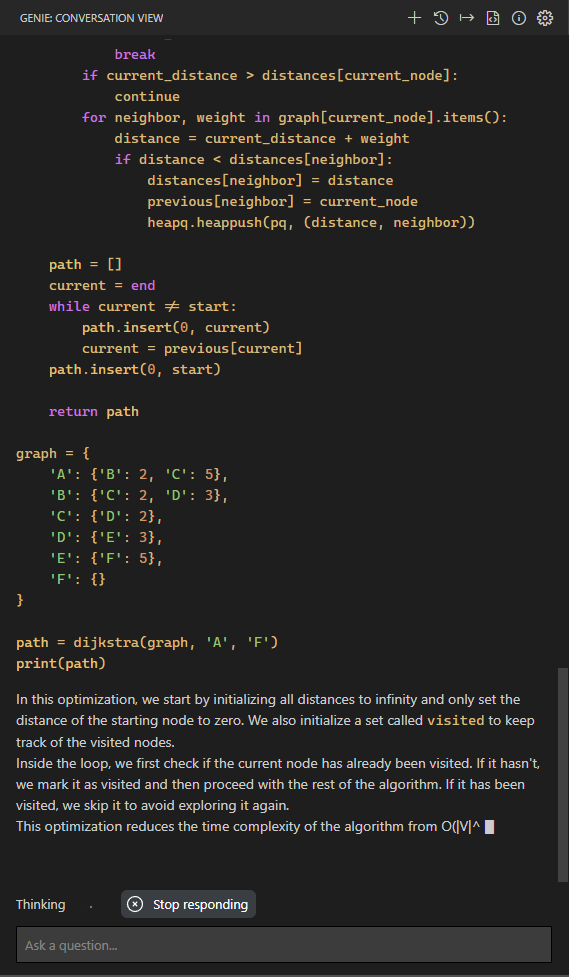
- 📃 Get streaming answers to your prompt in editor or sidebar conversation.
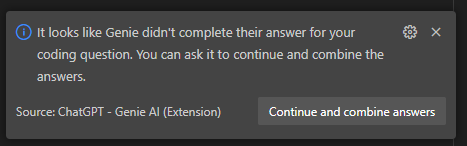
- 🔥 Streaming conversation support and stop the response to save your tokens.
- 📝 Create files or fix your code with one click or with keyboard shortcuts.
- ➡️ Export all your conversation history at once in Markdown format.
📣 What's new?
Get Started
Get your API Key from here: OpenAI and see OpenAI official docs for available model details
- Simply ask any coding question by selecting a code fragment.
- Once asked, provide your API Key.
If you face issues regarding your API Key, see FAQ for details on how to reenter/clear it
Features
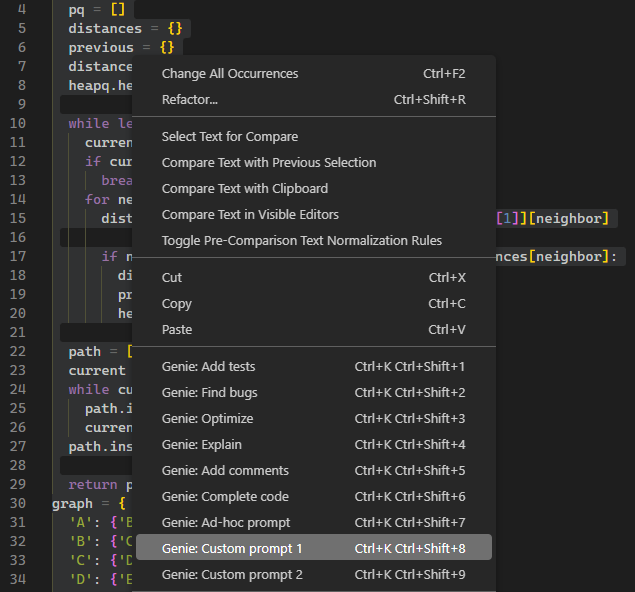
The extension comes with context menu commands, copy/move suggested code into editor with one-click, conversation window and customization options for OpenAI's ChatGPT prompts.
We recently introduced Genie to Problems window. You can investigate your compile-time errors asking Genie. Simply click on Lightbulb/suggestion icon to ask Genie to help you. The credits for this idea goes to @cahaseler; if you are interested in seeing his Genie-companion extension visit this issue
Customization
You may assign a keyboard shortcut to any of the following commands using VS Code's built-in keybindings menu.
- You can enable/disable all of your context menu items. Simply go to settings and find the prompt that you would like to disable. Custom prompts are hidden by default.
Genie: Ad-hoc prompt: Ad-hoc custom prompt prefix for the selected code. Right click on a selected block of code, run command.
- You will be asked to fill in your preferred custom prefix and the extension will remember that string for your subsequent ad-hoc queries.
Genie: Add tests: Write tests for you. Right click on a selected block of code, run command.
- "default": "Implement tests for the following code",
- "description": "The prompt prefix used for adding tests for the selected code"
Genie: Find bugs: Analyze and find bugs in your code. Right click on a selected block of code, run command.
- "default": "Find problems with the following code",
- "description": "The prompt prefix used for finding problems for the selected code"
Genie: Optimize: Add suggestions to your code to improve. Right click on a selected block of code, run command.
- "default": "Optimize the following code",
- "description": "The prompt prefix used for optimizing the selected code"
Genie: Explain: Explain the selected code. Right click on a selected block of code, run command.
- "default": "Explain the following code",
- "description": "The prompt prefix used for explaining the selected code"
Genie: Add comments: Add comments for the selected code. Right click on a selected block of code, run command.
- "default": "Add comments for the following code",
- "description": "The prompt prefix used for adding comments for the selected code"
Genie: Custom prompt 1: Your custom prompt 1. It's disabled by default, please set to a custom prompt and enable it if you prefer using customized prompt
Genie: Custom prompt 2: Your custom prompt 2. It's disabled by default, please set to a custom prompt and enable it if you prefer using customized prompt
Genie: Generate code: If you select a Codex model (code-*) you will see this option in your context menu. This option will not feed the ChatGPT with any context like the other text completion prompts.
Other available commands
Genie: Clear API Key: Clears the API Key from VS Code Secrets StorageGenie: Show conversations: List of conversations that Genie stored after enabling conversation history setting.Genie: What's new: See what is recently released.Genie: Start a new chat: Start a new chat with AI.Genie: Ask anything: Free-form text questions within conversation window.Genie: Reset session: Clears the current session and resets your connection with ChatGPTGenie: Clear conversation: Clears the conversation window and resets the thread to start a new conversation with ChatGPT.Genie: Export conversation: Exports the whole conversation in Markdown for you to easily store and find the Q&A list.Genie: Focus on Genie View: Focuses on Genie window if it was hidden. You can move Genie window to right sidebar or bottom bar by dragging the Genie icon.
Troubleshooting
FAQ
- For general FAQ please visit OpenAI's own page: https://help.openai.com/en/articles/7039783-chatgpt-api-faq
- How can I clear or re-enter API key: use
Genie: Clear API Key command. Click Commands on the home page to see all commands available. You can also click on Change API Key on the home page.
- Editor view uses text-davinci-003: It's by design at the moment since it's the only model that can guarantee a code response and the view doesn't need a conversational context. Please follow this issue for details #24
- Is the ChatGPT API included in the ChatGPT Plus subscription?: No, the ChatGPT API and ChatGPT Plus subscription are billed separately.
- Can I view the API Key after storing it?: VS Code secrets storage won't allow you to read the API Key after storing it. You may clear or reenter another key if you are facing issues.
- Does Genie support proxies: See this issue to enable local proxy: https://github.com/ai-genie/chatgpt-vscode/issues/7
- Usage in Remote environments: See this issue about remote/SSH: https://github.com/ai-genie/chatgpt-vscode/issues/3
- Unable To Use GPT-4 Models: You need GPT-4 API Access (Different than GPT-4 on ChatGPT Plus subscription) https://github.com/ai-genie/chatgpt-vscode/issues/6
- Azure OpenAI Service: Unsupported data type Error: This means you didn't select the right base model for your Azure OpenAI service. Make sure to select the base GPT model you used to create your Azure OpenAI Service deployment
Common Issues
It's possible that OpenAI systems may experience issues responding to your queries due to high-traffic from time to time.
If you get HTTP 429 Too Many Requests, it means that you are either making too many requests OR your account doesn't have enough credit. Your account may also have expired.
- Please check your plan and billing details
- If you see
insufficient_quota in the error, you could run the following cURL command to check if your account has enough quota. (Make sure to replace $OPENAI_API_KEY with your key that you use in this extension)
 curl https://api.openai.com/v1/completions \
 -H "Content-Type: application/json" \
 -H "Authorization: Bearer $OPENAI_API_KEY" \
 -d '{
 "model": "text-davinci-003",
 "prompt": "Can I make a request?\n\n",
 "temperature": 0.7,
 "max_tokens": 256,
 "top_p": 1,
 "frequency_penalty": 0,
 "presence_penalty": 0
 }'
If you get HTTP 404 Not Found error, it means one of the parameters you provided is unknown (i.e. genieai.openai.model). Most likely switching to default model in your settings would fix this issue.
If you get HTTP 400 Bad Request error, it means that your conversation's length is more than GPT/Codex models can handle. Or you supplied an invalid argument via customized settings.
If you encounter persistent issues with your queries
- Try
Genie: Reset session to clear your session/conversation or Genie: Clear API Key to clear your API Key and re-enter
- As a last resort try restarting your VS-Code and retry logging in.
If you are using Remote Development and cannot use ChatGPT
- In
settings.json add "remote.extensionKind": {"genieai.chatgpt-vscode": ["ui"]}
Disclaimer and Credits
- There is no guarantee that the extension will continue to work as-is without any issues or side-effects. Please use it at your own risk.
- This extension never uses/stores your personally identifiable information.
- If you would like to help us improve our features please enable the telemetry in the settings. It's disabled by default but if you enable it, it will start collecting metadata to improve its features. No personally identifiable information is collected. You can opt-out from telemetry either by setting the global 'telemetry.telemetryLevel' or by setting 'genieai.telemetry.disable' to true(Disabled by default). The extension will respect both of these settings and will collect metadata only if both allow telemetry. We use the official telemetry package provided by the vscode team here to understand this extension's usage patterns to better plan new feature releases.
- We assume no responsibility of any issues that you may face using this extension. Your use of OpenAI services is subject to OpenAI's Privacy Policy and Terms of Use.
- 💻 OpenAI: https://openai.com/
- 🧪 Uses NodeJS OpenAI API wrapper
|