

blueways/bw-focuspoint-images
Image Editor for adding focus points to images
Maintainers
Package info
github.com/maikschneider/bw_focuspoint_images
Type:typo3-cms-extension
pkg:composer/blueways/bw-focuspoint-images
Requires
- ext-json: *
- typo3/cms-core: ^12.4 || ^13.4
- typo3/cms-fluid-styled-content: ^12.4 || ^13.4
Requires (Dev)
- armin/editorconfig-cli: ^2.0
- bk2k/bootstrap-package: ^15.0
- ergebnis/composer-normalize: ^2.45
- friendsofphp/php-cs-fixer: ^3.6.0
- helhum/typo3-console: ^8.2
- helmich/typo3-typoscript-lint: ^3.3
- nikic/php-parser: ^4.19 || ^5.5
- saschaegerer/phpstan-typo3: ^1.10 || ^2.1
- ssch/typo3-rector: ^1.2 || ^3.3
- symfony/translation: ^7.2
- typo3/cms-base-distribution: ^12.4 || ^13.4
- typo3/cms-lowlevel: ^12.4 || ^13.4
Suggests
None
Provides
None
Conflicts
None
Replaces
None
GPL-2.0-or-later 262dd5bd245d3e309ee6c4c9a1ef2990eb1b0635
- Maik Schneider <schneider.maik.woop@me.com>
This package is auto-updated.
Last update: 2026-06-06 22:45:32 UTC
README


TYPO3 extension bw_focuspoint_images
👁 Latest version
👁 Supported TYPO3 versions
👁 Total downloads
👁 Composer
This TYPO3 extension ships an image editor that can be used to add areas and information to an image.

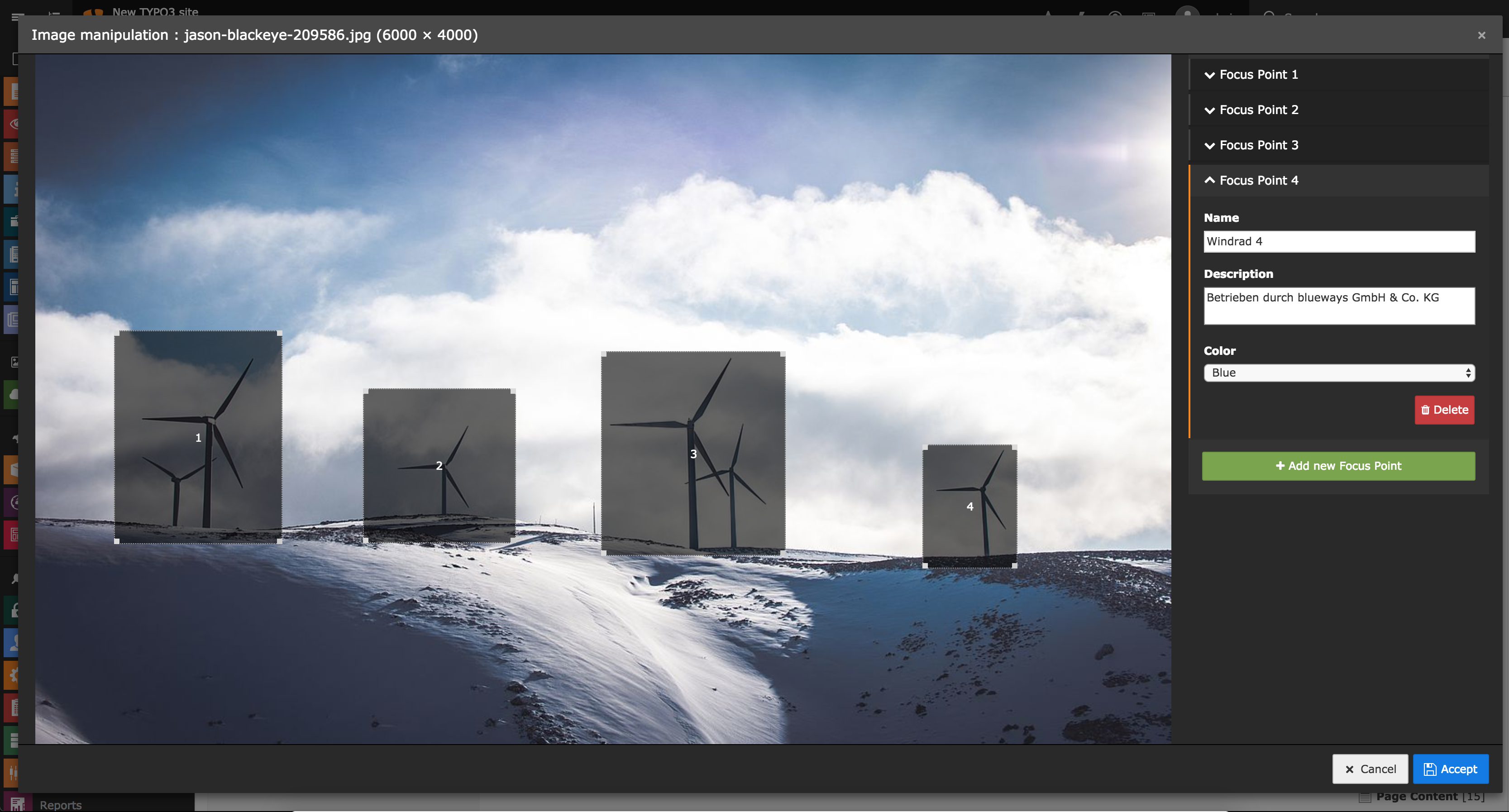
Screenshots
This extension can be used in various ways, depending on the configuration.
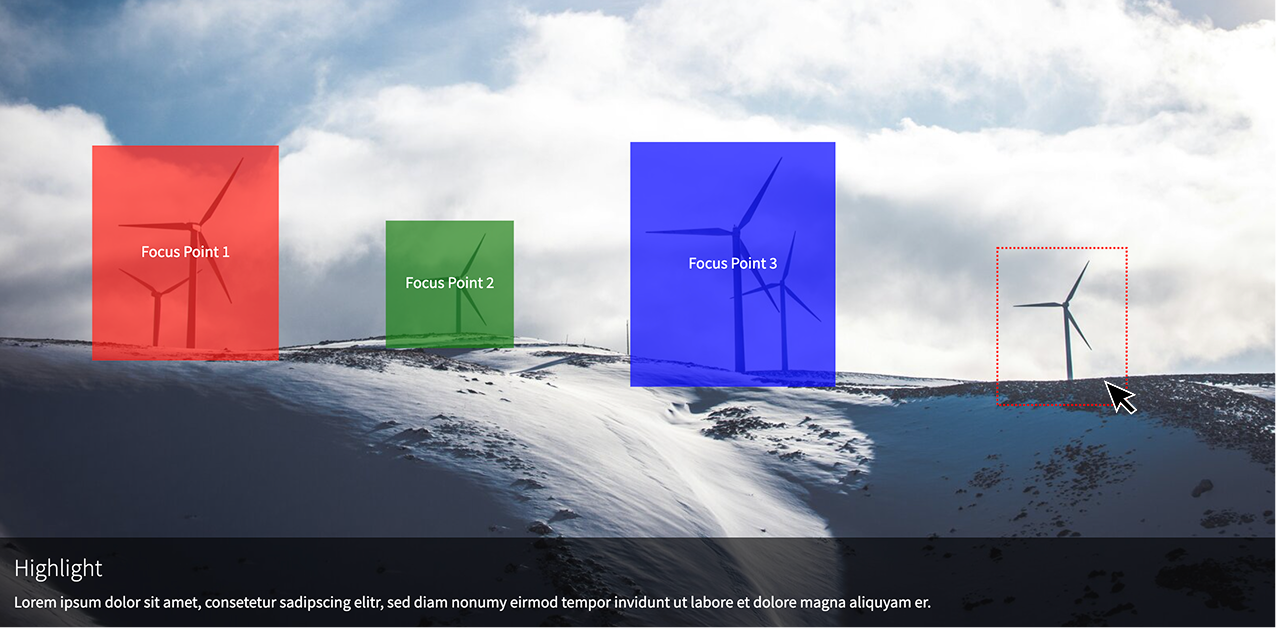
Example 1: Default output
Frontend output with the example configuration.

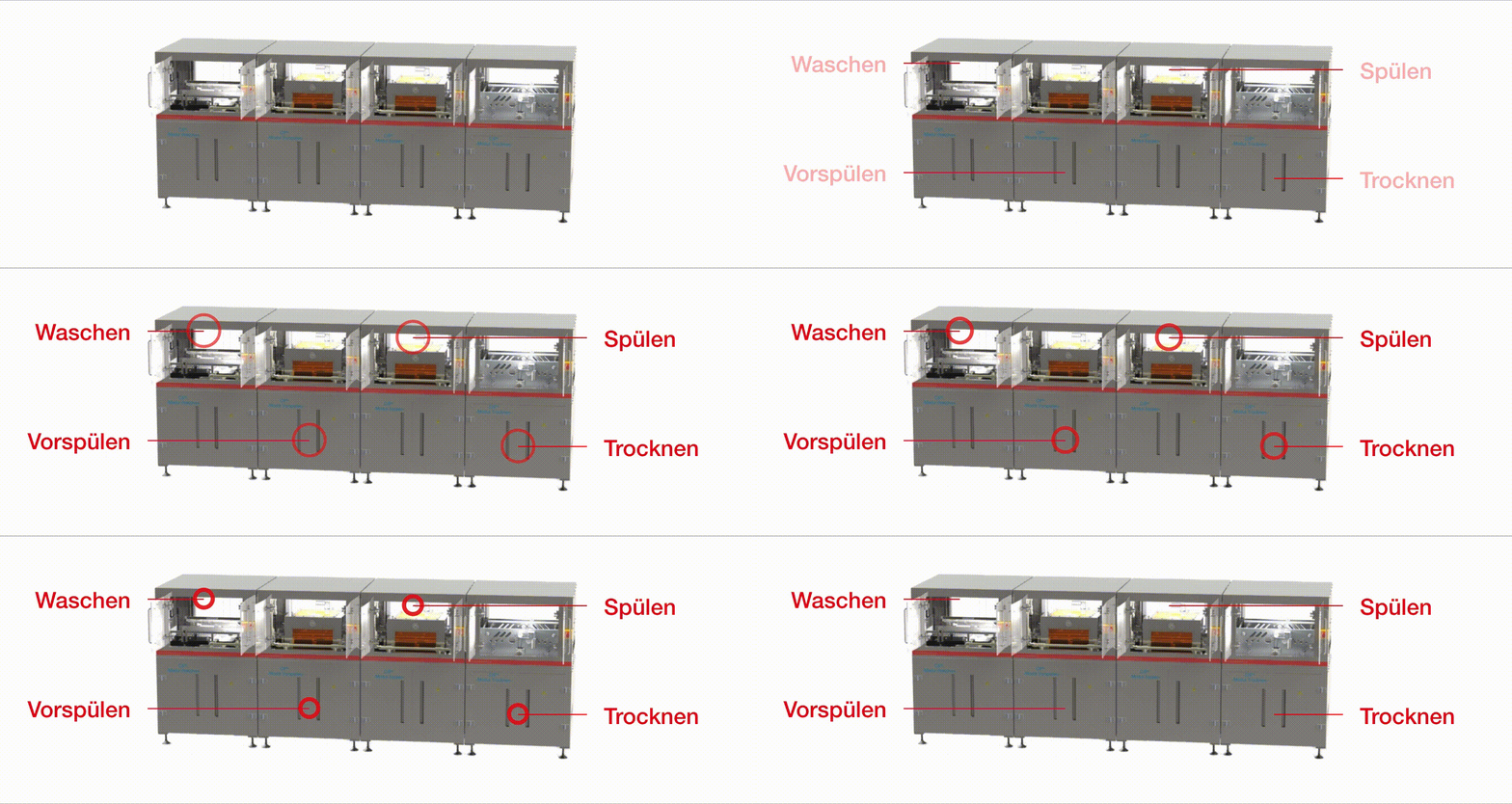
Example 2: SVG Animation
In this example the focus areas are animated via SVG. The additional information are displayed next to the image with some delay.

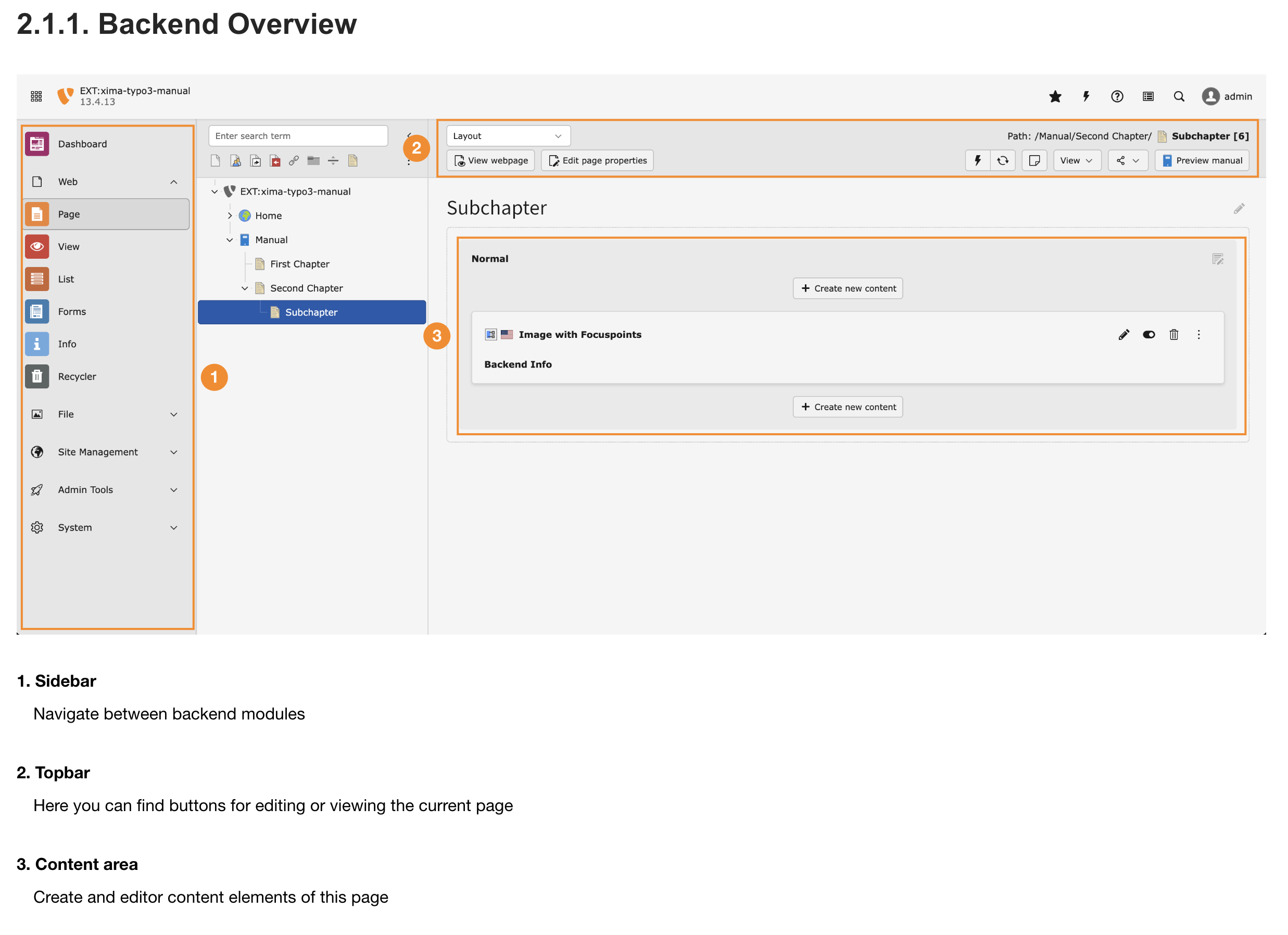
Example 3: Annotations for tutorials
The TYPO3 extension xima_typo3_manual uses this extension to annotate screenshots.

For administrators
Installation
-
Install via composer
composer require blueways/bw-focuspoint-images -
Include TypoScript
Enable the extension in the Extension Manager and include the static TypoScript template or manually include setup and constants.
-
Include PageTS
Add the static PageTS template Focuspoint Images: Content Element or manually import the PageTS into your sitepackage:
@import 'EXT:bw_focuspoint_images/Configuration/TsConfig/Page/newContentElement.tsconfig' -
Define your own wizard fields
There are no default fields defined! An example with working frontend output can be found in the PageTS section.
Usage
Add the new content element "Image with Focuspoints" to any page, link a new image and start adding your focus areas.
Configuration
To configure the fields in the focus point wizard, use the following PageTS settings. You can choose between text, textarea, select, link and checkbox inputs in the wizard.
This example configuration is used to generate the output shown in Example 1
mod.tx_bwfocuspointimages.settings.fields {

 name {
 title = LLL:EXT:bw_focuspoint_images/Resources/Private/Language/locallang_db.xlf:wizard.fields.name
 type = text
 useAsName = 1
 }

 description {
 title = LLL:EXT:bw_focuspoint_images/Resources/Private/Language/locallang_db.xlf:wizard.fields.description
 type = textarea
 }

 color {
 title = LLL:EXT:bw_focuspoint_images/Resources/Private/Language/locallang_db.xlf:wizard.fields.color
 type = select
 options {
 red = LLL:EXT:bw_focuspoint_images/Resources/Private/Language/locallang_db.xlf:wizard.fields.color.red
 green = LLL:EXT:bw_focuspoint_images/Resources/Private/Language/locallang_db.xlf:wizard.fields.color.green
 blue = LLL:EXT:bw_focuspoint_images/Resources/Private/Language/locallang_db.xlf:wizard.fields.color.blue
 }
 default = red
 }

 hasLink {
 title = LLL:EXT:bw_focuspoint_images/Resources/Private/Language/locallang_db.xlf:wizard.fields.hasLink
 type = checkbox
 label = LLL:EXT:bw_focuspoint_images/Resources/Private/Language/locallang_db.xlf:wizard.fields.hasLink.yes
 default = true
 }

 link {
 title = LLL:EXT:bw_focuspoint_images/Resources/Private/Language/locallang_db.xlf:wizard.fields.link
 type = link
 displayCond = FIELD:hasLink:REQ:true
 }

}
Field Display Conditions
You can use displayCond in your wizard field configuration to control when a field should be visible, similar to TYPO3's TCA displayCond feature.
mod.tx_bwfocuspointimages.settings.fields {
 description {
 title = Description
 type = textarea
 displayCond = FIELD:name:REQ:true # Show only if name field has a value
 }
}
Field Overrides
You can override the default configuration of the fields on a per-element basis, similar to the TYPO3 TCEFORM configuration: mod.tx_bwfocuspointimages.settings.fields.[fieldName].types.[typeName].[propertyName].
mod.tx_bwfocuspointimages.settings.fields {
 description {
 title = Description
 type = textarea
 types.my_custom_ctype.disabled = 1
 }

 title {
 title = Default Title
 types.tx_myextension_domain_model_mytype.title {
 title = Custom Title
 default = Custom Default
 }
 }
}
Adjusting the link wizard
You can customize the display of the link wizard. Use the additional linkPopup to change the list of allowed file extensions, the displayed link fields or link options. The configuration is done like for link inputs.
mod.tx_bwfocuspointimages.settings.fields {

 email {
 title = Hide all wizard tabs but email
 type = link
 linkPopup {
 blindLinkOptions = file, folder, page, spec, telephone, url
 }
 }

 pdf {
 title = Only files of .pdf or .docx extension
 type = link
 linkPopup {
 blindLinkFields = pdf, docx
 blindLinkOptions = email, folder, page, spec, telephone, url
 blindLinkFields = class, params, target, title
 }
 }

}
Constants
To override templates set your own paths via constants:
plugin.tx_bwfocuspointimages {
 view {
 templateRootPath =
 partialRootPath =
 layoutRootPath =
 }
}
For developers
The table sys_file_references becomes
extended for the field focus_points. This field is used to save the settings made in the backend editor in json format.
To use the editor in other content elements with FAL images, use the following TCA to activate the palette:
$GLOBALS['TCA']['tt_content']['types']['your_list_type']['columnsOverrides'] = [
 'assets' => [
 'config' => [
 'overrideChildTca' => [
 'types' => [
 \TYPO3\CMS\Core\Resource\File::FILETYPE_IMAGE => [
 'showitem' => 'focus_points,--palette--;;filePalette'
 ],
 ],
 'columns' => [
 'uid_local' => [
 'config' => [
 'appearance' => [
 'elementBrowserAllowed' => $GLOBALS['TYPO3_CONF_VARS']['GFX']['imagefile_ext']
 ],
 ],
 ],
 ],
 ]
 ]
 ]
];
This snippet assumes that references are done via assets column. Change this to your needs.
To decode the JSON data and use the information in your template, use the FocuspointProcessor:
tt_content.your_list_type {
 dataProcessing {
 15 = Blueways\BwFocuspointImages\DataProcessing\FocuspointProcessor
 15 {
 references.fieldName = assets
 as = images
 }
 }
}
License
This project is licensed under GNU General Public License 2.0 (or later).
Contribute
This extension was made by Maik Schneider: Feel free to contribute!
Please have a look at CONTRIBUTING.md.