It is possible to get a language switcher where you want in your theme without using the widget. For this, you can use the following template tag in your theme:
<ul><?php pll_the_languages();</ul>
See the documentation for theme and plugin programmers for more information about the function parameters.
How to customize the names in the language switcher?
The appearance of your site is controlled by CSS rules placed in the file style.css in your theme directory. The appearance of the language switcher is controlled by the classes “lang-item” for all languages and “current-lang-item” for the current language.
So you can add the following lines in style.css
In Appearance >Menus, click on screen options, top right of your screen, to expend the options and check the “Language switcher” checkbox. You should then see a new metabox in the “Add menu items” list which allows you to add a language switcher the same way you add other menu items.
Due to WordPress limitations, it is currently not possible to add the language switcher from the Customizer Menus.
Some themes don’t use the original menu walker provided by WordPress but a custom menu walker to display navigation menus. It is quite frequent that theme developers forget that plugins can add images in menu items and thus create custom walkers which do not interpret the html code used by Polylang to display flags.
A quick fix is to replace the flags by the language names in the language switcher options. After that, please ask to your theme support how to solve this.
To avoid 404 errors, Polylang does not display a language if there is no published content (post or page) in that language. If there is no content in any language, then the language switcher does not appear at all.
The title attribute displays the html code of the flag
Polylang intentionally keeps the title attribute empty for the language switcher. As this field is empty some themes copy the navigation label in this attribute. It’s a bad practice as it doesn’t add any useful information and the title can contains only text whereas the navigation label can include images.
Of course, the default WordPress Twenty themes haven’t such issue. Please ask to your theme support how to solve this. A quick fix is to remove the flags in the language switcher options.
A frequent issue is a menu which is correct when directly accessing the page but doesn’t switch when clicking on the language switcher. More and more themes are loading the content in Ajax and thus don’t reload the menu and content common to every pages (ex footer, widgets). This Ajax feature is obviously not compatible with multilingual websites. Try disabling the Ajax feature in your theme options or contact the theme support if you don’t find such option.
My menus disappeared when switching to another theme
Polylang introduces a new menu in the admin bar on top of the admin screen. You can choose to filter the content by language or display all languages. This filter is persistent (kept when you logout). It has no influence on the language of the user admin interface, which can be chosen in the user profile.
WordPress 2.8 introduced a new widget API. Polylang is compatible with this API. Any widget which is compatible with older versions of WordPress should still work but will have no multilingual capability (no possibility to display it in only one language, no possibility to translate the widget title). Of course, all default widgets are supported by Polylang.
You create one page in a first language and you publish it. Google crawls the page displayed without hreflang attributes because the page is not translated yet.
Later, you translate the page in a second language and publish the translation. Google crawls the translation and finds hreflang attributes since the page is translated. Google has crawled the first page and its translation and reports an error about hreflang attributes not matching.
Even later, Google crawls the first page again and finds the hreflang attributes. They are matching the hreflang attributes of the translated page. Google doesn’t report the error anymore. Please be patient. It can take time for Google to crawl your original page after you translated it.
You would have the same error if you originally have a page in several languages and add later an additional translation. In this case, the error may be reported during even more time as all translations must be crawled by Google before it removes the error.
How to use different designs for different languages?
For language dependent CSS rules, you can use the :lang CSS selector.
Languages written from right to left use the rtl.css stylesheet already included in most themes.
It’s also possible to apply a different stylesheet for each language. Indeed, stylesheets named liked en_US.css, fr_FR.css or ar.css put in your theme directory will be automatically loaded by WordPress.
Note that in every cases, you have to keep the main style.css file.
Case 1: You activated the languages and translations for the media.
When editing a post, only the media in the same language as the post you are editing are visible in the media library. You must translate your media in the post’s language.
Case 2: You deactivated the languages and translations for the media.
If you previously uploaded media while the language and translation for media was active, they will keep their language and won’t be visible in other languages.
Thus, as explained in the media documentation, it is not recommended to change the media setting once you started to work with media.
If your license key is not activated on your website, you will see that the update is available but you won’t be able to update the plugin. You may receive an error message such as:
Update Failed: Download failed. Unauthorized
Check that your license is still valid and that it is associated to the correct website. You can do that in your account > License keys > Manage sites.
Note that if you activated the license key on a development site and moved it later to the production site, our server is not informed of the move and thus, although the license key may appear to be valid in your dashboard, it is still activated on your development site. You can avoid this issue by deactivating the license key on the development site, and then activating it on the production site.
Yes. You have to create one page per language. Set translations as usual and then go to the WordPress ‘Reading settings’ panel. Check ‘Front page displays a static page’ and choose one of the page you have just created. The language doesn’t matter. You can do the same for the posts page.
Then, if you want that the url looks like http://www.example.com/en/ instead of http://www.example.com/startpage/, go to Settings > Languages > Settings and check the option “The front page url contains the language code instead of the page name or page id” in the URL modifications section.
Plugins and themes available on wordpress.org can be translated online with Translating WordPress. Go to your Dashboard > Updates an check the “Translations” section. Click on the button “Update translations” if it’s available. This will download all missing translations available on wordpress.org.
Your theme or plugin may not be translated (or the translation may be incomplete). If your theme is correctly internationalized (translation ready), you can use Poedit or a plugin such as Loco translate to do the translation. We have written a comprehensive article explaining how Loco Translate complements Polylang.
For developers, here are a set of helpful resources to internationalize plugins and themes:
This issue could occur with child themes when the parent theme stores its options in theme mods.
In that case, edit the wpml-config.xml file provided by your parent theme, and change the line: <keyname='theme_mods_parent_theme_name_example'>
to <key name='theme_mods_child_theme_name_example'>
Then put this new wpml-config.xml file into your child theme’s directory, or in /wp-content/polylang/. You must create the directory if it does not exist.
Setting up Nginx fastcgi_cache and Polylang homepage redirect
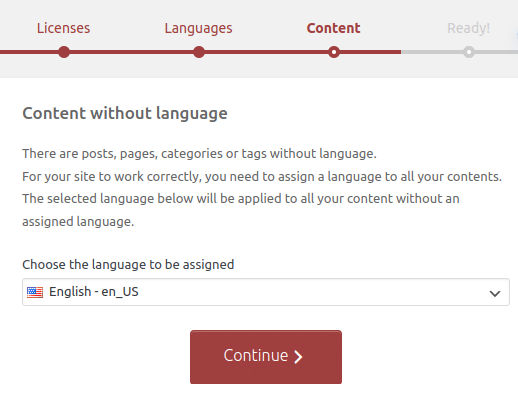
If you skipped this step, then no language was assigned to your existing content causing some unwanted behaviors such as posts or categories appearing to have disappeared.
Indeed, if your posts, pages, categories and post tags are without a language they don’t pass the language filter and therefore are not displayed on the front-end. Therefore you MUST define a language.
How to solve this?
You can re-run the Wizard from the Languages menu > Setupsub-menu or by clicking on the button which may still be visible on most admin pages. See the documentation about the Setup Wizard.
Or you can go to the Languages page. At the top of the page, you can can read a notice “There are posts, pages, categories or tags without language” with a link “You can set them all to the default language“. For example, if your current content is in English, make sure that English is your default language and click on the link. English will be assigned to all your existing content.
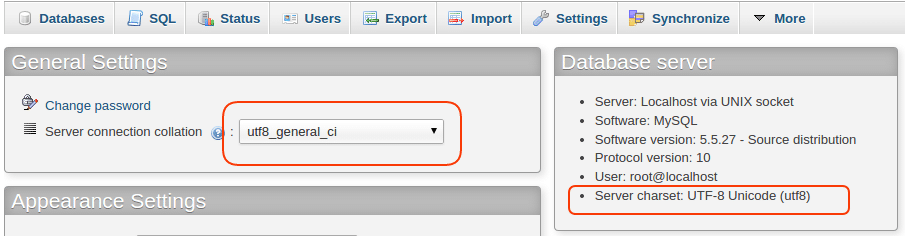
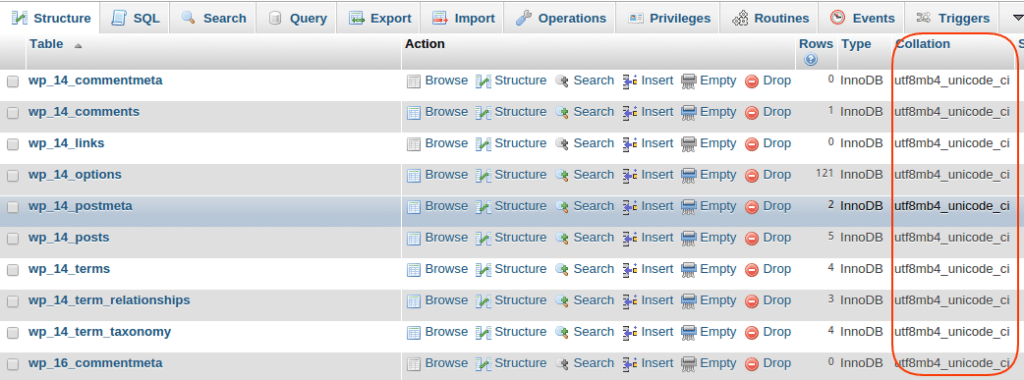
If everything looks OK but the problem still persists, we recommend that you report your issue in the specific language forum to know how native speakers handle these characters.
There are two things to understand when uninstalling or removing Polylang or Polylang Pro.
If you deactivate and delete the plugin from WordPress, you only remove the plugin and its files. Your settings, languages and information linking translations together will still exist in the database.
If you need to remove ALL Polylang data, including languages, settings, etc., you need to be able to modify the site’s wp-config.php file before deactivating and deleting the plugin.
To fully remove all Polylang data from your WordPress site, open your site’s wp-config.php file. Add define( 'PLL_REMOVE_ALL_DATA', true ); on its own line above the /* That's all, stop editing! Happy publishing. */ line.
Then when you deactivate and delete Polylang or Polylang Pro it will remove all of its data from your WordPress site database.
License / Billing / Account
Do I need another license key for staging sites and localhost?
Per our general terms and conditions of sale, the support includes the assistance with the installation and use of our plugins. It of course includes the correction of bugs. It does not include the resolution of conflicts with theme or third party plugins. It does not include writing personalized code to fix a problem. It does not include reviewing or fixing personalized code written by the client. No support will be due in the event of a modification of the plugin by the client.
A license key is necessary to obtain the automatic updates and to access to the helpdesk support.
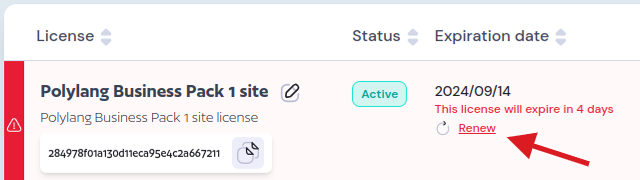
A license key is valid for one year as from the date of purchase. It may be renewed after one year at a preferential rate (currently 50% of the new license price). If a key is not renewed prior to its expiration, the plugin will continue to operate but you will no longer have access to automatic updates and helpdesk support.
It is recommended to run the latest version of WordPress, your theme and your plugins.
You will receive an email about one month before the license key expires. Clicking on the link provided in this email directs you to the checkout page with pre-filled information for the renewal.
It is also possible to renew from you Account page > License keys menu. Click on “Renew” and you will be redirected to the checkout page with pre-filled information for the renewal.
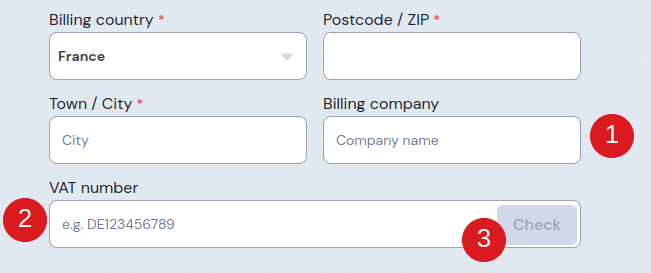
When you purchase one of our products, if you are based in the EU (outside of France or Monaco) you can exclude VAT from the sale price. In this case, we are required to check your VAT number and company name which you can fill-in in the dedicated checkout fields (bullet 1 and 2). Then, click on the “Check” button (bullet 3) to validate your VAT number.
NB: If you do not fill-in the correct company details, your purchase will be considered as made by an individual. In this case, the VAT of your country will be applied and charged. The European law requires that VAT is collected for European citizens purchasing digital products as individuals since 2015. See European taxation and customs site.
The VAT paid cannot be refunded.
Your company is based in France or Monaco
The VAT is always charged. The VAT is only deducted for European companies, outside France and Monaco, which provide us with a VAT number. WP SYNTEX is a French company and for transactions between French companies, the VAT is not deducted during the transaction. You must deduct it yourself when you make your VAT return. If your VAT return is done by an accountant, he will deduct any deductible VAT from the invoices you have paid.
Yes it is. Polylang is fully tested in a multisite environment, activated at site level.
It should also work when network activated but is not so well tested in this configuration. In most cases, it shouldn’t be useful to network activate Polylang.
Is Polylang compatible with my theme or my plugin?
Due to the huge number of themes and plugins available, it’s impossible to answer clearly to this question.
Because it uses standard WordPress functions and does not add any extra tables, Polylang is compatible, out of the box, with a lot of themes and plugins.
However, complex themes and plugins sometime require some extra work to make them multilingual ready. Fortunately, more and more developpers are testing their themes or plugins in multilingual environments.
A few very complex plugins, sometime adding extra tables, may require a lot of extra work be compatible with Polylang.
We guarantee that Polylang works with the default Twenty themes. We also included extra code to support a few very popular plugins such as Yoast SEO, some Jetpack modules, YARPP…
Polylang uses a cookie to remember the language selected by the user when he comes back to visit again the website. This cookie is also used to get the language information when not available in another way. Examples are ajax requests or the login page.
According to the section 3.6 of the Opinion 04/2012 on Cookie Consent Exemption, this cookie is part of the user interface customization and may be considered as requested by the user. Whether it requires the explicit consent of the user seems to depend on the expiration time or the information provided on your website. Moreover European countries have all their own law and do not apply the European directive the same way. Please check if this cookie requires an explicit user consent in your own country.
Here are the information about the cookie used by Polylang:
Default name: pll_language, can be changed by setting the constant PLL_COOKIE
Value: the language code of the last browsed page
Default expiration time: 1 year, can be changed with the filter pll_cookie_expiration
It is possible not to use the cookie (be aware however that in this case and as stated above, not everything will work correctly) by putting the code below for example in your wp-config.php file:
Polylang or Polylang Pro are not sufficient to create a multilingual WooCommerce shop. You need Polylang (or Polylang Pro) and the addon Polylang for WooCommerce.
Since the version 4.9.6, WordPress allows to export personal data. This includes the biographical info. As Polylang and Polylang Pro allow the users to translate their biographical info, the translations are added to the exported data since the version 2.3.6.