|
VOOZH | about |
|
VOOZH | about |
IntelliShell is the built-in mongo shell interface with smart auto-completion of collection names, shell methods, document key names, operators, and field names.
IntelliShell requires the mongo shell executable, one of the mongo client tools bundled when downloading MongoDB.
No additional configuration is needed for Windows, macOS, or Linux installations. The mongo shell executable is bundled with Studio 3T on these systems.
If you want to use another version of MongoDB, here’s how you can point IntelliShell to use a different mongo.exe file.
If you choose to use your own installation of the mongo shell, you can configure this in Studio 3T.
When the mongo client tools have been installed:
Choose a target server, database, or collection in the Connection Tree, then open IntelliShell as follows:
When you open IntelliShell on an existing collection, IntelliShell opens with the default query for that collection. You can use Studio 3T’s Query Manager to set a default query.
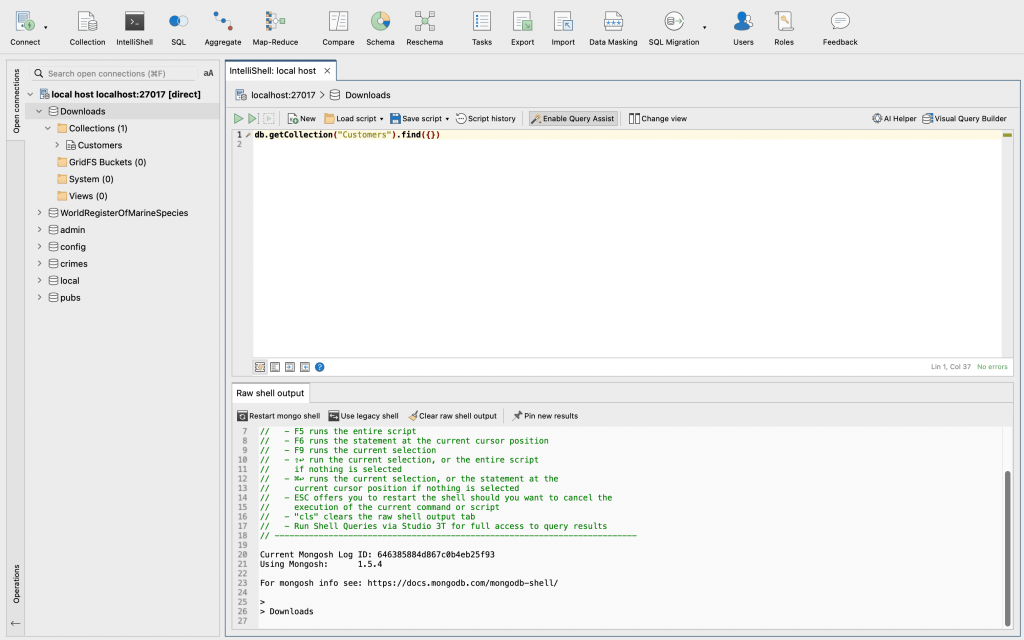
IntelliShell has two main sections: the top Editor section where you can write queries, commands, and scripts, and the bottom result tab section where you can view the shell output.
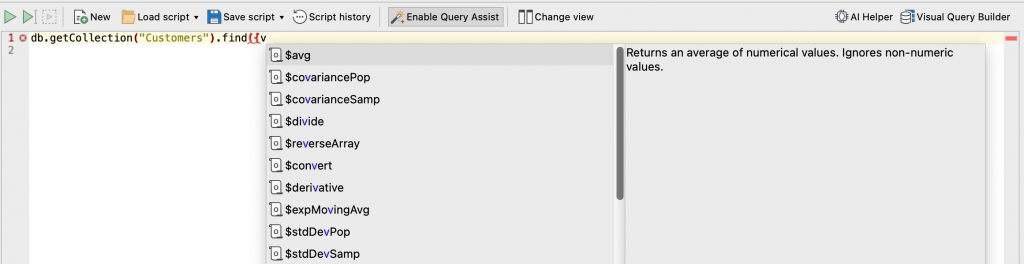
IntelliShell detects and auto-suggests JavaScript standard library functions, shell-specific types and methods, operators, collection names, field names, and shell helper commands as you type.
You can trigger query auto-completion in the following ways:
IntelliShell highlights syntax errors as you type.
These errors are also noted in the left-hand sidebar as red crosses that you can hover over, and in the right-hand script overview ruler as clickable red markers that take you straight to the error line.
In Studio 3T, you can write queries with date tags, a shorthand way of querying a date field with a time range, for example today or last week. When Studio 3T runs the query, it converts the date tag into a range using the greater and less than operators, for example:
"registered_on": #today
is expanded into:
Learn more about Date Tags, including a list of all the available date tags.
You can run queries and scripts entirely, at cursor, or just a selection.
To run an entire script:
To run a script at cursor, place the cursor at any top-level statement and:
To run a selection, highlight the part of the query or script you want to run and:
If your query or script contains a destructive command where document data is updated or deleted, or operations such as dropping databases, collections, or indexes, Studio 3T shows a warning that asks you if you want to proceed. You can override these warnings by selecting the Don’t show this message again check box. The setting is persisted across all your IntelliShell tabs, connections, and Studio 3T sessions.
Whenever possible, Studio 3T parses documents and displays them in a tab with the three standard views (Table, Tree, and JSON) but you won’t be able to edit the results.
In the Result tab section, you’ll always find the Raw shell output tab which displays the output of all shell-run commands.
You can run find and aggregation queries in this way but they won’t open editable result tabs. Instead, the results are displayed along with other shell commands and scripts in the Raw shell output tab as you would expect in a real terminal or shell, which means you won’t be able to edit or page through the results.
Query Assist is enabled by default for standalone, top-level find and aggregation queries. This means they are run through Studio 3T instead of the mongo shell.
Query Assist adds functionalities that are not available for shell-run queries, such as the ability to:
1. Run find and aggregation queries that open their own result tabs. Find queries run using Query Assist allow in-place editing.
Assisted queries are clearly labeled in the left-hand sidebar as wand icons, and in the right-hand script overview rulers as clickable yellow markers that take you straight to the query.
Each assisted query opens in a separate, editable result tab, with its line number from the Editor displayed as part of the tab name.
2. Edit results within the tabs, as you normally would in other parts of Studio 3T through the three standard views: Table, Tree, and JSON.
3. Use Query Code to convert your MongoDB query to JavaScript (Node.js), Java (2.x and 3.x driver API), Python, C#, PHP, and Ruby.
4. Use Visual Explain to help optimize performance by seeing how MongoDB executed your query.
Click on the Explain Query button on any result tab. This opens a new Explain tab that shows which steps MongoDB took to run the query.
Query Assist assists only find and aggregation queries – all other scripts and commands are always run in the shell. You can find the results in the Raw shell output tab.
Keep things tidy and choose to keep only the query results you need, by using the Pin on any result tab.
All other unpinned result tabs are cleared with the next execution, be it the entire script or a portion of it.
To format code:
To indent code:
To unindent code:
You can define your Editor tab width preferences under Studio 3T > Preferences > Appearance and behavior > Appearance. The default editor tab width setting is 4 spaces.
You can comment and uncomment with a line comment.
Place the cursor on the line to be made into a comment and:
To save your query so that you can use it throughout Studio 3T or as a JavaScript file:
If you are using Studio 3T’s Team Sharing, you can save your script in a shared folder. You and your team members can access the shared script from the My resources sidebar.
To store the connection and database details with your script, select the Save target details checkbox.
To open saved queries:
AI Helper is Studio 3T’s AI-powered assistant where you can ask questions about your MongoDB data in your native natural language. When you send a question from within IntelliShell to your AI model, Studio 3T responds with a script that contains a MongoDB query. You can use this response as is, or continue developing your script, then run it in IntelliShell.
Learn more about AI-powered query generation and how to set up AI Helper.
Tired of manually typing everything? Try Visual Query Builder – Studio 3T’s drag-and-drop MongoDB query builder – alongside IntelliShell.
To open it, click the Visual Query Builder button in the toolbar.
Any edits that you make in IntelliShell are reflected in Visual Query Builder in real-time, and vice versa. This way, you can skip the command line writing and build queries visually – or combine both ways to work even faster.
This article was originally published by Kathryn Vargas and has since been updated.
Kirsty Burgess
With your consent, we and third-party providers use cookies and similar technologies on our website to analyse your use of our site for market research or advertising purposes ("analytics and marketing") and to provide you with additional functions (“functional”). This may result in the creation of pseudonymous usage profiles and the transfer of personal data to third countries, including the USA, which may have no adequate level of protection for the processing of personal data. Please choose for which purposes you wish to give us your consent and store your preferences by clicking on “Accept selected”. You can find further information in our Privacy Policy.
Essential cookies are strictly necessary to provide an online service such as our website or a service on our website which you have requested. The website or service will not work without them.
Performance cookies allow us to collect information such as number of visits and sources of traffic. This information is used in aggregate form to help us understand how our websites are being used, allowing us to improve both our website’s performance and your experience.
Functional cookies collect information about your preferences and choices and make using the website a lot easier and more relevant. Without these cookies, some of the site functionality may not work as intended.
Social media cookies are cookies used to share user behaviour information with a third-party social media platform. They may consequently effect how social media sites present you with information in the future.