
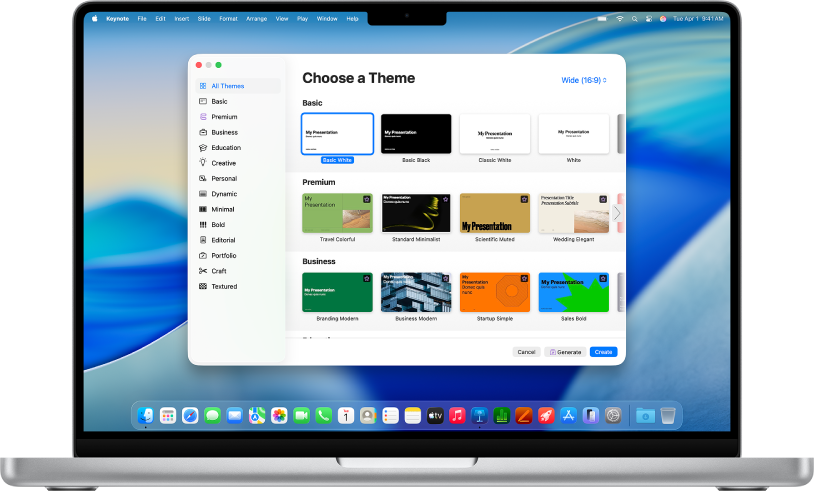
Get started with a theme
All presentations begin with a theme—a set of predesigned slide layouts you can use as a starting point. Replace the theme’s images and text with your own, then add more slides as needed.
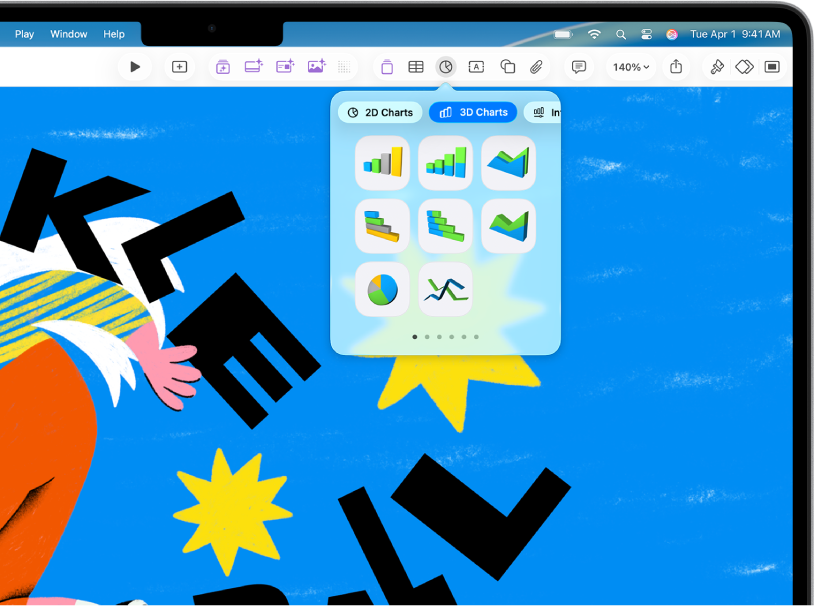
Add text, photos, charts, and more
Add objects like text boxes, tables, charts, shapes, and media (images, audio, and video) to any slide. You can layer objects, resize them, and link them to webpages or other slides in your presentation.
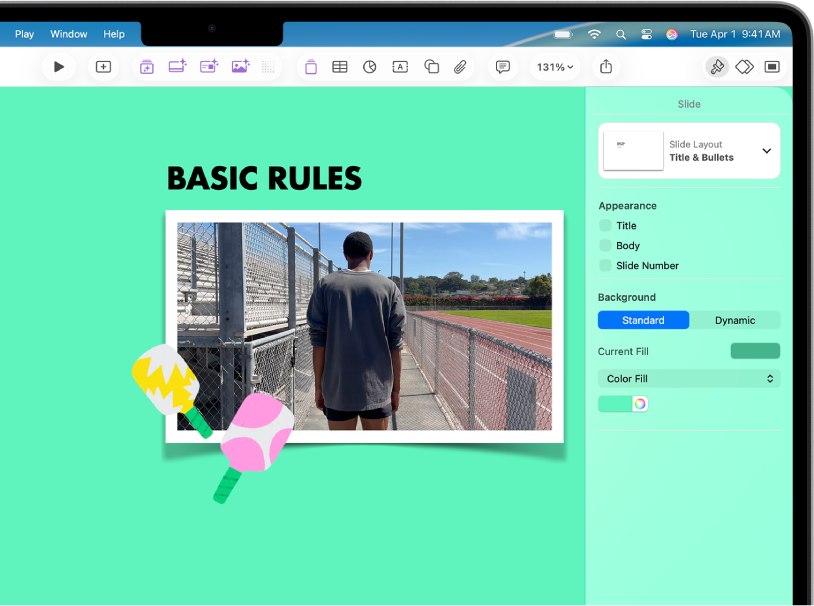
Lights, camera, action
Bring your presentation to life with movies, live video, recorded narration, music, and more.
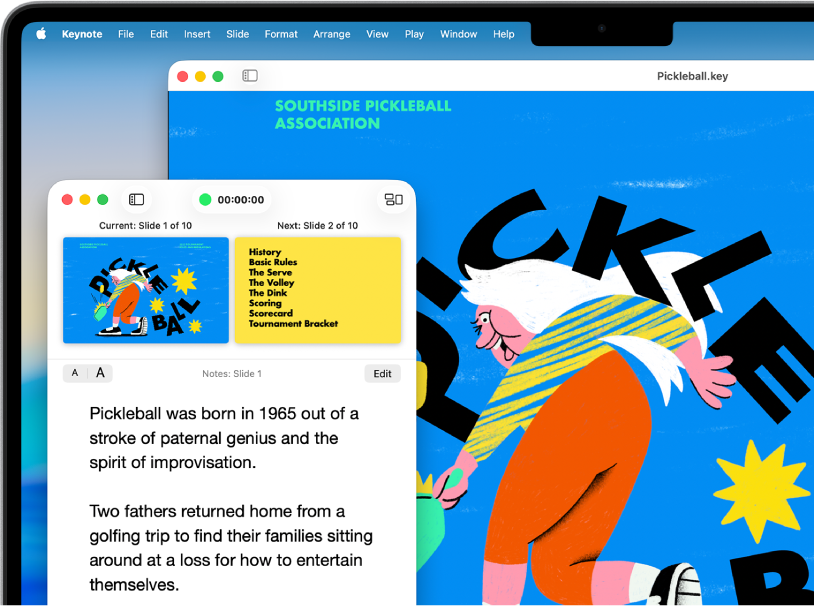
Present in any situation
Play a presentation during a video conference, virtually with multiple presenters, as a movie with recorded narration, and more.
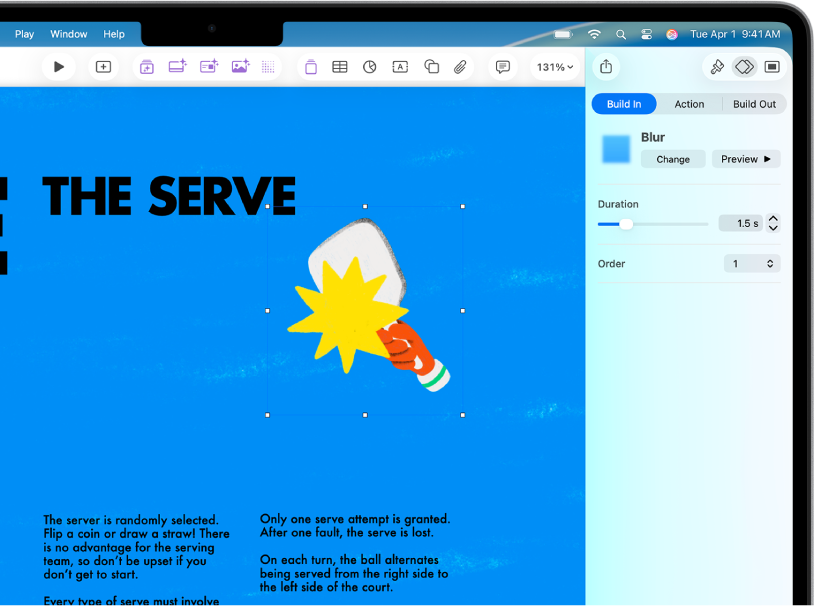
Wow them with animation
Add visual effects or animations to captivate your audience. For example, add a transition so each slide dissolves into the next, or make each word in a title bounce onto the slide.
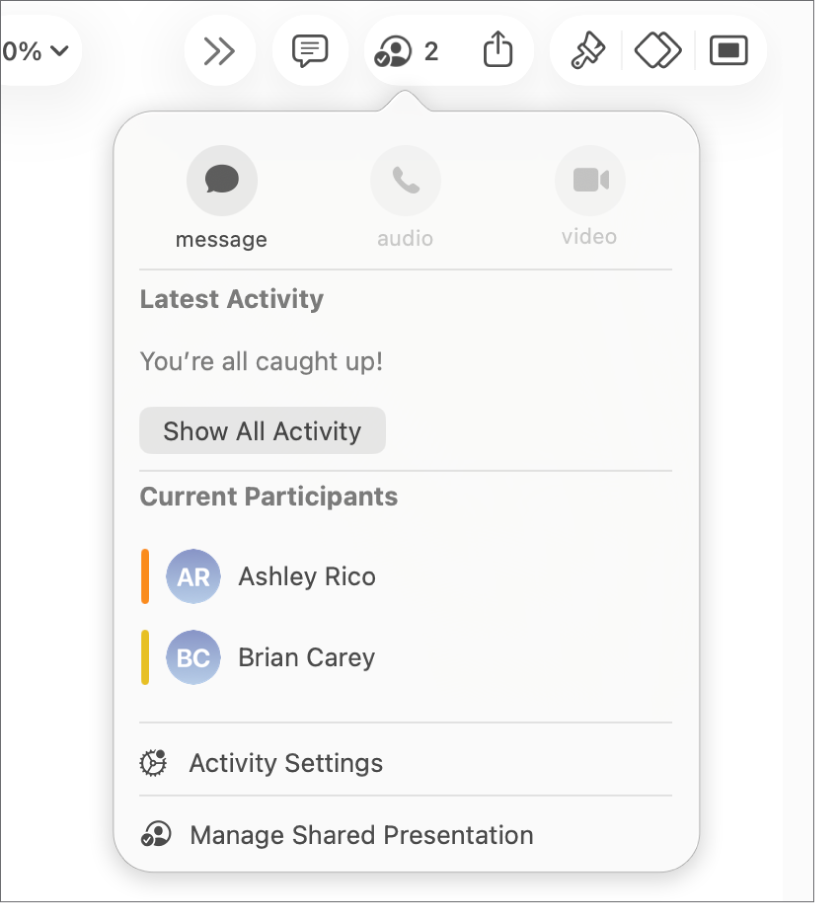
Collaborate in real time
Invite others to work with you on your presentation. Everyone you invite can see changes as they’re made, but you control who can edit or only view the presentation.
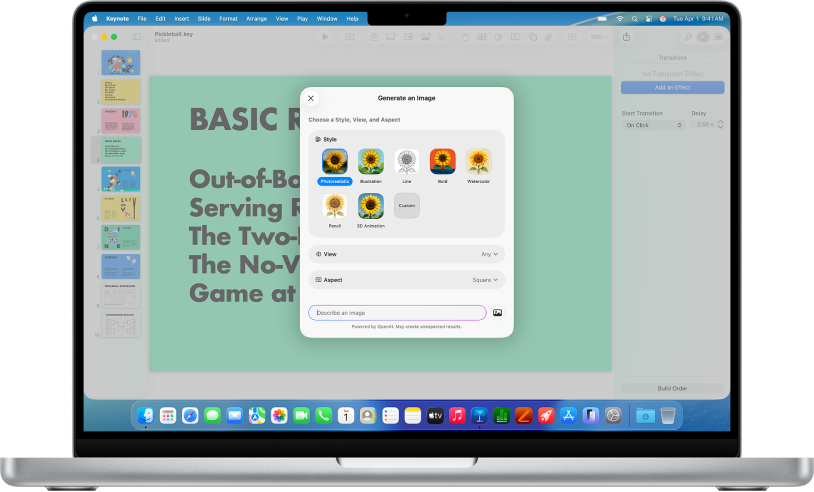
Everything you need in one place
Subscribe to Apple Creator Studio to access a rich library of premium content, plus AI-powered features like autogenerated presenter notes, Slide Clean Up, and photorealistic image generation.
This guide helps you get started using Keynote 15.2 on your Mac. (To see which version of Keynote you have, choose Keynote in the menu bar, then choose About Keynote.) To explore the Keynote User Guide, click Table of Contents at the top of the page, or enter a word or phrase in the search field.
If you need more help, visit the Keynote Support website.