
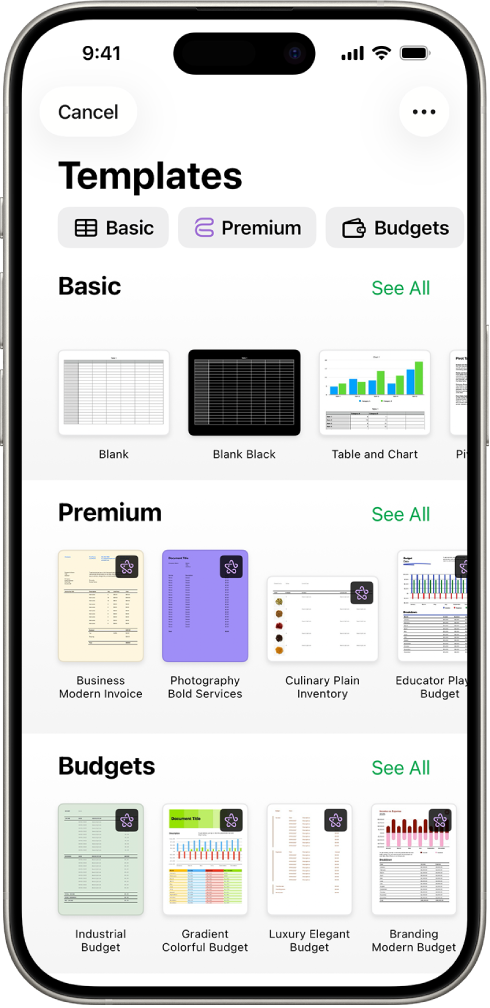
Get started with a template
All spreadsheets begin with a template—a model you can use as a starting point. Replace the template’s charts and data with your own content, and add new tables, formulas, and more.
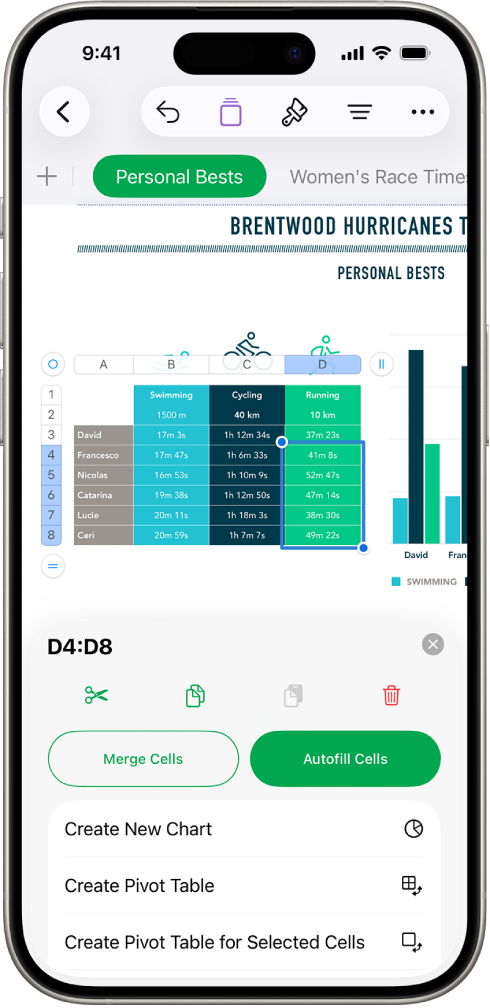
Add data to a table
Enter your own data or import data from another file. You can also add a wide range of formulas, like sum or average, to any cell. To organize your data and identify trends, you can add filters, group data into categories, create pivot tables, and more.
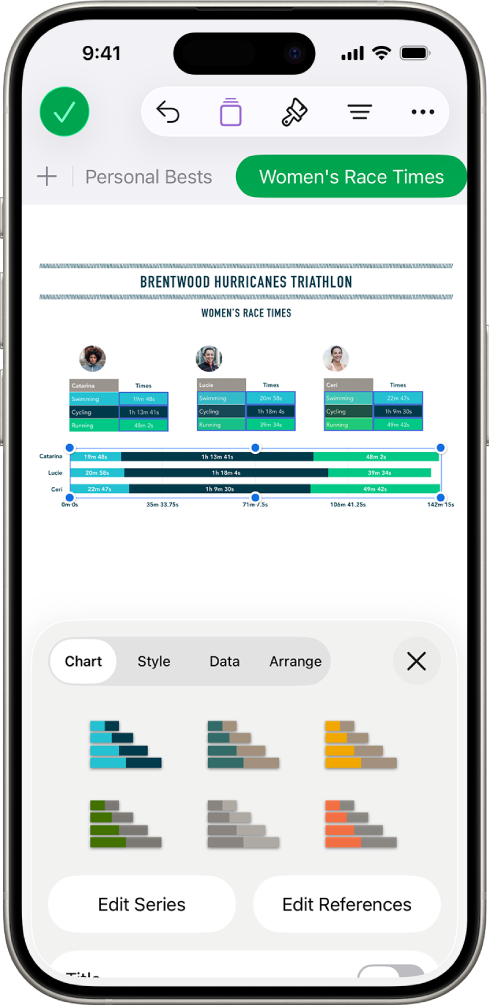
Create a chart
Illustrate your data with a 2D, 3D, or interactive chart. When you make changes to the data in the table, the chart updates automatically.
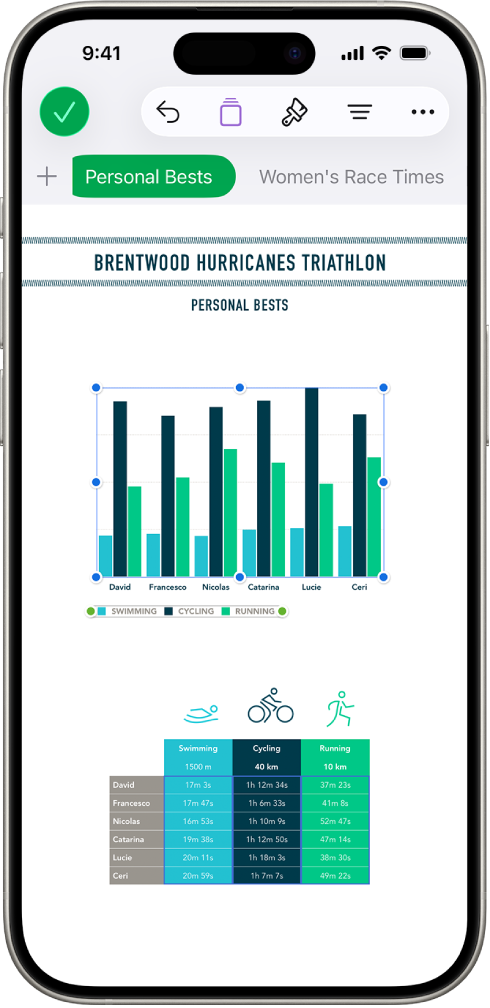
Get organized with sheets
Organize your spreadsheet with different sheets for each type of information you want to track—income, expenses, and so on. Then just tap a tab at the top of the spreadsheet to switch to the sheet you want to see.
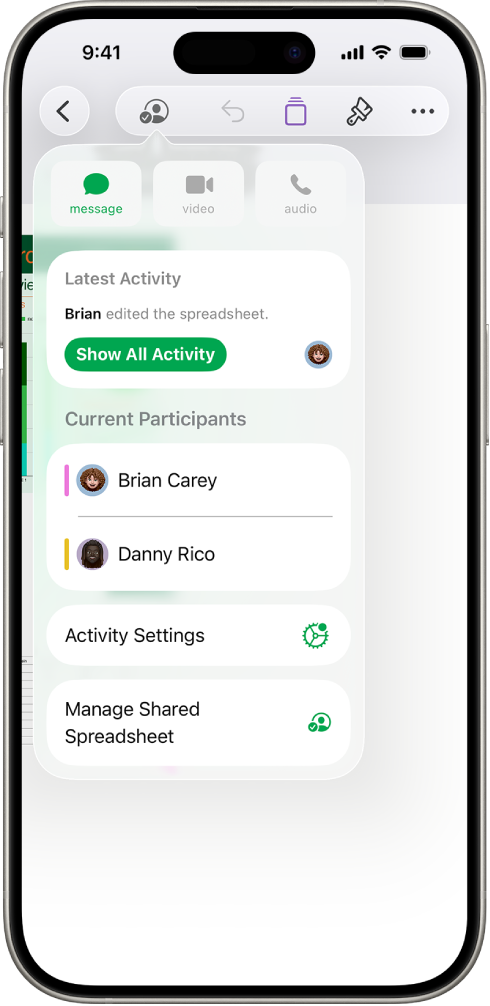
Collaborate in real time
Invite others to work with you on your spreadsheet. Everyone you invite can see changes as they’re made, but you control who can edit or only view the spreadsheet.

Everything you need in one place
Subscribe to Apple Creator Studio to access a rich library of premium content, plus AI-powered features like Magic Fill and photorealistic image generation.
This guide helps you get started using Numbers 15.2 on your iPhone. (To see which version of Numbers you have, go to Settings 👁 Image
> Apps > Numbers.) To explore the Numbers User Guide, tap Table of Contents at the top of the page, or enter a word or phrase in the search field.

If you need more help, visit the Numbers Support website.