
Modifying this control will update this page automatically

Get started with Safari on Mac
Use Safari on your Mac to browse websites and find almost anything on the web. Here’s how to get started.
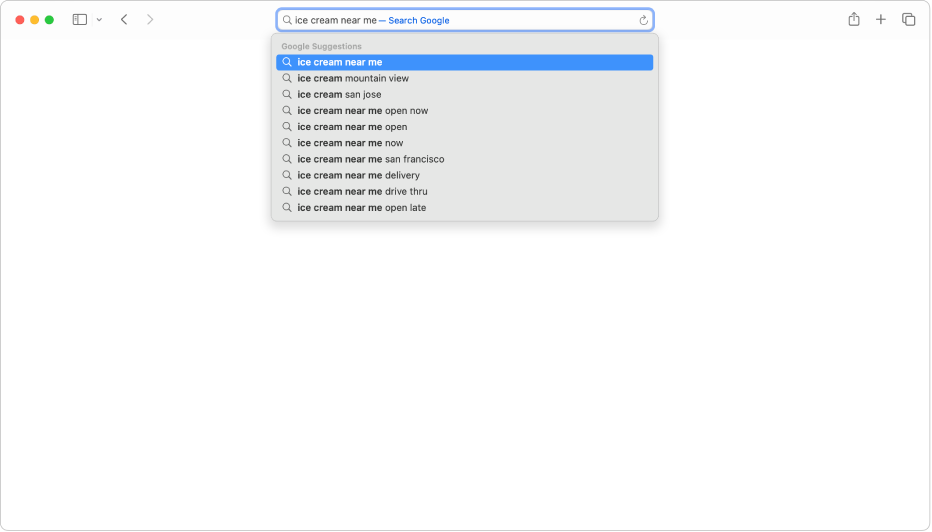
Search for information
You can use the Smart Search field at the top of the Safari window to search the web for almost anything. Enter what you’re looking for—like “ice cream near me”—then click one of the search suggestions that appear.

Go to a website
You can also use the Smart Search field at the top of the Safari window to visit a website. Just enter its name or web address.
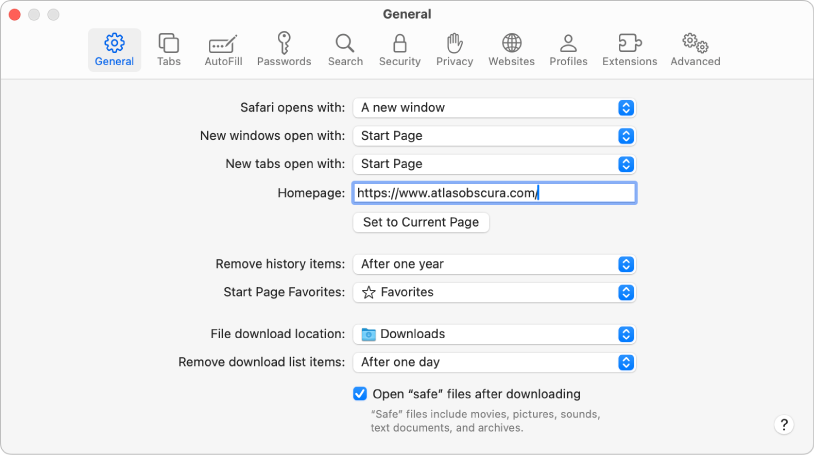
Choose a homepage
If you like to visit a website often, you can make it your homepage and have it appear whenever you open a new Safari window. Choose Safari > Settings, click General, then enter a webpage address (or click Set to Current Page to choose the webpage you’re currently viewing).



Want to learn more?